Best FAQ Templates 2026: 10 KB Tools Compared
Updated May 2026 with new comparison matrix, KB terminology glossary, and AI-search-optimized definitions.
The Evolution of Knowledge Management in 2026
In 2026, a static Frequently Asked Questions (FAQ) page is no longer enough. For customer support teams—whether in fast-moving SaaS or complex manufacturing—the knowledge base has transformed from a dusty archive of PDF manuals into a dynamic, AI-powered engine of self-service. The goal is no longer just to document answers, but to deliver them instantly to customers before they ever log a ticket, and to guide agents through complex troubleshooting with verified precision.
However, finding the right platform to house this collective intelligence is a challenge. The market is split between flexible all-in-one workspaces that encourage collaboration, dedicated documentation platforms built for strict governance, and full-stack help desks that tie every article directly to a support ticket. Choosing the wrong tool can lead to information silos and outdated answers, while the right one becomes the backbone of your support automation strategy.
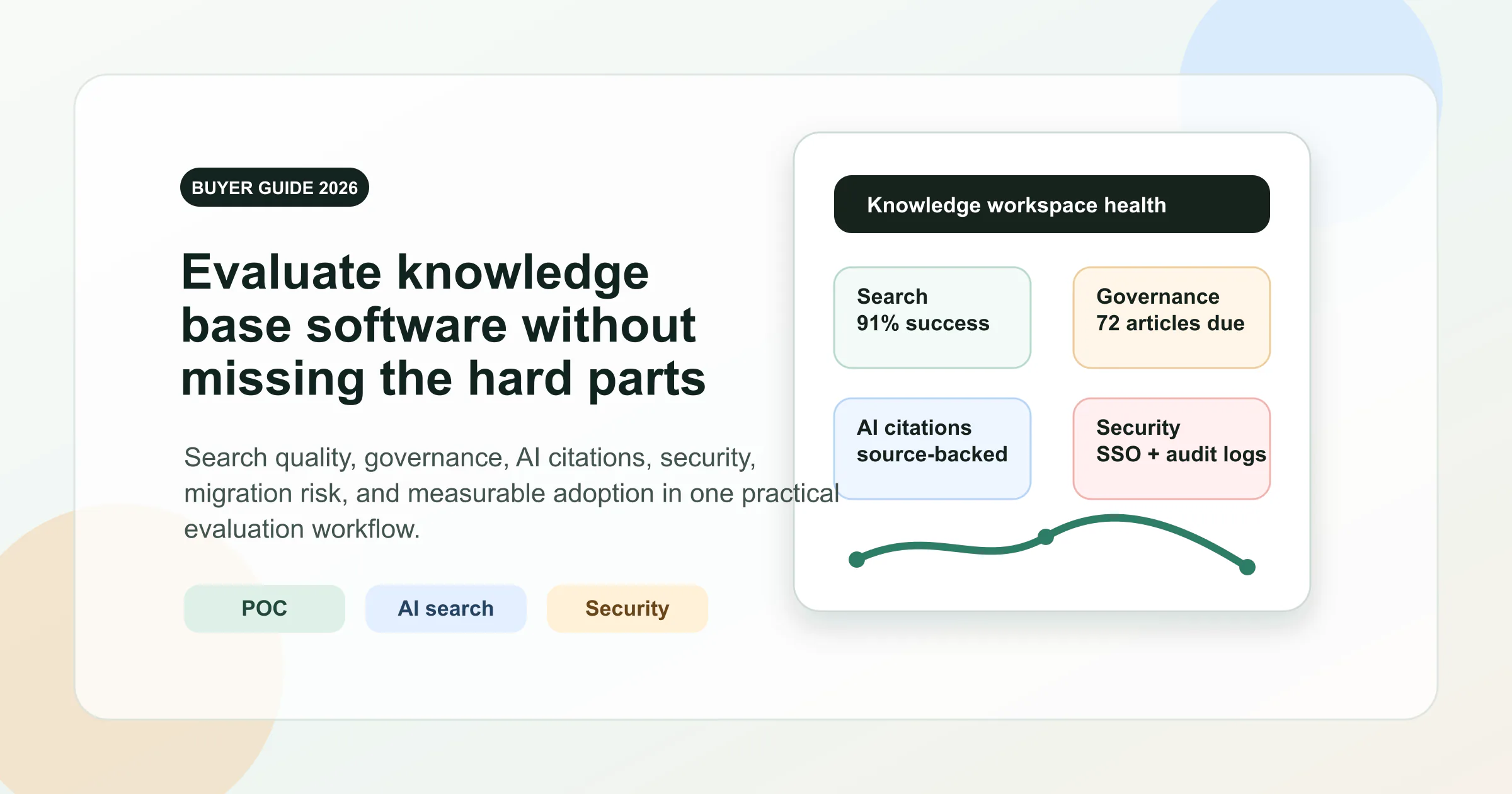
In this guide, we explore the 10 best FAQ templates and knowledge base tools available in 2026. From the whiteboard-to-docs fluidity of AFFiNE and the enterprise rigor of Zendesk to the verified speed of Guru, we analyze how these platforms handle structure, search, and scale. Whether you are building a public help center or an internal standard operating procedure (SOP) library, here is how to select the right foundation for your team. If you are still designing the structure behind that help center, this knowledge base blueprint shows how to organize the rollout before you publish, and this knowledge base software buyer’s guide helps you evaluate the tooling layer behind it.
Quick recommendations
If you want the short version before reading the full comparison, start here:
• Best for flexible FAQ design and collaborative drafting: AFFiNE
• Best for enterprise ticketing plus knowledge base in one stack: Zendesk Guide
• Best for lean, writing-first public help centers: Help Scout Docs
• Best for in-app self-service and support automation: Intercom Articles
• Best for highly structured standalone documentation: Document360
• Best for internal SOPs and cross-team wiki workflows: Confluence
• Best for flexible pre-publish knowledge operations: Notion
• Best for verified answers inside agent workflows: Guru
• Best for branded standalone help centers with strong search: Helpjuice
• Best for teams already standardizing on a suite help desk: Zoho Desk
10 Tools at a Glance
| Tool | Best For | Pricing Model | Free Tier | Built-in Search | AI Features | SEO Controls |
|---|---|---|---|---|---|---|
| AFFiNE | Flexible FAQ design and collaborative drafting | Free option + paid plans | Yes | Workspace search | AI partner for drafting | Publishable pages and manual structure |
| Zendesk Guide | Enterprise ticketing plus knowledge base | Contact vendor | Not specified | Help Center and agent-side search | AI agents, article recommendations, triage | Help Center structure, labels, related articles |
| Help Scout Docs | Lean, writing-first public help centers | Contact vendor | Not specified | Prominent search and type-ahead | AI-powered editing tools | Metadata, related articles, accessible media |
| Intercom Articles | In-app self-service and support automation | Contact vendor | Not specified | Messenger Help Space search | Fin, Copilot, bots, workflows | Audience rules and help center content |
| Document360 | Structured standalone documentation | Contact vendor | Not specified | Analytics-backed portal search | AI-assisted documentation support | Redirects, metadata, canonical planning |
| Confluence | Internal SOPs and cross-team wiki workflows | Free option + paid plans | Yes | Livesearch and labels | Marketplace and workspace AI options | Internal labels and linked source pages |
| Notion | Flexible pre-publish knowledge operations | Free option + paid plans | Yes | Database and page search | Workspace AI and template assistance | Manual sitemap and wrapper SEO |
| Guru | Verified answers inside agent workflows | Contact vendor | Not specified | Card search in browser and Slack | AI-suggested owners and assist | Limited public SEO; workflow-first |
| Helpjuice | Branded standalone help centers with strong search | Contact vendor | Not specified | Forgiving search and analytics | AI content creation and search analysis | Clean URLs, canonicals, hub pages |
| Zoho Desk | Suite help desk knowledge base | Contact vendor | Not specified | Help Center KB search | Suite automation and assistant features | Tags, TOC, update signals |
How we evaluated these tools
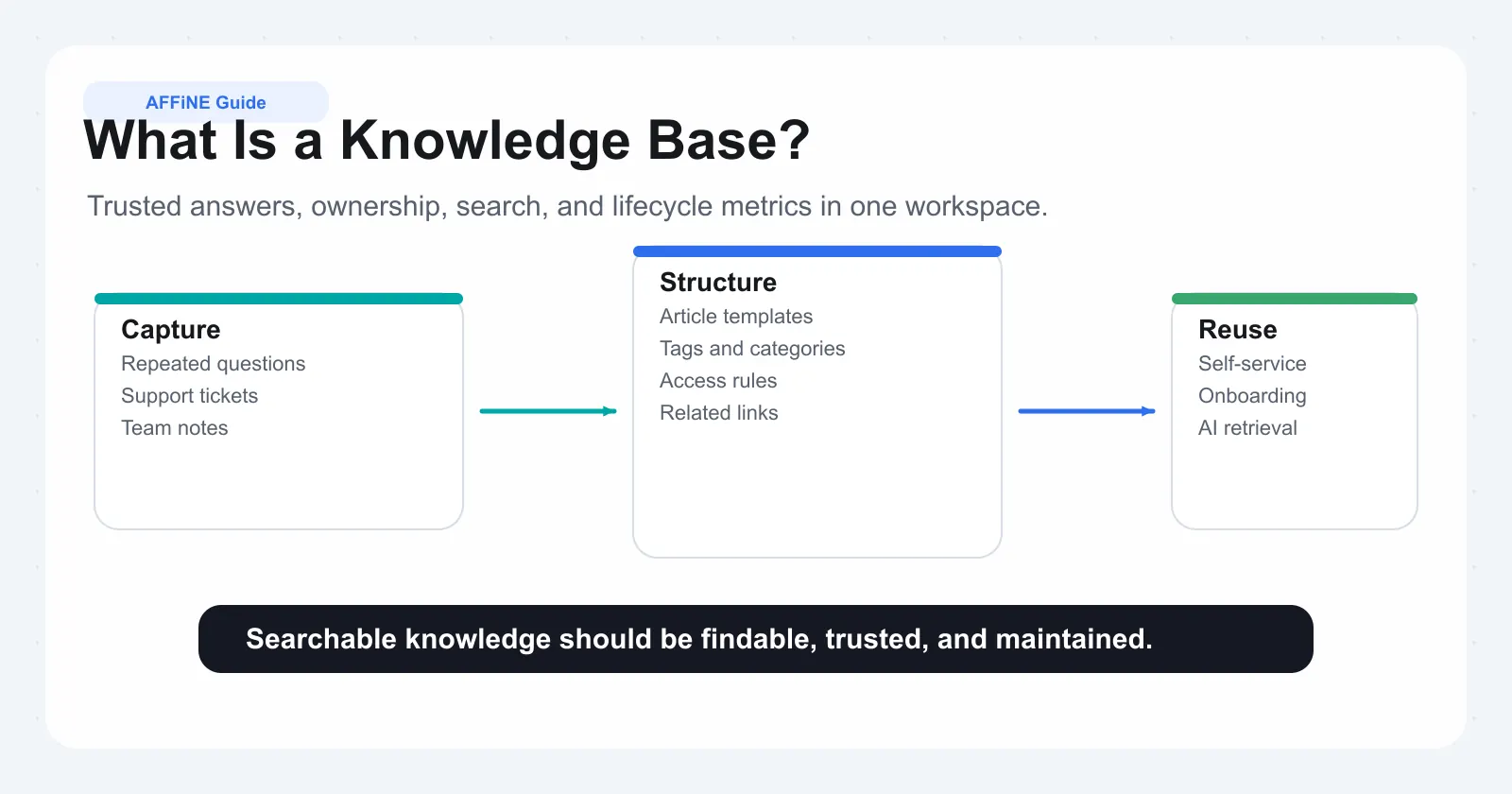
Definition: Knowledge base software is a system for creating, organizing, searching, and maintaining reusable support information. It usually combines article authoring, categories, permissions, analytics, and review workflows so customers or agents can find approved answers quickly without starting from scattered documents.
Before you commit to any platform, compare it against five practical signals that matter most in customer support:
-
Search quality – Can customers and agents find the right answer quickly?
-
Governance and ownership – Can you assign owners, reviewers, and update cadences without confusion?
-
AI readiness – Can the content safely support AI search, assistants, or automated replies?
-
Migration effort – How hard is it to move from scattered docs, PDFs, tickets, or another platform?
-
Reporting depth – Can you see search gaps, article performance, and real self-service impact?
A tool may look feature-rich on paper, but if answers are hard to find, hard to verify, or hard to maintain, it will not reduce ticket volume for long. Use that lens throughout this guide. The strongest options are not just the ones with the longest feature lists, but the ones that help your team keep answers accurate, reviewable, and easy to reuse as products, policies, and support workflows evolve.
Knowledge Base Terminology Glossary
-
Knowledge Base: A knowledge base is a centralized library of approved support information, such as FAQs, troubleshooting guides, policies, release notes, and internal procedures. In customer support, it helps customers self-serve and helps agents reuse consistent answers instead of rewriting guidance from memory.
-
FAQ Template: An FAQ template is a repeatable content format for documenting common questions, direct answers, categories, ownership, and related resources. It helps teams standardize how answers are written, reviewed, and published so customers can scan predictable sections across a help center.
-
Help Center: A help center is a customer-facing support destination that usually combines search, categorized articles, contact options, and sometimes community or chatbot features. It gives users a single place to look for product guidance before opening a support ticket or contacting an agent.
-
Self-Service Portal: A self-service portal is an authenticated or public support area where users can search articles, submit requests, track cases, download resources, and update account information without direct agent help. It reduces repetitive ticket volume when the content and workflows stay current.
-
In-App Help: In-app help is assistance delivered inside the software interface through widgets, embedded articles, tooltips, product tours, or contextual search. It is designed to answer questions at the moment of use, while preserving escalation paths when self-service content does not resolve the issue.
-
Article Versioning: Article versioning is the practice of recording changes to support content over time, including edits, approvals, rollbacks, and publication states. It helps teams audit what changed, recover previous instructions, and manage separate documentation for different products, regions, or release cycles.
-
Single Source of Truth: A single source of truth is the designated canonical location for a specific answer, policy, or procedure. Support teams use it to prevent duplicate documents, conflicting macros, and outdated internal notes, especially when AI assistants, agents, and customer-facing articles reuse the same content.
Option 1 AFFiNE interactive KB builder
Definition: An FAQ template is a reusable article structure for common questions, concise answers, categories, and follow-up links. It gives support teams a repeatable format for publishing consistent self-service content while leaving room for product-specific examples, screenshots, ownership notes, and review reminders.
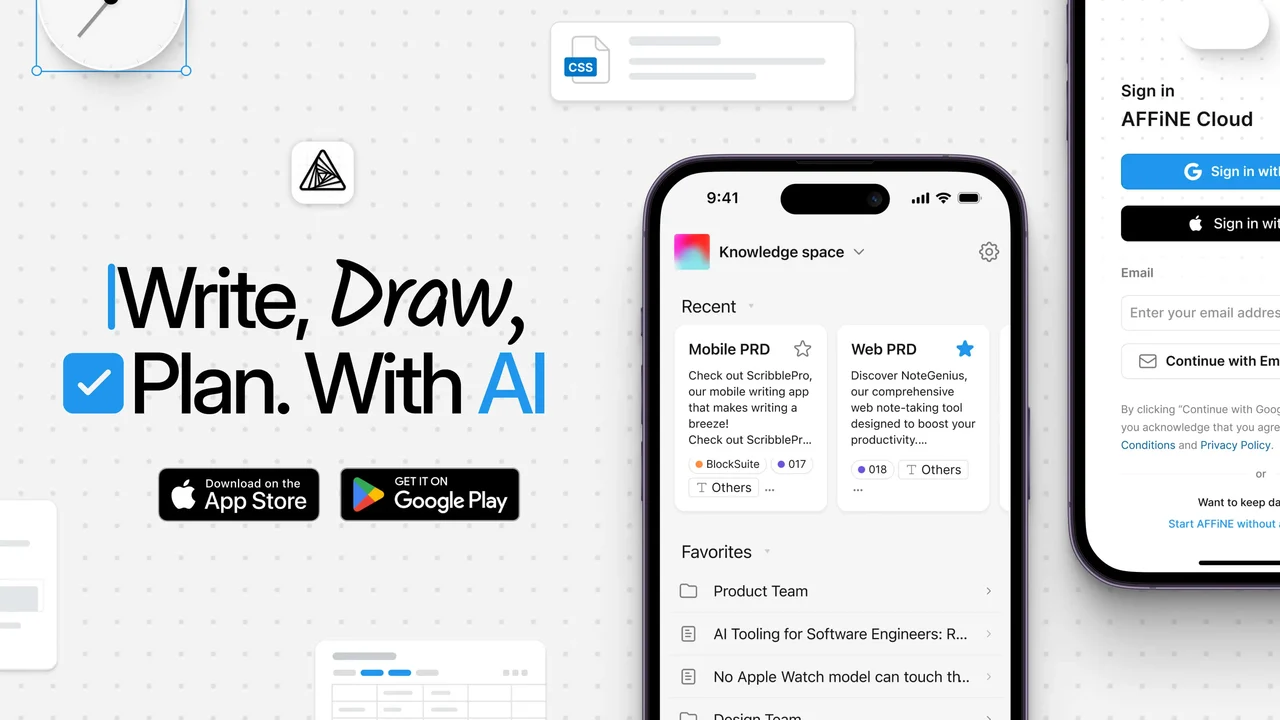 When you think about the best knowledge base software for 2026, you probably want two things at once: the speed of a simple doc and the structure of a serious help center. That is exactly where AFFiNE’s all‑in‑one workspace stands out for FAQ design and customer support knowledge bases.
Best for: Teams that want to draft, map, and publish FAQ content in one workspace without separating docs from planning.
Not ideal if: You need native ticket routing, SLA enforcement, or a tightly coupled support suite out of the box.
Standout features for FAQ and KB structure
AFFiNE is easier to get comfortable with than its all-in-one positioning suggests. AFFiNE merges docs, whiteboards, and databases into a single, "hyper‑fused" workspace, so you draft, diagram, and structure FAQs without jumping between tools. For teams comparing the best knowledge base tools, this blended approach is especially useful when you are still shaping support flows and article layouts.
For customer‑facing FAQs and knowledge base tools, a few capabilities matter most:
• Hybrid Page and Whiteboard modes – Brainstorm question flows on a whiteboard, then turn them into clean, page‑based articles.
• Block‑based editing – Build content as reusable blocks, ideal for shared disclaimers, repeated steps, or policy snippets.
• Collapsible blocks and nested lists – Create interactive FAQ sections where long answers fold into simple headings, keeping pages scannable.
• Ready‑to‑use templates – Start from structured FAQ and documentation templates instead of a blank page, then adapt to your products and processes.
• AI partner for drafting – Use the built‑in AI to normalize tone, simplify wording, and keep answers consistent across your help center.
If you want a quicker start, you can browse the official templates gallery at AFFiNE templates and pick a FAQ or documentation layout that matches your support model. This is especially helpful if you want to compare documentation approaches and see how a workspace‑driven model differs from traditional ticket‑centric tools.
Implementation and migration notes
When you move from scattered docs or email replies into a structured FAQ operation, a lightweight plan prevents chaos. Whether you are starting from scratch or from a mix of PDFs, slides, and past tickets, the goal is to reach a maintainable structure quickly rather than migrate everything at once.
Use this simple onboarding checklist to roll out AFFiNE as your best knowledge base foundation:
-
Model your top‑level taxonomy – Define 3–5 core categories such as Getting Started, Account & Billing, Product Features, Troubleshooting, and Policies.
-
Create a central "Help Center" workspace – Add a main Page that serves as your hub, with links to each FAQ category.
-
Import existing content – Copy key answers from legacy docs, wiki pages, or PDFs into AFFiNE pages so they can be refined and standardized.
-
Refactor into collapsible sections – Turn long explanations into expandable blocks, then break steps into nested lists for easier scanning.
-
Connect to your site or app – Publish selected pages as your customer‑facing FAQ or link them from your current support portal.
Keep one canonical article per question, and always edit the original instead of duplicating content.
If you are coming from a free tier on another documentation platform, resist the urge to migrate everything. Start with your top 50–100 questions by ticket volume; then iterate. This keeps AFFiNE focused on high‑impact self‑service content while you gradually backfill less common topics.
Best use cases and governance tips
AFFiNE is most effective when you need a flexible workspace that can grow from internal planning to public‑ready documentation. It fits particularly well if you are looking for the best knowledge base software that supports brainstorming, system design, and polished publishing in one place.
Strong fits include:
• Public FAQ hubs – Organize high‑volume questions into category pages, each with collapsible answers and links to deeper guides.
• Product onboarding checklists – Combine step‑by‑step checklists, diagrams, and embedded media on a single Page for new users.
• Release‑note archives – Maintain a running log of product changes with nested lists per release; collapse older sections to keep the page light.
• Internal support playbooks – Draft macros, call flows, and troubleshooting trees on whiteboards before turning them into agent‑facing runbooks.
To keep this living knowledge base healthy, you will need simple but explicit governance. Track each article’s accountable owner, approval reviewer, and next scheduled review in metadata or internal notes, rather than making them public headings that pollute the article outline.
Then, keep a central "Help Center Change Log" Page that links to each significant edit. When policies or features change, you will have a visible history and a quick way to audit what was updated.
If you later add an AI assistant or retrieval‑augmented search on top of AFFiNE, document two things clearly:
• What content is allowed into the vector store or search index.
• Which spaces or pages must stay private and never be used for AI training.
Until then, you can still use AFFiNE’s AI for local drafting and rely on manual curation: reusing high‑performing snippets, consolidating duplicate answers, and tagging reusable blocks across your FAQ pages.
Pros and Cons
Pros
• All‑in‑one workspace that merges docs, whiteboards, and planning, ideal for structured FAQs.
• Interactive collapsible blocks and nested lists for long, complex troubleshooting content.
• Large library of ready‑to‑use templates that accelerates building a best knowledge base.
• AI assistance for drafting and refining answers, improving consistency across articles.
• Privacy‑focused, local‑first design, with the option to self‑host for full data control (AFFiNE docs).
Cons
• Teams new to all‑in‑one workspaces may need time to design their ideal FAQ structure.
• Requires upfront taxonomy and governance decisions to avoid sprawl over time.
• Not a traditional ticketing system, so you will pair it with separate support tooling if you need advanced SLAs.
If you are trying to compare knowledge base software options for 2026, AFFiNE is worth placing at the top of your shortlist when collaboration, structure, and interactive FAQ layouts matter more than deep ticket automation. It gives you a flexible, open workspace to design a FAQ knowledge base software stack that can evolve with your products and your support team.
Option 2 Zendesk Guide enterprise knowledge base
When your support operation depends on tight handoffs between tickets, SLAs, and self-service, Zendesk Guide (which powers the Help Center as part of Zendesk Knowledge) becomes a natural candidate for your customer support knowledge base. It is designed to work hand-in-hand with Zendesk Support, so your help desk knowledge base software and ticketing sit on the same spine.
Best for: Support organizations that already run high-volume service through Zendesk and want knowledge, automation, and ticketing in one operating layer.
Not ideal if: You want a lightweight writing-first tool or a standalone portal without suite-level setup overhead.
Why choose Zendesk for KB
For high-volume teams handling email, chat, phone, and social in one place, that integration matters. With Zendesk, the same platform that manages your tickets also powers your Help Center, community, and self-service flows. This is a major advantage when you want your support platform fully synchronized with SLAs and routing rules.
Key reasons teams pick Zendesk as their enterprise knowledge base software include:
• Single platform for tickets and content – Zendesk Support runs the back end; Zendesk Knowledge exposes FAQs, guides, and request forms on the front end.
• Integrated channels – Email, web forms, chat, social, and voice all feed into one workspace, so agents can pivot between tickets and articles without switching tools.
• Self-service first – Features like autoreplies and article suggestions can recommend existing help content before a human ever touches the ticket.
• Analytics built in – The Zendesk Knowledge dashboard and Explore reports help you track views, searches, and ticket deflection, so your knowledge strategy is data-driven.
If you are also comparing call center knowledge base software, call center guide resources can help clarify how you manage telephony, IVR, and escalation flows alongside self-service content.
Authoring and permissions
Zendesk’s authoring and permission model is layered, but the logic is straightforward: user access, roles, and user segments.
• End-user access – Admins define whether your Help Center is open, closed, or restricted, and how people authenticate. These settings live in Zendesk Support but control who sees your knowledge base.
• Roles – Agents start as Knowledge Viewers. Admins can upgrade them to Knowledge admins with full management rights, or create custom roles on higher tiers.
• User segments – Segments use tags, organizations, and groups to define who can view or edit specific content. Each article can have a visibility and a management segment, which is ideal when you run both public docs and internal-only articles from the same instance.
On Enterprise plans, Team Publishing adds structured workflows for drafting, reviewing, and approving content, so you can treat Zendesk as serious enterprise knowledge base software instead of a loose collection of articles.
Use cases and staged rollout plan
When you rely on Zendesk as both ticketing and KB, you are effectively implementing a full customer support management software stack. To keep rollout manageable, you should phase it rather than flipping everything on at once.
Common use cases where Zendesk Guide works especially well:
• High-volume B2C or SaaS support – Deflect “how do I…” tickets with short articles and AI-powered suggestions.
• Multi-brand help centers – Separate branded Help Centers with different domains, themes, and content for each brand, all managed from one admin console.
• Blended internal and external docs – Public FAQs for customers plus internal procedures, escalation guides, and macros for agents.
Here is a simple four-step rollout that aligns with how Zendesk recommends launching self-service:
-
Pilot category – Start with one category like Getting Started or Billing. Inventory related tickets, group common questions, and draft articles that directly answer them.
-
Agent workflow training – Teach agents to search Knowledge from the context panel, link articles in replies, and flag gaps for new content.
-
Publish and promote – Open the Help Center, link it from your website and email signatures, and enable autoreplies with article recommendations.
-
Iterate based on data – Use Explore and the Knowledge dashboard to see which searches fail, which articles lead to tickets, and where new content is needed (Zendesk).
Over time, that staged approach lets you evolve Zendesk into a mature customer support knowledge base without overwhelming authors or admins.
SEO, discoverability, and governance
When you use Zendesk as part of your broader customer service tools stack, you still need basics like clear structure, governance, and a plan for AI.
• Structure and SEO – Keep a consistent H1/H2 pattern, write short intros that state the problem, and add “related articles” links to boost dwell time and reduce pogo-sticking from search.
• Search tuning – Use labels and clear titles based on the phrases customers actually type. This improves both Help Center search and agent-side article suggestions.
• Governance – Define an approver per category, align reviews with your product release cadence, and maintain an archive section for deprecated content instead of deleting it outright.
• AI and automation – Zendesk’s AI agents, article recommendations, triage, and macro suggestions all work best when they rely on vetted content. Use only approved KB articles and macros as training sources, and avoid learning directly from private tickets unless your data and privacy policies explicitly allow it.
If you later decide to compare knowledge base software or layer in additional AI tooling, this governance will make migration and integrations far less painful.
AFFiNE vs Zendesk Guide — which to choose
Choose AFFiNE if your team is still designing the FAQ taxonomy, drafting reusable answers, and mapping support flows before publishing. It gives you a lighter workspace for docs, whiteboards, templates, and collaborative planning before content becomes operational. Choose Zendesk Guide if tickets, SLAs, agent routing, multi-brand Help Centers, and self-service analytics already run through Zendesk. In that case, the tighter operational fit matters more than flexible pre-publish authoring.
Pros and Cons
Pros
• Tight integration between ticketing, SLAs, channels, and knowledge base in one platform.
• Flexible access model with open, closed, or restricted Help Center and granular user segments.
• Team Publishing and custom roles on higher plans support complex review workflows.
• Strong analytics for article performance, search failures, and self-service effectiveness.
• Scales well for multi-brand and multilingual Help Centers with centralized administration.
Cons
• Setup and governance can feel heavy for small teams compared with lighter knowledge base tools.
• Advanced AI features and some publishing workflows require higher-tier plans and add-ons.
• Authoring UX is more structured than writing-first tools, which may slow non-technical contributors.
As you move on to lighter, writing-first platforms like Help Scout Docs, you will notice how different tools balance depth, simplicity, and integration. Understanding Zendesk’s strengths in end-to-end customer service system software helps you decide whether you need a tightly coupled suite or a more standalone help center in your 2026 stack.
Option 3 Help Scout Docs lean help center
When you want a fast, self-service hub that feels as easy to write in as a blog, Help Scout Docs gives you a focused, writing-first knowledge base for customer support. It pairs naturally with Help Scout’s shared inbox and Beacon widget, but it also works on its own as a clean, public help center.
Best for: Lean support teams that want a clean public help center with low authoring friction and simple governance.
Not ideal if: You need heavy enterprise permissions, deeply layered taxonomy, or advanced suite-wide workflow controls.
Where Docs fits best
For a growing support team whose answers still live across inboxes and internal docs, Docs fills a very specific gap. You do not need a heavy enterprise suite; you need a simple, branded online knowledge base that lets customers help themselves 24/7. That is the gap Docs is designed to fill.
Based on Help Scout’s own implementation, Docs works especially well when you need:
• A dedicated help site – Docs lets you publish a public support website with your logo, colors, and even a custom domain such as support.yourdomain.com.
• Clear structure as you scale – Content is organized into collections, categories, and articles, so your help center can grow without turning into a maze.
• Strong search out of the box – A prominent search bar and type-ahead suggestions help people jump straight to relevant answers.
• Embedded help in your product – Beacon can surface Docs articles and AI-powered answers inside your app, giving customers context-sensitive help without opening a new tab.
Because Docs is tightly connected to the Help Scout inbox, it acts as a lightweight but effective knowledge base application for teams that anchor support workflows in email.
Authoring workflow
Writing in Docs feels familiar almost immediately. Help Scout built it as a WYSIWYG editor with AI-powered editing tools, so you can format, insert media, and refine copy without writing code.
A simple end-to-end authoring flow looks like this:
-
Draft the article – Use the editor to write a clear answer. Add headings, step-by-step lists, and screenshots or GIFs where they reduce confusion.
-
Apply structure – Assign the article to the right collection and category. This places it within your overall site navigation.
-
Set visibility – Mark content as public or private. Private articles are only visible to Help Scout users, which is useful for internal procedures.
-
Connect to conversations – From the conversation editor’s shortcut menu, search for relevant articles and link them directly in replies without leaving the inbox (Help Scout Docs).
-
Collect feedback – Turn on article satisfaction ratings so customers can quickly indicate whether a page was helpful.
You will notice this workflow lowers friction for subject-matter experts. They can write, format, and publish quickly, which is critical when you are building a lean knowledge base integration alongside your support queue.
Simple information architecture from day one
To prevent your help center from becoming cluttered, start with a minimal but clear information architecture and expand as you learn from real usage.
-
Getting Started – Short guides for new users, basic setup, and first-use checklists.
-
Using the product – Core feature guides, organized by major workflows.
-
Billing & account – Subscriptions, payments, refunds, and account changes.
-
Troubleshooting – Error messages, performance issues, and configuration problems.
Docs’ collections and categories map neatly to this structure. As your online knowledge base grows, you can split large categories into more focused ones rather than reworking everything from scratch.
KB SEO checklist
Because your help center often ranks high for branded searches, treating Docs as a real knowledge base service includes some basic SEO hygiene. Here is a practical on-page checklist you can reuse:
• Titles for intent – Write article titles in the exact language customers use, like "How to reset your password" rather than "Authentication management".
• Scannable structure – Use headings, short paragraphs, and numbered steps so readers can find the one action they care about in seconds.
• Search-first layout – Keep a prominent search bar, and use category descriptions to explain what lives where, reducing back-and-forth clicks.
• Internal linking – Add "Related articles" links at the end of each page to guide readers to next steps or deeper explanations.
• Consistent metadata – Use clear meta descriptions that summarize the problem and promise a concrete outcome.
• Accessibility – Add alt text to screenshots and use descriptive link text, which helps both search engines and screen readers.
Remember that a strong knowledge base for customer support is not just about ranking; it is about answering questions quickly enough that customers do not need to contact your team at all.
Governance and ongoing improvement
Docs makes it easy to publish; governance keeps that speed from creating chaos. A light, repeatable process works well:
• Expose ownership – Add a short "Owner" and "Last reviewed" line to the top or bottom of each article, so it is always clear who maintains it.
• Monthly fix-it sprint – Once a month, review articles with low satisfaction ratings or outdated screenshots and update or consolidate them.
• Archive duplicates – When you merge content, redirect or de-emphasize older versions so search results stay clean.
• Leverage signals – Use search queries, failed searches, and article ratings from Docs as a continuous backlog of topics to improve next.
This rhythm turns Docs into a living knowledge base application that gets better every month instead of a static FAQ page that rots over time.
Pros and Cons
Pros
• Writing-first WYSIWYG editor with AI assistance and media support, no coding required.
• Three-tier structure (collections, categories, articles) that scales as your library grows.
• Deep integration with Help Scout’s shared inbox and Beacon for in-app self-service.
• Flexible visibility with both public and private collections for mixed internal and external content.
• Customizable branding and domains so your help center feels like a natural part of your site.
Cons
• Best suited to teams already using or willing to adopt Help Scout’s ecosystem.
• Focused on support content, not a general-purpose wiki or project documentation tool.
• Advanced customization beyond built-in options may require CSS and JavaScript tweaks.
As you keep exploring tools that deliver help directly inside your product, Intercom Articles will show you how in-app guidance and messaging complement the kind of structured Docs-style help center you have just seen.
Option 4 Intercom Articles in app knowledge
Definition: In-app help is support content delivered inside a product interface, usually through widgets, contextual search, tooltips, or embedded articles. It lets users answer task-specific questions without leaving the workflow, while preserving escalation paths to chat or ticketing when self-service fails.
When you want help to appear exactly where customers get stuck, Intercom Articles gives you a knowledge base that lives inside your product, tightly connected to messaging, bots, and automation. Instead of sending users to a separate help site, you turn your Messenger into an always-available, in-context help center that feels like part of your core customer interaction software.
Best for: SaaS teams that want self-service to happen inside the product, close to chat, bots, and AI-assisted support flows.
Not ideal if: Your main need is a traditional standalone documentation portal with little or no in-app support motion.
When to choose Intercom Articles
Intercom Articles makes the most sense if you already rely on in-app chat, onboarding, or product tours. Intercom lets you add a dedicated Help Space to the Messenger so customers can search and browse your Help Center without leaving your site or app.
You will typically reach for Intercom Articles when:
• Your product is SaaS-first – You want saas knowledge base software that appears inside your app, not just on a public docs site.
• You are investing in automation – Bots, workflows, and AI agents need a structured content backbone to answer questions reliably.
• You care about deflection without dead ends – Customers can search, read, and, if needed, instantly start a conversation from the same Messenger view.
• You need audience-specific help – Intercom lets you define audience rules so only relevant collections and articles appear for each segment or product version.
If your goal is to blend messaging, bots, and knowledge into a single experience, this tool behaves less like a standalone FAQ and more like a light contact center knowledge management platform focused on real-time interactions.
In-app delivery advantages
In practice, a customer clicks the Messenger in your app and expects help without losing context. Instead of a blank chat window, they see a search bar and your main help collections. As they type, live results appear directly under the search field, so they can open an article without ever creating a ticket.
That in-app delivery offers several concrete benefits for real time customer service teams:
• Context preserved – Articles open inside the Messenger as an overlay, so customers keep their place in your UI and can collapse the article while following steps.
• Search-first workflows – You can require visitors or users to search the Help Center before starting a conversation, reducing repetitive questions and making better use of customer service automation tools.
• Segmented visibility – Audience rules control who can see which articles or the Help Space itself, so beta features, enterprise-only setups, or legacy versions get tailored documentation.
• Instant escalation paths – If a user reacts negatively to an article, Intercom prompts them to contact your team, turning a failed self-service attempt into a guided conversation.
This embedded approach makes knowledge feel like part of an intelligent knowledge base app woven through your broader support experience, rather than a separate destination.
Implementation steps for in-app knowledge
When you roll out Intercom Articles, it helps to think in terms of both content and delivery. Here is a practical deployment flow you can adapt:
-
Define intents and audiencesList your top 20–30 reasons customers open the Messenger. Group them into intents like onboarding, billing, integrations, and troubleshooting. Map each intent to user segments (new vs. power users, free vs. paid).
-
Create short, task-focused articlesWrite concise how-to articles optimized for in-app reading. Use headings, numbered steps, and GIFs or short videos where they clarify complex flows. Add alt text to all media for accessibility.
-
Attach articles to Messenger entry pointsEnable the Help Space and add the Article search app to the Messenger Home, then reorder it so search appears prominently before the "New conversation" card.
-
Control inbound volume with search-first rulesDecide whether visitors and/or users must search before starting a conversation. Tailor display conditions so, for example, VIP customers can always reach a human, while free users are nudged toward self-service first.
-
Measure and refine deflectionTrack which queries lead to successful article views versus conversations. Use that data to improve article titles, expand coverage, and identify where automated customer service tools such as bots or workflows can step in.
Because Intercom combines Articles with AI agents and Copilot, you can also centralize content sources from your public and internal docs, PDFs, synced websites, and even third-party tools like Confluence or Guru through the Knowledge > Sources hub. This turns your content into fuel for both human agents and AI-backed customer service automation tools.
AI, automation, and knowledge sources
Intercom’s recent focus on AI means knowledge management is not optional. Their VP of Customer Support explicitly notes that AI is only as good as the business-specific knowledge it can access, and that you need the right processes to create and maintain that content.
From the Knowledge > Sources area, you can:
• Create native public and internal articles – These can be used by the Help Center, AI agents such as Fin, and the AI Copilot assistant.
• Sync or import external content – Bring in articles from Zendesk, Confluence, Guru, Notion, public websites, or PDFs so AI has access to the same knowledge your team uses.
• Control which sources power which channels – Decide separately what Fin (AI agent), Copilot (agent assistant), and the Help Center can read.
For best results, Intercom recommends creating and maintaining core support content natively so AI answers update almost instantly.
Used well, this architecture lets you turn Intercom into a dynamic knowledge backbone for your automated customer service tools, while still keeping human agents in control of edge cases and sensitive conversations.
Governance and change management
Because help is delivered inside your app, inaccurate information is immediately visible. That makes governance especially important:
• Assign product-level owners – Give each collection or category a clear owner who is responsible for accuracy when features change.
• Maintain a change log – Track notable updates to high-traffic articles and workflows so agents know what changed and when.
• Review segments and rules regularly – As you launch new plans or versions, update audience rules so customers always see the right documentation.
• Align AI access with privacy – Document which sources AI agents may use, and avoid exposing private or regulated content unless your policies explicitly allow it.
This light but deliberate structure keeps your in-app knowledge reliable while you continue to expand Intercom’s role in your broader support stack.
Pros and Cons
Pros
• In-app Help Space and article search keep support fully embedded in your product experience.
• Audience rules and search requirements give fine-grained control over self-service vs. live chat.
• Central Knowledge > Sources hub unifies native, synced, and imported content for humans and AI.
• Tight integration with bots and workflows supports scalable, real-time customer service.
• Ideal as SaaS-focused knowledge base app for teams already using Intercom Messenger.
Cons
• Best value when you also adopt Intercom’s broader messaging and automation ecosystem.
• Less suited to organizations that only need a simple public docs site with no in-app layer.
• Requires ongoing governance to keep AI answers accurate as products and policies evolve.
As you move on to more structure-heavy platforms like Document360, you will see how a dedicated docs portal compares to this deeply embedded, in-app approach to knowledge and automation.
Option 5 Document360 structured knowledge base
When you need a highly organized help center rather than a lightweight FAQ, Document360 is one of the most structure-focused knowledge base platforms available. It was built specifically to solve gaps in early tools like weak version control, shallow hierarchies, and limited analytics, and has since grown into a full cloud-based help desk and documentation solution.
Best for: Teams that need strong hierarchy, version control, migration support, and formal documentation governance.
Not ideal if: You only need a lightweight FAQ with minimal setup and no complex content architecture.
Strengths in structure and versioning
Document360 is designed to make that complexity manageable. It is a cloud-based knowledge management platform that helps companies create both internal and external documentation, with a strong focus on self-service help centers.
From a structural standpoint, it stands out among top rated knowledge base software options because it emphasizes:
• Hierarchical categorization – Robust category and subcategory trees so you can reflect complex product lines or multi-region policies without hitting hierarchy limits.
• Granular versioning – Built-in version control so you can track edits, roll back when needed, and support different documentation states over time.
• Multilingual portals – Support for multilingual knowledge bases so global teams can present localized content from a single, structured hub.
• Customization and branding – Extensive theming options to match your public docs site to your main website experience.
If your organization manages multiple products, regions, or regulatory variants, this kind of structure can make Document360 one of the best knowledge base platforms to keep everything logically separated yet centrally administered.
Authoring and review workflows
When you actually sit down to write, you will notice that Document360’s markdown-based editor is built for non-technical authors. It supports rich text, media uploads, and preview mode, so teams can create visually clear, step-based instructions without needing developers.
To turn it into effective knowledge base management software , pair those editor features with simple but firm editorial rules:
• Keep articles modular – Write one problem or workflow per article. This makes search results more precise and avoids sprawling pages that try to do everything at once.
• Standardize templates – Use consistent layouts for Troubleshooting, Billing, and Onboarding articles. For example, always start Troubleshooting pieces with “Symptoms,” then “Cause,” then “Resolution.”
• Add callouts – Use styled callouts for warnings, prerequisites, and best practices so critical points stand out at a glance.
• Define ownership – Name an article owner and technical reviewer in your internal notes, and use verification workflows to mark content as up to date.
Every published article should have a clear owner, a last verified date, and a defined audience.
Because Document360 supports analytics on views, searches, and gaps, it also works well as knowledge base solutions infrastructure for continuous improvement: you can see which guides are used, which searches fail, and where to invest next.
Migration checklist for moving from another platform
Already using another tool and worried about the move? Document360 supports migration from more than 100 knowledge base platforms , including Zendesk, Freshdesk, HelpDocs, WordPress, KnowledgeOwl, GitHub, Intercom, and Confluence.
Here is a practical migration playbook that mirrors how their own migration team approaches it:
-
Content auditInventory your current help center. Flag must-keep articles, consolidate duplicates, and identify content that can be archived instead of migrated.
-
Taxonomy mappingDesign your new category tree in Document360. Map old sections to new categories and note where you will split or merge topics.
-
Initiate migrationIn a Document360 trial or workspace, go to Documentation > Content tools > Import & Export > Migrate content, then click Initiate migration. Enter the URL of your existing site and the current platform. A migration expert will follow up and combine automated tools with manual processes to move your content safely (Document360 migration).
-
Redirects and SEOEnsure redirect rules are set so old URLs point to the new site. For example, redirecting /help/customer/ to /docs/en/ paths avoids 404s that can hurt search performance and user experience.
-
Quality assuranceRun a structured QA pass: test navigation, search, article formatting, and permissions. Confirm that high-traffic pages render correctly and links are intact.
-
Launch and monitorPublish the new portal, then track traffic, searches, and feedback to catch any gaps early.
This process helps preserve SEO equity while you upgrade to more robust software for knowledge base management.
SEO, governance, and ideal use cases
To compete with other best knowledge base platforms , you still need the fundamentals of search and governance. Document360 supports SEO-friendly structures and analytics; your job is to apply a consistent strategy:
• Canonical content – For near-duplicate guides (for example, different UI versions), designate one canonical URL and clearly link variant-specific steps, reducing confusion for both search engines and users.
• Descriptive metadata – Write meta titles and descriptions that mirror the exact phrases customers use, such as “Update billing details” or “Reset admin password.”
• Verification badges – Use verification workflows and badges so agents and customers can see which content is current, especially during rapid product changes.
• Scheduled reviews – Set review cadences for high-traffic or high-risk content, such as quarterly checks for security, billing, and compliance articles.
Because it combines a structured hierarchy with analytics, integrations, and governance features, Document360 fits organizations that want mature knowledge base management software rather than a simple FAQ page. Typical scenarios include:
• Public documentation portals for SaaS and e-commerce products, where customers strongly prefer self-service.
• Internal knowledge bases for IT or service desks, using role-based permissions and audit logs for governance.
• Hybrid setups with a public site and internal-only versions of the same articles for agents.
If you are doing a serious knowledge base software comparison , Document360 belongs on the shortlist when deep structure, migration support, and governance outweigh ultra-light authoring. From here, it is useful to look at how internal-first wikis like Confluence approach the same problem from a collaboration angle.
Pros and Cons
Pros
• Highly structured hierarchy and strong categorization, ideal for large or complex documentation sets.
• Markdown-based editor that is approachable for non-technical writers but flexible enough for power users.
• Supports multilingual portals, analytics, and integrations with tools like Intercom and Microsoft Teams.
• Role-based permissions and audit trails that support enterprise-grade governance and compliance.
• Dedicated migration services from 100+ platforms, plus redirect tooling to preserve SEO equity.
Cons
• Initial setup and taxonomy design can feel heavy for very small teams or simple products.
• Pricing may be a hurdle for startups as they add advanced features like analytics or multilingual support.
• Collaboration features are less real-time than in wiki-style tools, which can slow very fast-paced authoring.
Understanding how Document360 handles structure and governance prepares you to evaluate more collaboration-first options like Confluence next, where internal wikis and cross-team processes take center stage.
Option 6 Confluence internal wiki and KB
Definition: An internal wiki is a private, searchable documentation space where employees maintain policies, procedures, technical notes, and team knowledge. Unlike a public help center, it prioritizes collaboration, access control, historical context, and operational accuracy for people inside the organization every day.
When your biggest challenge is keeping internal teams aligned, not just answering external FAQs, a flexible wiki often beats a public help center. Confluence, Atlassian’s collaboration hub, can act as some of the best internal knowledge base software because it combines page hierarchies, templates, and rich macros in one place.
Best for: Organizations building internal SOPs, runbooks, and cross-functional documentation before or alongside public support content.
Not ideal if: You need a polished public FAQ experience as the primary outcome rather than an internal collaboration wiki.
When an internal wiki beats a public KB
Confluence becomes especially useful when Support, Product, and IT are all updating process knowledge every week. You need fast collaboration first, polished self-service second. That is where Confluence’s internal wiki model shines.
Instead of forcing everything into a rigid customer-facing layout, you can:
• Capture early drafts, specs, and troubleshooting notes, then refine them over time.
• Keep sensitive runbooks and escalation paths private to staff, separate from public docs.
• Use it as a shared brain feeding external knowledge base tools or help center portals later.
For many operations teams, Confluence becomes the internal layer of a two-tier system: an internal wiki for collaboration plus a separate public site for polished FAQs. That makes it a powerful companion to other internal knowledge base tools in your 2026 stack.
Space and page architecture for internal KBs
When you adopt Confluence as internal knowledge base software, you will want a clear architecture from day one. Atlassian recommends starting by creating a dedicated knowledge base space so users get fast access to relevant content and search results.
A simple but effective layout looks like this:
• Support space – Agent playbooks, macros, troubleshooting trees, and internal FAQs.
• Product space – Feature specs, release notes, and change logs.
• IT / Operations space – Access procedures, incident runbooks, and infrastructure notes.
To create a knowledge base space in Confluence Cloud, Atlassian outlines a straightforward flow:
-
Choose Spaces in the top navigation, then select Create a space and pick the Knowledge base space type.
-
Open Space settings , then Space permissions to decide who can view, add, and edit content, including whether anonymous users can see anything.
-
Click Create and start from built-in templates like how-to articles or troubleshooting guides to create your first documents.
The knowledge base space type comes pre-configured with helpful macros such as Livesearch and Content by Label , so teammates can search by topic, label, or page within that space without extra setup. Those elements turn Confluence into practical, everyday knowledge management tools , not just a document store.
Templates for SOPs and runbooks
When you create the same types of pages repeatedly, templates save time and keep your content consistent. Confluence ships with many built-in templates, and you can also create your own global or space templates with the template editor.
For support and operations SOPs, a few patterns are especially useful:
• How-to article template – Problem statement, prerequisites, step-by-step instructions, and expected result.
• Troubleshooting template – Symptoms, possible causes, diagnostic steps, resolution, and related issues.
• Incident runbook template – Trigger, severity, communication steps, technical actions, and post-incident checklist.
Using the template editor, you can add instructional text, headings, and even variables, which act like form fields where authors fill in details such as page title, owner, or environment. Macros let you insert tables, images, code blocks, and dynamic lists, so your SOPs are readable and rich without manual formatting every time.
This is where Confluence starts to look like one of the more flexible knowledge management software applications : you are not just storing documents, you are standardizing how knowledge is captured across teams.
Governance model and ownership at scale
As your wiki grows, the hardest part is not adding new content but keeping it accurate. A simple governance model keeps your internal KB trustworthy and prevents orphaned pages.
Here is a practical governance flow you can adapt:
-
Space ownersAssign a clear owner for each space (Support, Product, IT). They are accountable for structure, permissions, and cleanup.
-
Approvers and reviewersDefine who reviews critical SOPs or runbooks before they are marked as canonical. For example, a product lead or compliance owner.
-
Quarterly auditsOnce per quarter, review high-traffic and high-risk pages to confirm they are still valid, especially for security, billing, and policy content.
-
Archival rulesSet simple criteria for archiving: for instance, pages not viewed or updated in over a year and no longer relevant move to an Archive parent page.
Tools like Better Content Archiving’s Confluence page owner dashboard build on this model by surfacing which pages lack owners, which are outdated, and how ownership is distributed, turning ownership into a measurable signal rather than static metadata. That combination of visibility and workflow makes Confluence very effective among modern knowledge management systems.
Search, labels, and information management tools
Confluence’s value as a knowledge management tool depends heavily on search. Labels and macros help you make search smarter without heavy configuration.
• Labels for topics and intents – When you start a knowledge base space, Atlassian suggests aligning on labels and categories during a team brainstorm, then applying them consistently across pages.
• Livesearch macro – Drop a Livesearch box on your main KB page so agents can search by title, label, or content from a single view, turning the space home into a central search hub.
• Content by Label macro – Build dynamic lists of articles that share a label, like all “billing” SOPs or “P1-incident” runbooks, which update automatically as you add new content.
Combined, these features turn Confluence into more than just a wiki; they make it one of the more versatile information management tools for support operations, where quick retrieval is as important as thorough documentation.
AFFiNE vs Confluence for internal SOPs
Choose AFFiNE if your SOPs start as messy support flows, diagrams, and product notes that need to become readable FAQ pages later. Its docs-plus-whiteboard model is useful before procedures stabilize. Choose Confluence if your company already runs Atlassian, needs space-level permissions, macros, labels, and long-lived internal wiki governance. Confluence is stronger as the institutional archive; AFFiNE is stronger when planning and documentation are still intertwined.
Pros and Cons
Pros
• Flexible spaces and page hierarchies suitable for cross-team SOPs, runbooks, and internal FAQs.
• Knowledge base space type with built-in Livesearch and Content by Label macros for fast, targeted search.
• Rich template system and macros that standardize documents while staying easy for non-technical authors.
• Strong fit as the internal layer beneath external help centers and other knowledge base tools.
• Scales with governance add-ons like Better Content Archiving to track owners, lifecycle, and stale content.
Cons
• Not a turnkey public FAQ solution; you will usually pair it with external-facing knowledge base software.
• Without clear ownership rules, spaces can grow messy and hard to navigate over time.
• Advanced governance and reporting often rely on marketplace apps rather than built-in features.
Once your internal wiki foundation is in place, you may want a more flexible, database-style workspace for drafting and iterating FAQs before publication, which is where tools like Notion come into the picture next.
Option 7 Notion flexible docs and templates
When your team needs to draft, reorganize, and refine answers before they ever go public, a flexible workspace can make or break your knowledge program. Notion shines here as a composable canvas that mixes pages, databases, and relationships, which is why so many teams treat it as lightweight software for knowledge management and FAQ drafting rather than a rigid, finished help center.
Best for: Teams that want maximum flexibility while shaping FAQ content, editorial workflows, and internal knowledge structures.
Not ideal if: You need strict governance, advanced verified search, or a purpose-built large-scale external help center.
Why Notion for FAQ drafting
In practice, Notion feels like a powerful doc editor first and a database second. That combination makes it ideal for the messy early stages of building FAQs and internal knowledge.
From the official templates gallery, Notion positions itself as a composable system where you assemble your own workflows from modular pieces rather than forcing your process into a preset shape. For FAQ and KB work, that means you can:
• Capture raw notes from support calls, tickets, and product meetings on regular pages.
• Promote the best content into structured database entries once it is stable.
• Link related articles, product specs, and project tasks so nothing lives in a silo.
Because the same workspace can also host projects and status updates, Notion often becomes the central hub for teams testing different knowledge management products before committing to a fully featured public portal.
Support managers building scalable workflows can also review customer service planning strategies from Simply Contact to improve onboarding, communication standards, and long-term support consistency.
Database powered knowledge base in Notion
The useful way to think about a Notion KB is as a table where every row is an article and every column adds context. That is the basic idea behind Notion’s knowledge base templates: use databases to keep content structured, filterable, and reusable.
A simple KB database for FAQs might include properties such as:
• Title – The question or task, written in customer language.
• Category – Billing, Onboarding, Returns, Integrations, Policies, and so on.
• Intent – What the reader is trying to do, like “fix an error” or “change plan.”
• Owner – The person accountable for accuracy.
• Status – Draft, In Review, Approved, Published, or Archived.
• Review date – When this article should be checked again.
Once the database is in place, views make it feel like multiple knowledge base apps in one:
• A Kanban view grouped by Status to manage your publishing pipeline.
• A table filtered to show only Billing content for finance stakeholders.
• A view grouped by Owner so each person sees what they are responsible for.
This is where Notion blurs the line between note taking and software knowledge management : you can slice and re-slice the same content without duplicating anything, and you can connect FAQ entries to product requirements, sprint tasks, or release notes as you go.
Templates, consistency, and publishing flow
When you are documenting hundreds of scenarios, consistency matters more than clever formatting. Notion’s biggest advantage is that templates are first-class citizens, not an afterthought.
Here is a practical workflow you can adapt for your FAQ and KB work:
-
DraftCreate a new entry in your KB database using an “FAQ article” template. Include sections for Problem, Steps, Expected result, and Related links. Keep the tone simple and action-focused.
-
ReviewTag the subject-matter expert as the Reviewer using a Person field. They check for technical accuracy and edit directly in Notion, adding comments where needed.
-
ApprovedOnce validated, move Status to Approved. At this stage you can add SEO notes, target keywords, or UI elements to watch when screenshots change.
-
PublishedPublish externally by sharing selected pages, exporting to your site generator, or connecting to tools like Super that turn Notion pages into public FAQ sites automatically.
-
ArchivedWhen a feature is deprecated, set Status to Archived and move the page under an Archive parent, so history stays accessible without cluttering search.
Using a shared template for each article type makes your Notion workspace feel closer to full-fledged knowledge management software instead of a loose collection of docs. You can even add synced blocks for legal disclaimers or privacy notes, so a single edit updates those sections across all affected FAQs.
SEO and public-facing use with Notion
Notion itself is not a traditional CMS, but many teams still publish FAQs and docs directly from it. If you embed pages in your site or use a wrapper service like Super to generate a public FAQ, a few habits will help your content compete with more specialized knowledge base programs :
• Map titles to headings – Make sure the page title reads like an H1 (“How to update your billing details”). Use in-page headings as H2s for steps, variations, and troubleshooting sections.
• Create a manual sitemap – Maintain a “Help Center Home” page that links to all top-level categories and popular FAQs. This doubles as a human-friendly hub and a crawlable index for search engines.
• Use descriptive URLs where possible – If your wrapper tool lets you, rename slugs to match the article title rather than leaving random IDs.
• Optimize for speed – Super, for example, turns Notion pages into static, cached sites optimized for performance and SEO, so you do not have to manage plug-ins or updates yourself.
When you later compare knowledge tools across your stack, this experience will help you decide whether to keep Notion as your primary public KB or to shift it into an internal drafting layer feeding a more specialized portal.
Governance and style guide inside Notion
Without guardrails, a Notion workspace can become cluttered quickly. Treat it like any other internal KB and apply light but explicit governance rules:
• Central style guide page – Document your voice, terminology, and formatting rules. Link it at the top of the KB database so authors see it every time they add a new article.
• Template blocks for recurring sections – Build reusable blocks for “Before you start,” “Security notes,” or “Contact support,” then embed them in your article templates. This keeps phrasing and layout consistent.
• Review reminders – Use the Review date property with database filters or reminders so owners get nudged when it is time to revisit high-impact content.
• Relations to tickets or projects – If you track feature work in another Notion database, relate articles to the features they describe. When a feature card changes status, you can quickly see which FAQs might be affected.
Handled this way, Notion turns into very practical knowledge sharing software that encourages collaboration without sacrificing structure.
AFFiNE vs Notion for FAQ content
Choose AFFiNE if FAQ content needs visual planning, whiteboard-first troubleshooting maps, and a workspace that can move from brainstorm to publishable article without leaving the same surface. Choose Notion if your team already depends on databases, filtered views, ownership properties, and external publishing wrappers. Notion is strongest as a customizable editorial operations layer; AFFiNE is stronger when FAQ design requires diagrams, templates, and structured docs together.
Pros and Cons
Pros
• Highly flexible workspace that merges docs, databases, and links, ideal for drafting and iterating FAQs.
• Composable templates you can adapt to different teams, industries, and workflows without extra tools.
• Database views (boards, tables, calendars) make it easier to manage article status, ownership, and review cadence.
• Works well as a central hub feeding other tools in your software for knowledge management stack.
• Public sharing and integrations with site builders allow lightweight publishing without a separate CMS.
Cons
• Not a purpose-built external help center, so large, complex docs may eventually outgrow it.
• Guest limitations can constrain large external audiences on lower-tier plans.
• Advanced AI search or verification workflows typically require pairing Notion with other tools.
If you are building out a modern stack that mixes collaboration spaces, drafting tools, and dedicated help centers, Notion works best as the flexible layer on top of more specialized platforms like Guru, which you will see next for just-in-time, verified answers.
Option 8 Guru knowledge verification for support
Definition: Knowledge verification is the process of assigning accountable experts to confirm that a support answer is accurate, current, and safe to reuse. Verification systems usually track owners, timestamps, review cadence, and status so agents can distinguish trusted guidance from stale information.
When agents ask the same question over and over, the real problem usually is not search, it is trust. Guru approaches this from the other direction: instead of being just another kb software repository, it is a just-in-time knowledge layer that tells agents whether an answer is verified right now, inside the tools they already use.
Best for: Support and revenue teams that need fast, verified answers inside their daily workflow rather than long-form portal browsing.
Not ideal if: Your main goal is publishing a broad public documentation site with deep navigational structure and SEO control.
Card based knowledge and verification
Guru breaks knowledge into bite-sized Cards instead of long documents. Each Card holds a single answer, process, or script, which makes it perfect for fast-paced support workflows and an IT support knowledge base.
What makes Guru different is that every Card has a verification status, timestamp, and assigned verifier, so anyone reading it can immediately see if it is accurate and up to date. Verification is not a bolt-on; it is the core of the product promise.
• Verified vs unverified – Each Card is clearly marked, reducing the classic “Is this still accurate?” back-and-forth.
• Assigned verifier – A specific individual or group owns the Card’s accuracy, so responsibility is never ambiguous.
• AI-suggested owners – Guru can suggest the best verifier based on who created or last updated the content, helping you route ownership automatically.
• Review cadence – You choose how often each Card must be rechecked: weekly, monthly, quarterly, yearly, or on a specific date.
When a Card comes due, Guru notifies the verifier via Slack, email, or the web app. If the information is still correct, they verify with one click; if not, they update before re-verifying. That loop is what turns Guru into practical, everyday knowledge center software for frontline teams.
Browser extension for speed in the workflow
For an agent juggling live chat, a CRM tab, and an order system at once, speed of retrieval matters. Switching to a separate portal to look up answers kills momentum. According to reviews and analyses, a major strength of Guru is quick access to trusted information through its browser extension and integrations with tools like Slack and Zendesk, which reduces context switching and speeds up responses.
In practice, that means:
• Agents can open Guru from a browser sidebar and see relevant Cards while staying inside their support tool.
• Slack users can pull up verified answers directly in-channel instead of searching a separate customer support knowledge base software site.
• Sales or success teams can reference up-to-date product information mid-call without pausing the conversation.
Used this way, Guru behaves less like a traditional portal and more like real-time knowledge management system tools embedded in everyday workflows.
Governance, review cadences, and cleanup
Keeping hundreds or thousands of Cards accurate sounds intimidating, but Guru’s verification tools and analytics are designed to keep this manageable, even for busy support leaders.
Verification schedule you can reuse
Here is a simple verification cadence you can adapt for your team:
-
Assign verifiers For each collection or topic (Billing, Refunds, Integrations, Escalations), pick subject-matter experts to own verification of related Cards.
-
Set expiration rules Use shorter cadences (weekly or monthly) for fast-changing content like pricing, promotions, or escalation paths; use quarterly or yearly for stable policies and high-level overviews.
-
Run monthly checks Use the Card Manager to filter by verification status and due date, then bulk request reviews or unverify outdated Cards so no one relies on stale information.
-
Handle auto-archive Let Guru’s auto-archive queue catch Cards that are both unverified and unused. Admins and Workspace Owners can then verify, update, or archive them in bulk, keeping the knowledge base clean without constant manual policing.
Every Card should have a clear owner, a review cadence, and a visible verification status.
Using analytics to guide improvements
Guru analytics give you dashboards for Knowledge Health, Performance, and Guru Impact, so you can see which content is used, which is ignored, and how verification scores trend over time. For support teams, that means you can:
• Track card views and search success to see whether agents actually rely on certain answers.
• Spot low-usage or never-used Cards and decide whether to improve, merge, or archive them.
• Monitor verification scores and adoption trends to keep your knowledge center software focused on what matters most.
Because analytics access is governed by roles such as Admin, Workspace Owner, and Author, you can treat these dashboards as serious knowledge management system tools without overexposing sensitive usage data.
AI assistance, privacy, and when to favor human checks
Guru offers AI-powered content assist, AI-suggested verifiers, and analytics around question-level performance. Those features are designed to reduce the manual effort of maintaining quality, but the references also highlight that verification permissions stay aligned with roles like Author, Workspace Owner, and Admin, and that analytics data remains within Guru or is exported through a secure API that complies with standards like SOC 2 Type II.
For many support leaders doing a knowledge management software comparison , this balance matters:
• Use AI for suggestions and drafting, but keep final verification in human hands for regulated or high-risk content.
• Clarify which collections can be used by AI features and which must remain strictly controlled.
• Lean on analytics and trust scores to decide where more human review is needed, rather than guessing.
Handled this way, Guru becomes a reliable layer on top of your existing ticketing or CRM stack, especially for teams that value fast retrieval and verified answers over long-form documentation.
Pros and Cons
Pros
• Card-based structure and verification system keep answers focused, current, and clearly trusted.
• Browser extension and integrations surface content inside tools agents already use, reducing context switching.
• Auto-archive and Card Manager help prevent clutter by flagging unused, unverified Cards for cleanup.
• Rich analytics on verification scores, search success, and adoption support data-driven improvements.
• Strong fit for fast-moving support, sales, and internal FAQ scenarios where quick, just-in-time answers matter most.
Cons
• Users sometimes report that search can feel sensitive to exact wording and that managing content structure takes effort over time.
• Editing and organizing existing content, including adjusting verification cadences, can be less intuitive for some teams.
• For very large enterprises needing deep multimedia search and extensive customization, other platforms may be a better primary system of record.
If you treat Guru as the verified, in-workflow answer layer alongside more traditional portals, it complements the other tools in this guide and sets you up well for the next options, which focus more on standalone public knowledge bases.
Option 9 Helpjuice standalone knowledge base
When you want a branded help center without committing to a full help desk suite, a focused, standalone knowledge base platform can be the cleanest path forward. Helpjuice is built for exactly that scenario: fast authoring, powerful search, and deep customization for public and internal portals, without forcing you into a ticketing ecosystem.
Best for: Teams that want a dedicated, branded standalone help center with strong search and analytics but no forced suite migration.
Not ideal if: You prefer to manage knowledge, tickets, and service operations inside one tightly integrated platform.
Why pick a standalone KB
Helpjuice is especially attractive if you already like your email, chat, or CRM stack but your FAQs still live in scattered docs and slides. Instead of ripping out your stack, you plug in a dedicated external knowledge base software that centralizes answers and connects to your existing systems.
According to Helpjuice, teams use the platform to slash repetitive tickets by up to 70%, boost self-service by more than 50%, and speed up onboarding by as much as 80% by giving people one searchable hub for answers. That makes it attractive when you want:
• A standalone, branded help center that lives on its own domain or subdomain, separate from your ticketing tool.
• Fast, forgiving search so customers get what they meant, even with typos or vague phrasing.
• Analytics focused on knowledge – search terms, article impact, and content gaps, not just ticket metrics.
• Scalability from startup to enterprise, with thousands of knowledge bases and over 130,000 users already on the platform.
If you are comparing online knowledge base software options and want something purpose-built for documentation rather than tickets, this separation of concerns is a major plus.
Authoring experience and AI assistance
When you first log in, you will notice that Helpjuice is shaped around authoring and publishing, not complex workflows. The editor is designed to be clean but powerful: rich formatting, internal content blocks, and versioning are all built in, so non-technical authors can produce polished, step-by-step articles without developer help.
On top of that, Helpjuice has been rebuilt with AI in mind, offering features like AI-powered content creation, keyword suggestions, and search analysis to accelerate documentation work. In practice, you can:
• Let AI draft or update articles based on prompts, previous docs, or common questions.
• Use AI suggestions to refine titles, tags, and descriptions so content is easier to find.
• Search across PDFs and images with AI-assisted search, so reference files become discoverable, not buried.
Use AI for first drafts and structure, then keep humans in charge of accuracy and tone.
This combination of a familiar editor plus AI support makes Helpjuice feel closer to a modern writing app than to a heavy enterprise suite, which is useful when you want a nimble but capable knowledge base platform.
Information architecture and SEO-friendly structure
To keep your Helpjuice site intuitive, you will want a simple information architecture from day one. Think in terms of categories, subcategories, and standard article types, then layer SEO on top.
Designing your IA
-
Limit top-level categories Start with 4–7 broad areas such as Getting Started, Using the Product, Billing, Integrations, and Troubleshooting. Too many top-level buckets make navigation harder, not easier.
-
Use subcategories for depth Break complex areas like "Using the Product" into features or user roles so customers can quickly narrow in.
-
Standardize article templates Adopt a consistent layout for Troubleshooting (Symptoms, Cause, Resolution), Billing (Overview, Steps, FAQs), and Feature Guides (Use cases, Steps, Tips). Helpjuice’s clean editor makes this simple to encode as reusable patterns.
-
Add cross-links and related articles At the end of each article, link to 2–4 next steps or related topics so readers do not dead-end.
-
Define related articles rules Use tags and categories consistently so Helpjuice’s analytics can show what readers consume together and where gaps exist.
SEO foundations in Helpjuice
Because your help center often ranks for branded and how-to searches, a few SEO habits pay off quickly:
• Clean URLs and titles – Use descriptive, intent-based titles and slugs such as "reset-password" or "update-billing-details."
• Canonical tags for duplicates – If you mirror content or have language variations, add canonical tags at the template level so search engines understand the primary version.
• Structured navigation hubs – Create hub pages for key journeys (Onboarding, Billing, Integrations) and link individual articles underneath to build strong internal link graphs.
• Measure what people search – Helpjuice lets you see which terms users type and which articles they consume, so you can spot missing content and refine wording based on real behavior.
Treated this way, Helpjuice can credibly sit among the best knowledge base platform choices for teams that care about both UX and discoverability.
Governance, analytics, and continuous improvement
Publishing is only half the story. To keep your knowledge base accurate and useful as products evolve, you need basic governance and feedback loops. Helpjuice includes built-in analytics on articles, categories, and search success rates, plus role-based access controls and SSO for secure access.
• Define content owners – Assign a clear owner per category or key article. They are responsible for updates when features or policies change.
• Tie updates to releases – Maintain an editorial calendar aligned with product releases so new features always ship with matching documentation.
• Use a visible change log – Create a change-log article or category summarizing major updates, then link to the affected guides. This helps internal teams and returning customers see what is new.
• Watch self-service impact – Helpjuice customer stories report 30–50% ticket deflection and large gains in onboarding efficiency when the knowledge base becomes the primary source of truth. Track these metrics to prove ROI and guide investment.
If you are experimenting with a best free knowledge base software trial, this kind of governance will also make it easier to scale from a small pilot into a production-ready help center.
Pros and Cons
Pros
• Purpose-built standalone external knowledge base software that plugs into, rather than replaces, your support stack.
• Clean, powerful editor with versioning, rich formatting, and no-code customization for branded portals.
• AI-powered authoring, search, and analytics designed specifically around documentation workloads.
• Robust analytics on searches, article impact, and content gaps to guide continuous improvement.
• Scales from small teams to enterprises, with migration help and security features like SSO and encryption.
Cons
• No built-in ticketing, so you must integrate it with your existing help desk or CRM tools.
• Customization and advanced analytics require time and ownership to fully leverage.
• Overkill if all you need is a very simple FAQ page with a handful of static answers.
With Helpjuice covering the standalone portal use case, the final option in this guide looks at how a suite-based tool like Zoho Desk ties knowledge directly into ticketing and multichannel support, helping you decide whether a unified or decoupled approach fits your 2026 support strategy best.
Option 10 Zoho Desk knowledge base in suite
When you want ticketing, SLAs, channels, and knowledge in one place, Zoho Desk’s built-in knowledge base is a strong contender. Instead of stitching together separate tools, you run a help center, tickets, and automation on a single customer service system software backbone.
Best for: Teams already leaning into the Zoho ecosystem and wanting an integrated help desk plus knowledge base model.
Not ideal if: You want a best-in-class standalone documentation portal or a very lightweight FAQ tool with minimal configuration.
Suite integration benefits for modern support teams
In practice, Zoho Desk treats the knowledge base as a core self-service channel, not an add-on. Every support department you create automatically gets a corresponding KB category, so content is tightly aligned with the teams and queues handling tickets.
That design gives you several advantages when you are evaluating customer knowledge base software options:
• Department-aware content – Each department has its own default category, so billing, product, and technical support can curate targeted content without stepping on each other’s toes.
• Unified self-service and agent workflows – The same platform that powers tickets, SLAs, and automation also serves FAQs and guides, which is ideal if you prefer integrated support desk tools over a patchwork of vendors.
• Help Center, community, and chat-ready – Zoho Desk emphasizes self-service experiences such as help centers and communities alongside traditional channels, making the KB a first-class citizen in your customer service systems software stack.
For teams already invested in Zoho CRM, Analytics, or SalesIQ, this tight coupling means fewer integrations to manage and more consistent data across your broader support environment.
Authoring, access control, and navigation structure
When you roll out a new product line, the content model has to stay legible for both customers and agents. You need to publish user manuals, onboarding steps, and troubleshooting FAQs, but you also have internal-only escalation guides. Zoho Desk’s KB access settings let you choose exactly who can see what.
From the Knowledge Base module, admins can open Manage KB and configure three main areas: Access Settings, Organize Categories, and Sort Articles (Zoho Desk KB guide).
• Access visibility – You can choose whether the KB appears in the public Help Center at all. Some organizations keep the KB internal-only by toggling visibility off for customers while leaving it on for agents.
• Comments and feedback – Enabling comments on articles lets readers ask clarifying questions, which the team can then fold back into the content. Down-votes can trigger a feedback form that automatically creates a ticket, closing the loop when an article misses the mark.
• Tags and TOC – Tags help group related articles by topic (for example, “Installation guide” or a specific product). A configurable table of contents (TOC) gives longer guides a structured, clickable outline so readers can jump straight to the section they need.
• Author and update signals – Showing author names and last-updated timestamps adds credibility and helps customers decide whether they can trust the information is current.
On the navigation side, categories act as first-level folders and sections as subfolders. Each new department automatically creates a KB category, and admins can drag-and-drop categories into the right order to reflect how customers think about your products or services.
Rollout, migration, and ongoing measurement
When you move from scattered docs to Zoho Desk’s KB, a simple rollout plan keeps things under control. You can treat it as a phased upgrade of your customer service knowledge base software rather than a big-bang migration.
Migration and rollout checklist
-
Content inventory Collect existing FAQs, PDFs, and internal notes. Flag what is still accurate, what needs rewriting, and what can be archived.
-
Taxonomy setup Map your inventory to departments and KB categories. Aim for 4–7 top-level categories per department, such as Getting Started, Billing, Product Features, and Troubleshooting.
-
Bulk import and formatting Bring content into Zoho Desk, then add tags, TOCs, and clear headings so each page is easy to scan. Enable comment and rating options where you want direct reader feedback.
-
Redirects and links Update links in your website, app, and email templates so common journeys land on the new Zoho Desk articles, avoiding confusion and broken paths.
-
QA and launch Have agents run through common tasks using only the KB. Log gaps as tickets or tasks and fix those before widely promoting the new Help Center.
Sorting and measuring impact
Zoho Desk gives you several article sorting modes to keep high-value content visible: created time, modified time, or custom order. You might sort by newest during a launch, then switch to custom once you know which guides are most valuable and want them pinned at the top.
Over time, you can measure success through:
• Article views and search behavior in the Help Center.
• Down-vote feedback tickets that point to confusing or incomplete content.
• Ticket volume changes on topics that now have strong articles linked from replies.
Those metrics help you refine both the KB and how agents use Zoho Desk as part of their day-to-day customer service toolkit.
Governance and best practices for long-term reliability
A combined ticketing-and-KB platform is powerful, but it still needs governance to stay healthy. A lightweight model works well for most small to midmarket teams:
• Owners per category – Assign an owner for each category (for example, Billing or Returns). They are responsible for accuracy and for triaging comment feedback.
• 90-day reviews – For high-traffic or high-risk content, schedule reviews at least every 90 days. Use last-updated timestamps as a quick signal of what needs attention.
• Archive with redirects – When you retire or substantially revise an article, archive the old version and link or redirect readers to the new one so search results stay clean.
• Tagging standards – Agree on a small, shared tag vocabulary so filters and related-article paths remain predictable for customers and agents.
Handled this way, Zoho Desk functions as both an operational hub and dependable customer knowledge base software , helping you grow self-service while keeping day-to-day support simple for your team.
Pros and Cons
Pros
• Tight integration of tickets, departments, and knowledge base categories within one suite-driven platform.
• Flexible access settings that support both internal-only and public-facing KB use cases.
• Built-in tools for comments, down-vote feedback, tags, and TOCs to refine content based on real usage.
• Drag-and-drop organization of categories and custom article sorting for better navigation.
• Strong fit for teams standardizing on Zoho as their core customer service system software and CRM suite.
Cons
• Best suited to organizations willing to adopt Zoho Desk as their primary help desk; less ideal as a standalone KB.
• More configuration decisions (access, categories, sorting) upfront compared with very lightweight FAQ tools.
• Advanced customizations and analytics may require deeper familiarity with the Zoho ecosystem.
Taken together with the other options in this guide, Zoho Desk rounds out the picture of integrated suite platforms versus standalone tools, helping you decide how a knowledge base should fit into your overall support architecture for 2026.
Frequently Asked Questions
1. What is a knowledge base used for in customer support?
A knowledge base is your always-on help center for customers and agents. It centralizes FAQs, how-to guides, and troubleshooting steps so people can solve common problems without waiting on a ticket reply. For support teams, it becomes the single source of truth behind macros, scripts, and AI assistants. Tools like AFFiNE, Zendesk Guide, Help Scout Docs, and others in this guide let you turn scattered docs into a structured library with categories, search, and permissions. Done well, a knowledge base reduces repeat questions, shortens handle time, and gives you analytics on what customers actually struggle with.
2. What is the best customer support tool for building an FAQ and knowledge base?
The best tool depends on your size and workflow, not just features on paper. If you want a flexible workspace that feels like a doc but publishes like a help center, AFFiNE is a strong first pick. It lets you brainstorm on whiteboards, then publish interactive FAQ pages with collapsible blocks and nested lists. If you need deep ticketing plus knowledge in one place, Zendesk Guide and Zoho Desk bundle help centers with full customer support management software. For a standalone portal, Document360 and Helpjuice focus on structure, versioning, and SEO. Smaller teams often start with writing-first tools like Help Scout Docs or Notion, then layer in more advanced platforms as they grow.
3. Which tools are most useful in helping customer service teams share knowledge?
Different tools solve different knowledge problems for customer service teams. AFFiNE, Notion, and Confluence work well for drafting content, mapping flows, and collaborating internally before you publish. Zendesk Guide, Zoho Desk, Helpjuice, and Document360 excel at running public help centers with categories, search, and analytics. Guru focuses on verified, just-in-time answers inside tools agents already use, while Intercom Articles specializes in in-app help linked to messaging and bots. Many teams use a mix: for example, AFFiNE or Notion for planning, a suite tool like Zendesk or Zoho for live tickets, and a standalone portal like Helpjuice for the public FAQ surface.
4. How do I choose the right knowledge base software for my support team?
Start with your use case. If you mainly need a public FAQ plus deep integrations with ticketing and SLAs, compare knowledge base software that is part of full suites such as Zendesk Guide or Zoho Desk. If you want maximum control over structure and SEO, look at standalone platforms like Document360 or Helpjuice. For teams that live in internal collaboration tools, Confluence, Notion, and AFFiNE offer flexible spaces to draft and organize content before publishing. Also consider pricing models, whether you need knowledge base software free to start, your governance needs (owners, review cadence, permissions), and how strongly you want to lean on AI search or assistants. The article walks through these trade-offs tool by tool so you can match platforms to your support model.
5. Can small teams use free or low-cost knowledge base tools effectively?
Yes, small teams can get a lot of leverage from free tiers and lightweight tools if they focus on structure and ownership. You might start with knowledge base software free options in AFFiNE, Notion, or Confluence to draft FAQs, model categories, and establish an article template. As you grow, you can migrate that content into more specialized tools like Helpjuice, Document360, Zendesk Guide, or Zoho Desk without rewriting everything from scratch. The key is to keep one canonical answer per question, track who owns each article, and schedule periodic reviews. That way, when you later compare knowledge base software and upgrade, you are moving a clean, well-structured library instead of scattered notes.