How to Make a Bar Graph in Excel (2026): 9-Step Guide
A bar graph (also called a bar chart) in Excel is a chart that displays categorical data as rectangular bars whose lengths represent values. Excel offers four main bar chart types — Clustered Column (vertical), Clustered Bar (horizontal), Stacked, and 100% Stacked — all accessed via Insert → Charts. Pick clustered when you want side-by-side comparison and stacked when you want to show composition.
Compiled by Allen, AFFiNE content team. Steps verified in Microsoft 365 (Excel for Windows + Excel for Web, June 2026). The Excel Table feature (Ctrl+T) referenced throughout has shipped in every Excel since 2007; Quick Analysis (Ctrl+Q) used in Step 1 was introduced in Excel 2013. Most steps work back to Excel 2013 on Windows and macOS. Updated June 2026 with current Microsoft 365 UI references and original AFFiNE tutorial illustrations.
Step 1: Quickstart to Your First Bar Chart
Bar graphs are one of the most effective ways to compare data across different categories, helping you quickly spot trends and outliers. Learning how to make a bar graph in Excel doesn't have to be complicated. With a simple dataset and a clear, repeatable workflow, you can create a professional-looking chart in less than a minute. This initial success builds the confidence needed to tackle more advanced customizations later.
Your Quickstart Recipe
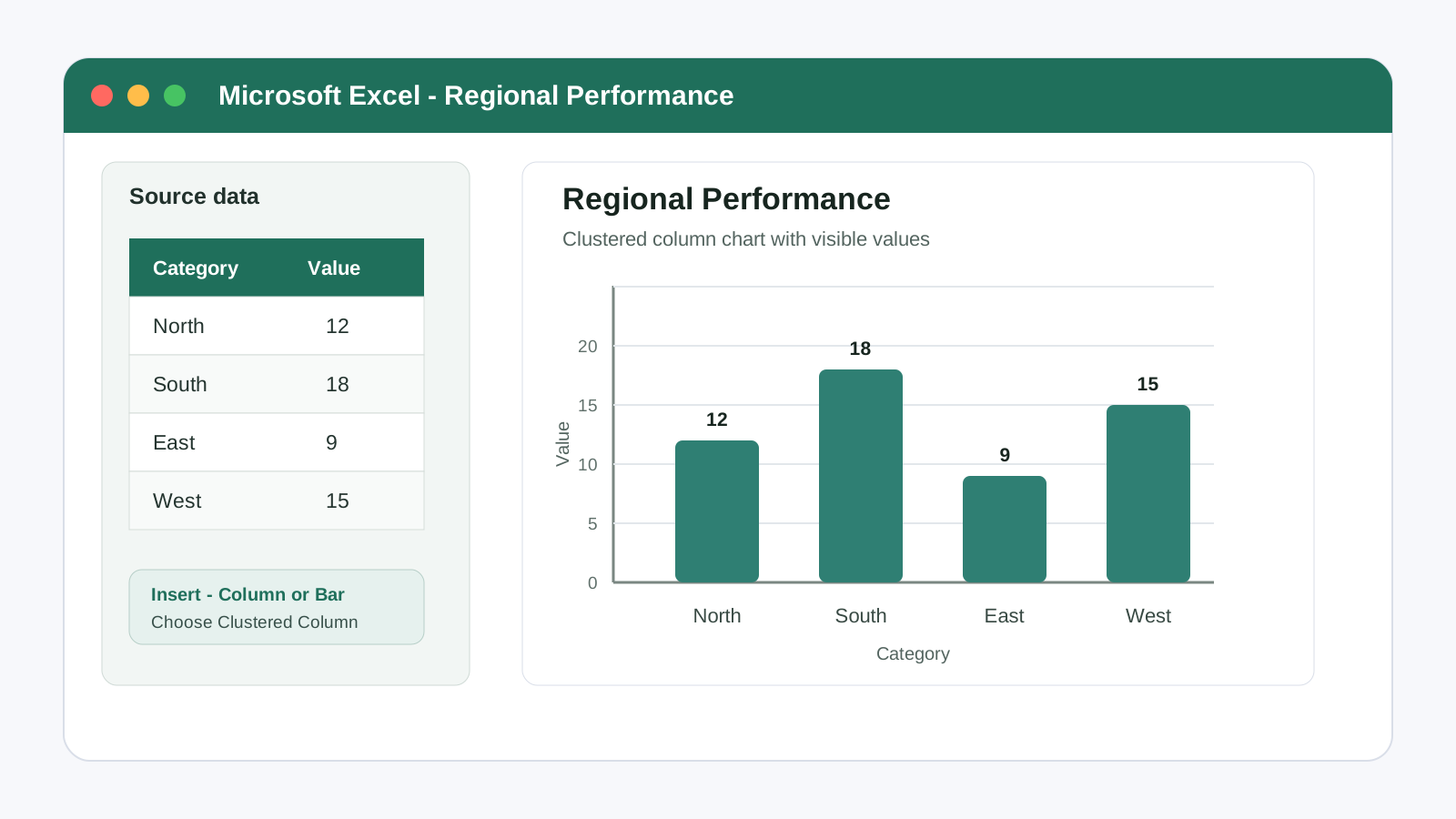
To get started, let's use a small, clean dataset. You can copy and paste this table directly into a blank Excel worksheet:
| Category | Value |
|---|---|
| North | 12 |
| South | 18 |
| East | 9 |
| West | 15 |
Once your data is in the sheet, follow these five steps to create your first bar diagram in Excel.
-
Paste the table into a new sheet and click on any cell within the data range (e.g., cell A1).
-
Navigate to the main menu at the top. If the full menu isn't visible, you may need to show ribbon in Excel first. Click the Insert tab, find the Charts group, and select the Insert Column or Bar Chart icon. Choose Clustered Column for vertical bars or Clustered Bar for horizontal ones.
-
With your new chart selected, click the Chart Elements button (the “+” icon) on the right. Check the box for Data Labels to display the exact value on each bar.
-
Go to the Chart Design tab and use the Change Colors option to select a palette that is clear and easy to read.
-
Finally, double-click the default chart title to rename it to something descriptive, like “Regional Performance.” Press Ctrl+S to save your work.
Power tip: For an even faster method, select your data range and look for the Quick Analysis button that appears at the bottom-right. Click it, go to Charts , and select your preferred bar chart to insert it instantly.
Start simple, add labels, then format for clarity.
Step 2: Prepare Clean Data and Insert a Basic Chart
While the quickstart gets you a chart fast, building a durable and easily updatable graph starts with clean data. Setting up your worksheet correctly from the beginning ensures that future edits won’t break your chart’s formatting or data connections. A few minutes spent on data hygiene now can save you hours of frustration later.
Structure Your Worksheet for Success
For Excel to correctly interpret your data, it needs to be organized in a simple, predictable format. Think of your data range like a database table: a single, contiguous block without empty rows or columns breaking it up. Your categories (like months or regions) should be in the first column, with corresponding numerical values in the columns to the right. Stick to one header row and avoid merged cells or including totals, as these can confuse Excel and distort your chart’s scale.
To see this in action, use this multi-series sample data:
| Month | Actual | Target |
|---|---|---|
| Jan | 42 | 40 |
| Feb | 38 | 40 |
| Mar | 45 | 40 |
| Apr | 50 | 40 |
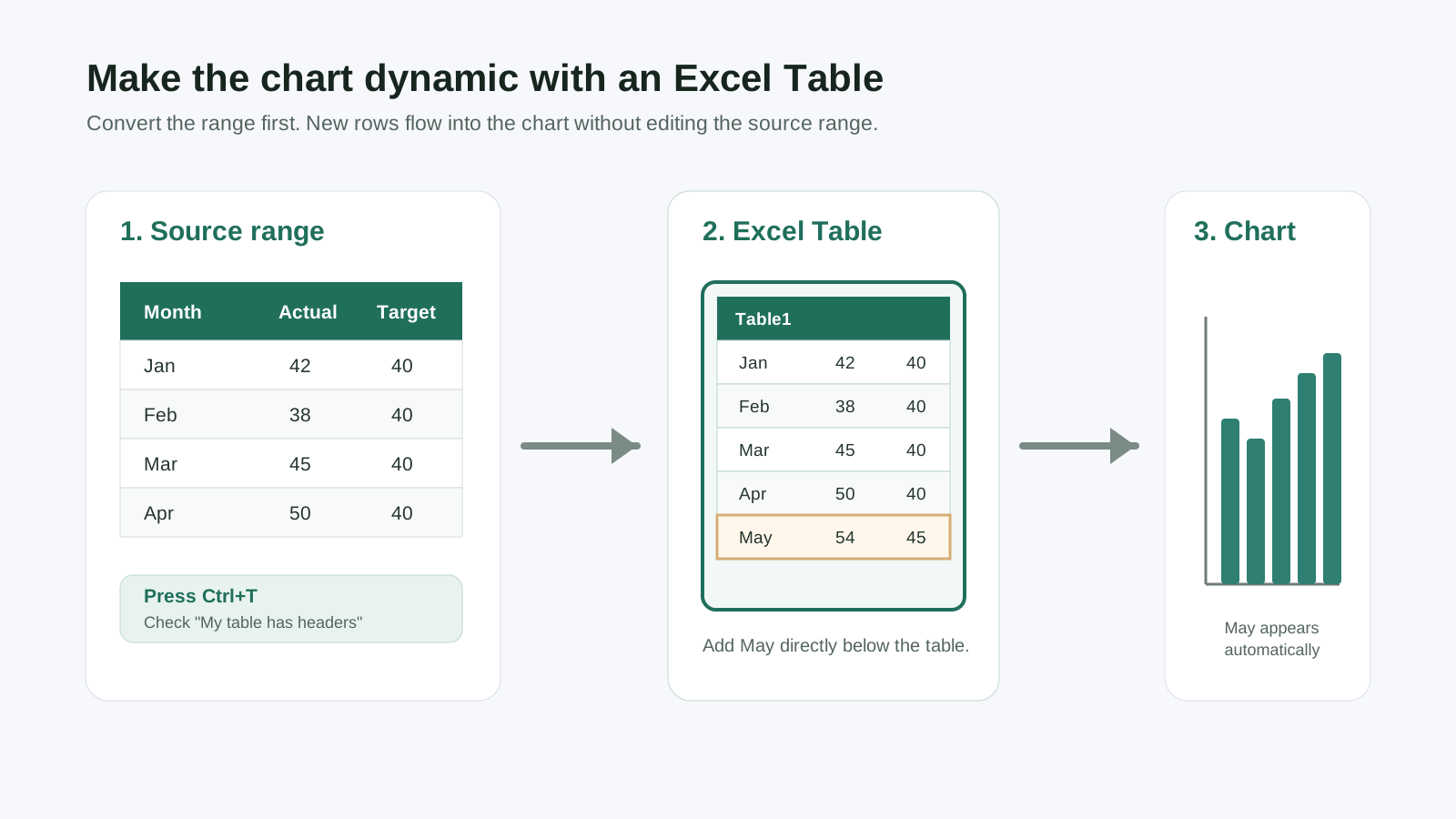
Before creating the chart, convert this range into an official Excel Table. Select any cell in the data, go to the Insert tab, click Table , and ensure "My table has headers" is checked. This powerful step makes your data range dynamic.
Excel Tables help your chart auto-extend as you add rows.
Insert the Correct Chart Type
With your data structured in a Table, you're ready to create a bar chart in Excel that is both accurate and robust.
-
Select any cell inside your newly created Table.
-
Navigate to Insert → Charts and choose Column or Bar → Clustered Column. This type is an excellent default for comparing multiple data series side-by-side.
-
Go to the Chart Design tab and click Select Data. This opens a dialog where you can confirm that Excel correctly identified your months as categories and your "Actual" and "Target" columns as data series.
-
For better visual contrast, right-click the chart's background (the Chart Area) and use the formatting options to set a neutral or transparent fill.
Troubleshoot Common Issues
Sometimes, even with clean data, Excel misinterprets how to plot it. When you make a bar chart on excel, it might display your categories (e.g., months) as a data series instead of axis labels. This typically happens when your data has more columns than rows. The fix is simple: with the chart selected, go to the Chart Design tab and click Switch Row/Column. If your bars appear too thin, right-click a bar, select Format Data Series , and decrease the Gap Width to make them wider.
Now that your chart is built on a solid data foundation, the next step is to refine its appearance to make your insights crystal clear.
Step 3: Format Labels, Axes, and Colors for Clarity
A basic chart shows your data, but a well-formatted one tells a compelling story. The default settings in Excel are just a starting point; the real power comes from refining the visual elements to guide your audience’s attention. These finishing touches—labels, axes, and colors—are crucial for turning raw data into actionable insights and are essential when you create a bar chart in Excel for professional use.
Add Labels and Titles That Explain
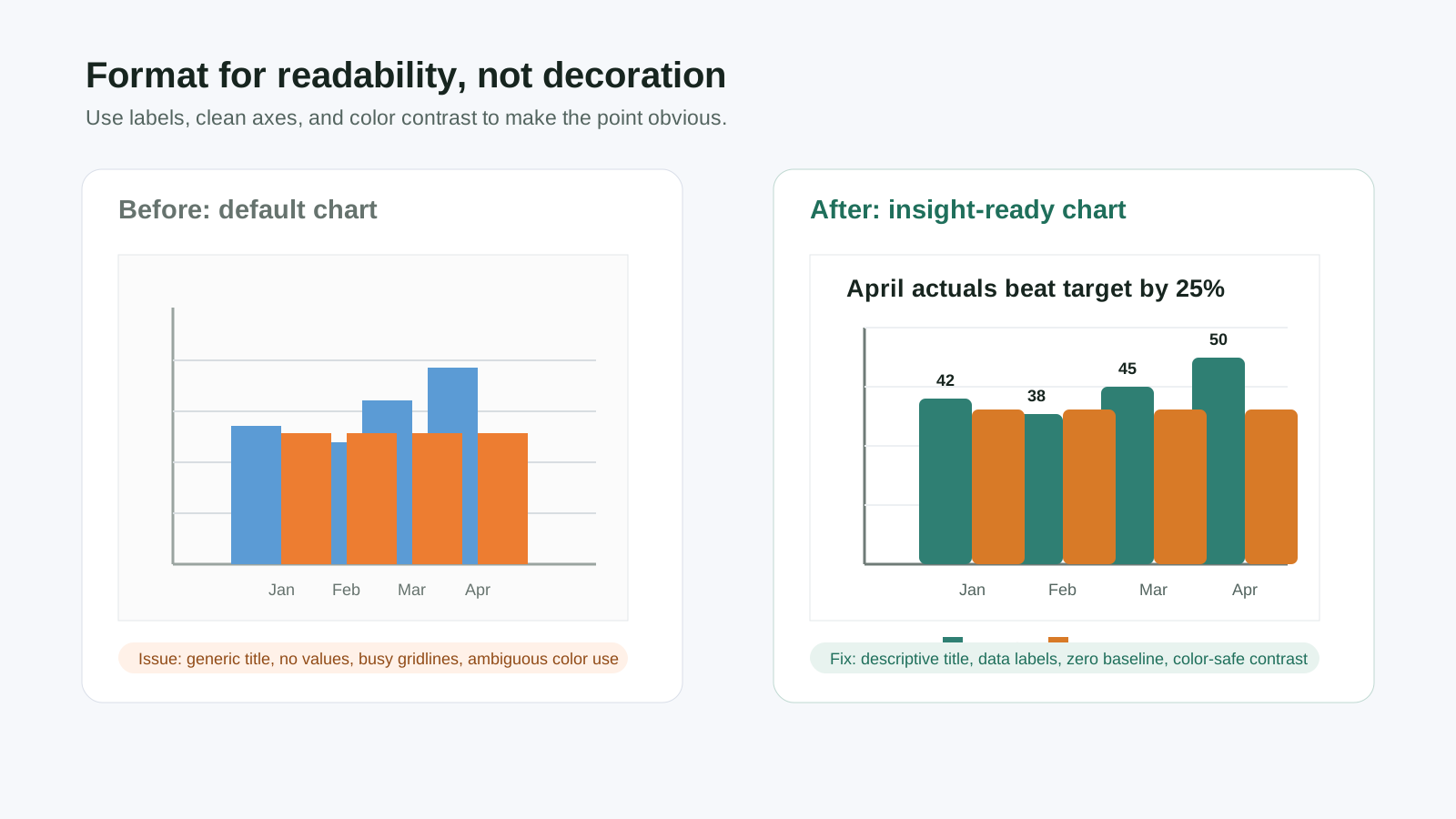
Your chart’s labels should leave no room for ambiguity. Start by giving your chart a title that states the main insight, not just the topic (e.g., “April Revenue Surpassed Target by 25%” is more effective than “Revenue vs. Target”). Next, add context by labeling your axes. Click the Chart Elements (+) icon and check Axis Titles. Finally, add Data Labels and position them at the Outside End of each bar for maximum readability.
Labels should answer what, where, and how much in one glance.
Optimize Axes and Gridlines
How you display your chart’s axes can dramatically alter its interpretation. To avoid misleading your audience, the vertical axis should generally start at zero. If you must zoom in on a smaller range, make it clear to the viewer. You can adjust the scale by right-clicking the vertical axis and choosing Format Axis to set custom bounds. To reduce visual clutter, you can also lighten or remove unnecessary elements like gridlines. A clean background helps the data itself stand out.
Choose Accessible Colors
Color should be used meaningfully to communicate information, not just for decoration. When formatting your bar graphs in Excel, use the Chart Design → Change Colors menu to select a palette with strong contrast. Critically, consider your audience and choose a colorblind-friendly palette. Many people have difficulty distinguishing between certain colors, with red-green combinations being the most common issue. Blue/orange and blue/brown are often safer choices.
Here are a few final formatting best practices for any bar chart excel project:
• Clarity is Key: Ensure your title states the primary insight, not just the data's subject.
• Be Consistent: Use the same number format throughout your chart (e.g., don't mix currency and general numbers).
• Keep it Clean: Use short category names or rotate them to prevent labels from overlapping and becoming unreadable.
With a polished, single-series chart complete, you're ready to explore different bar chart types for more complex data comparisons.
Step 4: Choose the Right Bar Chart Variant
Once you've mastered the basic bar chart, you can unlock deeper insights by choosing the right variant for your data's story. Excel offers several types, but the most common are clustered and stacked charts. Selecting the correct one is crucial for communicating your message clearly, whether you're comparing performance or showing composition.
When to Use Clustered vs. Stacked Charts
The choice between a clustered or stacked chart depends entirely on your goal. A Clustered Bar chart is your best option when you need to make a direct, side-by-side comparison of values across different categories. Because each data series shares a common baseline, it's easy to see which value is larger. In contrast, a stacked chart is designed to show how different parts contribute to a whole. A third option, the 100% Stacked Bar chart, visualizes the relative percentage of each component, making it perfect for comparing proportions across categories.
Build Each Variant Fast with Sample Data
You can create each of these variants in just a few clicks. Use the datasets below to see how the same process yields different visual results.
For a Clustered Bar Graph (Comparing Categories):
| Product | 2023 | 2024 |
|---|---|---|
| A | 30 | 36 |
| B | 22 | 28 |
| C | 18 | 21 |
For a Stacked Bar Chart (Parts-to-Whole):
| Region | Online | Retail |
|---|---|---|
| North | 8 | 12 |
| South | 10 | 9 |
| West | 7 | 8 |
Follow these steps to build your chart:
-
Select the entire data range for one of the tables above.
-
Navigate to Insert → Charts → Insert Column or Bar Chart.
-
Choose the chart type that fits your goal: Clustered Column for the first dataset, or Stacked Column for the second. To show proportions, select 100% Stacked Column. If you're wondering how do you make a stacked bar chart in excel , this is the core step.
-
Add clarity by clicking the Chart Elements (+) icon to add Data Labels and a Legend.
Choose stacked when the composition matters; choose clustered when direct side-by-side comparison is the goal.
When NOT to use a bar chart: chart-type quick reference
Bar charts aren't always the right pick. Use this table to decide what chart type fits your data:
| Chart Type | Best For | When NOT to Use |
|---|---|---|
| Clustered Column / Bar | Comparing values across categories side-by-side | Time series (use line) or correlations (use scatter) |
| Stacked Bar / Column | Composition + total magnitude in one view | When exact per-segment values matter (use clustered) |
| Line Chart | Trends over continuous time | Pure categorical comparison (use bar) |
| Scatter Plot | Correlation between two numeric variables | Categorical or ordinal data (use bar) |
| Pie / Doughnut | Parts-to-whole with ≤5 categories | More than 5 slices or when precise comparison matters (use stacked bar) |
| Combo Chart | Two series with very different scales (e.g., revenue + conversion rate) | Same-scale comparison (use clustered) |
While these steps cover the fundamentals of creating a cluster bar chart in Excel, mastering data visualization often involves working across multiple tools. For a more comprehensive guide that explores advanced techniques for stacked and grouped charts in Excel, Google Sheets, PowerPoint, and even programmatic languages, the detailed walkthrough at AFFiNE's guide provides an excellent deep dive.
Step 5: Sort, Filter, and Highlight Insights
Creating a static bar graph on Excel is a great start, but to truly surface insights, you need to guide your audience’s attention. By sorting, filtering, and highlighting key data points, you can transform a simple visual into a powerful analytical tool. These techniques make your chart more intuitive and dramatically improve comprehension.
Sort Descending by Value
The human eye is excellent at comparing lengths, but it’s even better when those lengths are in a logical order. Arranging bars from largest to smallest makes it instantly clear which categories are the top performers. This is one of the easiest and most effective ways to improve your bar charts excel provides.
-
In your source data table, click any cell in the column containing the values you want to sort.
-
Navigate to the Data tab on the Ribbon and click the Sort Z to A icon to arrange the data in descending order.
-
Your chart will automatically update, reordering the bars to reflect the sorted data. If your data isn't in an Excel Table, you may need to re-select the data range.
Use Filters to Focus the Narrative
Sometimes, showing all your data at once can be overwhelming. Filters allow you to temporarily hide certain categories to focus on a specific subset. When you need to make a bar chart in Excel that tells a focused story, filters are your best friend. With your chart selected, click the Chart Filters button (the funnel icon) that appears to the right. From there, you can check or uncheck the categories and series you want to display and click "Apply."
Highlight Top Performers
To draw immediate attention to a specific insight, such as the highest-performing region or a product that met its target, use color strategically. Instead of letting all bars share the same color, you can make one stand out.
• Change a single bar's color: First, click once on any bar to select the entire data series. Then, click a second time on just the specific bar you want to highlight. Right-click it and choose Format Data Point to change its fill color.
• Reduce label clutter: Add data labels only to the most important bars to keep the visual clean.
• Add annotations: Use a text box (Insert → Text Box) to add a brief note calling out a key insight, like “Exceeded Q2 Target.”
Sorting by magnitude reduces cognitive load and speeds up comparisons.
Now that you know how to present your data effectively, the next step is to ensure your excel bar graph stays up-to-date automatically as new information is added.
Step 6: Create Dynamic and Auto-Updating Charts
Knowing how to create a bar graph in excel is one thing, but making it update automatically as your data grows is a game-changer. Manually adjusting the source data range every time you add a new row is tedious and prone to error. By using dynamic methods, you can build a chart once and trust it to scale with your data, saving you significant time and effort.
Auto-Extending Charts with Tables
The simplest and most reliable way to create dynamic bar graphs Excel can offer is by using its built-in Table feature. When your chart is based on a Table, it automatically expands to include new rows or columns you add. The best practice is to keep categories in the first column and values in adjacent columns, then convert that clean block into a Table before inserting the chart.
-
Select your data range and press Ctrl+T (or go to Insert → Table). Ensure the "My table has headers" box is checked and click OK.
-
With any cell in the Table selected, insert your bar chart as you normally would.
That's it. Now, when you type a new row of data directly below the last row of the Table, it will automatically be absorbed, and your chart will update instantly.
INDEX and OFFSET Dynamic Ranges
For more complex scenarios or if you're using an older version of Excel, you can use formulas to create a dynamic named range. This involves using the Name Manager to define a range that automatically finds the last cell of your data. While the OFFSET function works, the INDEX function is often preferred because it is non-volatile, meaning it won't slow down your workbook by recalculating with every single change.
To set this up, go to Formulas → Name Manager → New and enter a formula like this in the "Refers to:" box:
Categories: =Sheet1!$A$2:INDEX(Sheet1!$A:$A, COUNTA(Sheet1!$A:$A))
Values: =Sheet1!$B$2:INDEX(Sheet1!$B:$B, COUNTA(Sheet1!$B:$B))
This formula creates a range that starts at a fixed cell (e.g., A2) and ends at the last non-empty cell in the column, as determined by COUNTA. After creating named ranges for your categories and values, you can reference them when building your chart.
Structured References
Another benefit of using Excel Tables is access to structured references. Instead of using cell references like =SUM(B2:B100), you can use readable formulas like =SUM(Table1[Sales]). These references are not only easier to understand but also automatically adjust as the table grows or shrinks, ensuring your calculations remain accurate and robust.
While these methods are perfect for auto-updating charts from a simple data range, for large, raw datasets, summarizing your information first is a more powerful approach.
Step 7: Summarize Data with PivotTables and PivotCharts
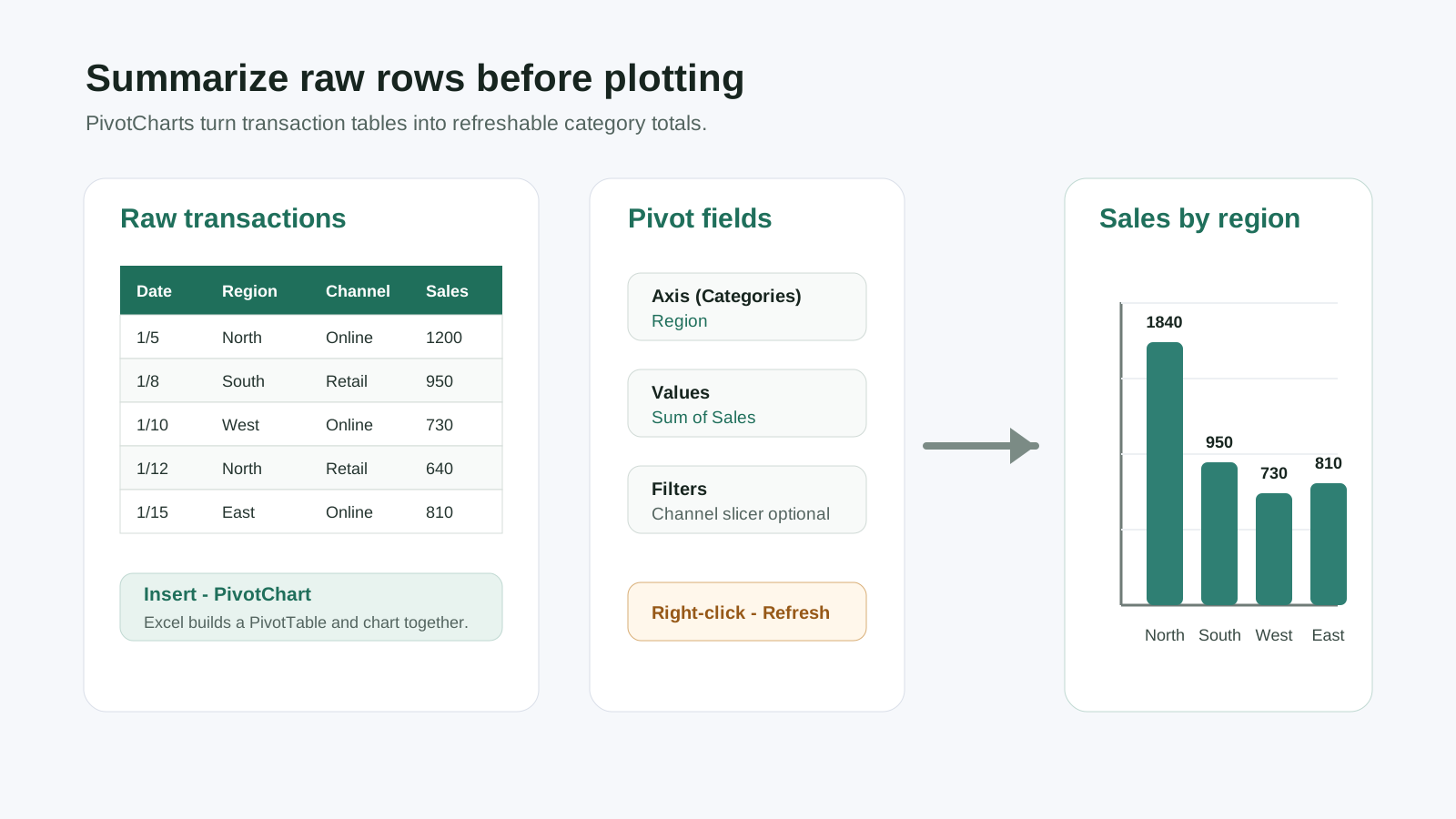
When you're faced with a large dataset containing hundreds or thousands of rows of raw transactions, creating a standard bar chart can be overwhelming. The key is to summarize the data first. This is where PivotTables and their visual counterpart, PivotCharts, come in. They are Excel's most powerful tools for aggregating raw data into an insightful, refreshable summary, making them perfect for recurring reports.
Build a PivotTable and Create a PivotChart
So, how do I make a bar graph on excel that summarizes all this data without manual calculations? You start by building a PivotTable. Let's use the following sample transaction data, which you can copy and paste into a new sheet:
| Date | Region | Channel | Sales |
|---|---|---|---|
| 1/5 | North | Online | 1200 |
| 1/8 | South | Retail | 950 |
| 1/10 | West | Online | 730 |
| 1/12 | North | Retail | 640 |
Follow these steps to turn this raw data into a dynamic visual:
-
Select any cell within your data range. Go to the Insert tab on the Ribbon and click PivotChart. Excel will automatically select your data and suggest placing the new PivotTable and PivotChart in a new worksheet. Click OK.
-
A blank PivotTable and PivotChart will appear, along with the PivotChart Fields pane on the right. To see total sales by region, drag the "Region" field to the Axis (Categories) area and the "Sales" field to the Values area. Excel will automatically sum the sales for each region.
-
Your chart is now built. By default, it will likely be a clustered column chart. You can format the labels, titles, and colors just as you did with standard charts in the previous steps.
Refresh, Update, and Interact
The real power of a PivotChart is that it remains linked to your source data. If you add new rows of sales data to your original table, the chart won't update instantly. However, all you need to do is right-click the chart and select Refresh to make it display the latest information. This makes it incredibly efficient for weekly or monthly reporting. To make your chart interactive, you can use filters or slicers.
Slicers provide one-click filters for instant comparisons without editing the chart.
Knowing how to make a bar graph on excel using a PivotTable is a crucial skill for anyone working with large datasets. With your data now neatly summarized, you can explore even more advanced visualizations by combining different chart types.
Step 8: Build Combo Charts, Trendlines, and Error Bars
Sometimes, a standard bar chart can't tell the whole story, especially when you need to compare two data series with vastly different scales—like revenue in the thousands and a conversion rate in single-digit percentages. In these cases, a combo chart is the perfect solution, allowing you to combine two chart types into a single, insightful visual.
Create a Combo Chart with a Secondary Axis
A combo chart overlays one chart type on another, such as a line graph on a bar chart. This is incredibly useful for showing the relationship between a magnitude value (like sales) and a rate or percentage (like growth). Let's build one using the following data:
| Month | Revenue | ConversionRate |
|---|---|---|
| Jan | 120 | 2.5 |
| Feb | 150 | 2.1 |
| Mar | 180 | 2.9 |
| Apr | 210 | 3.2 |
Here’s how to visualize this data effectively:
-
Start by creating a simple Clustered Column chart using both the Revenue and ConversionRate series. You'll notice the conversion rate bars are barely visible because their scale is so small compared to the revenue.
-
Right-click on the nearly invisible ConversionRate series bars and select Change Series Chart Type.
-
In the dialog box, find the ConversionRate series. Change its chart type to a Line with Markers and, most importantly, check the Secondary Axis box next to it. This is how you can effectively make a line graph in excel on top of your bars.
-
Click OK. Excel will add a second vertical axis on the right side of your chart, scaled appropriately for the conversion rate data. You can format this axis to set a clean range (e.g., 0 to 5).
Add Trendlines and Error Bars for Deeper Analysis
With your combo chart built, you can add analytical layers to reveal underlying trends. To show the general direction of your data, you can add a trendline. According to Microsoft Support, you can simply select the chart, click the Chart Elements (+) icon, and check the box for Trendline. This is the easiest way how to add trendline in excel. For more advanced analysis, such as showing potential variability or confidence intervals, you can also add error bars from the same menu. This is useful if you need to know how to add error bars in excel or even how to add standard deviation bars in excel for statistical visualizations.
Use secondary axes sparingly; mis-scaled axes can mislead.
Now that you’ve created an advanced, presentation-ready chart, the final step is to export it cleanly and ensure it’s accessible to your entire audience.
Step 9: Export, Make Accessible, and Extend Across Tools
Your bar chart is now a powerful, data-driven visual. The final step is to share it effectively, ensuring it's clear, professional, and accessible to every member of your audience. Properly exporting your chart preserves its quality, while accessibility features make sure your insights aren't lost on anyone. From there, you can explore resources to apply these skills across other platforms.
Export and Print Settings
To maintain a crisp, professional look when sharing your chart, avoid low-resolution screenshots. Excel provides better options for exporting with high resolution, and a chart exported directly from Excel is usually cleaner than a cropped screen capture.
-
Save as a Picture: Right-click on the border of your chart and select Save as Picture. For web use or presentations, the Portable Network Graphics Format (.png) is an excellent choice as it maintains image quality and supports transparency. When pasting into a PowerPoint or Word document, using the Paste as Picture option prevents the chart's colors from changing with the document's theme.
-
Prepare for Print: If you need a physical copy, navigate to the Page Layout tab. Here, you can adjust settings like Size , Orientation , and Margins to ensure your chart fits the page correctly and remains readable.
Accessibility Practices
An accessible chart is one that everyone can understand, including individuals with visual impairments who use screen readers. Alt text, or alternative text, is a brief description of a visual element that makes your data more inclusive.
• Add Descriptive Alt Text: Right-click your chart and select Edit Alt Text. In the pane that appears, write a concise description of the chart's main insight. For example: "Bar graph showing Q2 sales by region. The North region was highest at $52k, while the East was lowest at $23k." This practice is also crucial when you need to know how to create a bar graph in word, as the principles of accessibility apply across applications.
• Use Accessible Colors and Labels: Do not rely on color alone to convey meaning. Use a colorblind-friendly palette and ensure data labels are present so the values are clear without interpreting color. High contrast between text and background also improves readability for everyone.
• Mirror the same standard online: When you publish the chart on a web page, use a descriptive file name, keep the image near the relevant instructions, and write alt text that summarizes the chart insight rather than repeating the article keyword.
Cross-Tool Resources
Mastering how to make a bar graph in Word or Excel is just the beginning. The principles of effective data visualization are universal and can be applied across many different tools. Below are some excellent resources to continue your learning journey and extend your skills.
| Resource | Use Case |
|---|---|
| AFFiNE step-by-step bar graph guide | Deep dive across Excel, Google Sheets, PowerPoint, R, Python |
| Microsoft Support | Official Excel chart creation steps |
| Google Sheets Help | Web-based bar charts |
| ggplot2 bar chart docs | Programmatic bar charts |
| Matplotlib bar chart docs | Python-based bar charts |
Quality-control checklist before sharing
Before you send the workbook or publish the chart, run this quick review:
• Verify the source range: Check that every category and value you expect appears in Chart Design → Select Data.
• Keep the baseline honest: Start bar and column charts at zero unless you clearly label a deliberate axis break.
• Make the takeaway explicit: Use an insight-led title, direct labels, and short axis names.
• Check accessibility: Do not rely on color alone, and add alt text that names the chart type, data scope, and main result.
• Refresh dynamic charts: For PivotCharts, right-click and choose Refresh before exporting or presenting.
Putting it together
A clean Excel bar chart starts with one contiguous data table, runs through Insert → Charts → Clustered Column, gains clarity from data labels and a meaningful title, and stays useful long-term when built on an Excel Table (Ctrl+T) so it auto-extends as you add rows. Pick clustered for direct comparison, stacked for composition, and combo only when you have two scales. Save as PNG for crisp sharing, add alt text for accessibility, and refresh PivotCharts before any presentation.
Frequently Asked Questions About Creating Bar Graphs in Excel
1. What's the difference between a bar chart and a column chart in Excel?
A bar chart has horizontal bars; a column chart has vertical bars. Both compare categorical data — pick Column when category labels are short enough to fit at the bottom of the chart, and Bar when category names are long or hierarchical (the horizontal orientation gives more label space). Excel labels them separately in the Insert → Charts menu.
2. How do I make a horizontal bar chart in Excel?
Use Insert → Charts → Clustered Bar (not Clustered Column). Bar charts in Excel default to horizontal orientation, with category labels on the y-axis and values on the x-axis. Useful when category names are long, hierarchical, or when you want to rank items top-to-bottom.
3. Why is my Excel bar chart not showing the data correctly?
Three most common causes: (1) the chart's data range is empty or out of sync — right-click the chart and choose Select Data to verify; (2) the source data has blank rows breaking the contiguous range — Excel needs a single uninterrupted block; (3) Excel is plotting categories as a data series — with the chart selected, go to Chart Design and click Switch Row/Column. For PivotCharts, right-click and choose Refresh if your source data changed.
4. How do I make a basic bar graph in Excel?
Select your data, then go to Insert → Charts → Clustered Column or Clustered Bar. To create a basic bar graph, first input your data with categories in one column and values in another. Select that data, go to the Insert tab, click the Insert Column or Bar Chart icon, and choose a Clustered Column (vertical) or Clustered Bar (horizontal) chart. From there, you can add data labels and a title using the Chart Elements (+) button.
5. How do I make a bar graph in Excel with multiple data series?
Put each data series in its own column next to the categories, select the whole range, and insert a Clustered Column chart. For comparing actual vs. target sales, structure your data with categories in the first column and each data series in subsequent columns. Select the entire range and insert a Clustered Column chart. Excel automatically plots the different series side-by-side for easy comparison.
6. What's the difference between a clustered and a stacked bar chart in Excel?
Clustered = side-by-side bars for direct comparison; Stacked = bars on top of each other to show composition of a total. A clustered bar chart places bars side-by-side, making it ideal for comparing values of different series within the same category. A stacked bar chart stacks bars on top of each other to show how different parts contribute to a total. Use clustered for direct comparison and stacked for showing composition.
7. How can I make my Excel chart update automatically when I add new data?
Convert your data range into an Excel Table (Ctrl+T) before inserting the chart. Charts based on Tables automatically expand to include new rows and columns as you add them, ensuring your visuals are always up-to-date without manual adjustments. Tables have been a native Excel feature since Excel 2007.
8. How do I create a bar graph from a large amount of raw data in Excel?
Use Insert → PivotChart to summarize raw rows into category totals before plotting. First, select your data and go to Insert → PivotChart. In the PivotChart Fields pane, drag your category field (e.g., "Region") to the Axis (Categories) area and your numerical field (e.g., "Sales") to the Values area. Excel summarizes the data instantly into a clean, manageable bar chart. PivotCharts can summarize datasets up to Excel's row limit (1,048,576 rows since Excel 2007).