
How To Share Google Calendar With Someone Without The Confusion
Why Sharing Your Google Calendar Changes Everything
When someone asks, "When are you free next week?", calendar sharing turns a long message thread into a simple availability check. Instead of typing out time slots, waiting for replies, and repeating the process after every conflict, you can let the right person see the right level of calendar access.
The quick answer: to share Google Calendar with someone, open Google Calendar on desktop, go to the calendar's Settings and sharing, choose Share with specific people, add their email address, select the least permission level they need, and send the invitation. Android users can also manage full calendar sharing in the Google Calendar app. iPhone and iPad users can invite guests to events in the app, but should use calendar.google.com for full calendar-level sharing.
Coordinating schedules through back-and-forth emails or text messages wastes time and creates avoidable mistakes. Calendar sharing helps family members coordinate pickups, assistants protect focus time, teams find meeting windows, and clients book without seeing private details.
Why Calendar Sharing Beats Back-and-Forth Emails
Shared calendars work because they separate availability from control. Someone may only need to know whether you are free, while a trusted assistant may need permission to add or edit events. Google Calendar supports both scenarios, but the safest setup is always the same: start with the most restrictive permission that still solves the scheduling problem.
This guide explains how to share your full calendar, invite people to individual events, choose privacy-safe permissions, fix sync problems, and remove access later. It also flags the account differences that matter: personal Gmail accounts usually expose more sharing options, while Google Workspace administrators can restrict external or public sharing.
What You'll Master in This Guide
By the end, you'll know how to share your Google Calendar confidently across desktop, Android, iPhone, and iPad workflows. You'll also understand when to share a whole calendar versus when to Share individual events so you do not expose more schedule information than necessary.
Here's the decision framework:
• Share with specific people - Grant access to individuals by email and control what they can see or change
• Make your calendar public - Use only when the calendar is meant for broad visibility, such as a public events schedule
• Share individual events - Send a one-time invitation without exposing your entire calendar
Before you change any setting, review your calendar for sensitive titles, private appointments, client names, and confidential meeting notes. Calendar sharing is convenient, but the privacy cost depends on the permission level you choose.
Let's start by understanding the permission levels that make all of this possible.
Step 1 Understanding Google Calendar Permission Levels
Before you start sharing a Google Calendar, you need to understand two things: what type of account you're using and what level of access you want to grant. Getting these details right from the start prevents awkward situations—like accidentally giving your intern the ability to delete your entire meeting schedule.
Check Your Account Type First
How do you share a Google Calendar? The answer depends partly on whether you're using a personal Gmail account or a Google Workspace account. Personal accounts (ending in @gmail.com) give you full control over sharing settings. You can share calendars with anyone, make them public, or keep them completely private.
Google Workspace accounts—those provided by your employer or organization—work differently. Your IT administrator can restrict sharing options based on company policies. For example, your organization might prevent you from sharing calendars with external email addresses or disable public calendar features entirely.
To check if your organization has sharing restrictions enabled:
-
Open Google Calendar and click the gear icon in the top right corner
-
Select Settings
-
Click on the calendar you want to share under "Settings for my calendars"
-
Scroll to Access permissions for events
If you see limited options or grayed-out settings, your administrator has likely restricted certain sharing capabilities. In this case, you may need to contact your IT department to request broader permissions for setting up a shared Google calendar.
Understanding Permission Levels Before You Share
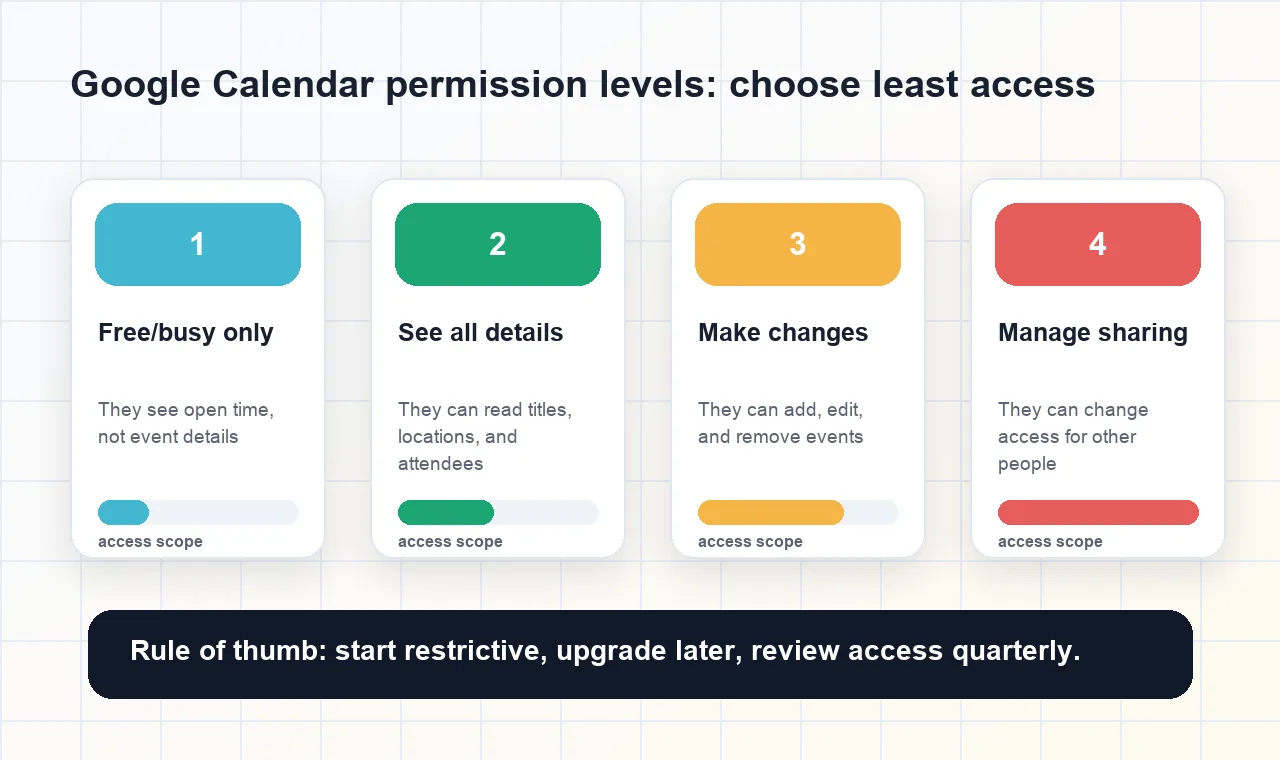
When you share Google Calendar access to an assistant, family member, or colleague, you're not just giving them visibility—you're choosing exactly how much control they have. Google Calendar offers four distinct permission levels, each designed for different relationships and use cases.
Think of it like giving someone keys to your house. You might give a neighbor a key to water plants while you're away (limited access), but you'd give a family member a key plus the alarm code plus permission to rearrange furniture (full access). Calendar permissions work the same way.
| Permission Name | What They Can See | What They Can Do | Best Use Case |
|---|---|---|---|
| See only free/busy (hide details) | Time blocks marked as busy or free—no event titles, locations, or descriptions | Check your availability for scheduling purposes only | External clients, casual acquaintances, or anyone who just needs to find a meeting time |
| See all event details | Full event information including titles, descriptions, locations, and attendees | View events but cannot add, edit, or delete anything | Team members who need visibility into your schedule, family members coordinating logistics |
| Make changes to events | Full event details | Add new events, edit existing ones, and delete events | Executive assistants managing your schedule, co-parents coordinating children's activities |
| Make changes and manage sharing | Full event details plus sharing settings | Everything above, plus the ability to share the calendar with others and modify their permissions | Trusted team leads, office managers, or anyone who needs to delegate calendar management |
When sharing a Google Calendar with your team, start with the most restrictive permission that still meets their needs. You can always increase access later, but revoking permissions can create awkward conversations.
A quick tip: if you want to google calendar share with others but feel uncertain about which permission to choose, "See all event details" is usually the safest starting point. It provides transparency without risking accidental changes to your schedule.
Now that you understand what each permission level offers, you're ready to actually share your calendar. Let's walk through the process step by step.
Step 2 Share Your Calendar from Desktop Browser
Ready to actually share a Google Calendar? The desktop browser offers the most complete sharing experience, giving you access to every permission option and setting. Whether you're wondering "how do I share my Google Calendar" with a coworker or family member, this step-by-step walkthrough covers everything you need.
Navigate to Calendar Settings
The sharing controls live within your calendar's settings—not in the main calendar view where you might expect them. Here's how to find them:
-
Open Google Calendar in your web browser and sign in to your account
-
Look at the left sidebar where your calendars are listed under "My calendars"
-
Hover over the calendar you want to share until you see three vertical dots (the overflow menu)
-
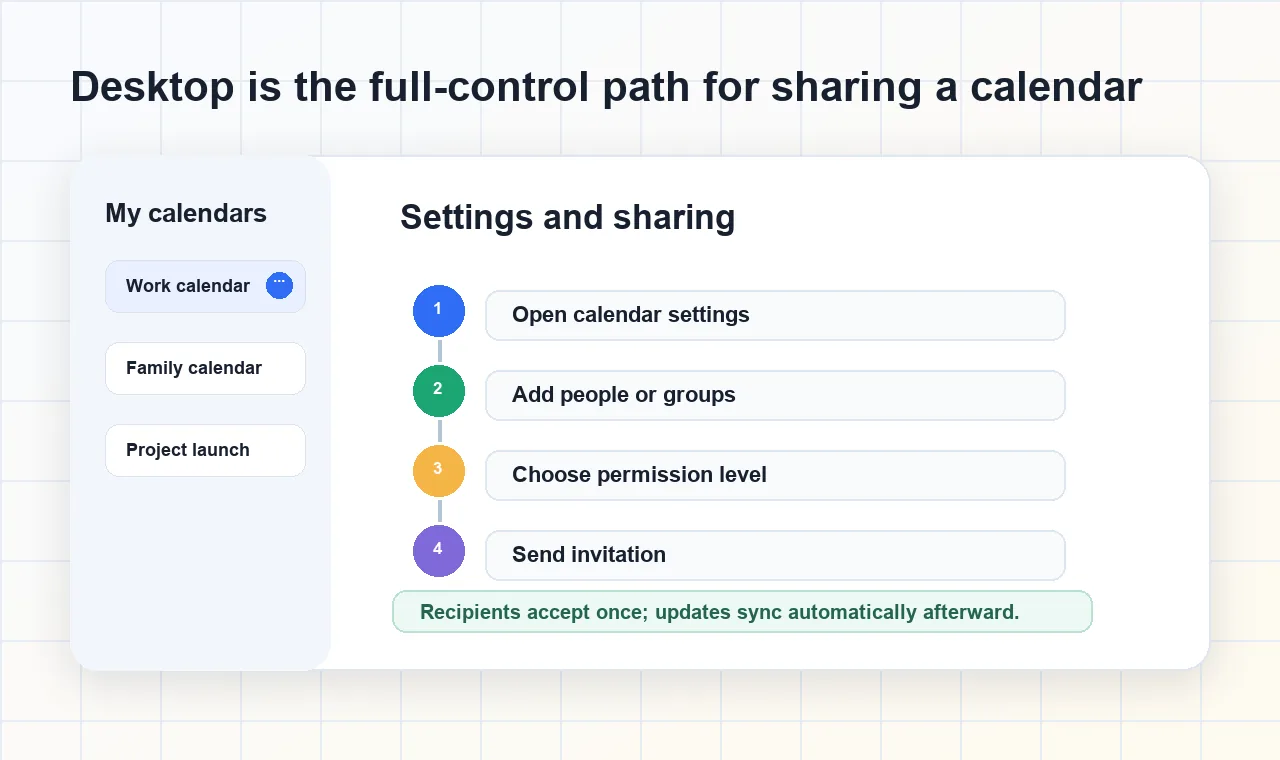
Click the three dots and select Settings and sharing
-
Scroll down the settings page until you find the section labeled Share with specific people
You'll notice several sharing sections on this page. The "Access permissions for events" section at the top controls public sharing, while "Share with specific people" is where you'll add individual recipients. For now, focus on the specific people section—it gives you the most control over who sees what.
Add People and Set Their Access
Now comes the important part: actually inviting someone to view your calendar. Learning how to share a calendar in Google Calendar takes just a few clicks once you're in the right place.
-
In the "Share with specific people" section, click the + Add people and groups button
-
Enter the email address of the person you want to share with (they'll need a Google account to accept)
-
Click the dropdown menu next to their email to select their permission level
-
Choose from: See only free/busy, See all event details, Make changes to events, or Make changes and manage sharing
-
Click Send to deliver the invitation
Want to share calendar on Google with multiple people at once? Simply enter additional email addresses in the same dialog box before clicking Send. Each person receives their own invitation, and you can assign different permission levels to different recipients. For example, you might give your assistant "Make changes to events" access while giving a colleague "See all event details" only.
Pro tip: If you're sharing with a group that frequently changes—like a project team—consider creating a Google Group first. Share the calendar with the group email, and anyone added to or removed from the group automatically gains or loses calendar access.
What Happens After You Click Send
The moment you send the invitation, Google dispatches an email to each recipient. Here's what they'll experience on their end:
The email notification contains your name, the calendar name, and a clear "Add this calendar" button. When the recipient clicks this button, your calendar automatically appears in their Google Calendar sidebar under "Other calendars." They don't need to configure anything—it just works.
If your recipient can't find the email, suggest they check their spam folder. According to Google's official documentation, the invitation sometimes lands in spam filters, especially for first-time shares between unfamiliar addresses.
Once accepted, sharing calendar on Google becomes truly seamless. Any events you add, modify, or delete will automatically sync to the recipient's view—no additional steps required. They'll see updates in real time on both desktop and mobile devices.
Understanding how to share a calendar on Google Calendar through the desktop browser gives you the foundation for all other sharing methods. But what if you're away from your computer and need to share on the go? Let's explore your mobile options next.
Step 3 Share Google Calendar from iPhone or Android
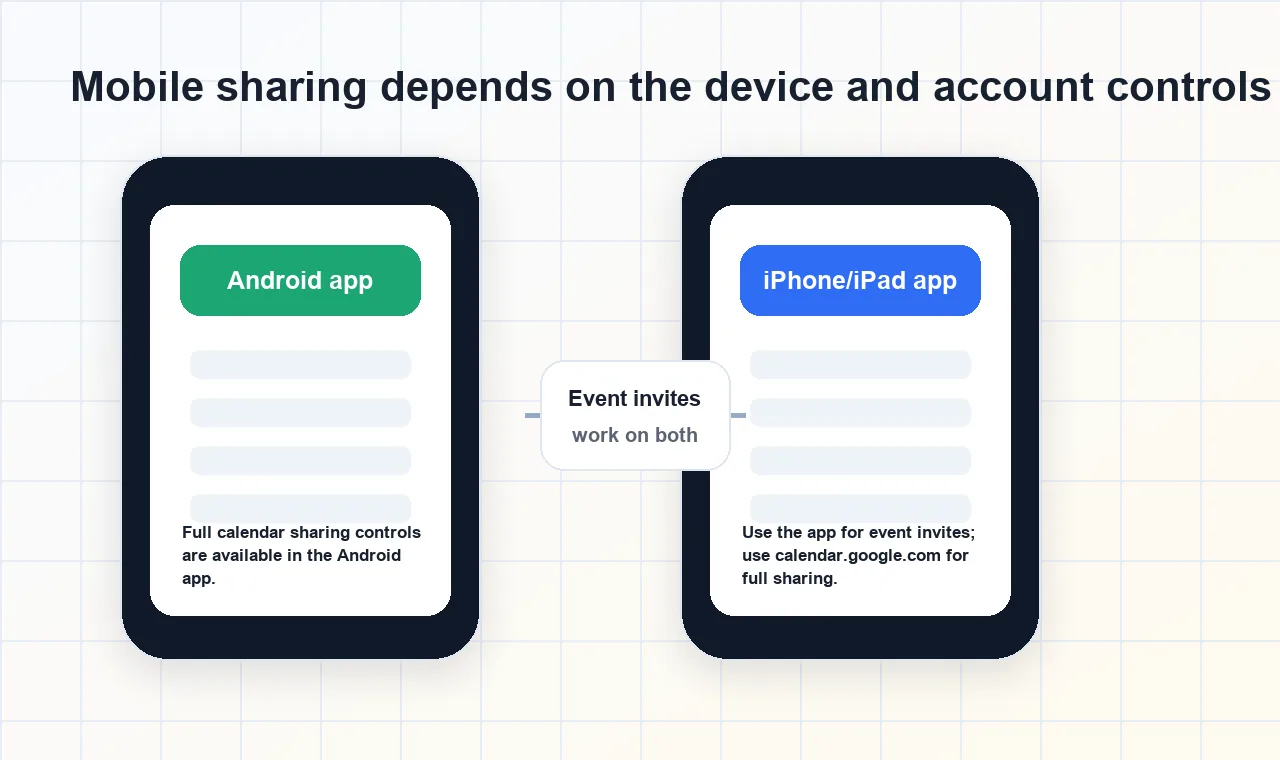
Mobile sharing is useful, but it is not identical across devices. Android currently offers fuller calendar-level sharing controls in the Google Calendar app. On iPhone and iPad, the app is strongest for event invitations and viewing shared calendars; for full calendar sharing and permission management, use calendar.google.com in a browser or switch to desktop.
That distinction matters because "share a calendar" and "invite someone to an event" are different actions. A calendar share gives ongoing access to a schedule. An event invite gives access to one meeting or appointment.
Sharing from the Google Calendar App
Use the app when you need to invite people to a specific event, accept a calendar someone shared with you, or view calendars already connected to your account.
• Share individual events - Invite guests to one meeting or appointment
• View shared calendars - See calendars that others have already shared with you
• Accept sharing invitations - Add a shared calendar after you receive an invitation
To share a single event from the Google Calendar app on iPhone, iPad, or Android:
-
Open the Google Calendar app and tap the event you want to share
-
Tap the Edit pencil icon
-
Tap Add guests and enter each recipient's email address
-
Review event visibility and guest permissions
-
Tap Save and send the invitation
If the goal is a one-time meeting, stop here. Event sharing keeps the rest of your calendar private and is usually better for clients, vendors, interviews, and first-time collaborators.
Full Calendar Sharing on Android
On Android, you can manage full calendar sharing from the Google Calendar app when your account and administrator settings allow it. Open the app, go to the calendar you want to share, open its settings, and look for sharing controls such as Share with specific people. If your work account is managed by Google Workspace, your administrator may still limit who you can add or what permissions you can grant.
Use full calendar sharing from Android only when the recipient needs ongoing access. For example, a family member may need to see household logistics, or an assistant may need permission to make changes to events. If someone only needs one meeting invite, use event sharing instead.
iPhone and iPad Limitations You Should Know
On iPhone and iPad, the Google Calendar app does not provide the same full calendar-sharing controls you see on desktop. You can invite guests to events, view calendars shared with you, and accept invitations, but calendar-level sharing and permission changes are better handled through calendar.google.com.
That means iPhone users asking how to share Google Calendar with someone have two practical options:
• For a single meeting: use the app and add guests to the event
• For an entire calendar: open calendar.google.com in Safari, request the desktop site if needed, or use a computer for the cleanest settings experience
Browser Workaround for Full Sharing
If you need full sharing from a phone, use the browser version:
-
Open Safari on iPhone or Chrome on Android and go to calendar.google.com
-
Sign in to the Google account that owns the calendar
-
Request the desktop site if the mobile page hides sharing settings
-
Open My calendars, choose the calendar, and select Settings and sharing
-
Add the recipient under Share with specific people
-
Choose the permission level and send the invitation
The browser workaround is functional, but the desktop interface can feel cramped on a phone. For sensitive permission changes, use a laptop or desktop so you can review the recipient email address, permission level, and existing sharing list carefully.
Now that you can share from desktop and mobile paths, the next decision is whether to share your whole calendar or just one event.
Step 4 Choose Between Full Calendar or Single Event Sharing
You've learned how to share calendar in Google—but now comes a crucial decision. Should you give someone access to your entire schedule, or just invite them to a specific meeting? This distinction matters more than most people realize, and getting it wrong can mean either oversharing personal information or creating unnecessary friction in your workflow.
Think of it this way: sharing your full calendar is like handing over a copy of your daily planner. Sharing individual events is like sending someone a single meeting invitation. Both have their place, but using the wrong approach for the situation creates problems you don't need.
When to Share Your Whole Calendar
Full calendar sharing makes sense when you need ongoing visibility with people who are deeply involved in your daily life or work. These are relationships where temporary access would be impractical—where constant coordination is the norm rather than the exception.
Consider sharing your entire calendar with:
• Family members – Spouses, partners, or parents coordinating childcare, household responsibilities, and family events benefit from seeing the complete picture
• Executive assistants – Anyone managing your schedule needs full access to book meetings, reschedule conflicts, and protect your time
• Close team members – Project teams working in tight collaboration often need to see each other's availability at a glance
• Co-parents – Coordinating custody schedules and children's activities requires both parties to see the full calendar
Once you've shared your calendar, adding events becomes collaborative. When you're wondering how to add an event to a shared Google calendar, the process is identical to creating any other event—the difference is that everyone with access sees it automatically. Just click on the date and time, enter your event details, and save. All recipients with appropriate permissions will see the new event appear in their view without any additional steps from you.
When Individual Event Sharing Makes More Sense
Not every scheduling situation requires full calendar access. In fact, sharing your entire schedule when a simple event invitation would suffice creates unnecessary privacy exposure. Individual event sharing keeps your broader schedule private while still enabling effective coordination.
Choose event-level sharing for:
• Client meetings – Clients need meeting details, not visibility into your internal team calls
• One-time collaborations – A single project kickoff or consultation doesn't warrant ongoing calendar access
• External parties – Vendors, contractors, or partners outside your organization should see only relevant appointments
• Networking calls – New professional connections don't need to know your daily routine
To share a single event and learn how to share Google Calendar event without exposing everything else:
-
Open Google Calendar and click on the event you want to share
-
Click the Edit (pencil icon) to open event details
-
Find the Add guests field on the right side
-
Enter email addresses of people you want to invite
-
Adjust guest permissions below the guest list (can they modify the event, invite others, or see the guest list?)
-
Click Save and choose Send when prompted to notify guests
Recipients receive an email invitation with all the event details. They can accept, decline, or mark as tentative—and their response shows up on your event automatically. This approach gives you a real-time headcount without revealing anything about the rest of your week.
Comparing Both Approaches
When you need to share calendar on Google Calendar, choosing the right method depends on the relationship and context. This comparison breaks down the key differences:
| Method | Privacy Level | Best For | How To Do It |
|---|---|---|---|
| Full Calendar Sharing | Low – recipient sees all events (based on permission level) | Family members, assistants, close team members, co-parents | Calendar Settings → Share with specific people → Add email → Choose permission → Send |
| Individual Event Sharing | High – recipient sees only the specific event | Clients, one-time collaborations, external parties, networking | Open event → Edit → Add guests → Enter email → Save → Send invitation |
Here's a practical scenario: imagine you're a freelance consultant. You might share your full calendar with your virtual assistant so they can manage your schedule. But when a new client needs to attend a project review meeting, you'd share just that specific event. The client gets what they need—meeting time, location, video link—without seeing that you have three other client calls that week or a dentist appointment on Friday.
Understanding how to add event to shared Google calendar versus sharing the calendar itself gives you flexibility. You control exactly what each person in your professional and personal life can see, matching the level of access to the nature of each relationship.
But what happens when relationships change? An employee leaves, a project ends, or you simply need to adjust someone's access level. Let's look at how to modify or completely revoke calendar sharing permissions.
Step 5 Modify or Revoke Calendar Sharing Access
Sharing your calendar is rarely a one-time decision. People change roles, projects wrap up, and relationships evolve. Maybe your assistant got promoted to a different department, or perhaps a contractor's engagement ended last month. Knowing how to share my calendar in Google is only half the equation—you also need to manage that access over time.
The good news? Adjusting or removing calendar permissions takes just a few clicks. And understanding this complete sharing lifecycle means you stay in control of your schedule visibility, no matter how circumstances shift.
Change Someone's Permission Level
Situations that call for permission adjustments happen more often than you might expect. A team member takes on additional responsibilities and now needs editing access instead of view-only. A family member requests less visibility into your work calendar. Whatever the reason, here's how to modify existing permissions:
-
Open Google Calendar in your desktop browser
-
Locate the calendar in your left sidebar under "My calendars"
-
Click the three vertical dots next to the calendar name
-
Select Settings and sharing
-
Scroll down to the Share with specific people section
-
Find the person whose access you want to change
-
Click the dropdown menu next to their name showing their current permission level
-
Select the new permission level you want to assign
Changes take effect immediately—no save button required. The person you've modified won't receive a notification about the change, so if you're upgrading their access to help with a specific task, you may want to let them know directly.
Remove Calendar Access Completely
Sometimes adjusting permissions isn't enough. You need to revoke access entirely. This might happen after an employee departure, when a project concludes, or simply because your sharing needs have changed. If you're wondering "how do I share my calendar in Google" with someone new while cleaning up old shares, removing outdated access should be part of your routine calendar maintenance.
To unshare your Google Calendar with someone:
-
Navigate to your calendar's Settings and sharing page (same steps as above)
-
Scroll to the Share with specific people section
-
Locate the person you want to remove
-
Click the X icon next to their name
-
The person is immediately removed from your sharing list
What happens on their end? The calendar simply disappears from their "Other calendars" list. They won't receive a notification that access was revoked—the calendar just vanishes from their view during the next sync. Any events from your calendar that appeared on their schedule will no longer be visible to them.
Before removing someone's access, consider whether you might need to share with them again soon. Re-adding someone requires sending a new invitation and waiting for them to accept.
How can I share my Google Calendar while keeping my sharing list manageable? Make permission reviews a quarterly habit. Scan through the names in your sharing settings and ask yourself: does this person still need this level of access? Proactive cleanup prevents the uncomfortable situation of realizing months later that a former colleague still sees your entire schedule.
With your sharing permissions under control, the next challenge involves making sure shared calendars actually appear correctly across different devices and platforms. Let's tackle cross-device syncing next.
Step 6 Sync Shared Calendars Across All Your Devices
You've successfully shared your calendar with a colleague, but now they're asking why it won't show up on their iPhone. Or maybe you accepted someone's calendar invitation on your laptop, and now you're wondering why those events aren't appearing on your phone. Sound familiar?
Cross-platform syncing is where calendar sharing gets tricky. Different devices, different apps, and different account configurations can all create gaps between what you expect to see and what actually appears on your screen. Let's sort out how to make shared Google calendars display correctly everywhere you need them.
Syncing Shared Calendars Across Devices
When someone shares a calendar with you, the invitation typically arrives via email. How you accept that invitation—and on which device—affects where the calendar initially appears. Here's the important part: accepting on one device should sync the shared calendar to all your devices, but only if those devices are properly connected to your Google account.
To ensure a shared Google Calendar syncs across all your devices:
• Accept the invitation from any device – Click "Add this calendar" in the email notification or accept directly through Google Calendar
• Verify the calendar appears – Check the "Other calendars" section in your Google Calendar sidebar on desktop
• Confirm visibility is toggled on – A calendar can exist in your account but be hidden from view; click the checkbox next to its name to show it
• Wait for sync – Mobile devices may take a few minutes to reflect changes made on desktop
If you're sharing iPhone calendar with Google Calendar—meaning you want events from both ecosystems to appear together—the sync works differently. You'll need to add your Google account to your iPhone's settings, which we'll cover in detail below.
Making Shared Calendars Appear on iPhone
Here's where many people get stuck. You've accepted a shared calendar invitation, it shows up perfectly on your computer, but your iPhone displays nothing. The issue usually comes down to how Google Calendar and Apple's native Calendar app communicate.
For a Google Calendar shared calendar iPhone setup, follow these steps to add your Google account to the Apple Calendar app:
-
Open the Settings app on your iPhone
-
Scroll down and tap Calendar
-
Tap Accounts
-
Select Add Account
-
Choose Google from the list of account types
-
Sign in with the Google account that has access to the shared calendar
-
Make sure the Calendars toggle is switched on
-
Tap Save to finish
After completing these steps, open the Apple Calendar app and tap Calendars at the bottom of the screen. You should see your Google calendars listed, including any shared calendars you've accepted. Make sure each calendar you want to view has a checkmark next to it.
Getting a shared Google Calendar to iPhone sometimes requires one additional step. According to Clockwise, shared calendars don't always appear automatically in iOS—you may need to enable them manually through Google's sync settings at calendar.google.com/calendar/syncselect on a mobile browser.
Troubleshooting Sync Delays
Even with everything configured correctly, sync delays happen. Your colleague adds a meeting to the shared calendar, but it doesn't appear on your phone for hours. Before assuming something's broken, try these quick fixes:
• Force a refresh – In the Google Calendar app, pull down on the screen to trigger a manual sync. In Apple Calendar, switch to a different calendar view and back again.
• Check your internet connection – Calendars sync over data or Wi-Fi. Airplane mode or spotty connectivity will delay updates.
• Restart the app – Close the calendar app completely and reopen it. This clears cached data and forces a fresh pull from the server.
• Verify account sync settings – On iPhone, go to Settings → Calendar → Accounts → your Google account and ensure Calendars is still enabled.
Keep in mind that Google Calendar only syncs past events up to one year. If you're looking for older events from a shared calendar, you'll need to access them through calendar.google.com in a browser.
Sync typically happens within a few minutes, but during high-traffic periods or with slow connections, it can take up to 15 minutes for changes to appear across all devices.
Once your shared calendars sync reliably across platforms, coordination becomes genuinely effortless. But what happens when things don't work as expected? Common sharing problems have common solutions—let's address the most frequent issues next.
Step 7 Fix Common Google Calendar Sharing Problems
You followed every step correctly. You clicked Share, entered the email address, selected the right permission level, and hit Send. So why is your colleague insisting they never got the invite? Or worse, why did they accept the calendar but still can't see your events?
Calendar sharing problems are frustrating precisely because everything seems like it should work. The good news is that most issues stem from a handful of predictable causes—and each one has a straightforward fix. Let's walk through the most common problems people encounter when learning how to share google calendar with someone, along with solutions that actually work.
Recipient Never Received the Sharing Invite
This is the most frequent complaint, and it trips up even experienced Google Calendar users. You sent the invitation, Google confirmed it went out, but the recipient swears their inbox is empty. Before questioning their email skills, consider these likely culprits:
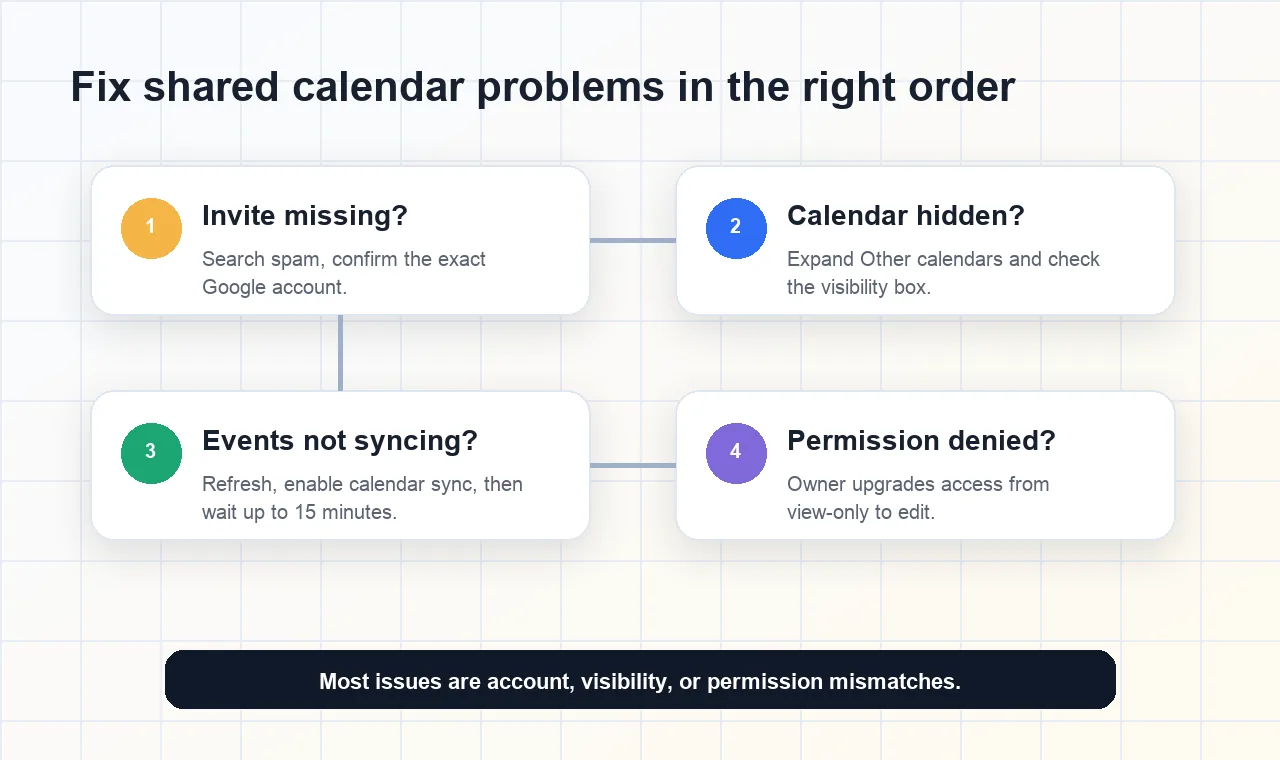
The invitation landed in spam or promotions. Email filters don't always recognize calendar sharing notifications as priority messages. Ask the recipient to search their spam folder for emails from "calendar-notification@google.com" or simply search for the calendar name you shared.
They're checking the wrong Google account. Many people have multiple Gmail addresses—personal, work, old accounts they forgot about. If you sent the invite to their work email but they're logged into their personal account, the invitation won't appear where they're looking. Confirm you used the correct email address and that they're signed into the matching account.
iCloud is intercepting the invite. Here's a sneaky problem that affects iPhone users: if someone has an iCloud account associated with their Gmail address but doesn't actively use iCloud Calendar, Apple's system may capture the invite instead of routing it to Google Calendar. According to this troubleshooting guide, the fix involves logging into iCloud Calendar settings and changing invite delivery from "In-app Notifications" to "Email."
If you're wondering how to send invite from Google Calendar and ensure it actually arrives, double-check the email address for typos before clicking Send. A single misplaced letter means the invitation disappears into the void—or worse, arrives in a stranger's inbox.
Shared Calendar Not Appearing After Accepting
The recipient clicked "Add this calendar," received confirmation it worked, but their calendar view shows nothing new. This scenario is surprisingly common and usually comes down to visibility settings rather than actual sharing failures.
The calendar is hidden in the sidebar. Shared calendars appear under "Other calendars" in the left sidebar—not under "My calendars." If the recipient doesn't see the shared calendar listed there, ask them to scroll down or click the arrow next to "Other calendars" to expand the section.
The calendar checkbox is unchecked. Even when a calendar exists in your account, it won't display events unless the checkbox next to its name is selected. This is the single most common reason for "I accepted but can't see anything" complaints. A quick click on the checkbox toggles visibility on.
They accepted from the wrong account. Similar to the invitation issue, if someone accepted the calendar share while logged into a different Google account, the calendar lives in that other account. They'll need to switch accounts or access the calendar from where they actually accepted it.
Understanding how to invite someone to Google Calendar is only part of the equation—making sure they can actually see the results matters just as much.
Quick Reference: Problems and Solutions
When troubleshooting calendar sharing issues, having a quick reference saves time. This table covers the most common problems you'll encounter:
| Problem | Likely Cause | Solution |
|---|---|---|
| Invitation never arrived | Email filtered to spam or promotions folder | Search spam folder for "calendar-notification@google.com" or the calendar name |
| Invitation not found anywhere | Sent to wrong email address or recipient checking wrong account | Verify the email address used and confirm recipient is logged into the correct Google account |
| iPhone user never received invite | iCloud intercepting calendar invites sent to Gmail addresses | Log into iCloud Calendar settings and switch invite delivery to Email instead of In-app Notifications |
| Calendar accepted but not visible | Calendar hidden or checkbox unchecked in sidebar | Expand "Other calendars" section and click the checkbox next to the shared calendar name |
| Events not syncing to mobile | Sync delay or calendar not enabled on device | Pull down to refresh the app, verify calendar is enabled in device settings, or wait 15 minutes |
| Permission denied error when editing | Recipient has view-only access | Calendar owner must upgrade permissions to "Make changes to events" in sharing settings |
| Calendar shows on desktop but not phone | Shared calendar not enabled in Google sync settings | Visit calendar.google.com/calendar/syncselect in mobile browser and enable the shared calendar |
When Invitations Keep Failing
Sometimes the problem isn't on the recipient's end at all. If you're repeatedly having trouble figuring out how to send invitation in Google Calendar successfully, check these potential issues on your side:
• Workspace restrictions – Your organization's administrator may have disabled external sharing. Check with IT if you're using a work account.
• Recipient's organization blocks external shares – Some companies configure Google Workspace to reject calendar shares from outside their domain. The recipient's IT team would need to whitelist your domain or adjust their policies.
• Browser cache issues – Try clearing your browser cache or using an incognito window when sharing. Corrupted cache data occasionally interferes with calendar functions.
Learning how to invite people to Google Calendar effectively means anticipating these obstacles. When one method fails, try sharing via a direct event invitation instead of full calendar access—event invites often bypass organizational restrictions that block calendar-level sharing.
Quick tip: If all else fails, ask the recipient to manually subscribe to your calendar using your calendar's public address or sharing link. This workaround bypasses email-based invitations entirely.
Most Google Calendar sharing problems resolve with these straightforward fixes. But preventing issues in the first place requires thoughtful planning—including knowing when and how to share calendars appropriately for different relationships. Let's explore best practices that keep calendar sharing smooth from the start.
Step 8 Calendar Sharing Best Practices for Every Situation
You now know the mechanics of how to share your Google Calendar with someone. But knowing which buttons to click is different from knowing when and how much to share. The technical skills get you started—the etiquette and strategy keep your relationships smooth and your privacy intact.
Think about it this way: just because you can give someone full editing access to your calendar doesn't mean you should. Every sharing decision involves a trade-off between transparency and privacy, convenience and control. Getting these decisions right depends on understanding the relationship and context.
Sharing with Family Members
Family calendar sharing works best when everyone commits to the system. A shared calendar sitting unused helps no one—but when the whole household participates, scheduling transforms from chaotic group texts into effortless coordination.
According to a practical approach outlined by Family Fun in Omaha, creating separate calendars for different purposes keeps family schedules organized. Consider setting up distinct calendars for:
• Family events – Birthdays, anniversaries, holidays, and gatherings everyone needs to know about
• School activities – Parent-teacher conferences, school plays, field trip permission deadlines
• Sports and hobbies – Practice schedules, games, recitals, and lessons
• Individual schedules – Personal appointments that affect household logistics
How can I share Google Calendar with others in my family without creating confusion? The key is color coding. Assign each calendar a distinct color so anyone can glance at the week and immediately understand what's happening. When multiple family members add events, those colors become visual shorthand—blue for soccer practice, green for doctor appointments, purple for date nights.
For families with children, consider sharing kids' calendars with caregivers, grandparents, or anyone who helps with transportation. This transparency eliminates the "I didn't know she had dance class today" moments that create logistical nightmares.
A weekly family calendar review helps everyone stay engaged. Spend five minutes each Sunday scanning the upcoming week together. This ritual catches conflicts early and ensures nobody feels blindsided by forgotten commitments.
Sharing with Work Colleagues and Clients
Professional calendar sharing requires more nuance than family coordination. The stakes are different—oversharing can compromise confidentiality, while undersharing creates friction that slows projects down.
When wondering how to share my Google Calendar with someone at work, start by asking whether they need ongoing access or just visibility into specific meetings. For close team members working on shared projects, full calendar visibility often makes sense. For clients and external partners, individual event invitations protect sensitive internal information.
Here's an etiquette question that trips people up: should you request calendar access, or wait for someone to offer? The answer depends on hierarchy and relationship closeness. Requesting access from a direct report or peer on a collaborative project is perfectly appropriate. Requesting access from a senior executive or new client feels presumptuous unless there's a clear operational need.
If you want to make a shared Google calendar for a team or project, consider creating a brand-new calendar specifically for that purpose rather than sharing your personal work calendar. This approach lets you control exactly what the group sees without exposing unrelated meetings or personal appointments.
Wondering how to create a Google Calendar for a group project? Create a new calendar from your settings, give it a descriptive name like "Q2 Marketing Campaign" or "Product Launch Team," then share it with all relevant stakeholders. Everyone can add events, and nobody sees your dentist appointments or one-on-ones with other teams.
Privacy Considerations at Each Permission Level
Before sharing Google Calendar with others, think carefully about what each permission level actually reveals:
• Free/busy only – Safe for almost anyone; reveals when you're occupied without showing why
• See all event details – Exposes meeting titles, locations, attendees, and descriptions; inappropriate for competitors or casual contacts
• Make changes to events – Grants significant control; reserve for trusted assistants or close collaborators
• Make changes and manage sharing – Full administrative access; use sparingly and only with people you'd trust to manage your schedule independently
As Calendar.com notes, many people successfully merge work and personal calendars because most online calendars let you make some entries private while keeping others visible. Before sharing, review your calendar for any events you'd prefer to keep confidential—rename vague entries or mark them as private.
Organizing Calendars Before Sharing
Sharing a messy calendar creates a poor impression and can leak information you didn't intend to share. Before clicking that Share button, take a few minutes to clean house:
• Review event titles – Replace informal or cryptic names with clear, professional descriptions
• Check for sensitive content – Look for meeting notes, attendee lists, or descriptions that shouldn't be visible to new viewers
• Set appropriate default visibility – Configure new events to default to "private" if you frequently add personal items
• Archive or hide old calendars – Remove clutter from calendars you no longer use but haven't deleted
Think of calendar sharing like inviting someone into your office. You'd probably tidy up the visible papers on your desk first.
Best Practices Checklist
Whether you're learning how to share Google Calendar with others for the first time or refining your existing approach, these guidelines keep sharing smooth and relationships intact:
• Start with the minimum permission level needed and upgrade only when necessary
• Create purpose-specific calendars rather than sharing your main calendar with everyone
• Review your sharing list quarterly and remove people who no longer need access
• Color-code calendars to make shared views instantly readable
• Update your calendar promptly when plans change—outdated information undermines trust
• Avoid last-minute changes when possible; give others advance notice if schedules must shift
• Enable time zone displays when collaborating across regions
• Add buffer time between meetings to prevent back-to-back scheduling chaos
• Include essential details but avoid overstuffing event descriptions
• Block personal time on shared calendars to protect your availability
Beyond Traditional Calendar Views
Standard calendar sharing works well for scheduling, but some teams need more than a list of time slots. When coordinating complex projects with multiple dependencies, deadlines, and milestones, visual planning tools can complement your shared calendars.
Imagine mapping out an entire quarter where team members can see not just when meetings happen, but how projects interconnect and where deadlines cluster. For teams wanting to visualize shared schedules in a more dynamic, collaborative workspace, AFFiNE's Whiteboard Calendar offers an interactive approach to quarterly planning. Rather than static calendar grids, this kind of tool lets you drag and drop schedules, map relationships between milestones, and synchronize project timelines in real time—creating an agile planning experience that goes beyond what traditional calendar sharing provides.
Whether you stick with straightforward Google Calendar sharing or layer in visual planning tools, the goal remains the same: eliminate the back-and-forth confusion that wastes everyone's time. Apply these best practices consistently, and you'll spend less energy coordinating and more energy actually getting things done.
Frequently Asked Questions About Sharing Google Calendar
1. How do I share my Google Calendar to other people?
Open Google Calendar on your desktop browser, hover over the calendar you want to share in the left sidebar, click the three dots, and select 'Settings and sharing.' Scroll to 'Share with specific people,' click 'Add people and groups,' enter the recipient's email address, choose their permission level (free/busy, see details, make changes, or full control), and click Send. The recipient will receive an email invitation to accept the shared calendar.
2. How do I add a person to access my calendar?
Navigate to your calendar's Settings and sharing page by clicking the three dots next to the calendar name. In the 'Share with specific people' section, click 'Add people and groups,' enter their email address, select the appropriate permission level based on what access they need, and send the invitation. You can add multiple people at once by entering additional email addresses before clicking Send.
3. Can I share my Google Calendar from my iPhone or Android phone?
Yes, but the path differs by device. Android users can manage full calendar sharing in the Google Calendar app when account settings allow it. iPhone and iPad users can share individual events in the app, but should use calendar.google.com in a browser or a desktop computer for full calendar sharing and permission changes.
4. What is the difference between sharing my entire calendar versus sharing individual events?
Full calendar sharing gives ongoing access to all your events and works best for family members, assistants, or close team members who need continuous visibility. Individual event sharing sends invitations to specific meetings without exposing your entire schedule, making it ideal for clients, one-time collaborations, or external parties where privacy is important.
5. Why is my shared Google Calendar not appearing after the recipient accepted the invitation?
The most common reasons are: the calendar is hidden in the 'Other calendars' section (not under 'My calendars'), the checkbox next to the calendar name is unchecked, or the recipient accepted while logged into a different Google account. Check the sidebar, expand 'Other calendars,' and ensure the visibility checkbox is selected. For mobile devices, visit calendar.google.com/calendar/syncselect to enable shared calendar syncing.