
How to Share Notes on iPhone in 2026: 7 Methods
Updated September 2026 using Apple’s current guidance for sharing and collaborating in Notes and exporting notes as PDF. This guide distinguishes live iCloud collaboration from static copies and cross-platform handoffs.
To share notes on iPhone, open the Notes app, tap the share icon, then choose "Collaborate" for a live iCloud note or "Send Copy" for a static handoff through Messages, Mail, AirDrop, PDF, or another app. This guide walks through seven current sharing methods, including the realistic options for Android and Windows recipients.
7 ways to share iPhone Notes in 2026:
- iCloud Collaboration — real-time editing, Apple-to-Apple
- AirDrop — instant peer-to-peer to nearby Apple devices
- Messages / iMessage — quick send with inline preview
- Mail with iCloud link — copy or shareable link
- iCloud browser link — useful only when the recipient can sign in with an Apple Account
- PDF export — universal format for non-Apple recipients
- Cross-platform workspaces — AFFiNE, Notion, Google Drive, or similar browser-based tools
The Hidden Power of iPhone Notes Sharing
The best reason to share a note is simple: some information should stay organized instead of disappearing into a message thread. A shared grocery list, team agenda, travel plan, or class checklist works better when everyone edits the same source of truth instead of sending fragments back and forth.
Whether you need to share notes with family members for weekly meal planning, collaborate on meeting notes with your team, or send detailed travel itineraries to friends, your iPhone's Notes app has you covered. The built-in Notes app is not a full project management system, but it is strong for lightweight collaboration when every participant can use iCloud. The key is knowing when to collaborate, when to send a copy, and when to move the work into a cross-platform workspace.
Why Sharing Notes Beats Texting Everything
Texting works great for quick conversations, but it falls apart when you need organized, editable information. Important details get buried. Lists become scattered across multiple messages. And good luck finding that one specific item someone mentioned last Tuesday. When you share notes on iPhone, everything stays in one place - clean, organized, and always up to date.
According to Apple's official support documentation, you can invite people to collaborate on notes in iCloud where everyone sees changes in real time. This means your family grocery list, your team's brainstorming session, or your travel planning document becomes a living document that grows with your needs.
What You'll Master in This Guide
By the time you finish reading, you'll know exactly how to share notes on iPhone for any situation. Here's what we'll cover:
• Setting up iCloud Notes properly (the essential first step most people skip)
• Choosing between real-time collaboration and sending static copies
• Inviting others to edit my notes or view them read-only
• Sharing with Android users and non-Apple devices
• Troubleshooting when things don't work as expected
Whether you're a complete beginner or someone who's tried sharing before and hit frustrating roadblocks, this guide walks you through every step. Let's turn your Notes app into the collaboration powerhouse it was designed to be.
Step 1: Set Up iCloud Notes Before You Share
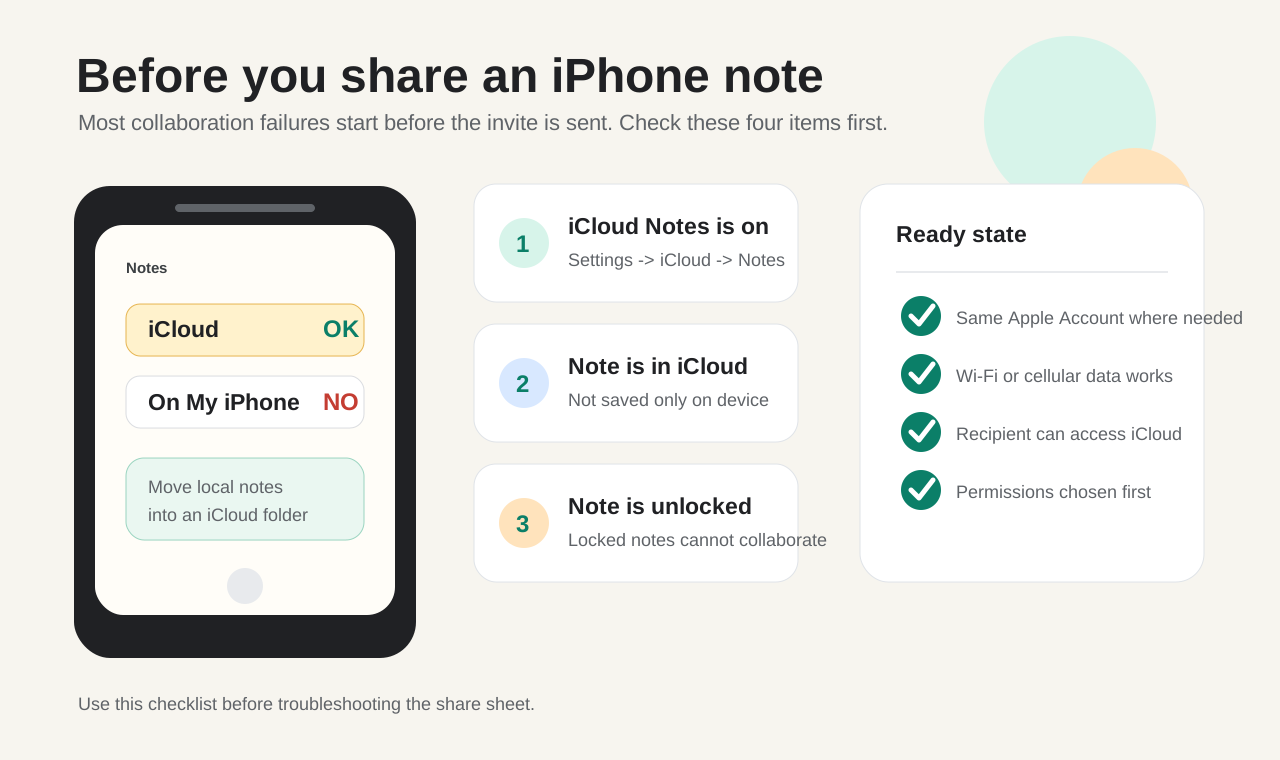
Ever tapped the share button on a note only to find the collaboration options completely grayed out? You're not alone. This frustrating experience catches countless iPhone users off guard, and the culprit is almost always the same: your note is stored locally instead of in iCloud. Before you can successfully share notes on iPhone, you need to understand this critical distinction and get your setup right.
Here's the deal: notes saved "On My iPhone" exist only on your device. They can't sync, they can't be shared for collaboration, and they won't appear on your other Apple devices. Notes stored in iCloud, on the other hand, live in the cloud and can be accessed from your iPhone, iPad, Mac, and even through a web browser. More importantly, only iCloud notes support the real-time collaboration features that make sharing so powerful.
Check Your iCloud Notes Sync Status
Wondering how to sync iCloud properly for Notes? According to Apple's official iCloud setup guide, the process is straightforward:
-
Open the Settings app on your iPhone
-
Tap your name at the top (your Apple Account)
-
Select iCloud
-
Tap See All or Show All under the apps list
-
Find Notes and tap it
-
Make sure Sync this iPhone is turned on
Once enabled, open your Notes app and look at your folder structure. You should see an "iCloud" section with folders underneath it. If you only see "On My iPhone," your notes aren't syncing yet - give it a few minutes and ensure you have a stable internet connection.
Experiencing notes not syncing between iPhone and iPad? Double-check that you're signed into the same Apple Account on both devices and that iCloud Notes sync is enabled on each one. This is the most common reason notes appear on one device but not another.
Moving Local Notes to iCloud
If you've been saving notes locally and now want to enable sharing, you'll need to move them manually. Here's how:
-
Open the Notes app and navigate to the "On My iPhone" folder
-
Tap Edit in the top right corner
-
Select the notes you want to move
-
Tap Move at the bottom of the screen
-
Choose an iCloud folder as the destination
Once your notes live in iCloud, the share options that were previously grayed out will become available. This simple move is often all it takes to unlock full collaboration capabilities.
Prerequisites Checklist
Before attempting any note sharing, run through this quick checklist to avoid common pitfalls:
• Active Apple Account: You must be signed into your Apple Account (formerly Apple ID) on your device
• Notes synced to iCloud: Verify the sync toggle is on in Settings > [Your Name] > iCloud > Notes
• iOS 18 or later: For full collaboration features as noted in Apple's collaboration support article, update to the latest iOS version
• Stable internet connection: iCloud sync requires Wi-Fi or cellular data to function
• Note is unlocked: Locked notes cannot be shared for collaboration - remove the lock first
With these prerequisites in place, you're ready to explore the different ways to share your notes. But first, you'll need to understand a crucial choice that determines exactly how your sharing will work.
Step 2: Choose Between Collaboration and Sending a Copy
You've tapped the share button on your note, and now you're staring at two options: Collaborate and Send Copy. Which one should you pick? This single decision determines everything about how your recipient interacts with your note - and it's the most misunderstood aspect of how to share a note on iPhone.
Think of it this way: Collaborate creates a living document that everyone can edit together, like a shared whiteboard. Send Copy, on the other hand, takes a snapshot of your note at that exact moment and hands it off - what recipients do with it afterward is entirely separate from your original.
According to Apple's official Notes support documentation, collaboration keeps participants on the same iCloud note with real-time updates. That fundamentally changes how you work together. But collaboration is not always the right choice - sometimes a static copy, PDF, or browser-based tool is safer and easier.
When to Choose Real-Time Collaboration
Wondering how to collaborate on notes effectively? Real-time collaboration shines when your note needs to evolve over time with input from multiple people. Here's when you should tap Collaborate:
• Ongoing grocery or shopping lists: Family members add items throughout the week, and everyone sees updates instantly
• Meeting notes: Multiple attendees can capture different points simultaneously without duplicating effort
• Trip planning: Everyone adds restaurant recommendations, activity ideas, and packing reminders to the same collab note
• Household chore assignments: Roommates or family members check off completed tasks in real time
• Brainstorming sessions: Team members contribute ideas as they think of them, building on each other's thoughts
When you collaborate notes with others, you're creating a shared workspace. Changes sync within seconds, and you can even see who made what edits by viewing the activity history. It transforms a simple note into a dynamic project hub.
Keep in mind one important limitation: participants need the right Apple Account and iCloud Notes access to join a collaborative note. That makes Apple Notes excellent for Apple-heavy households or teams, but less reliable for mixed-device groups.
When Sending a Copy Makes More Sense
Sometimes you don't want ongoing collaboration - you just need to hand off information. Send Copy creates a shareable note that becomes completely independent once delivered. Consider this option when:
• Sharing completed documents: You've finalized meeting minutes or a project summary and don't want further edits
• Providing reference materials: Recipes, instructions, or how-to guides that don't need modification
• Sending to non-Apple users: Android users or those without iCloud can receive copied content via text or email
• Distributing templates: You want recipients to have their own version to customize independently
• Preserving a record: You need to capture the note's state at a specific moment in time
When you send a copy, recipients get the content through whatever method you choose - Messages, Mail, AirDrop, PDF, or another app. They can save it to their own notes app or simply read it in the message. Any changes they make will not affect your original, and vice versa.
Quick Comparison: Collaborate vs. Send Copy
Still not sure how to make a shared note decision? This table breaks down the key differences:
| Feature | Collaborate | Send Copy |
|---|---|---|
| Real-time updates | Yes - all changes sync instantly | No - creates a static snapshot |
| Recipient requirements | Apple Account with iCloud Notes enabled | Anyone with a phone or email |
| Editing permissions | Can make changes or View only options | Recipients control their own copy |
| Activity tracking | See who made changes and when | No visibility after sending |
| Connection to original | Remains linked - you stay in control | Completely independent |
| Best use cases | Lists, ongoing projects, team notes | Reference docs, completed work, non-Apple users |
| Can revoke access | Yes - remove participants anytime | No - once sent, they have it |
Here's a helpful way to think about it: if you'd want to know when someone makes changes or need to update the information later, choose Collaborate. If you're essentially saying "here's the information, do what you want with it," Send Copy is your answer.
Pro tip: You can always start with Send Copy and upgrade to collaboration later if needed. However, you cannot convert a collaborative note back to a private one without first stopping the share and manually re-sharing as a copy.
Now that you understand this fundamental choice, you're ready to dive into the mechanics of setting up real-time collaboration with specific people.
Step 3: Start a Collaborative Note with Others
Ready to transform your note into a shared workspace? Once you've decided that real-time collaboration is the right approach, the actual setup takes less than a minute. Whether you're learning how to create a shared note on iPhone for the first time or simply need a refresher, this walkthrough covers every option and setting you'll encounter.
The collaboration features in iPhone Notes are surprisingly robust. You can control exactly who sees your note, decide whether they can edit or just view, and even track every change participants make. Let's walk through the complete process step by step.
Setting Permissions Before You Share
Before sending that invitation, you'll want to configure your sharing settings. According to Apple's official documentation, here's how to collab on notes with the right permissions in place:
-
Open the Notes app and navigate to the note you want to share
-
Tap the Share icon (a square with an upward arrow) at the top right of the screen. If you don't see it, tap the three dots icon and select "Share Note"
-
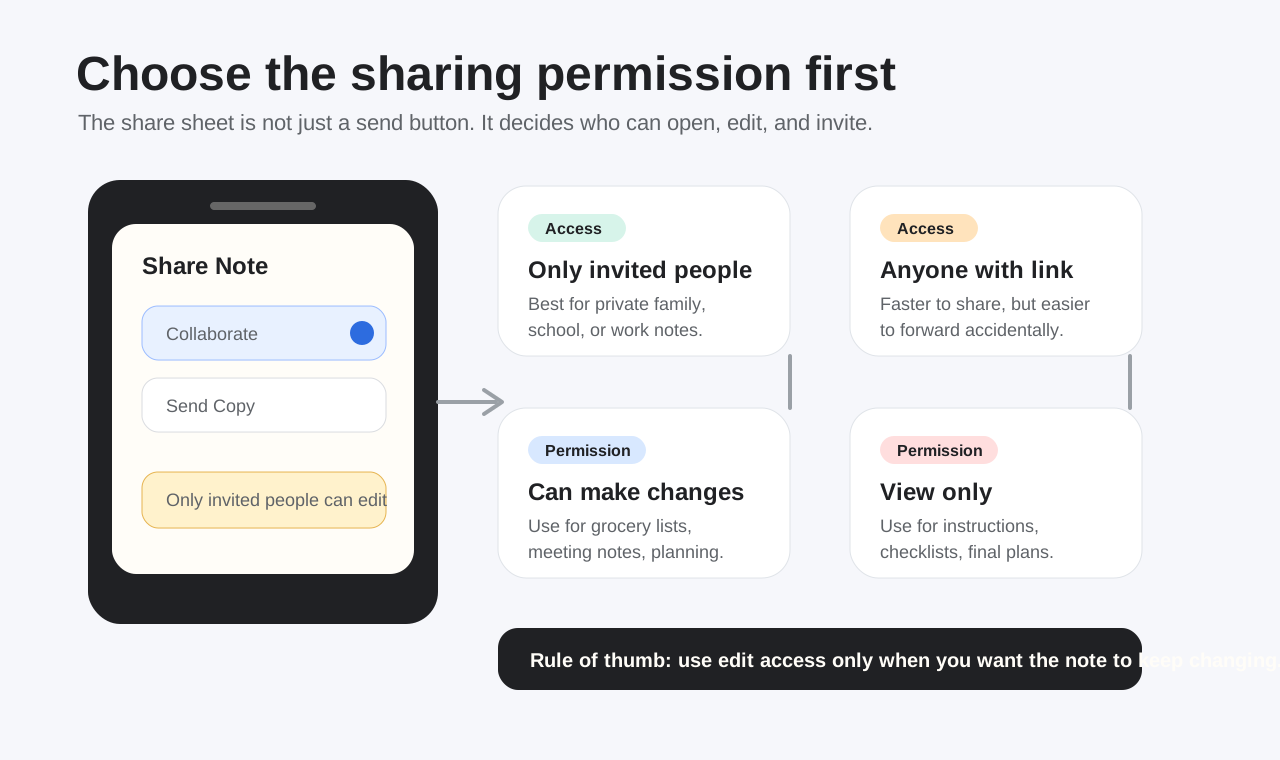
At the top of the share sheet, make sure Collaborate is selected (not Send Copy)
-
Tap the line that says "Only invited people can edit" to access permission settings
-
Configure your preferred access level and permissions
-
Choose your delivery method: Messages, Mail, or Copy Link
-
Select your recipients and send the invitation
When you tap into the permission settings, you'll find two important decisions to make. The first controls who can access your note:
• Only invited people: Recipients must be signed into the Apple Account where you sent the invitation. This offers tighter security since only specific people you've chosen can view or edit the note.
• Anyone with the link: Anyone who receives the link can access the note, even if they forward it to others. This is more convenient for quick sharing but less secure.
The second decision determines what recipients can do once they access your collaborative notes iPhone:
• Can make changes: Participants have full editing privileges. They can add text, delete content, attach images, and modify anything in the note.
• View only: Participants can see the note and its updates but cannot make any changes. Perfect for sharing information while maintaining complete control over the content.
There's also a third toggle worth noting: "Allow others to invite." When enabled, participants with editing permissions can invite additional people to collaborate. Turn this off if you want to maintain strict control over who sees your note.
Important: You cannot collaborate on locked notes or folders containing locked notes. If your sharing options appear grayed out, check whether password protection is enabled on that note.
Sending Invitations Through Different Channels
Once your permissions are set, it's time to invite collaborators. Apple gives you three primary methods to share the invitation:
Messages: This is the recommended method if your collaborators use iPhones. As Apple notes, "If you send the invitation in Messages, you get activity updates in the Messages conversation when someone makes changes in the shared note." You can tap these updates to jump directly to the note - a convenient feature that keeps you informed without constant app switching.
Mail: Sending via email works well for colleagues or anyone you communicate with primarily through email. The recipient receives a link they can tap to join the collaboration. Just keep in mind they'll need an Apple device with Notes enabled to participate fully.
Copy Link: This option places a shareable link on your clipboard. You can then paste it into WhatsApp, Slack, Discord, or any other messaging platform. It's the most flexible option, though you lose the integrated activity updates that Messages provides.
Note that AirDrop isn't supported for collaboration invitations. If you need to share with someone nearby, use Messages or copy the link instead.
What Happens When Recipients Accept
Curious about how to make a shared note on iPhone actually work once you've sent the invitation? Here's what your collaborators experience:
When a recipient taps your invitation link, their device opens the Notes app automatically. They'll see a prompt asking them to join the shared note. Once they accept, the note appears in their iCloud Notes folder with a small collaboration indicator - a circular icon showing participant avatars.
From that moment on, you're working in sync. Any text they add appears on your screen within seconds. Any changes you make show up on their device just as quickly. It's genuinely real-time, which makes how to collaborate notes on iPhone feel almost like working together in the same room.
Your collaborators will see the note organized in their own Notes app, but it remains linked to your original. They don't get a separate copy - everyone is editing the same document. This is the key difference from sending a copy, where each person ends up with their own independent version.
Tracking Changes and Participant Activity
One of the most powerful aspects of collaborative notes iPhone offers is the ability to see exactly who changed what and when. This transparency makes group projects far more manageable.
In your notes list, look for an orange dot to the left of a shared note's title. This indicates changes have been made since you last opened it - a quick visual cue that something new awaits.
To dive deeper into the activity, tap the Collaboration icon (the participant avatar) at the top of the note, then tap Show All Activity. This reveals a detailed breakdown showing:
• Who made changes: Each participant's name appears alongside their contributions
• When changes occurred: Timestamps help you understand the timeline of edits
• What was modified: Highlighted sections show exactly what text was added, removed, or changed
You can customize this view by tapping the options menu. Choose "Show Updates" to see only changes since your last visit, "Show All Activity" for the complete edit history, or "Show Highlights" for a summary organized by participant.
Here's a helpful tip from Apple's support guide: type the @ symbol followed by a participant's name to mention them and send a notification about important updates. This works similarly to mentions in apps like Slack or Microsoft Teams, making it easy to draw someone's attention to specific content.
Managing Your Shared Note Over Time
Collaboration rarely stays static. You might need to add new participants, remove someone who's left the project, or adjust permissions as circumstances change. As the note owner, you retain full control.
To manage an existing shared note:
-
Open the shared note
-
Tap the collaboration icon (the circle with participant avatars)
-
Select Manage Shared Note
From here, you can add collaborator access for new participants using the same invitation methods. To remove someone, tap their name and select "Remove Access." You can also change the overall share settings or stop sharing entirely - though be aware that stopping the share deletes the note from all participants' devices.
Now that you've mastered real-time collaboration, what about those situations where you simply need to send note content without the ongoing connection? Let's explore the various methods for sending note copies to any recipient.
Step 4: Send Note Copies via Multiple Methods
Sometimes you don't need ongoing collaboration - you just want to get information from your Notes app into someone else's hands quickly. Maybe you're sending a finalized recipe to a friend, forwarding travel details to family, or distributing meeting notes to colleagues who weren't present. When you share a note on iPhone as a copy, you have several delivery options, each suited to different situations.
Unlike collaboration, sending a copy doesn't require recipients to have an Apple device or iCloud account. This makes it the go-to method for sharing notes from iPhone with anyone, regardless of what phone or computer they use. Let's explore every method available to you.
All Your Sharing Methods at a Glance
When you tap the Share button and select "Send Copy," you'll see a variety of delivery options. Here's how to share notes effectively using each one:
• AirDrop: The fastest option for nearby Apple users. Your note transfers wirelessly in seconds to any iPhone, iPad, or Mac within Bluetooth range. Perfect for sharing with someone sitting across the table.
• Messages: Sends the note content directly into a text conversation. Recipients can read it immediately without downloading anything. Great for quick shares with contacts you text regularly.
• Mail: Embeds your note into an email body. Ideal for professional communication or when you need a paper trail of what was sent.
• Copy Link: Places a sharing link on your clipboard. Paste it into WhatsApp, Slack, Discord, or any other messaging platform. Offers maximum flexibility for how to send notes from iphone.
• Third-party apps: Many apps appear in the share sheet, including WhatsApp, Telegram, and social media platforms. Tap any to send your note content directly.
• Save to Files: Exports your note to the Files app, from which you can upload to cloud storage services or transfer to a computer.
The beauty of sending copies is simplicity. Tap share, choose your method, select your recipient, and you're done. No permission settings to configure, no waiting for acceptance - the content simply arrives.
Export Notes as PDF for Universal Compatibility
Here's the most important sharing trick many iPhone users overlook: exporting notes as PDF files. A PDF preserves your note's formatting perfectly and can be opened on literally any device - Android phones, Windows computers, Linux machines, you name it. When you need to share iPhone notes with someone outside Apple's ecosystem, PDF is your best friend.
According to Apple's official support documentation, here's how to create a PDF from any note:
-
Open the note you want to export in the Notes app
-
Tap the Share button (the square with an upward arrow)
-
Select Markup from the options
-
Your note appears as a PDF preview where you can annotate if desired
-
Tap Done to save, then choose how to share or save the PDF
There's an alternative method that's particularly useful for longer notes: use the Print option. Tap Share, select Print, then use a two-finger pinch-out gesture on the print preview. This transforms the preview into a PDF that you can then share through any method.
One limitation to keep in mind: Apple notes that "in a note with a multipage PDF or scanned document, the exported PDF contains only the first page of the original PDF or scanned document." If your note includes embedded PDFs, you may need to export those separately.
For even more flexibility, you can export notes as Markdown files. This option works wonderfully if your recipients use writing apps or content management systems that support Markdown formatting. Simply tap Share, then "Export as Markup," and choose your delivery method.
Share Entire Folders for Project Organization
What if you have a dozen related notes that all need to go to the same person? Sharing them one by one wastes time. Instead, share the entire folder. This approach makes sense when:
• You're handing off a complete project to a colleague
• Multiple family members need access to vacation planning notes
• You want to share a collection of recipes, workout routines, or reference materials
• Team members need ongoing access to a category of related notes
To share a folder, navigate to your folder list in the Notes app. Touch and hold the folder you want to share, or tap the three-dot menu icon next to it. Select the share option, and you'll see the same collaboration versus copy choices available for individual notes.
When you share note folders for collaboration, participants gain access to all notes within that folder - including any new notes you add later. They can also create subfolders if you've granted editing permissions. This makes folder sharing powerful for ongoing team projects where new content appears regularly.
Sending a folder as a copy works differently. Rather than transferring the folder structure itself, you're typically sharing access or exporting individual note contents. For static handoffs, consider exporting key notes as PDFs and bundling them together.
Choosing the Right Method for Your Situation
With so many ways to share a note, how do you pick? Consider these factors:
| Situation | Best Method | Why It Works |
|---|---|---|
| Friend across the table | AirDrop | Instant, no typing required |
| Quick text to family | Messages | Keeps it in your existing conversation |
| Professional communication | Creates a documented record | |
| Android user recipient | PDF export | Universal compatibility |
| Team chat platform | Copy Link | Paste anywhere you communicate |
| Preserving formatting exactly | PDF export | Locks in layout and styling |
The method you choose ultimately depends on who's receiving your note and how they'll use it. For Apple users you communicate with regularly, Messages and AirDrop offer convenience. For anyone else, PDF export ensures your note arrives looking exactly as you intended.
But what happens when your recipients don't use Apple devices at all? Sharing with Android users and Windows computers presents unique challenges that require specific workarounds - which we'll tackle next.
Step 5: Share Notes with Android and Non-Apple Users
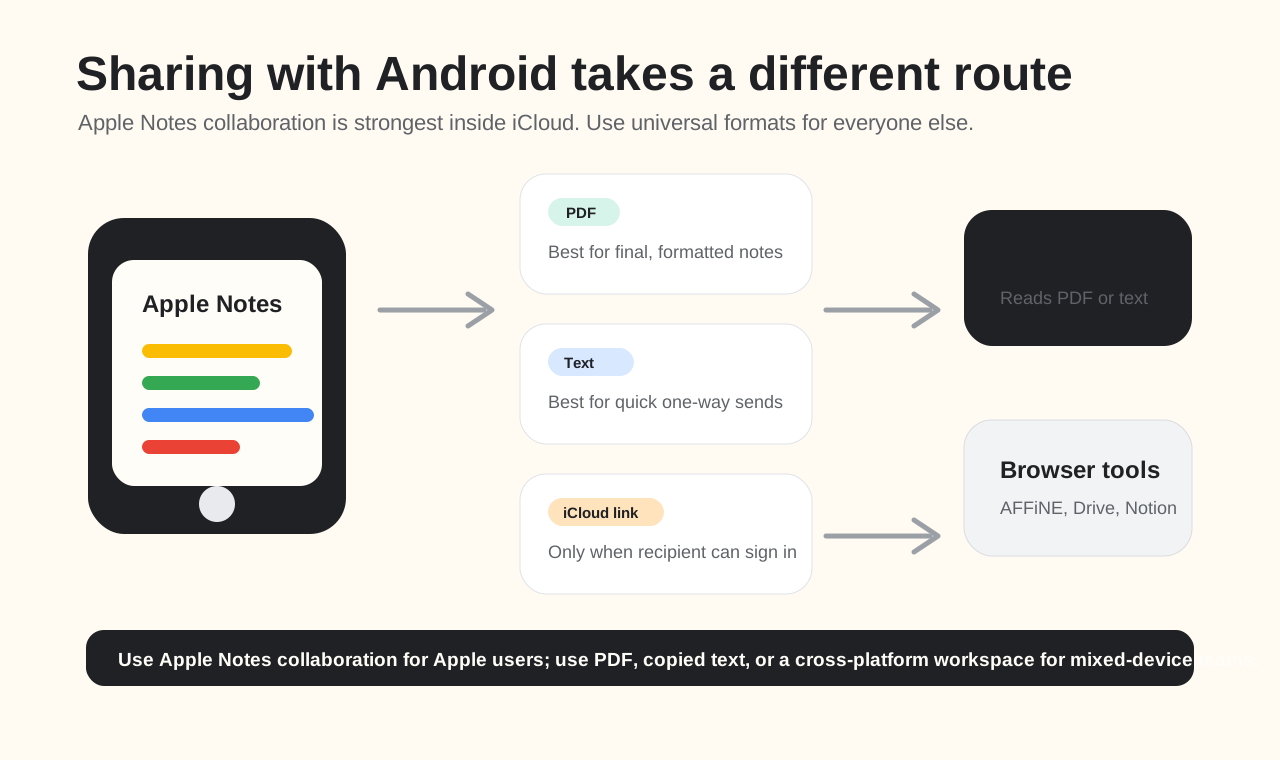
Here's the reality check: Apple Notes works best inside Apple's ecosystem. The moment you need to share with someone on Android or Windows, real-time collaboration becomes less predictable because iCloud access and Apple Account sign-in are still part of the flow. So how do you share notes with someone who does not live in Apple's world?
Don't worry - you're not stuck. While the seamless collaboration experience won't transfer to non-Apple users, several practical workarounds let you share your note content with anyone. Whether your colleague uses a Samsung Galaxy, your friend has a Google Pixel, or your team works on Windows PCs, these methods ensure your information reaches them.
The iCloud.com Web Workaround
Most people don't realize this exists: anyone with a web browser can access shared Apple Notes through iCloud.com - no Apple device required. According to Apple's official documentation, "Web-only access to iCloud lets you share and collaborate with others in real time on documents, spreadsheets, and presentations, even without access to an Apple device."
Here's how to share notes between iPhone and Android users using this approach:
-
Open the note you want to share on your iPhone
-
Tap the Share button and select Collaborate
-
Choose Anyone with the link in the permission settings
-
Tap Copy Link to place the share URL on your clipboard
-
Send this link to your Android-using friend via text, email, or any messaging app
When your recipient taps the link, it opens in their browser and prompts them to sign into iCloud.com. If they don't have an Apple Account, they can create a free web-only account right there. Apple notes that this includes "1GB of free storage for any notes and documents that you create" - enough for viewing and light collaboration.
The experience isn't quite as smooth as native app collaboration, but it works. Your Android-using colleague can view the note, and if you've granted editing permissions, they can make changes that sync back to your iPhone. It's the closest thing to true cross-platform collaboration Apple offers.
One important caveat: the iCloud.com web interface works best on desktop browsers. Mobile browser experiences can be clunky, so encourage your Android friends to access shared notes from their computer when possible.
Best Formats for Non-Apple Recipients
When the iCloud.com workaround isn't practical - maybe your recipient doesn't want to create an Apple Account, or you're sharing with many people at once - exporting your note to a universal format is the answer. Here are your best options ranked by reliability:
• PDF Export: The gold standard for cross-platform sharing. PDFs preserve your formatting perfectly and open on every device imaginable. Use the Markup or Print-to-PDF method covered in the previous section.
• Plain Text via Email: Simply copy your note content and paste it into an email. You lose formatting like checklists and tables, but the information transfers to anyone with an email address.
• Copy and Paste to Messaging Apps: Works identically to email. Paste your note into WhatsApp, Facebook Messenger, or any platform your recipient uses.
• Markdown Export: If your recipients use technical tools or note-taking apps that support Markdown, this format preserves basic formatting while remaining widely compatible.
According to Wide Angle Software's research, emailing note content "is super easy, but it will not retain special elements like checkable list circles, images, or sketches." Keep this limitation in mind when your notes contain rich formatting.
Wondering how to transfer notes from iPhone to iPhone when switching devices? That's actually simpler - iCloud sync handles everything automatically. But how do you transfer notes from iPhone to iPhone if iCloud isn't an option? The same methods work: export as PDF, email the content, or use a third-party transfer tool. These approaches translate just as well to Android destinations.
Third-Party Alternatives for Mixed-Device Teams
If you regularly collaborate with Android users or mixed-device teams, fighting against ecosystem limitations gets exhausting. Sometimes the smarter solution is using a cross-platform tool from the start.
Google Keep offers one popular alternative. As Wide Angle Software notes, this free app "is available on both iPhone and Android" and syncs automatically across devices when you're logged into the same Google account. Any note created on your iPhone appears instantly on an Android device - genuinely seamless cross-platform syncing.
For complex project notes or team briefs that need professional presentation alongside cross-platform accessibility, tools like AFFiNE's One Pager Template offer an alternative approach. Instead of wrestling with Apple's ecosystem limitations, you can create professional, shareable documents that work across any device or platform. The AI-powered formatting transforms notes into polished one-pagers accessible via simple link sharing - no Apple Account required for recipients.
Other cross-platform options worth considering:
• Microsoft OneNote: Works on iPhone, Android, Windows, and Mac with full sync capabilities
• Notion: Powerful for team collaboration with web-based access
• Evernote: Long-established cross-platform note-taking with robust sharing
The right choice depends on your specific situation. For occasional sharing with non-Apple users, PDF export or copied text is usually the cleanest route. The iCloud.com workaround can help only when the recipient can sign in successfully. For ongoing collaboration with mixed-device teams, adopting a cross-platform tool saves headaches in the long run.
Of course, even within Apple's ecosystem, sharing doesn't always work perfectly. When collaboration invitations fail or shared notes stop syncing, you need troubleshooting strategies - which we'll cover next.
Step 6: Troubleshoot Common Sharing Problems
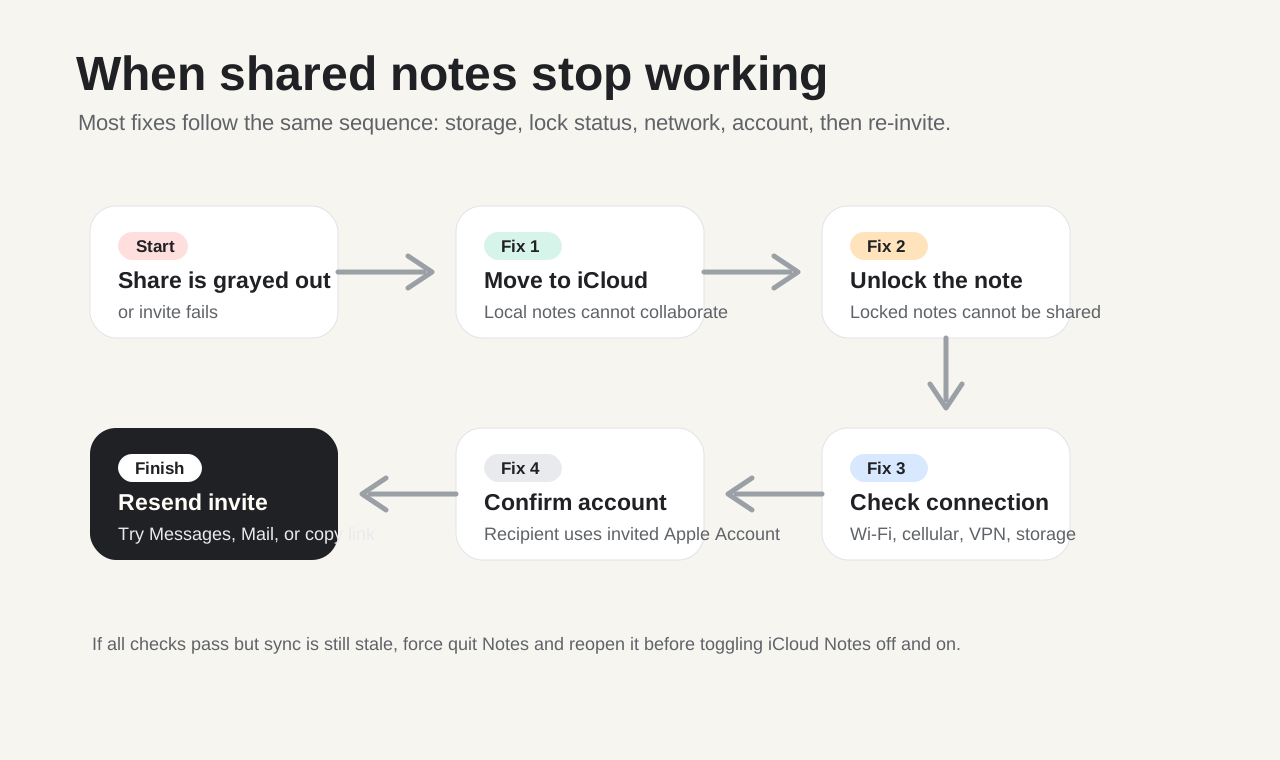
You've followed every step perfectly, but something still isn't working. The share button appears grayed out. Your collaborator claims they never received the invitation. Or maybe everyone joined successfully, but now changes aren't showing up. Sound familiar? These frustrations are incredibly common - and almost always fixable.
Before you assume your Notes app is broken, understand that most sharing failures trace back to a handful of predictable causes. According to Apple's official troubleshooting guide, the most frequent culprits involve iCloud sync settings, internet connectivity, and note storage location. Let's work through each problem systematically.
Fix the Unable to Start Collaboration Error
Seeing "Unable to Start Collaboration" when you try to share? This error frustrates countless users, but the fix is usually straightforward. Why can't I share notes on iPhone when everything seems set up correctly? In most cases, the note you're trying to share lives in the wrong place.
As iDownloadBlog explains, "On My iPhone, On My iPad, or On My Mac notes don't sync to other devices." Notes stored locally cannot be shared for collaboration - period. The collaboration feature requires iCloud storage to function.
Here's how to resolve this:
-
Open the Notes app and find the problematic note
-
Check which folder it's in - if it says "On My iPhone," that's your problem
-
Tap Edit , select the note, then tap Move
-
Choose any folder under the iCloud section
-
Wait a moment for the note to sync, then try sharing again
Another common cause? Locked notes. According to Apple, "If the note is locked, unlock the note. You can't collaborate on a locked note or on a folder with locked notes." Remove password protection before attempting to share.
One more thing to check: Apple limits collaboration to 100 participants per note. If you've hit this ceiling, you'll need to remove some collaborators before adding new ones.
When Shared Notes Stop Syncing
Everything worked fine yesterday, but today your shared note not updating is driving everyone crazy. You add items to the grocery list, but your partner's phone shows the old version. Or worse - why is my notes app not working at all?
Sync failures typically stem from connectivity or account issues. Work through this checklist:
• Internet connection down: iCloud requires Wi-Fi or cellular data. Try playing a YouTube video - if it won't load, fix your connection first.
• iCloud sync disabled: Go to Settings > [Your Name] > iCloud > Notes and verify "Sync this iPhone" is toggled on.
• VPN interference: Some VPN services block iCloud traffic. Temporarily disable your VPN and check if sync resumes.
• iCloud storage full: When your storage hits capacity, new changes can't upload. Delete files or upgrade your plan.
• Apple's servers having issues: Visit Apple's System Status page and check that iCloud Notes shows "Available."
If connectivity isn't the problem, try forcing the app to refresh. As iDownloadBlog suggests, "force quit the Notes app on your iPhone, iPad, and Mac. Then, reopen the app and give it some time to sync." This simple restart often clears stuck sync processes.
Still seeing shared notes not updating after trying everything? The nuclear option works surprisingly well: turn off iCloud Notes sync entirely, wait 30 seconds, then turn it back on. Navigate to Settings > [Your Name] > iCloud > Notes and toggle the sync off, then on again. This forces a complete refresh of your notes database.
Warning: Before toggling iCloud Notes off, verify your important notes exist on iCloud.com. Notes that haven't synced to the cloud will be deleted from your device when you disable sync.
When Collaborators Can't See Changes
You've made edits, but your collaborators insist nothing has changed on their end. Why can't I collaborate on notes when the system claims everything is connected?
First, have your collaborators check their own setup:
• Are they signed into the correct Apple Account? The invitation went to a specific account - they need to be logged into that one.
• Is their iCloud Notes sync active? They should verify Settings > [Your Name] > iCloud > Notes shows sync enabled.
• Have they updated their iOS? Apple recommends iOS 18 or later for full collaboration features.
• Is their device connected to the internet? Offline devices won't receive updates until connectivity returns.
If their settings look correct, ask them to force quit and reopen the Notes app. Sometimes the app needs a nudge to fetch the latest changes from iCloud.
Removing Collaborators and Stopping Shares
Projects end. Team members leave. Sometimes you simply need to revoke access. Here's how to regain control of a shared note:
-
Open the shared note
-
Tap the collaboration icon (the circle showing participant avatars)
-
Select Manage Shared Note
-
To remove one person: tap their name, then select Remove Access
-
To stop sharing entirely: tap Stop Sharing at the bottom
Be aware that stopping a share deletes the note from all participants' devices. They lose access immediately, though any copies they made independently remain theirs.
Quick Troubleshooting Reference
When things go wrong, run through this problem-solution checklist:
• Share options grayed out: Move the note from "On My iPhone" to an iCloud folder
• "Unable to Start Collaboration" error: Verify note is in iCloud and not locked
• Invitation not received: Resend via a different method (try Messages if Mail failed)
• Changes not syncing: Check internet, force quit Notes, toggle iCloud sync off/on
• Collaborator can't join: Confirm they're signed into the Apple Account that received the invitation
• Note disappeared from participant's device: Have them check their iCloud Notes folder - it may have moved
• Hit collaboration limit: Remove inactive participants (maximum 100 per note)
Most sharing problems resolve within minutes once you identify the root cause. With troubleshooting handled, let's look at matching the right sharing method to your specific situation for optimal results.
Step 7: Match Sharing Methods to Your Situation
You now know how to collaborate, send copies, export PDFs, and even work around Apple's ecosystem limitations. But with all these options available, which method should you actually use? The answer depends entirely on your specific situation - who you're sharing with, what they need to do with the information, and whether the content will evolve over time.
Think of it this way: using real-time collaboration for a one-time recipe handoff is overkill. Sending a static copy of an ever-changing grocery list defeats the purpose. Matching the right tool to the right job saves time and prevents frustration for everyone involved.
Let's walk through the most common scenarios and identify exactly which sharing method works best for each.
Best Methods for Family Sharing
Families juggle countless shared responsibilities, making Notes collaboration genuinely useful in daily life. Here's how to approach the most common family scenarios:
Shared grocery lists: This is the classic use case for real-time collaboration. Create a note in your iCloud folder, invite family members with "Can make changes" permissions, and everyone adds items as they think of them. When someone grabs milk at the store, they check it off - and the list updates instantly on everyone's device. No more duplicate purchases or forgotten items buried in text threads.
Household chores and responsibilities: Another perfect fit for shared notes iPhone collaboration. Create a weekly chore list, assign tasks to family members, and let everyone mark items complete as they finish. Parents can see at a glance what's done without asking repeatedly. For accountability, use the activity view to see who completed what and when.
Vacation planning: Trips involve research, reservations, and countless details. Start a collaborative note where everyone can add restaurant recommendations, activity ideas, and packing lists. As you book hotels or flights, add confirmation numbers that everyone can access. When the trip ends, you can stop sharing or simply leave the note as a memory of where you stayed and what you did.
Recipes from grandma: Here's where sending a copy makes more sense. Grandma's famous cookie recipe doesn't need ongoing edits - it's a finished document you're passing along. Export it as a PDF to preserve the formatting perfectly, especially if the recipe includes images or handwritten notes.
Workplace Collaboration Strategies
Professional environments demand different approaches. The stakes are higher, formatting matters more, and you're often sharing with people outside your immediate circle.
Meeting notes: Real-time collaboration shines here. According to iDownloadBlog, "You can have up to 100 people collaborate on one note" - more than enough for most team meetings. Assign different people to capture different sections, and everyone contributes simultaneously. After the meeting, anyone can review and add items they remembered.
Project documentation: Use collaboration for living documents that evolve throughout a project. When the project concludes and you need to archive or distribute final documentation, export as PDF. This creates a permanent record that can't be accidentally modified and opens on any device.
Team brainstorming: Collaborative notes work wonderfully for capturing ideas in real time. Enable "Can make changes" for all participants and let the ideas flow. The activity tracking helps attribute contributions later when you're organizing the best suggestions into action items.
Sharing with external partners: Here's where things get tricky. External collaborators may not use Apple devices or want to create iCloud accounts. For cross-platform sharing, export your notes as PDFs or use the iCloud.com web link approach. If you need to sync iPhone notes to Mac for a colleague who only uses macOS, simply ensure you're both using the same Apple Account or share via collaboration invitation.
Personal Productivity Scenarios
Not all sharing involves other people. Sometimes you're sharing with yourself across devices or preparing materials for future reference.
Syncing between your own devices: Want to sync notes iPhone to iPad seamlessly? Ensure both devices use the same Apple Account with iCloud Notes enabled. Your notes appear automatically on both - no manual sharing required. This also works to sync notes from iPhone to iPad, Mac, and even the iCloud.com web interface.
Backing up important notes: While iCloud provides automatic backup, some notes deserve extra protection. Export critical notes as PDFs and save them to Files, Dropbox, or Google Drive. This creates an independent copy that survives even if something goes wrong with your iCloud account.
Building a reference library: For notes you'll share repeatedly - like company policies, how-to guides, or templates - create them once and use "Send Copy" whenever someone needs them. Each recipient gets their own version without cluttering your original with their modifications.
Transferring to a new iPhone: Wondering how to transfer notes from iPhone when upgrading devices? If your notes live in iCloud, simply sign into your Apple Account on the new device and they appear automatically. For notes stored locally, you'll need to move them to iCloud first or use the PDF export method to preserve them.
Quick-Reference: Scenarios and Recommended Methods
| Scenario | Recommended Method | Why This Works Best |
|---|---|---|
| Family grocery list | Real-time collaboration | Everyone adds and checks off items live |
| Household chores | Real-time collaboration | Track who completed what and when |
| Vacation planning | Real-time collaboration | Gather ideas from everyone, share confirmations |
| Sharing a recipe | Send Copy (PDF) | Finished document, preserves formatting |
| Team meeting notes | Real-time collaboration | Multiple people capture content simultaneously |
| Final project documentation | PDF export | Creates permanent, uneditable record |
| Brainstorming session | Real-time collaboration | Ideas flow freely with attribution |
| Sharing with Android users | PDF or iCloud.com link | Cross-platform compatibility |
| Syncing your own devices | iCloud sync (automatic) | No manual sharing needed |
| Backing up important notes | PDF to cloud storage | Independent copy for safety |
| Reference materials for others | Send Copy | Recipients get their own version |
| New device setup | iCloud sync | Notes appear automatically |
The pattern becomes clear: use collaboration when content needs to evolve with input from multiple people, and use copies or exports when you're distributing finished information. When in doubt, ask yourself: "Do I need to see changes others make?" If yes, collaborate. If no, send a copy.
With the right method matched to each situation, you're ready to put everything into practice. Let's wrap up with a clear action plan for getting started immediately.
Start Sharing Your iPhone Notes Today
You've learned every method, workaround, and troubleshooting trick for sharing notes on iPhone. But knowledge without action doesn't accomplish much. The best way to master these techniques? Start using them immediately with something low-stakes before tackling important work projects.
Let's recap the essential decision points that determine your sharing success, then map out exactly how to put this knowledge into practice starting today.
Your Quick-Start Action Plan
Here's your step-by-step path to becoming confident with how to share notes iPhone style:
-
Verify your iCloud setup right now: Open Settings > [Your Name] > iCloud > Notes and confirm sync is enabled. This five-second check prevents 90% of sharing failures.
-
Create a test note: Start a simple grocery list or to-do list in your iCloud folder.
-
Invite one person: Share it with a family member or friend using real-time collaboration. Ask them to add an item so you can watch the magic of live syncing.
-
Try sending a copy: Export that same note as a PDF and email it to yourself. Open it on another device to see how formatting transfers.
-
Bookmark the troubleshooting section: When something goes wrong (and eventually it will), you'll know exactly where to find solutions.
That's it. Five simple steps transform you from someone who wonders "can you share notes on iPhone" to someone who does it confidently.
The single most important thing to remember: always check that your note is stored in iCloud, not "On My iPhone," before attempting any collaboration. This one verification step prevents the vast majority of sharing failures.
Take Your Note Sharing Further
Once you're comfortable with the basics, expand your skills:
• Create a shared family folder: Organize vacation planning, household management, and shopping lists in one collaborative space
• Experiment with permissions: Try "View only" mode for notes you want others to reference but not modify
• Master the PDF workflow: Practice exporting formatted notes for sharing with Android users or archiving important documents
• Use mentions: Type @ followed by a collaborator's name to notify them about specific updates
Remember the core framework: collaborate for living documents that evolve with input from others, send copies for finished information that doesn't need changes, and export PDFs when you're sharing outside Apple's ecosystem. Match the method to the situation, and iPhone share notes becomes second nature.
The Notes app sitting on your home screen has always been capable of this. Now you know how to unlock its full potential. Start with that grocery list today - your family will thank you the next time nobody forgets the milk.
Frequently Asked Questions About Sharing Notes on iPhone
1. Where is the share button in the Notes app?
The share button in the Notes app appears at the top right corner of your screen when you open any note. It looks like a person icon with a plus sign next to it. Tap this button to access collaboration options, send copies via Messages or Mail, export as PDF, or share through AirDrop. If the share button appears grayed out, your note is likely stored locally rather than in iCloud, which you can fix by moving it to an iCloud folder.
2. How do I share notes on iPhone with friends who use Android?
Since Apple Notes collaboration requires iCloud, Android users cannot directly join shared notes. However, you have several workarounds: export your note as a PDF for universal compatibility, copy and paste the content into any messaging app, or share an iCloud.com web link. When recipients access notes through iCloud.com, they can view and even edit content through their browser without needing an Apple device. For teams regularly collaborating across platforms, cross-platform tools like AFFiNE offer browser-based sharing links, docs, whiteboards, and permissions without requiring every participant to use Apple Notes.
3. Why can't I share notes on iPhone or why are collaboration options grayed out?
The most common reason for grayed-out sharing options is that your note is stored in the 'On My iPhone' folder instead of iCloud. Only iCloud-synced notes support collaboration features. To fix this, move your note to an iCloud folder by tapping Edit, selecting the note, tapping Move, and choosing an iCloud destination. Additionally, locked notes cannot be shared for collaboration, so you'll need to remove password protection first. Ensure you have iOS 18 or later for full collaboration features.
4. What's the difference between Collaborate and Send Copy when sharing notes?
Collaborate creates a live, synced document where all participants can view and edit changes in real time—perfect for ongoing grocery lists, meeting notes, or team projects. Send Copy creates a static snapshot of your note that recipients receive independently; any changes they make won't affect your original. Choose Collaborate when you need continuous updates and teamwork. Choose Send Copy when sharing finalized documents, reference materials, or notes with non-Apple users who can't access iCloud collaboration.
5. How do I fix shared notes not updating or syncing between devices?
When shared notes stop syncing, first check your internet connection since iCloud requires Wi-Fi or cellular data. Verify that iCloud Notes sync is enabled in Settings > [Your Name] > iCloud > Notes. Force quit the Notes app and reopen it to trigger a refresh. If problems persist, toggle iCloud Notes sync off for 30 seconds, then back on to force a complete database refresh. Also confirm that all collaborators are signed into the correct Apple Account and have updated to the latest iOS version.