How to Build a Team Knowledge Base for the AI Era
Your onboarding guide is in a Word file, the latest process lives in a spreadsheet, and the explanation everyone needs is buried in a chat thread. Adding an AI assistant will not tell you which version is approved, who owns it, or who should be allowed to read it.
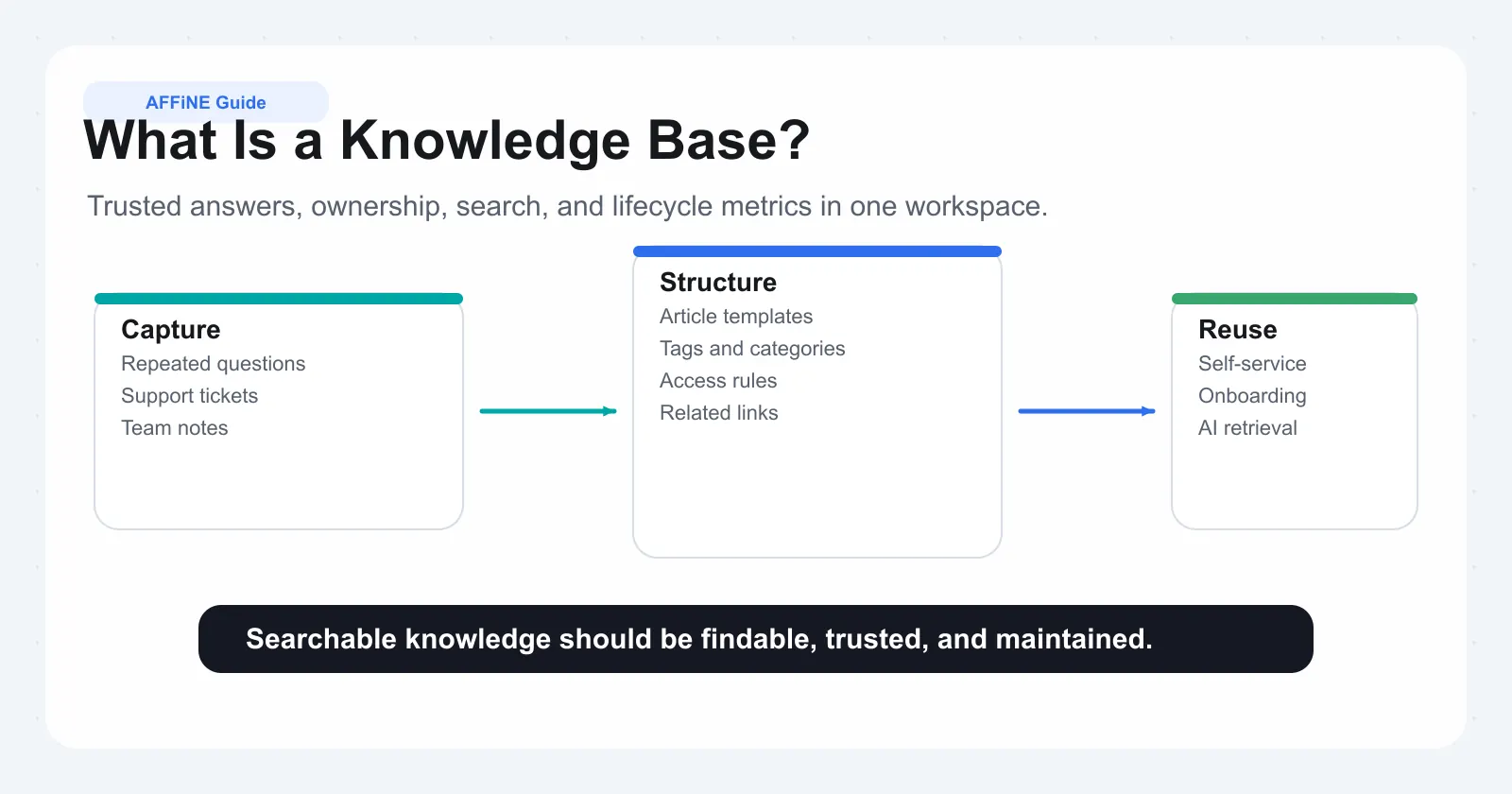
To build a team knowledge base, start with recurring questions, turn trusted answers into linked articles, assign owners, and test whether colleagues can complete real tasks. Then connect AI to that maintained knowledge with explicit permissions and a clear data boundary.
This guide walks through that process, including a structure you can copy, a reusable article template, and a practical way to use AFFiNE as the collaborative foundation. The goal is company knowledge that people can maintain and AI systems can use responsibly.
What should a team knowledge base do?
A team knowledge base is a shared, searchable collection of explanations, procedures, decisions, and reference material that helps employees do their work. Each important answer should have a clear owner, a reliable source, and a review date, so readers can judge whether it applies to their situation.
For a broader introduction, see what a knowledge base is. Here, the focus is building one that works in daily operations.
The practical benefits are straightforward: new hires can find their next step, colleagues can reuse decisions instead of reopening them, and specialists can answer a recurring question with a maintained link. These are outcomes to measure in your own team, rather than savings to assume from a software purchase.
Internal, external, and AI knowledge bases
| Type and audience | Typical content | Main requirement |
|---|---|---|
| Internal: employees and approved collaborators | Onboarding, procedures, decisions, troubleshooting | Access control and accountable ownership |
| External: customers, partners, or the public | Product guides, support answers, setup instructions | Clear navigation and an appropriate publishing workflow |
| AI-assisted: people asking through an AI interface | Approved material available to a retrieval system | Permission-aware retrieval, supporting sources, and evaluation |
These categories can overlap. An internal library can support both direct reading and AI answers. A customer help center can be public or restricted to signed-in customers; it is not automatically something you want search engines to index.
A wiki describes a collaborative way to create linked pages. A knowledge base describes the job those pages perform. A wiki can therefore be a knowledge base when its answers are organized, reviewed, and useful. An FAQ is usually one smaller part of that library.
From scattered files to knowledge people and AI can use
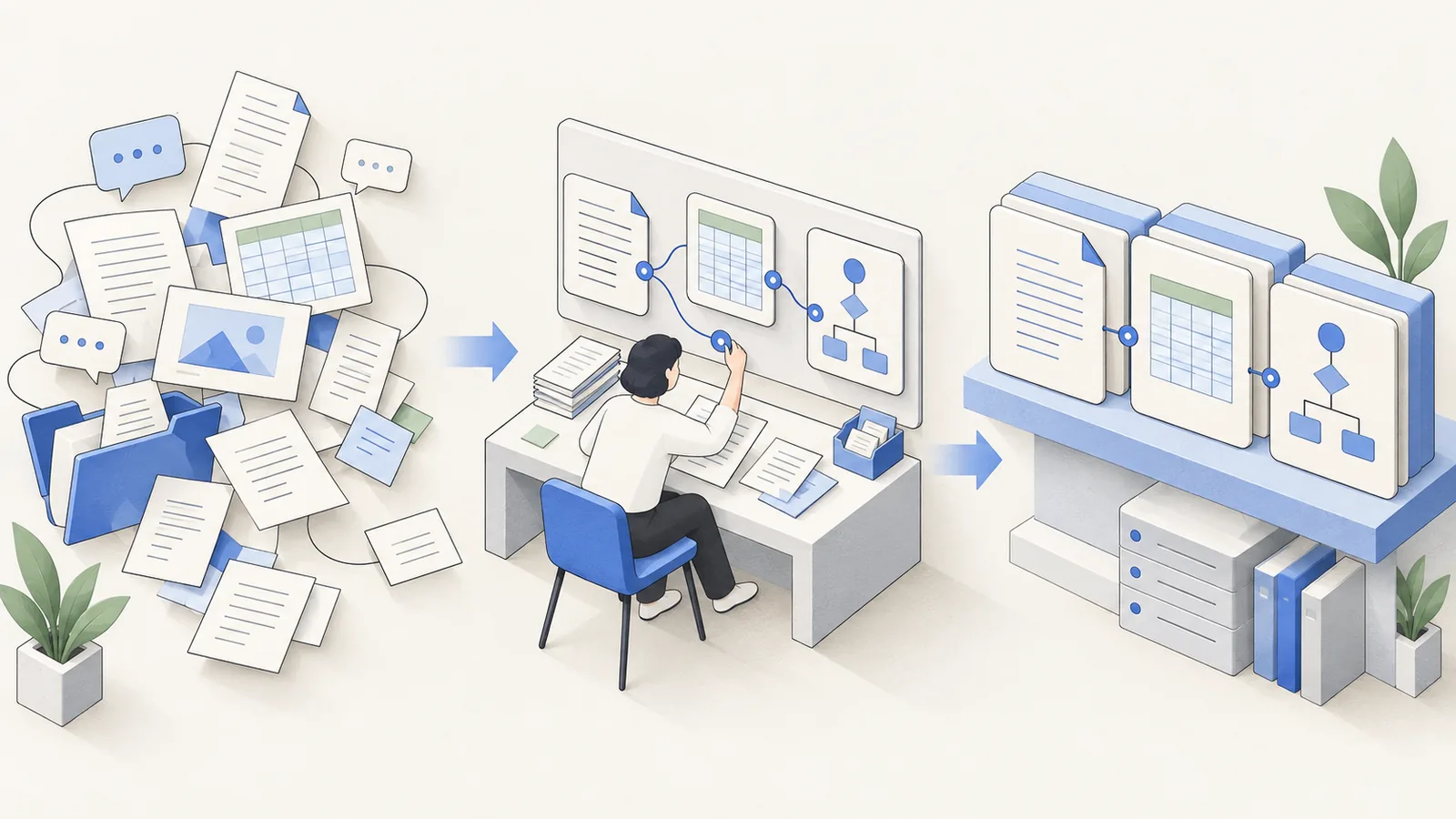
Word documents, Excel workbooks, and PowerPoint decks still have useful jobs. Modern office suites can also support coauthoring, and AI pipelines can extract content from these formats. The problem is relying on disconnected attachments as the company's main way to distribute and maintain knowledge.
An attachment rarely makes its status obvious. A slide can omit the reasoning behind a decision. A spreadsheet can contain a critical rule without explaining its scope. When another copy appears in chat, readers have to reconstruct the context themselves.
The better workflow is to preserve the original where it matters and create a maintained explanation that links back to it.
| Existing material | What to turn into a knowledge article | What to preserve separately |
|---|---|---|
| Word policy document | Plain-language rules, scope, exceptions, and contact | The signed or approved original, when required |
| Excel workbook | Definitions, assumptions, and instructions for using the model | Formulas and calculation logic in the workbook |
| PowerPoint deck | Decisions, rationale, and next actions | The original presentation and relevant visual evidence |
| Chat thread | The agreed answer and why it was chosen | A source reference, subject to access and retention rules |
| Meeting notes | Confirmed decisions and reusable procedures | The original notes or recording where appropriate |
Why Markdown, HTML, and structured records matter
Markdown makes headings, lists, links, and code easy to inspect as text. Semantic HTML can preserve a document's hierarchy and link structure. Structured records give information consistent fields, such as an owner, status, or effective date.
Those properties help an ingestion pipeline identify sections, retain context, and attach useful metadata. They do not guarantee correct AI answers. A beautifully formatted but outdated policy is still a bad source.
For example, a useful article about expense reimbursement names its audience, links to the current policy, explains exceptions, and identifies the approver. A file called expenses-final-v7.docx provides none of that context by its filename alone.
How to build a team knowledge base in 8 steps
Step 1: Choose one audience and one outcome
Start with a bounded problem, such as onboarding new support hires or helping engineers handle a recurring incident. A company-wide rollout can come later.
Write down who the first readers are, the questions they need answered, and the task they should complete afterward. Interview a few colleagues and examine repeated requests in the channels your team already uses. Collect the wording people actually use; it will help you write searchable titles.
A useful pilot goal is: “A new teammate can find the approved setup instructions and complete the process without asking the author.” This is something you can observe. “Centralize all knowledge” is too broad to evaluate.
Step 2: Audit sources and resolve conflicting answers
Build a small inventory of existing documents, decks, spreadsheets, and recurring chat answers. For each item, record the question it addresses, its owner, the intended audience, and whether it is current.
Choose one action: keep, rewrite, combine, or archive. Ask the responsible specialist to settle contradictions before migration. If two reimbursement documents disagree, an AI system should not be asked to guess which is policy.
Start with the highest-value recurring questions. Keep restricted material out of the pilot unless its access requirements are understood. Importing everything first creates more cleanup work and makes it harder to know what you can trust.
Step 3: Organize around tasks and questions
Use a small number of entry points that employees recognize. Department names can help, but readers should not need to know who owns a process before finding its instructions.
Here is an illustrative starting structure:
Team knowledge base
├── Start here
│   ├── New hire checklist
│   └── How to find answers and suggest corrections
├── Do common tasks
│   ├── Request software access
│   └── Submit an expense
├── Understand our product
│   ├── Product glossary
│   └── Supported workflows and limitations
├── Solve problems
│   ├── Troubleshooting guides
│   └── Escalation procedures
└── Understand decisions
    ├── Decision records
    └── Process changes and their rationale
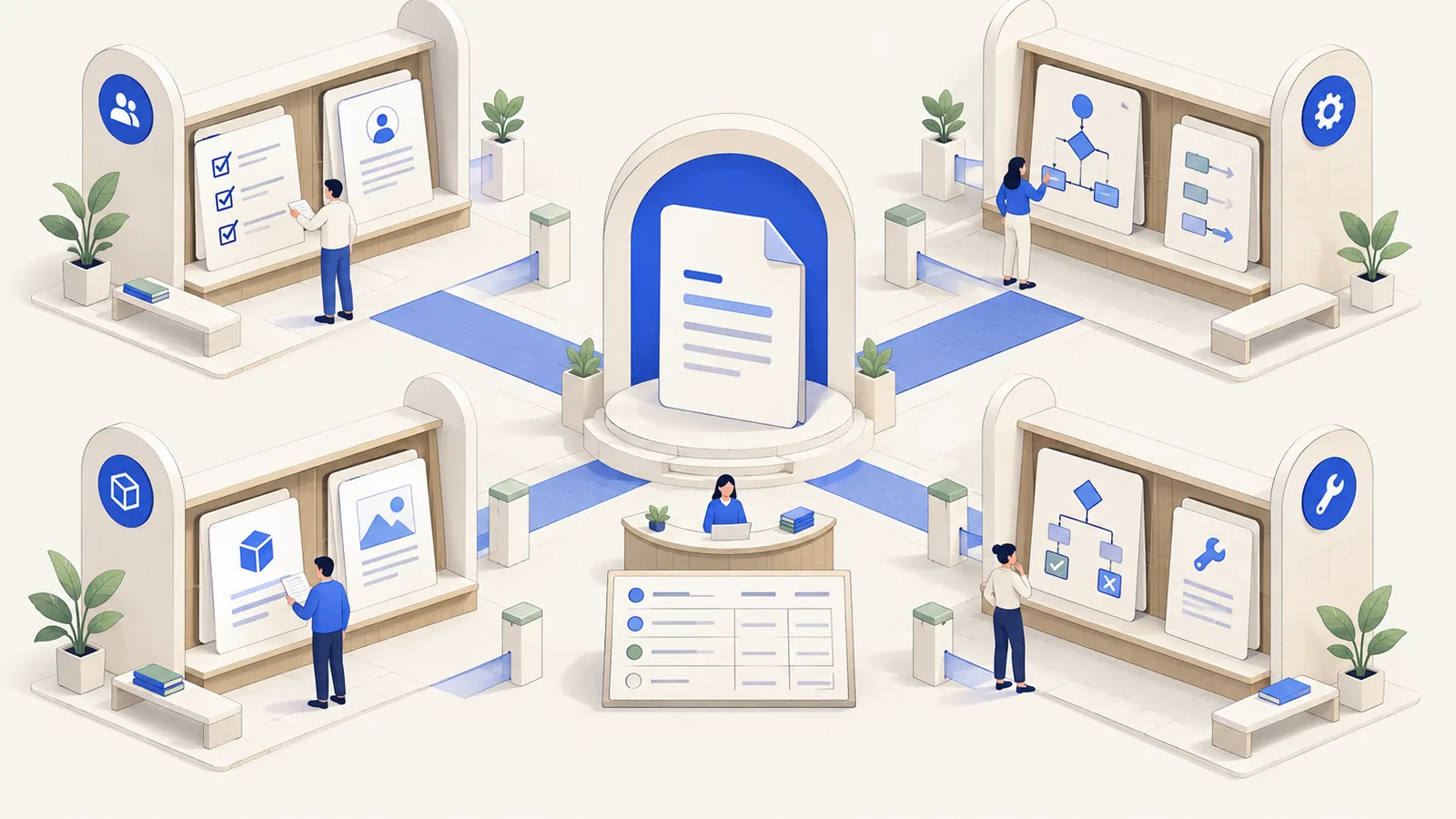
Create a landing page for each category. Link prerequisites before a procedure, troubleshooting after it, and the governing policy where it matters. Use descriptive anchors such as “request temporary access,” rather than “click here.” Our knowledge base blueprint explores this information architecture in more detail.
Step 4: Choose a workspace that people will maintain
Evaluate tools using a sample of your own material: one procedure, one table, one diagram, and one restricted document. Ask both a frequent writer and an occasional contributor to update them.
Look for comfortable editing, useful search, collaboration, portable content, and a deployment model your organization can operate. If your team likes Notion-style block editing, check whether the alternative feels natural to those same contributors. A theoretically perfect repository is not useful if updating it requires a specialist every time.
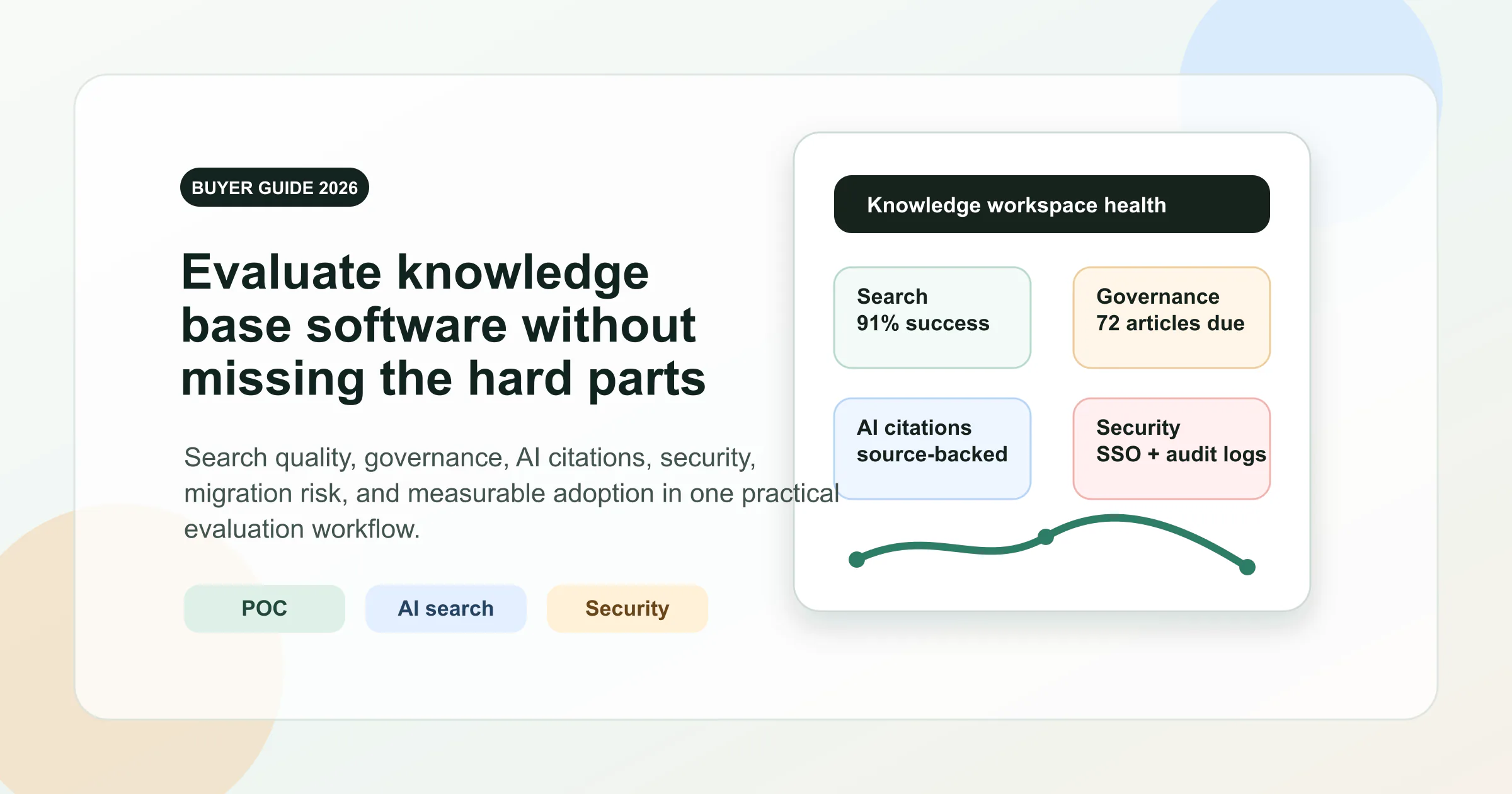
For a broader comparison, use our knowledge base software buyer's guide. Keep this pilot focused on the workflow, including import and export quality, rather than a long checklist of features you may never use.
Step 5: Write one useful answer per article
Start with the answer or expected outcome. Follow it with prerequisites, steps, exceptions, and a next action. Readers should not have to work through a long introduction before learning what to do.
Use question or task titles: “How to request production access” is more helpful than “IT information.” Define unfamiliar terms. Explain what success looks like and where to go if the instructions fail.
Add screenshots when they clarify a real interface step, but keep essential instructions in text. Diagrams need a written explanation so their meaning survives text extraction. The Zendesk documentation team's content guidance similarly emphasizes consistent templates, clear writing, ownership, and technical review.
Step 6: Assign ownership and review before sharing
Give each important article a named owner or responsible team, a status, a last-reviewed date, and a next review date. The person who knows the subject should verify the answer; an editor can improve clarity afterward.
Separate drafts from approved guidance. A status label helps readers understand maturity, but it is not a security control. Enforce access using the workspace and document permissions available in your deployment, and test them with representative accounts.
Link to the maintained article when answering a question in chat. If the answer needs changing, update that page instead of attaching another copy. Make suggesting a correction easier than creating a competing document.
Step 7: Connect AI to approved, accessible content
An AI knowledge base commonly uses retrieval-augmented generation, or RAG: retrieve relevant source passages, then give them to a model as context for an answer. It is different from retraining a model whenever a policy changes. Microsoft's RAG overview explains the separation between retrieval and generation.
Before enabling AI over the library, decide which articles are eligible, how updates and deletions reach the index, and how the system enforces each reader's access rights. Preserve the article title, source reference, review date, and relevant metadata alongside its text.
Use a small evaluation set containing real questions with known answers, a question the library cannot answer, an outdated-policy scenario, and a question about restricted material. Check both the response and its supporting sources. The system should acknowledge missing evidence and avoid exposing inaccessible content.
These are acceptance criteria for an AI integration, not a claim that every knowledge tool implements them automatically. For selection criteria, see our guide to AI-powered knowledge base software.
Step 8: Launch a pilot and fix what readers cannot find
Invite a small group to complete realistic tasks using the new library. Watch where they search, which titles they misunderstand, and whether the instructions actually work. Avoid coaching them toward the right page during the test.
Record failures as specific changes: rename a confusing article, add a missing exception, repair a link, or resolve an ownership gap. Expand the pilot after those issues are addressed.
A possible rollout is one week for scope and source cleanup, one for writing and review, one for reader testing, and one for refinement. Treat that as an example schedule, not a delivery guarantee; permissions, integrations, and infrastructure may take longer.
A knowledge base article template you can copy
Use this template for a procedure or troubleshooting answer. Delete fields that add no value for that article; keep ownership and review information visible.
# How to [complete a specific task]

Owner: [person or responsible team]
Status: [draft / reviewed / archived]
Audience: [who this applies to]
Last reviewed: [YYYY-MM-DD]
Next review: [YYYY-MM-DD]
Source of truth: [link to the approved policy or system]

## Quick answer
[The outcome and the shortest accurate explanation.]

## Before you begin
[Required access, prerequisites, and scope.]

## Steps
1. [Action, including where to take it.]
2. [Next action and expected result.]
3. [How to confirm completion.]

## Exceptions and troubleshooting
[What changes the answer; when to stop and escalate.]

## Related information
[Prerequisite, next task, and supporting source links.]

## Corrections
[How to contact the owner or suggest an update.]
For example, an access-request article should explain eligibility, who approves the request, how approval reaches the administrator, and how access is removed when no longer needed. A newcomer should not have to infer those steps from a screenshot of a form.
Keep the reusable procedure separate from completed requests that contain personal or sensitive information. This gives the team a durable answer without turning every operational record into broadly available knowledge.
Building the knowledge base in AFFiNE
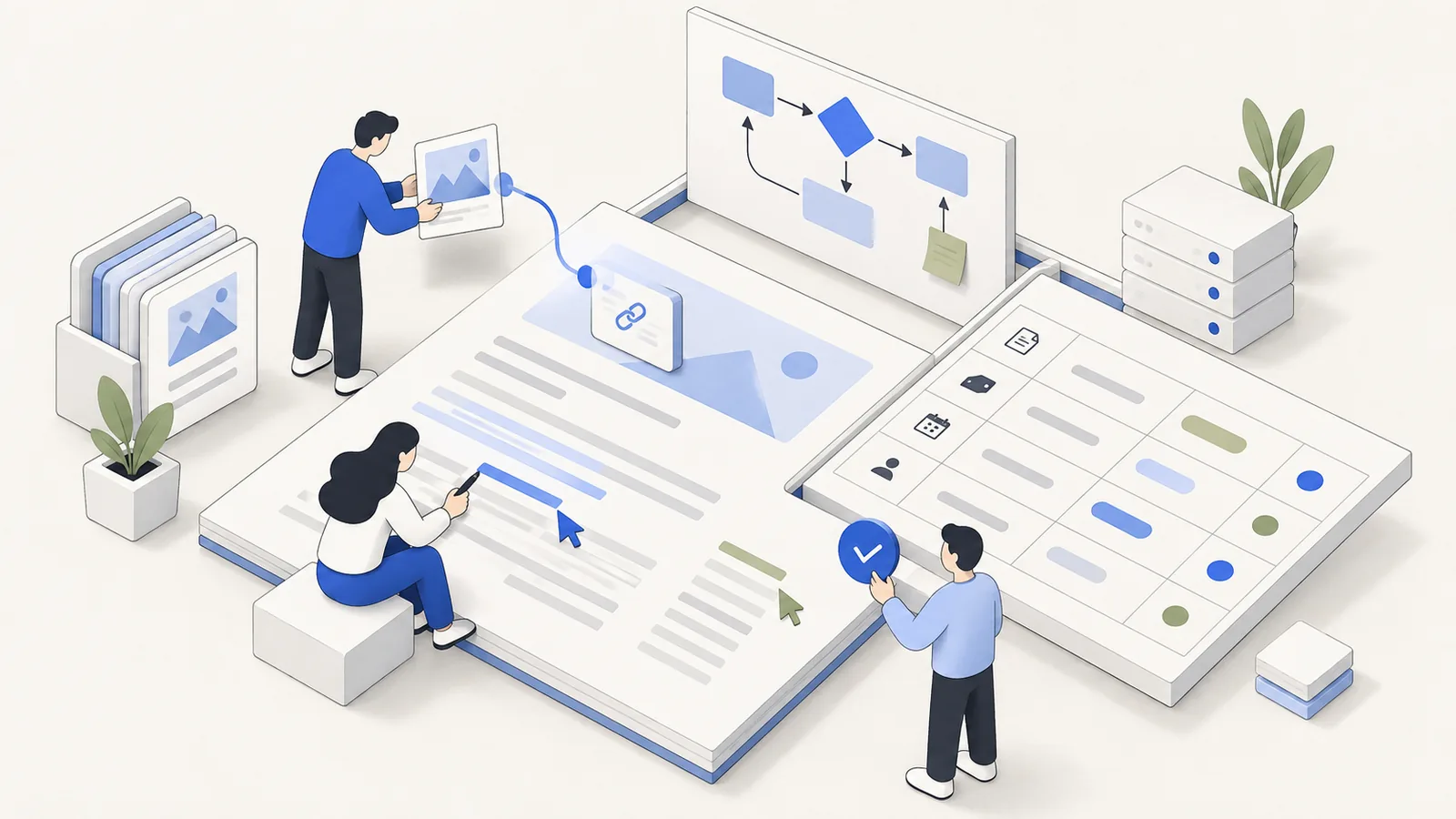
AFFiNE is a useful fit when you want collaborative documents, structured tables, and visual explanations in one workspace, with the option to operate the server on infrastructure you control. Its block-based editing offers a familiar starting point for teams accustomed to Notion-style documents.
Think of the workspace as the place where company knowledge is created and maintained. AI is one way to use that knowledge after its quality and access rules are established.
Use documents, databases, and diagrams for different jobs
Write a readable procedure in Page Mode. Use an Edgeless canvas to explain a process or decision tree, then put the essential logic into the accompanying text. AFFiNE's Page Mode documentation describes the relationship between the linear document and spatial canvas.
Maintain a knowledge register in a database table. Suggested columns include article link, topic, owner, status, and next review date. These are fields your team sets up and maintains; adding a date does not itself verify an article or create an automated review workflow. The database documentation explains the underlying block and view model.
For an initial pilot, create a “Start here” document, link the first category pages, add a small register, and invite the contributors responsible for those topics. The team knowledge base solution provides a product overview, while AFFiNE templates can help you avoid starting from an empty page.
Keep content portable and check migration quality
AFFiNE supports Markdown and HTML workflows alongside its native documents and databases. Use these formats to move readable content between systems, then inspect the result. Import/export support is different from using a folder of plain Markdown files as the application's native storage.
Test representative documents before a bulk migration. Check headings, links, images, tables, and any unusual blocks. Preserve originals until the migrated content is reviewed. A Markdown export is useful for text reuse, but should not be assumed to preserve every database behavior or canvas relationship; a document export is also not a complete server backup.
For an existing Notion library, start with the Notion-to-AFFiNE import guide. Treat migration as a chance to retire duplicate answers, not merely to reproduce the same clutter in another tool.
Use AI assistance with a human review step
AFFiNE AI can assist with drafting and summarizing material. A useful task is to turn meeting notes into a proposed article outline, explicitly marking missing facts. The subject-matter owner should verify the draft before it becomes approved guidance.
Do not let a fluent summary silently change the meaning of a policy or convert an unresolved discussion into a final decision. Keep the source link beside the resulting article so the reviewer can inspect the evidence.
Self-hosting, collaboration, and the AI data boundary
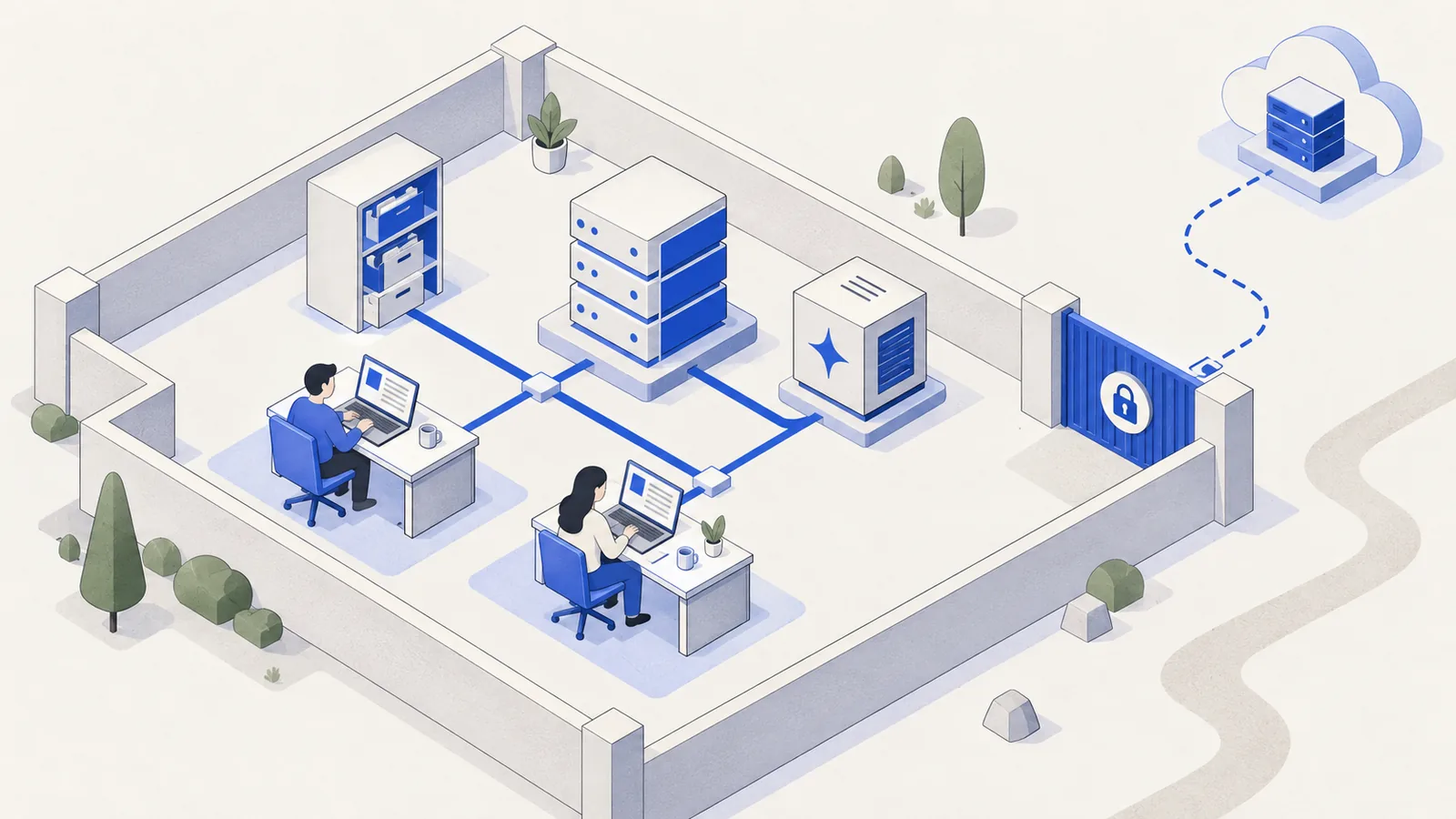
“Local-first,” “self-hosted,” and “local AI” describe different things. Local-first concerns how the application works with local data. Self-hosting concerns who operates the server. Local AI concerns where model processing happens. You need to evaluate each separately.
AFFiNE's self-hosting documentation describes running its server stack on your infrastructure, including sync and collaboration services. This allows a shared workspace without requiring company documents to live in AFFiNE's managed cloud. A workspace stored only on one device, however, is not by itself a multi-user collaboration service.
| Decision | What your team needs to establish |
|---|---|
| Application and storage | Where the server, database, attachments, and backups run |
| Team access | Who can read, edit, share, and administer the workspace |
| Model processing | Which provider or endpoint receives prompts and retrieved content |
| Retrieval and indexing | Where indexing occurs and how access changes reach the index |
| Other services | Whether email, identity, monitoring, or integrations send data elsewhere |
| Operations | Who owns patching, restore tests, retention, and incident handling |
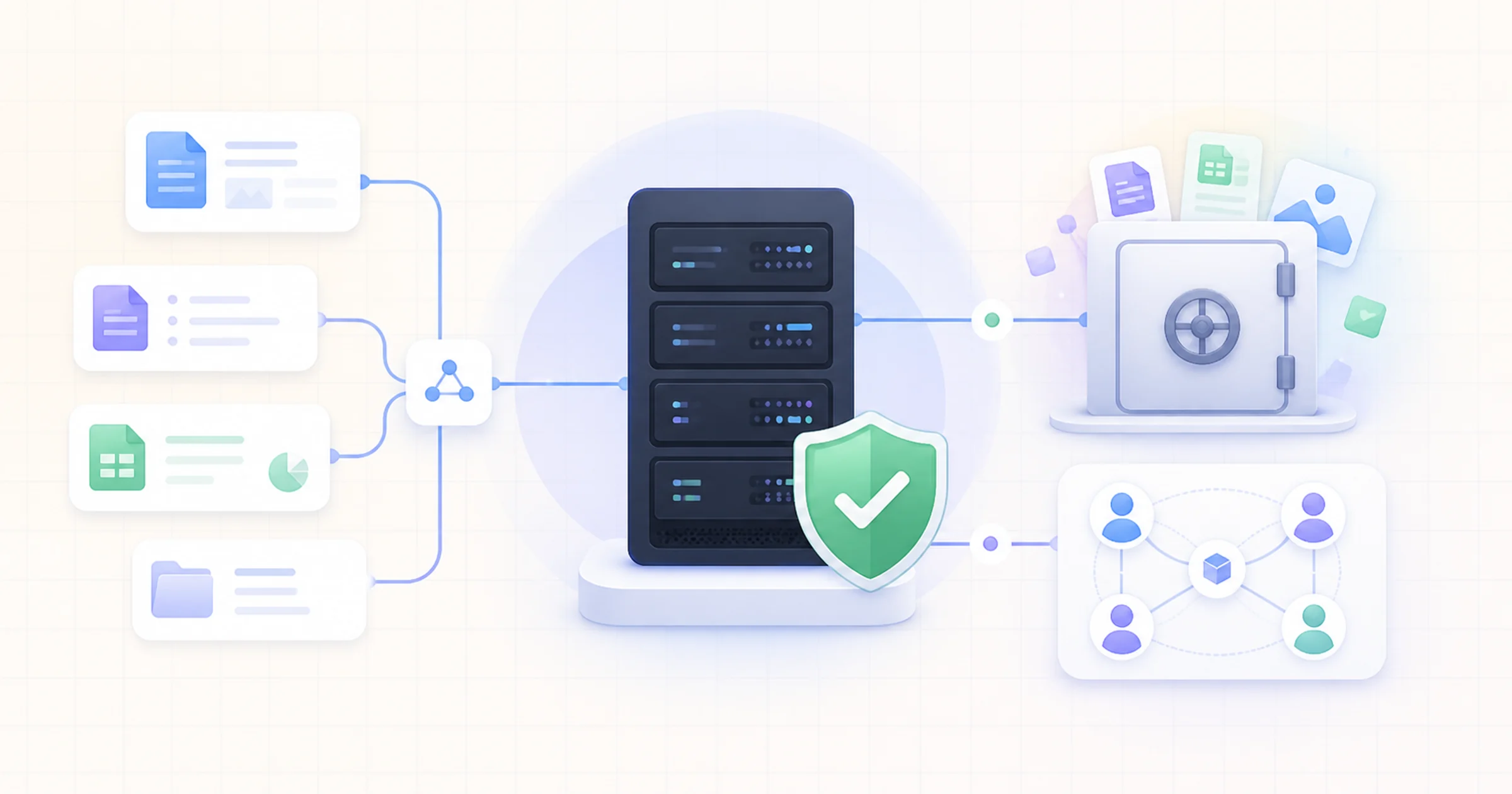
The current self-hosted AI documentation describes workspace-level Bring Your Own Key configuration and optional custom endpoints. It also identifies provider-specific requirements, including a server-stored Gemini key or an available AFFiNE AI plan fallback for transcription and workspace indexing. Self-hosting AFFiNE does not automatically make every AI feature local.
If your requirement is that company content never reaches an external AI provider, validate each enabled feature and its fallback behavior. Use an approved compatible local integration where supported, or keep a feature disabled until its processing path meets your requirements. Verify network behavior rather than relying on the label “private.”
The value of self-hosting is the ability to design and operate that boundary. It does not remove the need to secure accounts, protect endpoints, or test backups. Our enterprise knowledge base self-hosting guide covers the operational decisions in more detail.
How to keep the knowledge base useful
Schedule reviews according to how quickly the material changes. A frequently changing incident procedure deserves more attention than a stable glossary. Review immediately after a process change, an incident, or a reader reporting that an instruction failed.
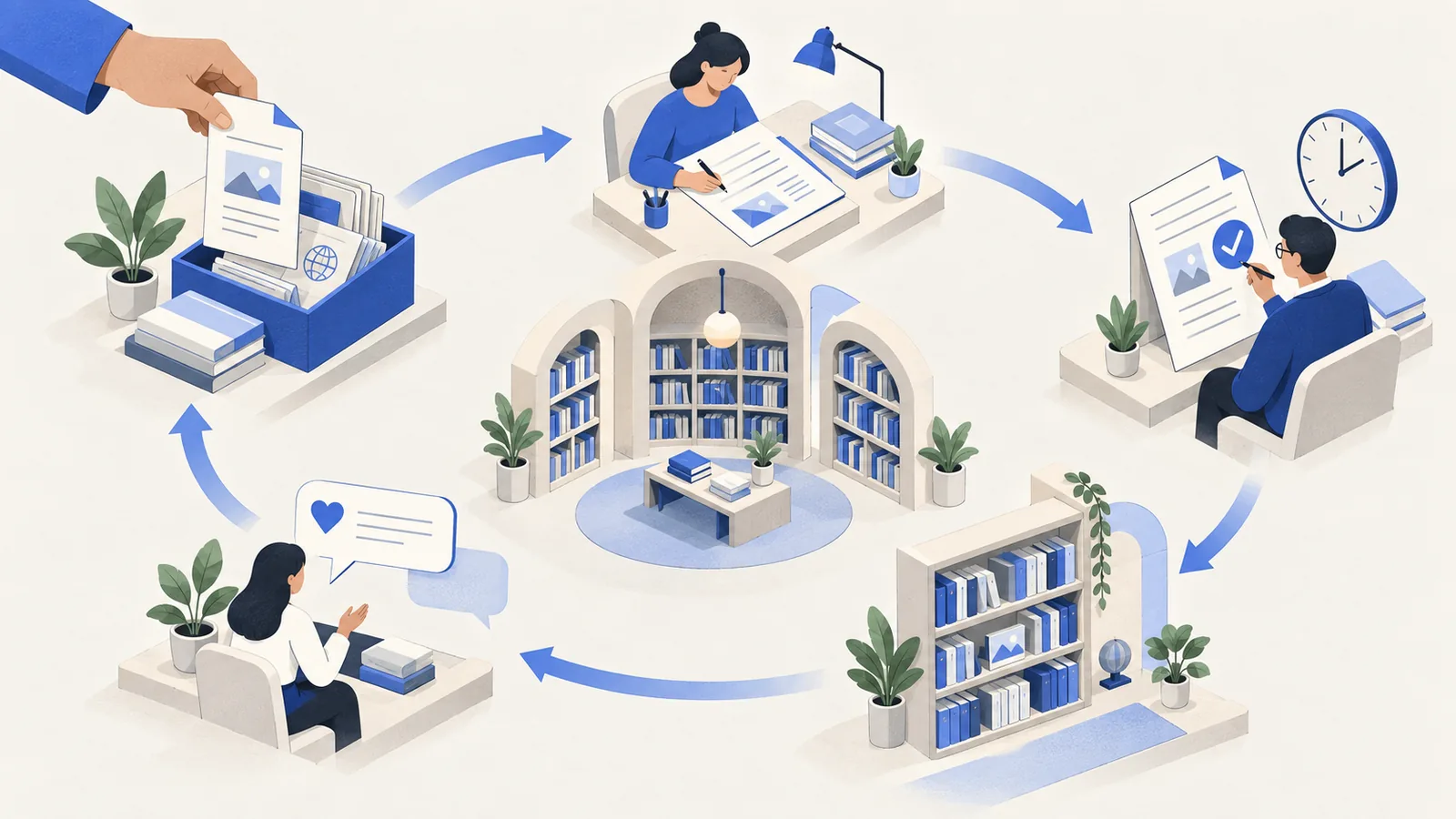
Start with a few measures you can collect consistently:
| Measure | How to use it |
|---|---|
| Task completion | Observe whether a reader can finish a representative task using the article |
| Time to a useful answer | Time a small sample of real questions before and after the pilot |
| Repeated questions | Track recurring requests and whether a maintained answer exists |
| Review coverage | Divide in-scope articles with a current review by all in-scope articles |
| AI answer quality | Review correctness, source support, abstention, and permission handling |
These are suggested measures, not claims about built-in AFFiNE analytics. A simple feedback log is enough to start. If your search system exposes failed queries, use them to identify missing terminology or missing answers.
Measure usefulness before page count. Publishing another hundred articles is not progress if employees still cannot find the current procedure.
FAQ: Building a team knowledge base
What should I put in a company knowledge base first?
Start with the questions employees ask repeatedly: onboarding steps, access requests, common procedures, troubleshooting, and product terminology. Choose a small set with clear owners and approved sources. Expand after readers can find and use those answers reliably.
Is a wiki the same as a knowledge base?
A wiki is a collaborative way to create and connect pages. A knowledge base is an organized resource for finding useful answers. A team wiki can serve as a knowledge base when it has clear structure, ownership, and a process for keeping guidance current.
Should we convert every Word, Excel, PowerPoint, or PDF file?
No. Keep originals when their formatting, formulas, signatures, or historical context matter. Extract reusable explanations into maintained articles and link to the source. Start with valuable, frequently used material rather than importing every file without review.
Do Markdown and HTML make a knowledge base AI-ready?
They make text and structure easier to inspect and reuse, but file format alone is insufficient. An AI-ready knowledge base also needs accurate content, useful metadata, source references, appropriate permissions, and a reliable process for updating the retrieval index.
Can AFFiNE support a self-hosted team knowledge base?
Yes. AFFiNE provides a self-hosted server deployment for shared documents and collaboration on infrastructure you control. Your team operates the server, storage, access configuration, and backups. Validate required features and current licensing for your deployment before expanding the pilot.
Does self-hosting mean no third party receives our data?
Not automatically. External AI providers, storage services, identity systems, and other integrations may still receive data depending on configuration. A fully private workflow requires a verified processing path for every enabled service, including model fallbacks and indexing.
Who should maintain knowledge base articles?
Assign a responsible subject-matter owner to each important article. Contributors can draft updates and an editor can improve clarity, but someone accountable for the process must verify accuracy. Set review dates and provide readers with a simple way to report errors.
Start with knowledge your team can trust
Choose one recurring workflow, publish its approved answers, and help colleagues use the same maintained links. Add AI only when you can explain which sources it uses and where the data goes.
AFFiNE brings documents, visual thinking, structured information, and collaboration into that workflow. Download AFFiNE to explore the editor, or review the self-hosting options when your team needs control over its infrastructure.
Editorial note: This guide is published by AFFiNE. Product statements were checked against public AFFiNE documentation on September 23, 2026. The structures, templates, rollout schedule, and evaluation suggestions are illustrative recommendations, not customer case studies or benchmark results. Illustrations are AI-generated concepts, not interface screenshots.