Knowledge Base Blueprint: Turn Scattered Docs Into Findable Answers
What Is a Knowledge Base in Plain English
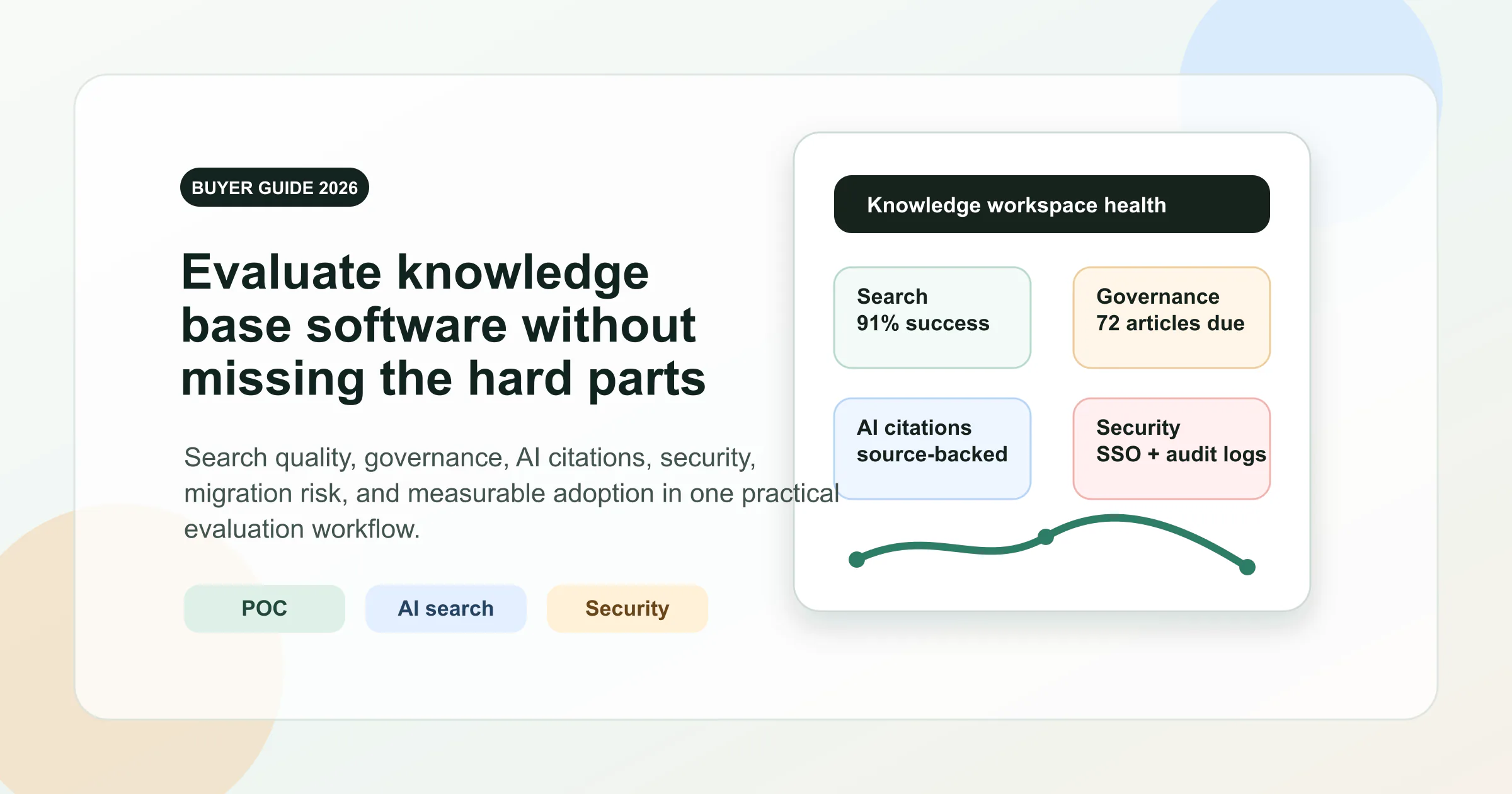
Intent split: This blueprint is the planning companion. When you are ready to compare platforms, use the knowledge base software buyer guide as the central evaluation page.
If you are asking what is a knowledge base, the short answer should be simple. People also search what is knowledge base or even whats a knowledge base when they want a direct explanation, not a wall of jargon.
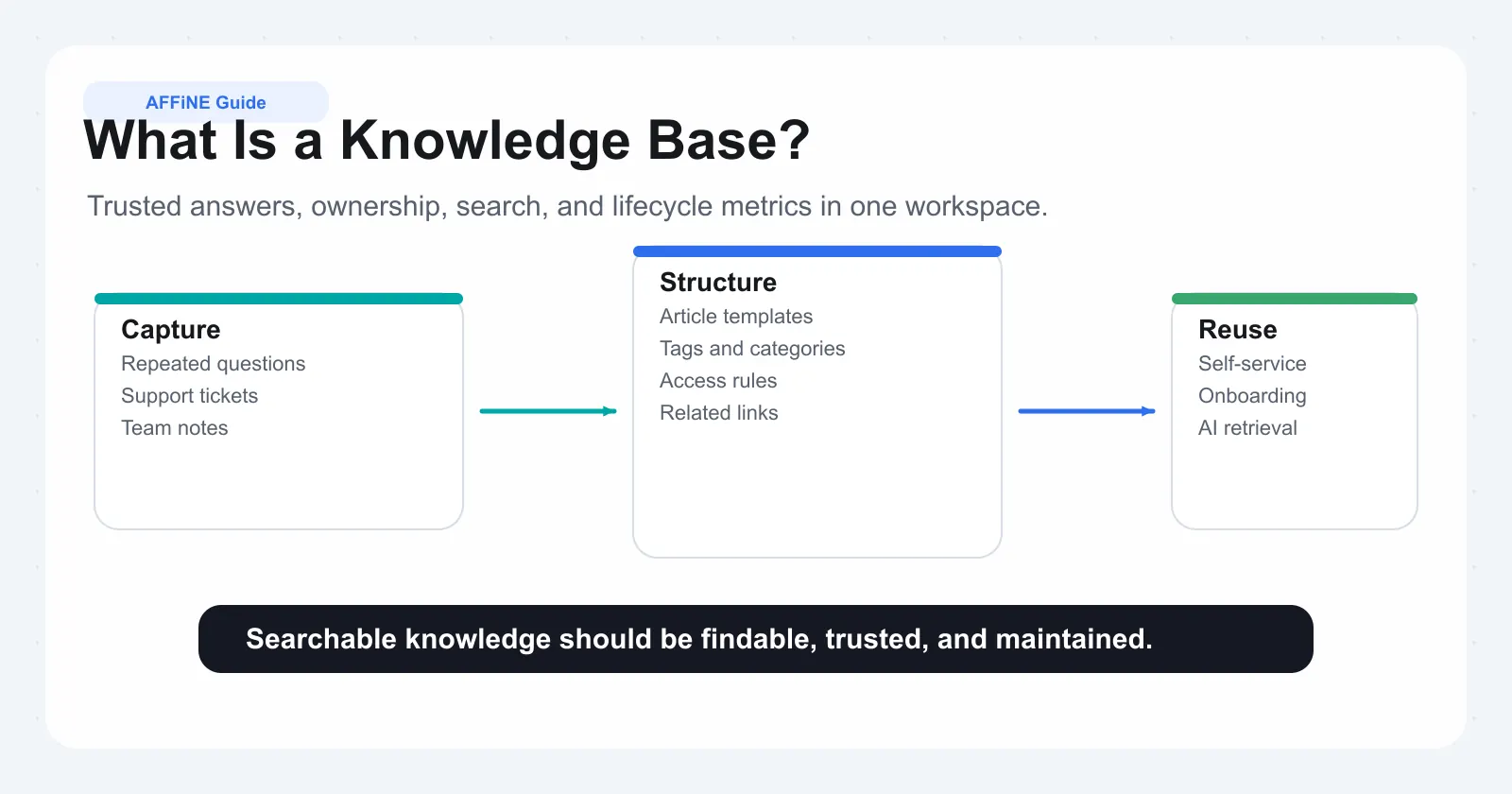
A knowledge base is a structured, searchable system for storing, organizing, and retrieving trusted information so people can find answers quickly.
That is the core knowledge base definition. It is more than a folder full of files. A shared drive stores documents. A real system turns articles, manuals, policies, tutorials, and troubleshooting steps into searchable institutional knowledge that people can actually use.
Knowledge Base Definition in Plain English
Think of it as a digital library for an organization. Zendesk describes it as a digital library of information about products, services, or related topics, while Bloomfire defines it as a comprehensive collection of answers, content, information, and solutions in an easy-to-navigate place. At its most advanced level, this evolves into what AFFiNE calls a KnowledgeOS—a unified workspace where the boundaries between writing, drawing, and planning vanish, allowing information to exist as a living, interconnected system rather than isolated files. An individual article answers one question. Documentation explains a product, process, or rule in more depth. The full system connects those pieces so the right answer is easier to find, trust, and reuse.
• Structure: Content is grouped into clear categories or topics.
• Searchability: Users can look up answers by keyword or phrase.
• Ownership: Someone is responsible for accuracy and updates.
• Maintenance: Content is reviewed so it does not go stale.
How a Knowledge Base Works
Most systems rely on a search bar, logical categorization, and editing tools so information stays organized and current. Zendesk highlights those components at Zendesk. Users may browse by topic or search directly for a task, error, or policy. Either path should lead to a reliable answer fast. That is why strong knowledge base examples usually put search and clear navigation at the center instead of burying answers in deep folders.
Why Organizations Rely on Shared Knowledge
Teams use these systems to reduce repeat questions, support self-service, speed onboarding, and keep everyone working from a shared source of truth. Speed matters here. Zendesk reports that 72 percent of customers want immediate service, and research cited in Zendesk found 91 percent would use an online help resource if it met their needs. The same logic applies inside a company: less time hunting for answers means more time solving problems. The audience shapes the system, though. A resource built for employees works differently from one built for customers, and some organizations need both at once.
Choose the Right Knowledge Base Model
A structured system only works when its audience is clear. The setup that helps employees follow policies is not always the one that helps customers solve product issues. Pick the wrong model, and even good content becomes harder to govern, search, and trust.
Internal External and Hybrid Knowledge Bases
An internal kb is built for employees or approved partners. Common internal knowledge base examples include onboarding guides, SOPs, policy documents, and training materials. Searches for 'what is internal knowledge base' usually point to that exact need: a secure place for operational knowledge that should not be public.
An external version is public-facing. It is designed for customers who need help articles, troubleshooting steps, and product guidance without waiting for support. In practice, a self service knowledge base fits here because the goal is fast, independent resolution.
A hybrid model combines both. Some content stays private for teams, while selected categories or articles are shared publicly. That setup works well when a company needs internal process documentation and customer help content, but wants different permissions and review rules for each.
Knowledge Base vs Wiki and FAQ
The knowledge base vs wiki question usually comes down to governance. A wiki is collaboration-first. It lets many people create and edit content quickly, which is useful for brainstorming, team notes, and evolving project knowledge. A knowledge base is answer-first. It relies more on ownership, curation, and consistency so users can trust what they find. AFFiNE bridges this gap with its "To Shape, Not to Adapt" approach, offering a multimodal workspace that merges the structured document editing of a traditional knowledge base with an infinite visual canvas (Edgeless mode) for collaborative thinking. In a wiki vs knowledge base decision, ask whether speed of contribution matters more than control and reliability.
The knowledge base vs faq comparison is simpler. An FAQ handles short, repeat questions. A full system can include FAQs, but it also supports how-to guides, troubleshooting flows, reference material, and policy content. If users need more than one-paragraph answers, an FAQ alone is usually too narrow.
When an Intranet or CMS Is the Better Fit
An intranet may be the better fit when the main goal is internal communication, company news, employee portals, or broad resource access across departments. A CMS is stronger when the main job is publishing and managing website content, branding, and page-level content updates. A document repository can store files, but file storage alone does not create curated, searchable answers.
| System | Audience | Purpose | Governance needs | Search expectations | Maintenance burden | Ideal use cases |
|---|---|---|---|---|---|---|
| Internal knowledge base | Employees | Operational clarity and internal knowledge sharing | High, with owners and permissions | Fast search across trusted internal answers | Medium to high | Onboarding, SOPs, policies, training |
| External knowledge base | Customers or partners | Self-service support | Moderate, with editorial review | Public search and easy browsing | Medium | Help articles, troubleshooting, product docs |
| Hybrid knowledge base | Both internal and external users | Separate private and public knowledge flows | High, with layered access control | Different search paths by audience | High | Teams needing both employee and customer content |
| Wiki | Mainly internal teams | Collaboration and rapid contribution | Lower, often distributed | Varies, often less curated | Can become high over time | Team notes, brainstorming, evolving project knowledge |
| FAQ | Customers or employees | Quick answers to common questions | Low to moderate | Users expect short answer retrieval | Low | Repeat questions with simple answers |
| Intranet | Employees | Internal communication and portal access | Moderate to high | Users expect navigation across many resources | Medium to high | News, directories, forms, company resources |
| CMS | Website visitors or content teams | Publish and manage digital content | Moderate | Page discovery more than answer retrieval | Medium | Websites, landing pages, branded content publishing |
The right choice defines more than visibility. It sets the boundaries for who you serve, what belongs inside, and how tightly each article should be controlled. That boundary is what keeps the build phase focused instead of turning into a bulk upload of everything your organization has ever written.
How to Create a Knowledge Base Plan
Choosing the right model is only half the job. The harder part is deciding what belongs in the system, who it serves, and what success should look like before anything gets migrated. If you want to build a knowledge base that people actually trust, do not start with a mass upload. Bloomfire points to research from PMI showing that 37 percent of projects fail when objectives and milestones are unclear. Searches around building knowledge base efforts often focus on software first, but planning is what keeps the end result usable.
Set Scope Audience and Success Criteria
Start by narrowing the mission. A support hub, employee handbook, and training portal can live in one system, but they should not all launch at once unless ownership is clear. If you are figuring out how to create a knowledge base, or even how to create a knowledge database from scattered docs, define the operating rules first.
-
Identify the primary audience: employees, customers, partners, or a mixed group.
-
Write 2 or 3 concrete goals, such as reducing repeat support questions or speeding onboarding.
-
Assign an owner for each content area and an editor who can enforce quality.
-
Choose success signals, like fewer repetitive tickets, stronger article usage, or faster time to answer.
-
Set a version-one boundary so the first release stays focused.
That same discipline matters even if you are creating your own knowledge base for one team. Small, clear scope beats broad, vague ambition every time.
Audit Existing Content Before Migration
This is where many projects get real. A proper audit shows what you have, where it lives, who owns it, when it was last updated, and whether anyone still uses it. HelpDocs recommends inventorying title, URL or location, content type, owner, dates, target audience, and related topics. That process also exposes duplicate and stale knowledge base content. Research cited by Coveo found that 85 percent of organizations have duplicate content in their knowledge systems.
• Keep: Accurate, high-value material tied to recurring questions.
• Rewrite: Useful topics with outdated steps, screenshots, or wording.
• Merge: Overlapping articles covering the same task or policy.
• Archive: Low-use material that still has historical value.
• Delete: Obsolete, misleading, or unused content with no reason to keep it.
In short, building a knowledge base is not the same as preserving every file. It is an editorial cleanup project as much as a technical one.
Decide What to Publish First
Priority should come from real demand. Start with the topics people search for, the issues that generate repeat tickets, and the guides new hires or customers ask for again and again. HelpDocs also cites McKinsey research showing employees spend 20 percent of the workweek looking for internal information or the right colleague. That is a strong clue: publish the answers that remove daily friction first.
For teams building a knowledge base, a phased launch usually works better than a full migration. Begin with high-traffic how-to articles, top troubleshooting pages, core policies, and essential process guides. Once that first layer is clean and useful, structure becomes the next challenge. Categories, hierarchy, and naming rules are what turn a solid content set into something people can navigate without guesswork.
Knowledge Base Design People Can Navigate
A focused launch still falls apart when nobody can tell where anything lives. This is where information architecture does the heavy lifting. On a strong knowledge base website, users can browse logically, search confidently, and understand how one answer connects to another. Bloomfire highlights research estimating employees spend 1.8 hours a day searching for information. Good structure cuts that waste by turning scattered content into clear paths.
Keep the structure shallow and intent-driven so likely answers are never buried under layers of folders.
Categories Tags and Metadata That Work Together
These elements do different jobs. Categories are your primary browse paths. They should reflect major user intents, such as onboarding, billing, troubleshooting, or policy. Tags connect content across categories, which helps when one article belongs to multiple themes. Metadata adds retrieval details behind the scenes, including audience, owner, product area, version, and review date. A short knowledge base description can also improve previews and internal search clarity.
If your team debates the right structure, card sorting can help reveal how users naturally group topics. That user-centered approach is a core part of practical information architecture.
| Element | Primary purpose | User visibility | Maintenance effort |
|---|---|---|---|
| Categories | Main navigation and top-level topic grouping | High | Medium |
| Tags | Cross-link related topics across sections | Often visible | Medium to high |
| Labels | Editorial or workflow markers such as draft, verified, policy | Low to optional | Low to medium |
| Metadata | Search, filtering, ownership, and content control | Usually hidden | Medium |
How to Build Article Hierarchies Without Deep Navigation
Hierarchies should show relationships, not create mazes. Reference sources on information architecture stress that site maps and navigation work best when users can understand content breadth and reach what they need in just a few clicks. In practice, that means broad categories, limited sublevels, and article hubs that gather related tasks in one place.
A parent page should orient the reader, while each child page solves one clear task. Add a related-articles area so every knowledge base link has context, not just destination. That is one of the most useful knowledge base components because it supports both browsing and search recovery. Keep narrow subfolders for cases where users truly think that way. Otherwise, hub pages do the job with less friction.
Naming Conventions and Page Design Standards
Labels shape expectations. KnowledgeOwl notes that names like Help, Support, Docs, and FAQs signal different audiences and levels of depth on a public knowledge base page. Internally, the same rule applies: use the words your readers already use, not internal shorthand.
• Limit hierarchy depth so core answers stay within a few clicks.
• Standardize page names with clear, task-based titles.
• Define required metadata fields, including owner, audience, review date, and status.
• Use one reusable layout for every knowledge base page.
• Add a clear knowledge base link to parent topics and related content.
• Use knowledge base images only when they reduce ambiguity, and add alt text.
• Keep the knowledge base description concise, specific, and consistent across previews.
This is the backbone of knowledge base design. Once the structure is clean, the empty spaces become obvious, and that is where article craft starts to matter: format, clarity, and consistency decide whether each page actually helps.
How to Write a Knowledge Base Article That Works
A clean structure gives every page a place. What makes people return is the page itself. If you are learning how to write a knowledge base article, start with a simple rule: one page, one user need. Zendesk describes a knowledge base article as a self-service resource that helps customers or employees complete tasks, troubleshoot problems, or get quick answers on their own. In practical terms, a good kb article should help someone do something, fix something, understand something, or confirm a rule without extra back-and-forth.
Choose the Right Knowledge Base Article Type
Different questions need different formats. Both Zendesk and InvGate separate content types by user intent, not by author preference. That is why a how-to page should not read like a troubleshooting guide. Policy and reference pages matter too, especially in internal libraries, because some readers need to verify rules or look up facts rather than follow a full tutorial. FAQ content still helps, but it works best for short recurring questions, not long procedures.
| Article type | Best use scenario | Reader intent | Must-have elements |
|---|---|---|---|
| How-to | Completing one clear task | "Show me how to do this" | Task title, prerequisites, numbered steps, expected result, related links |
| Troubleshooting | Resolving a specific issue | "Help me fix this" | Issue description, symptoms, basic checks, advanced steps, support path |
| Policy | Explaining rules or compliance expectations | "What is the rule" | Scope, policy statement, exceptions, owner, review date |
| Reference | Looking up facts fast | "I need the exact detail" | Definitions, specifications, limits, terminology, linked related articles |
| Process documentation | Standardizing repeatable internal work | "What is the correct sequence" | Purpose, roles, inputs, steps, outputs, follow-up actions |
When you review knowledge base article examples, the strongest ones usually stay narrow. Mozilla's contributor guidance recommends descriptive titles, short introductions, clear subheadings, and step-by-step instructions that include expected results. That combination keeps readers oriented and cuts down on guesswork.
A Repeatable Knowledge Base Article Template
A shared knowledge base template keeps multi-author content consistent. Whether you use a lightweight knowledge base article template or a more formal workflow, the fields should stay the same. Start with a specific title written in the words users actually search. Then include the audience, the article's intent, any prerequisites, the steps or rule details, the expected result, related links, the owner, and the next review date. For longer pages, add a short introduction and a table of contents. For troubleshooting content, list symptoms first, then basic checks, then advanced steps, then what to do if the fix does not work.
This is also the clearest operational answer to what is a knowledge base article: not just text on a page, but a reusable content unit with a clear purpose, owner, and maintenance path.
Editorial Standards for Clarity and Consistency
Templates create consistency, but editorial rules protect usability. Mozilla emphasizes plain language, active voice, short sentences, and small content blocks. Zendesk adds scannable formatting, one-question focus, strategic linking, and careful use of visuals. Put together, those standards give every contributor the same target.
• Use plain language for a general audience, not internal jargon.
• Keep titles specific and descriptive so the page matches search intent.
• Answer one question or task per article whenever possible.
• Write short paragraphs and use scannable headings.
• Use numbered steps for procedures and keep step wording parallel.
• Add expected results after key actions so readers know they are on track.
• Keep terminology consistent across articles, UI labels, and screenshots.
• Use images only when they remove ambiguity, not as decoration.
• Link to related pages instead of cramming every detail into one article.
• Show an owner and review date so stale content can be caught quickly.
A strong knowledge base template makes publishing easier, but the real payoff comes later in search quality. Titles, labels, and related links shape whether people can locate the answer at all, which is where article craft meets findability.
How to Improve Knowledge Base Search
The cleanest article template still fails if the answer never shows up. That is why knowledge base search deserves its own operating routine. People rarely use the exact title an author had in mind. They search with task words, error fragments, and everyday language. If your team wants users to search knowledge base content successfully, the system has to learn from those habits instead of forcing insider vocabulary.
Analyze Real Queries Before You Rewrite Content
Start with search logs, not assumptions. Internal search data shows what people want, how they phrase it, and where the current experience breaks down. Search Engine Land recommends reviewing internal site search queries and looking closely at terms with high views but also high exits or bounce. Those patterns often mean the result looked promising but did not solve the problem.
Support tickets, chat transcripts, review sites, and social comments can help too, especially when search volume is still small. In plain terms, users tell you what to fix every day. You just need a process for listening.
-
Export internal queries from your site search or analytics tool.
-
Group similar queries by intent, such as billing issue, cancel order, or SSO setup.
-
Flag broken patterns, including zero results, repeated reformulations, and quick returns to search.
-
Run those same queries on your own help center and review the first results manually.
-
Rewrite titles, split unclear articles, or publish missing pages, then check the query behavior again.
This is where search knowledgebase work becomes practical. Most users do not think in document names. They think in problems.
Improve Search With Synonyms Metadata and Linking
Language drift is one of the biggest findability problems. Another word for knowledge base might be help center, docs, support library, or manual, depending on the audience. A useful synonym for knowledge base changes by context, and OpenSource Connections notes that not every supposed synonym is a true equivalent. Some are close matches. Others behave more like broader or narrower concepts and should influence ranking rather than replace the original term.
Build a short list of knowledge base synonyms from real queries, support language, and onboarding terms. Then use them where they help retrieval: page titles, headings, tags, summaries, and metadata. HelpDocs also stresses clear titles, relevant keywords, helpful links, and synonyms that reflect the words customers already know.
| Findability issue | What it usually means | Best fix |
|---|---|---|
| Zero-result query | Missing article or missing vocabulary | Create the page or add matching terms to titles, tags, and metadata |
| Too many vague results | Broad titles or weak metadata | Rewrite titles to match intent and tighten article scope |
| Users click and return to search | Wrong intent match or thin answer | Improve the opening answer, split content, or add steps and prerequisites |
| Queries use internal jargon poorly | Audience language does not match author language | Replace insider terms with customer language and add plain-language variants |
| Near-miss article but no final answer | Weak article relationships | Add related links, hubs, and cross-links between adjacent topics |
| Search bar is ignored | Search is hard to spot or trust | Make search prominent and surface popular queries near it |
Monitor Zero Results and Search Success
Search tuning is never finished. Zero-result reports, repeat searches, and abandoned sessions show where the system is still failing. If people search for one phrase, back out, then try two more versions, you are watching a vocabulary mismatch in real time. That is also why other words for knowledge base matter. They are not just semantic trivia. They reveal how your audience actually thinks.
• Test whether a new user can find the answer with plain, non-insider wording.
• Check whether the first result title clearly matches the task or issue.
• Review zero-result searches and assign each one a content or metadata action.
• Confirm that related links help users recover from near-misses.
• Watch for repeated searches that suggest the first result did not satisfy intent.
• Review popular queries on a regular cadence, not just at launch.
If you are wondering about a synonym for knowledge base or browsing other words people use, treat those terms as clues to improve retrieval. The same reports that strengthen findability also uncover stale pages, duplicate answers, and unclear ownership. Before long, search stops being just a search problem and starts pointing straight at governance.
Knowledge Base Management That Keeps Content Trusted
Search helps people arrive. Governance decides whether they believe what they find. Whether you run a customer support knowledge base, a customer knowledge base, or an internal library, the real maintenance problem usually looks the same: unclear ownership, aging articles, and conflicting guidance. FitGap makes a useful point here: most outdated content is really unowned content, and review cycles work best when they are triggered by real change, not just a calendar reminder. That idea sits at the heart of practical knowledge base management.
Ownership Roles and Approval Workflows
If nobody owns an article, nobody feels responsible when it drifts. ProcedureFlow’s guidance on governance stresses that missing ownership creates inconsistency and gaps, while Zendesk help shows how larger teams formalize review with clear publishing roles. True trust, however, also depends on data sovereignty. AFFiNE’s local-first architecture ensures that your organization maintains full ownership and compliance control over its knowledge, allowing you to self-host sensitive data behind your own firewall while still enjoying enterprise-grade CRDT collaboration. You do not need a heavy process for every page, but you do need named accountability for every high-impact article in your knowledge base documentation.
| Role | Core responsibility | Typical checkpoint | Why it matters |
|---|---|---|---|
| Author | Drafts and updates content | New article, rewrite, or fix | Keeps answers moving instead of waiting for one specialist |
| Editor | Enforces template, style, labels, and linking | Before approval | Prevents inconsistency and duplicate phrasing |
| Approver | Checks risk, policy, and publish readiness | Final review | Protects accuracy for high-impact content |
| Subject matter owner | Validates technical or process accuracy | When upstream rules or systems change | Keeps the article tied to the real source of truth |
Some teams also add a publisher role for scheduled releases or sensitive updates. In a customer service knowledge base or call center knowledge base, that extra control can prevent outdated public guidance from multiplying handle time and escalations.
Review Cadences Version Control and Permissions
A fixed quarterly review sounds disciplined, but it often creates busywork on stable pages and misses the article that changed yesterday. The more durable model is change-driven review with a cadence backstop. FitGap’s workflow recommends giving each article an owner, a review-by date, and mapped upstream sources that can invalidate it, such as release notes, pricing pages, status pages, or policy documents. Their sample risk tiers use 30 to 60 days for high-risk policy, billing, and security content, 90 days for core workflows, and 180 days for evergreen topics.
Version history matters just as much. A versioned system preserves what changed, who changed it, and why. Permissions should follow content risk, too. Broad editing access may be fine for low-risk drafts, while regulated or high-impact content should require tighter approval. Zendesk help also highlights article verification reminders, which are a smart way to turn review cadences into an actual operating habit instead of a good intention.
• Confirm the article owner is still correct.
• Check the last review date and next review-by date.
• Verify that linked policies, release notes, or source pages have not changed.
• Test steps, screenshots, UI labels, and related links.
• Review labels, metadata, and search terms for relevance.
• Log what changed and why in the revision note.
How to Retire Archive and Refresh Articles
Not every aging page deserves a rewrite. Some should be merged. Some should be retired. Zendesk notes that archiving removes clutter, but it can also break inbound links, so redirects or link updates should be planned before a page disappears. That is why knowledgebase management needs clear archival rules, not just a delete button.
• Archive articles tied to superseded procedures or retired products.
• Refresh articles when steps, pricing, policies, or interface text change.
• Merge pages that answer the same question in conflicting ways.
• Escalate review when repeated support cases expose unclear or misleading guidance.
• Retire temporary announcements after their validity window ends.
The stakes are bigger than tidiness. ProcedureFlow’s governance summary, citing a Gartner market guide, warns that generative AI projects without modern knowledge management integration miss customer experience and cost-reduction goals. Even without AI in the mix, trust erodes fast when answers feel stale. Once ownership, permissions, review triggers, and archival rules are explicit, software choices become much easier to judge, because you can evaluate tools by how well they support the workflow you actually need.
Knowledge Base Tools and Launch Plan
Once governance is defined, software choices get much easier to judge. A team with strict approvals, mixed audiences, and search-heavy traffic needs different knowledge base tools than a small internal docs team. The comparison below uses documented capabilities from KnowledgeOwl, Kuse, and AFFiNE. If you are evaluating a knowledge base program, start with workflow fit, not vendor popularity.
Evaluation Criteria for Knowledge Base Tools
Review six areas first: structure flexibility, collaboration, linking, security or deployment model, search quality, and long-term maintainability. For customer support knowledge base software, public search, analytics, and ticketing connections usually matter most. For internal or research-heavy work, visual organization, local control, and strong linking may matter more. That is where a knowledge base saas platform differs from more flexible knowledge based software built around connected content.
| Tool | Best fit | Documented strengths | Pricing in provided references |
|---|---|---|---|
| AFFiNE | Visual, connected knowledge workflows | Atomic blocks, bi-directional linking, visual canvas, collaborative databases, local-first design, open-source flexibility | Starts at $6.75 per month |
| KnowledgeOwl | Dedicated help centers and docs teams | Flexible information architecture, semantic search, AI features, analytics, granular permissions, versioning | Starts at $100/month |
| Confluence | Internal documentation with Jira workflows | Strong template library, permissions, page hierarchy, collaboration, Atlassian integration | Free for up to 10 users; Standard $6.05/user/month |
| Guru | Internal knowledge and universal search | Verification workflows, browser extension, AI search across tools, card-based knowledge | Free for up to 3 users; Starter $5/user/month; Plus $12/user/month |
| Help Scout | Budget-friendly support and docs | Integrated docs with email and chat, article suggestions, SEO-ready help center, simple analytics | Standard $20/user/month including ticketing and knowledge base |
| Featurebase | SaaS teams combining docs, support, and feedback | Public and internal docs, in-app widget, summarized answers, multilingual help center, changelog links | Specific pricing unavailable in provided references |
When Connected Content Beats Static Folders
Some teams do not need another folder tree. They need a system where notes, diagrams, tasks, and articles stay connected. That is where AFFiNE stands out as a different kind of saas knowledge base option. Its atomic blocks and bi-directional linking support a more networked model, while its visual canvas and local-first approach help teams map relationships that static folders usually hide. If your main goal is a classic public help center, a more conventional knowledge database software platform may be the better fit. But if your work spans research, product planning, and documentation at the same time, connected content can be easier to maintain than nested pages.
If you want the core definition first, start with what a knowledge base is. If you are already comparing tools, jump from this blueprint to the knowledge base software buyer's guide.
Launch Your Knowledge Base in Phases
-
Pick one audience and one high-value use case, such as onboarding or top support issues.
-
Configure categories, permissions, article templates, and core search terms before migration.
-
Move a small starter set of high-demand content and test with real users.
-
Monitor search behavior, zero-result queries, and article feedback during a limited rollout.
-
Expand in waves only after structure, ownership, and findability hold up under real use.
• Choose tools that match your authoring model, not just your reading experience.
• Test exports and migration paths so you are not trapped later.
• Check whether permissions, version history, and review workflows fit your governance plan.
• Run real search tests with typos, synonyms, and plain-language questions.
• Confirm whether the platform supports the way your team actually connects information.
The strongest rollout is rarely the biggest one. It is the one that proves people can find, trust, and keep improving answers without turning the system back into a pile of disconnected files.
Knowledge Base FAQs
1. What is a knowledge base in simple terms?
A knowledge base is a managed system for storing answers people need again and again, then making those answers easy to search, browse, and update. Unlike a basic shared folder, it uses structure, ownership, and review rules so the information stays reliable over time. It can include how-to articles, troubleshooting guides, policies, reference notes, and process documentation.
2. What is the difference between an internal, external, and hybrid knowledge base?
An internal knowledge base is built for employees, approved partners, or specific teams, so it usually contains SOPs, onboarding material, and private operational guidance. An external knowledge base is public or customer-facing, with self-service help content designed to reduce support demand. A hybrid model combines both, using separate permissions, workflows, and content boundaries so private knowledge stays protected while selected answers remain easy for customers to access.
3. Knowledge base vs wiki vs FAQ: which one should you use?
Use a knowledge base when readers need dependable, curated answers that follow clear templates and governance. Use a wiki when rapid collaboration matters more than tight editorial control, such as team notes or evolving project knowledge. Use an FAQ for short, repetitive questions. Many organizations use all three, but each should serve a different job instead of overlapping into one confusing content system.
4. How do you create a knowledge base from scattered documents?
Start with planning, not migration. Define the audience, the scope, and what success should look like, then audit your existing files to decide what to keep, rewrite, merge, archive, or remove. Publish the highest-demand topics first, especially content tied to repeat questions or support issues. A simple category structure, standard naming rules, required metadata, and a repeatable article template will make the first version usable instead of turning it into another document dump.
5. What features matter most when choosing knowledge base software?
The most important features are flexible structure, strong search, permissions, version history, review workflows, related linking, and long-term maintainability. Customer-facing teams often care most about public search, analytics, and self-service support flows, while internal teams may need better collaboration, security, and knowledge mapping. If your work spans notes, docs, and planning, a connected-content model can be especially useful. For example, AFFiNE's approach with atomic blocks and bi-directional linking supports a more visual knowledge workflow than static folders alone.