10 Whiteboard Layout Ideas for Work: Setups to Copy
A whiteboard layout turns a blank surface into labeled zones for decisions, work, evidence, and review. Choose the layout by the question you need answered: what matters this week, what is blocked, which milestone is next, what did a meeting decide, or what should you review while studying. The ten setups below are copy-ready.
Start here: download the editable 10-layout Markdown pack, choose a layout, or jump to the setup steps. The downloads require no account.
Quick rule: One board should answer one primary question. Put its purpose, owner, and next review time in the header; give each card one clear home; and archive finished work instead of letting it become wallpaper.
Updated September 28, 2026. The names, dates, tasks, and performance figures in the examples are fictional teaching data, not customer results. AFFiNE publishes this guide and has a commercial interest in the AFFiNE templates and product workflows linked throughout it.
What is a whiteboard layout?
A whiteboard layout is a repeatable arrangement of zones, labels, and operating rules on a physical or digital board. Unlike a loose collection of notes, a layout tells people where to place information, how an item moves, who maintains it, and when the board is reviewed.
Four elements make an organized whiteboard usable:
- A visible purpose: the decision, outcome, or learning objective the board supports.
- Named zones: each area has one job, such as active work, evidence, decisions, or later ideas.
- An operating rule: a card can enter, move, or leave a zone only under a shared condition.
- A reset routine: one owner removes stale items and records decisions on a fixed cadence.
Color can reinforce those rules, but color is not a structure by itself. Use a short legend, preserve high contrast, and write the status or owner on the item so meaning is not conveyed by color alone.
Choose a whiteboard layout by the job
| If the board must answer… | Use this layout | Essential zones | Review cadence |
|---|---|---|---|
| What matters this week? | Personal weekly plan | Outcome, weekdays, must-do, waiting, next week | Brief daily check; Friday reset |
| What is ready, active, blocked, or done? | Team Kanban | Ready, Doing, Review, Blocked, Done | Daily flow review; weekly archive |
| Which milestone is next, and what blocks it? | Project milestone roadmap | Goal, workstreams, milestones, dependencies, evidence | After a decision; at least twice weekly |
| What did this meeting decide? | Meeting decisions and actions | Purpose, evidence, decisions, actions, parking lot | Before, during, and within 24 hours after |
| What should the team change next? | Start / Stop / Continue retrospective | Observations, votes, one experiment, review date | At the end of the chosen work cycle |
| What can I explain without notes? | Study map and review queue | Objective, cues, concept map, example, confusion, reviews | End of session and scheduled reviews |
| What should happen now, later, elsewhere, or never? | Priority matrix | Do, Schedule, Delegate, Drop, parking lot | Daily; full reset weekly |
| Which cause should we test? | Root-cause investigation board | Problem, evidence, hypothesis, test, finding, action | Every investigation checkpoint |
| Where is each content item in the workflow? | Content pipeline | Backlog, Brief, Draft, Review, Published | Editorial review once or twice weekly |
| Did this week's change move the outcome? | Goal-to-metric scoreboard | Goal, outcome metric, leading indicator, bet, actual, next decision | Weekly at a consistent time |
These are implementation layouts, not a software ranking. If you are comparing products or browsing a broader gallery, use the separate guide to free whiteboard layouts and template options. If you already have a crowded digital canvas, the guide to organizing a digital whiteboard covers grouping, navigation, governance, and cleanup instead of supplying new work layouts.
How to organize a whiteboard in five steps
- Write the board's question. Put one question or outcome in the header so people know what belongs on the board and what does not.
- Choose one layout and name its zones. Select the structure that matches the work, draw the boundaries, and label every area before adding cards.
- Add an owner, rules, and one filled example. Name the maintainer, define how items move or finish, and demonstrate the expected level of detail with one completed card.
- Populate current work and separate uncertain items. Add only active commitments, evidence, and decisions; place unconfirmed ideas in a clearly marked parking lot or backlog.
- Schedule the next review and archive. Set a date to update status, record decisions, remove stale notes, and move completed material to its durable home.
For a physical board, use tape or thin lines for stable zones and movable notes for changing items. For a digital board, use frames or groups and link detailed documents instead of shrinking paragraphs onto the canvas. In either format, test readability from the normal viewing distance before the board is used.
10 whiteboard layout ideas for organized work
1. Personal weekly plan
Best for: one person's weekly commitments when a daily calendar is too detailed but a plain task list hides timing.
Zones and fields: Weekly outcome; Monday through Friday; Must do (maximum three); Waiting for; Notes or next week; Owner; Friday reset time.
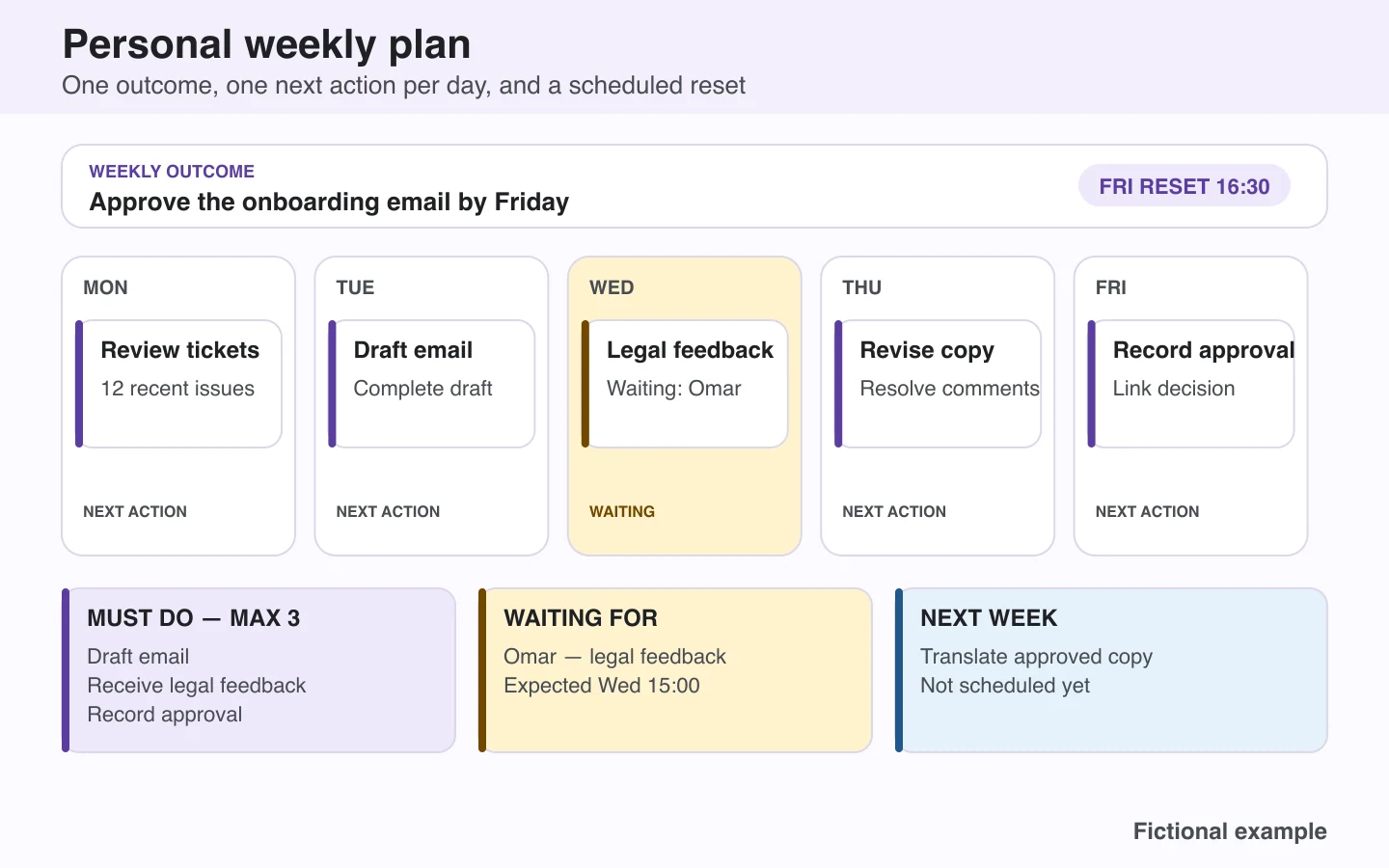
Filled fictional example: Maya's weekly outcome is “Approve the onboarding email by Friday.” Monday is “Review 12 support tickets,” Tuesday is “Draft email,” Wednesday is “Collect legal feedback,” Thursday is “Revise copy,” and Friday is “Record approval.” The Waiting zone says “Omar — legal feedback — Wednesday 15:00.”
Set it up: Draw a narrow outcome header, divide the center into five equal day columns, and reserve the bottom row for Must do, Waiting, and Next week. Put one next action—not a project name—in each day. Move unscheduled ideas to Next week rather than filling every open space.
Maintenance: Spend two minutes at the start or end of each day updating the next action. On Friday, archive completed items, renegotiate unfinished commitments, and build the next week's board.
Common misuse: Turning the board into a second calendar containing every appointment and every possible task. If a day holds several unrelated lists, the weekly outcome no longer guides trade-offs.

Figure 1: The same fictional onboarding-email example supplied in the editable weekly-plan CSV.
Open the full-size weekly-plan diagram
Download the filled personal weekly plan CSV
2. Team Kanban with WIP limits
Best for: a team that needs to see work flow, blocked items, and available capacity. The May 2025 Kanban Guide defines work in progress as items between the workflow's started and finished points and calls for explicit WIP control.
Zones and fields: Ready; Doing with a WIP limit; Review with a WIP limit; Blocked; Done this week. Each card needs an ID, next action, owner, relevant date, and acceptance evidence. Add a visible definition of done above the columns.
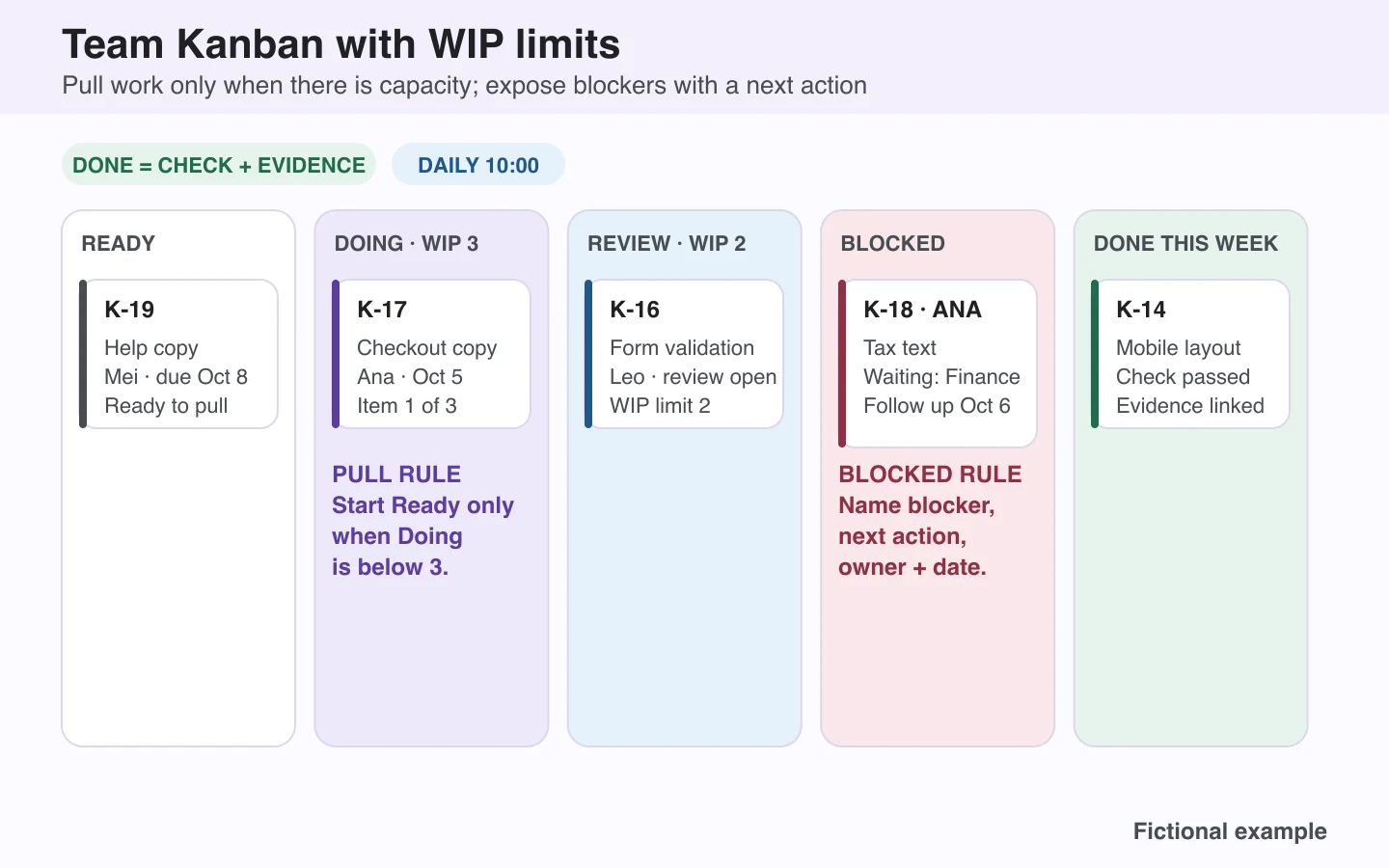
Filled fictional example: The Checkout launch board has K-19 Help copy in Ready, K-17 Checkout copy in Doing, K-16 Form validation in Review, K-18 Tax text in Blocked while Ana waits for Finance, and K-14 Mobile layout in Done with a linked screenshot. Doing is limited to three cards and Review to two.
Set it up: Draw columns for states the work actually passes through; do not use people's names as columns. Agree where work starts, what finished means, and how WIP is controlled. Add a pull rule: a Ready card enters Doing only when Doing is below its limit. An AFFiNE Kanban board template can be imported as a digital starting point.
Maintenance: Review active and blocked cards each working day. Ask what can finish before starting more work. Archive Done cards weekly while retaining evidence in the underlying task or document system.
Common misuse: Moving every request directly into Doing. A crowded active column hides bottlenecks and turns the board into a status display rather than a workflow.

Figure 2: The Blocked card names the dependency, next action, owner, and follow-up date; the WIP limits are policies, not decoration.
Open the full-size Kanban diagram
Download the filled team Kanban CSV
3. Project milestone roadmap
Best for: a project that needs a readable sequence of approvals and deliverables without placing every subtask on the main board.
Zones and fields: Goal; target finish; project owner; health; workstreams; dated milestones; dependency arrows; acceptance evidence; next decision; change log.
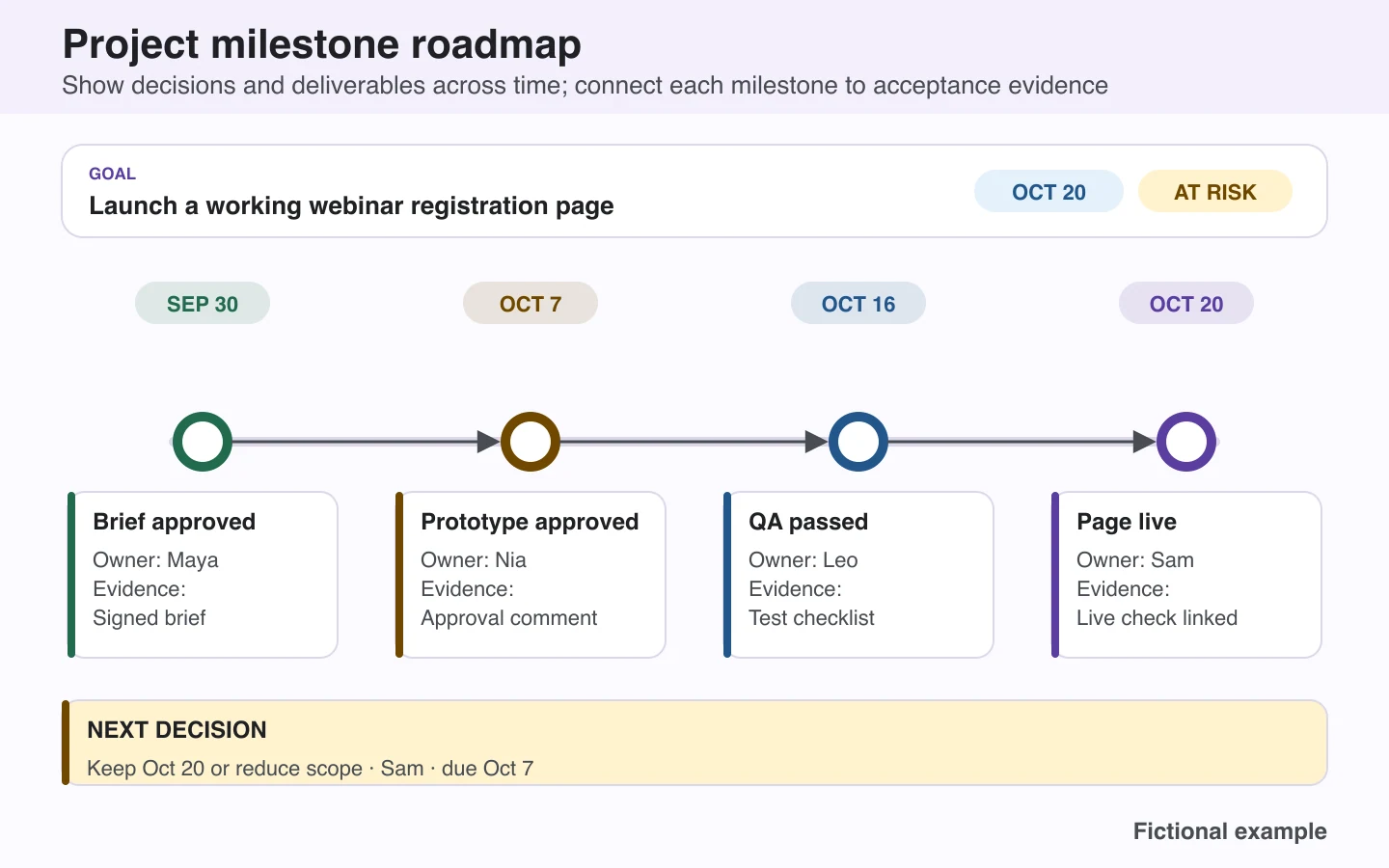
Filled fictional example: A webinar-page launch shows Brief approved — Sep 30, Prototype approved — Oct 7, QA passed — Oct 16, and Page live — Oct 20. Each milestone has one owner and one acceptance artifact. The open decision is “Keep Oct 20 or reduce scope — Sam — due Oct 7.”
Set it up: Write the delivered outcome first. Place four to seven decision or delivery milestones on a horizontal time axis, group them by workstream when needed, and connect only genuine dependencies. Use a linked plan for detailed tasks. The project timeline template can be imported as a reusable digital starting point.
Maintenance: Update the roadmap whenever a milestone is accepted, rejected, or rescheduled, and review it at least twice a week during active delivery. Preserve the prior date in the change log instead of silently overwriting it.
Common misuse: Calling every task a milestone. A milestone is a meaningful approval or delivered state; if the board contains dozens of tiny bars, the next decision is difficult to see.

Figure 3: The fictional launch sequence separates milestone evidence from the open scope-or-date decision.
Open the full-size milestone-roadmap diagram
Download the filled project milestone CSV
4. Meeting decisions and actions board
Best for: a working session that must end with a recorded choice, owned follow-up, or explicit non-decision.
Zones and fields: Purpose; date and facilitator; attendees; timeboxed agenda; Evidence and questions; Decisions; Actions; Parking lot; durable record location. Every action needs an owner, due date, and completion condition.
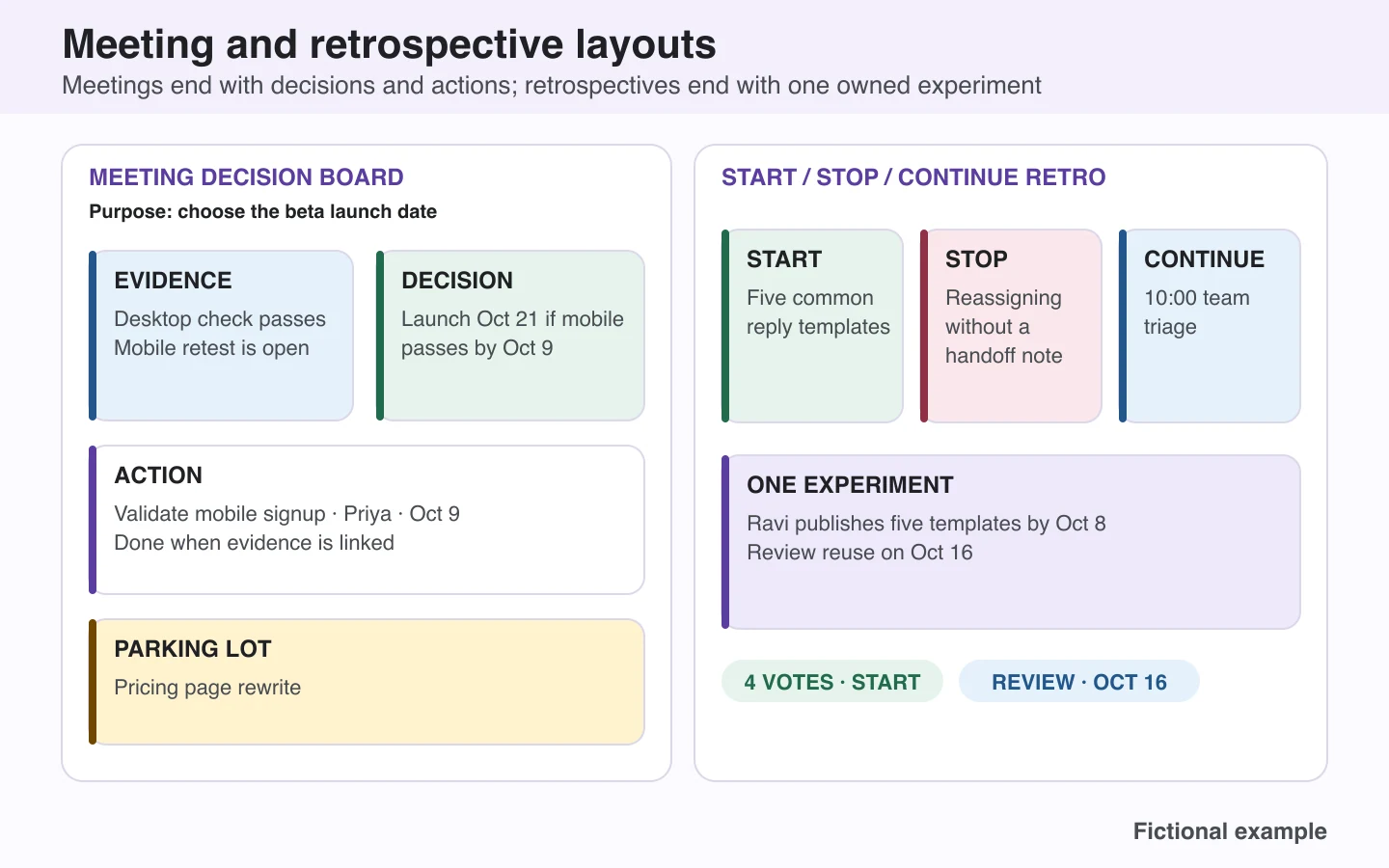
Filled fictional example: The purpose is “Choose the beta launch date.” Evidence says desktop signup passes while a mobile retest remains open. The decision is “Beta launches Oct 21 if mobile passes by Oct 9.” Priya owns that validation, and the pricing-page rewrite moves to the Parking lot.
Set it up: Reserve a slim left rail for purpose, agenda, and participants; use the central area for evidence and questions; keep decisions and actions on the right. Leave a small parking lot outside the decision flow. Write the record location before the meeting so the board does not become the only copy.
Maintenance: Prepare the frame before the session, update it in the room, and transfer decisions and actions to their durable system within 24 hours. Keep a decision that was deferred visibly labeled as deferred rather than deleting it.
Common misuse: Producing a colorful transcript with no decision, action owner, or handoff. Discussion notes are context; they are not the meeting outcome.
5. Start / Stop / Continue retrospective
Best for: a team reviewing a defined work period and choosing one change to test. The 2020 Scrum Guide describes a Sprint Retrospective as a time to inspect how work went and plan ways to increase quality and effectiveness; the layout also works outside Scrum.
Zones and fields: Period reviewed; improvement objective; Start; Stop; Continue; votes; one experiment; experiment owner; success signal; review date.
Filled fictional example: After a support sprint, the team proposes starting templates for the five most common replies, stopping ticket reassignment without a handoff note, and continuing a 10:00 triage. Four votes select the template experiment; Ravi publishes it by Oct 8 and reviews reuse on Oct 16.
Set it up: Write the period and objective in the header. Give each column equal space, collect observations before discussing solutions, then use a visible voting rule to choose one experiment. Rewrite the winning item as a change with an owner and review date.
Maintenance: Revisit the previous experiment before collecting new ideas. At the next retrospective, record whether to keep, adjust, or stop it. Archive the observation list after the decision is captured. At the end of a project, record the findings in a lessons learned template so the next team can reuse them.
Common misuse: Leaving blame-oriented comments on the board or promising many improvements. Discuss observable behavior, protect people from personal blame, and commit to fewer changes than the team can inspect.

Figure 4: The meeting side produces a conditional decision and action; the retrospective side produces one dated experiment.
Open the full-size meeting-and-retrospective diagram
Download the meeting and retrospective examples CSV
6. Study map and review queue
Best for: a learner who needs to connect concepts, practice recall, and keep unanswered questions separate from finished notes.
Zones and fields: Learning objective; source; cue or question; concept map; worked example; confusion list; review queue; next retrieval prompt. A Cornell Notes template is another structure when cues, notes, and a summary fit the subject better.
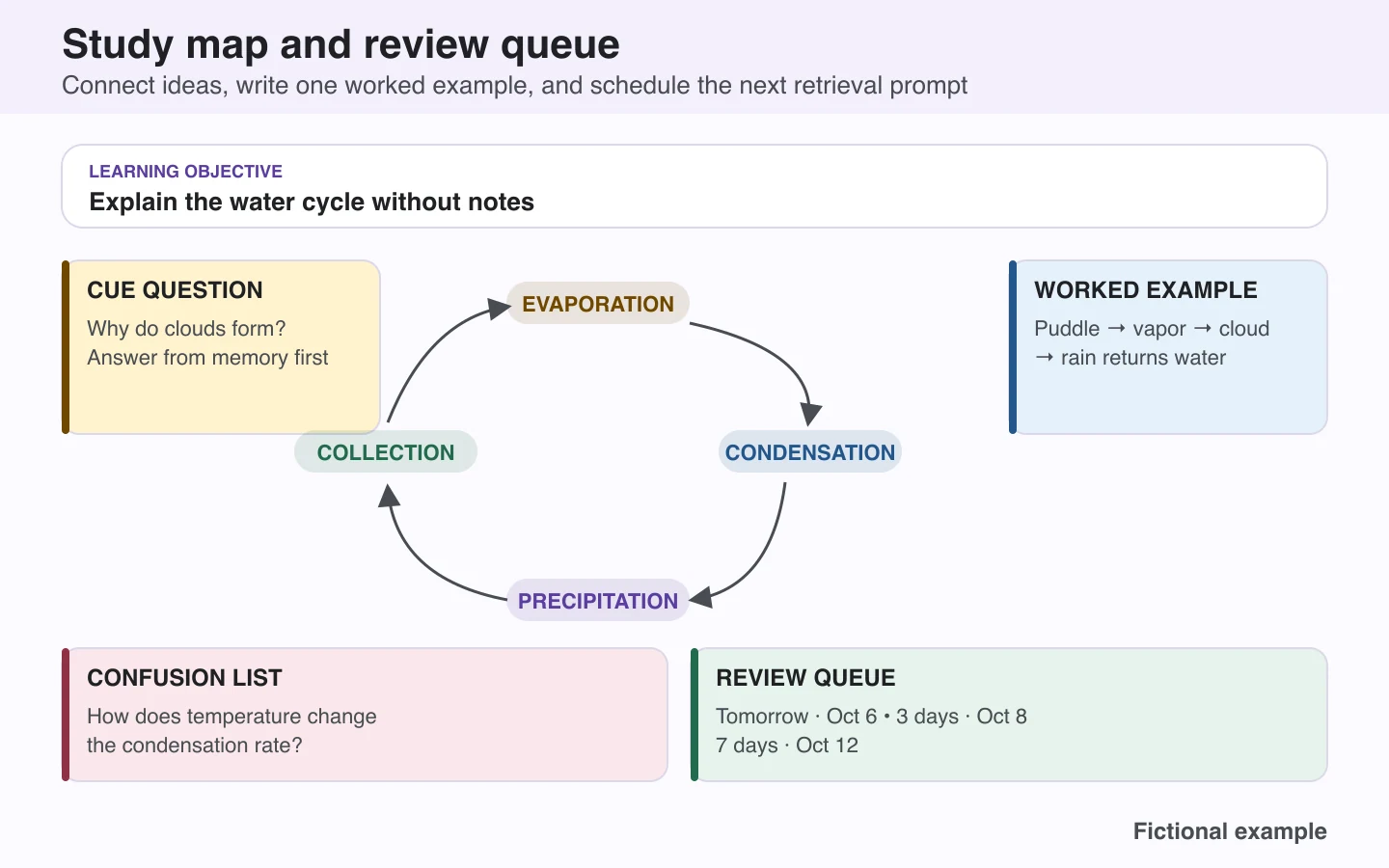
Filled fictional example: The objective is “Explain the water cycle without notes.” The cue asks why clouds form; the map connects evaporation, condensation, precipitation, and collection; the worked example follows a puddle into vapor, cloud, and rain. Reviews are scheduled for Oct 6, Oct 8, and Oct 12.
Set it up: Put the learning objective at the top, the main relationship map in the center, cues on one side, and a worked example on the other. Keep the confusion list visible without pretending uncertain material is understood. End by writing one prompt to answer from memory at the next review.
Maintenance: Update the board after a study session, then return on the dates in the review queue. Shorten or redraw explanations that you cannot reproduce clearly. The Cornell University Learning Strategies Center recommends trying different note-taking strategies and choosing what fits the situation; treat this board as a structure to test, not a guaranteed learning result.
Common misuse: Copying whole paragraphs into tiny cards. A study board should expose relationships and questions; detailed source notes can stay in a linked document.

Figure 5: The example keeps explanation, application, uncertainty, and scheduled retrieval in separate zones.
Open the full-size study-organizer diagram
Download the filled study organizer CSV
7. Priority matrix with a parking lot
Best for: choosing the next action when a personal or team task list contains more work than available time.
Zones and fields: Decision window; owner; top three outcomes; Do now; Schedule; Delegate; Drop; Parking lot. Scheduled items need an actual time; delegated items need a recipient and due date.
Filled fictional example: Jordan puts “Reproduce registration bug” in Do now, “Draft FAQ copy Thursday 14:00” in Schedule, “Partner badge artwork — Nia — Wednesday” in Delegate, and an unused theme mockup in Drop. A November webinar idea goes to the Parking lot.
Set it up: Draw a two-by-two matrix and label every quadrant with an action verb, not just “urgent” and “important.” Write the decision window above it. Keep the Parking lot outside the matrix so interesting ideas do not masquerade as current commitments.
Maintenance: Recheck the Do now zone at the start of the day and reset the full matrix weekly. Delete or renegotiate tasks that remain in Schedule without a time.
Common misuse: Calling everything urgent and important. Limit the top outcomes first; otherwise the matrix merely rearranges an overloaded list.
8. Root-cause investigation board
Best for: a recurring problem that needs evidence and a test before the team commits to a fix.
Zones and fields: Precise problem statement; investigation owner; decision deadline; Evidence; Hypothesis; Test; Finding; Action; unknowns; stop condition.
Filled fictional example: A fictional dataset shows 18% of mobile signup attempts stopping at address validation from Sep 1–7. The hypothesis is that the error message sits below the fold. Testing five viewport widths reproduces the issue only at 320 px, so Leo moves validation above the call to action and retests every width.
Set it up: Start with an observed condition, population, and time window. Give facts and hypotheses separate colors or shapes. For every likely cause, write a test that could disconfirm it. Connect a finding to an action only after the result is recorded.
Maintenance: Update the board at each investigation checkpoint. Close a branch when evidence contradicts it, and record what is still unknown. Archive the final evidence with the incident or project record.
Common misuse: Treating a fishbone or brainstormed cause as proof. The board organizes investigation; it does not replace measurement, testing, or domain expertise.
9. Content pipeline
Best for: editorial or campaign work where topics, evidence, reviews, and publication dates must move through a visible workflow.
Zones and fields: Audience and channel; pipeline owner; cadence; review policy; Backlog; Brief; Draft; Review; Scheduled or published. A card should include the audience signal, query or need, angle, evidence, owner, due date, and call to action.
Filled fictional example: A small-team operations pipeline keeps “Meeting handoff checklist” in Backlog, “Reset a stale Kanban board” in Brief, “Weekly planning FAQ” in Draft, “Onboarding glossary” in Review, and a published task-ownership guide with its next-update learning. Review is limited to one active item.
Set it up: Use columns for content states that have different acceptance rules. Write the source and product-claim checks above Review. Limit Draft and Review work, and link the full document from each card rather than composing long paragraphs on the board.
Maintenance: Review the board once or twice a week. Archive published items only after recording the URL, date, and a future learning or refresh trigger.
Common misuse: Filling Backlog with unqualified topics and removing Published cards immediately. A pipeline should preserve why an item exists and what the team learned after release.
10. Goal-to-metric scoreboard
Best for: connecting a desired outcome to a weekly change and deciding whether to continue, adjust, or stop it.
Zones and fields: Goal and deadline; outcome metric and baseline; leading indicator; owner; weekly hypothesis; planned change; actual; learning; next decision.
Filled fictional example: Priya's fictional goal is to improve webinar registration completion from 62% to 70% by Oct 31. The leading indicator is the mobile validation error rate. Removing one optional field is followed by 66% completion; the note says the direction improved but the sample remains small, so the team runs the change for another week.
Set it up: Write one outcome and its baseline before adding charts. Choose a leading indicator that can change sooner, then record one weekly bet in an “If…then…because…” sentence. Put the actual result beside the plan and require a next decision.
Maintenance: Update the board at the same time each week using the same definition and data source. Preserve prior results so a later number is not mistaken for a new baseline.
Common misuse: Displaying vanity numbers without a decision rule. A scoreboard is useful only when a result changes what the team will do next.
Editable whiteboard layout downloads
The Markdown pack contains blank and filled versions of all ten layouts. The five CSVs provide editable rows for the examples shown in the figures so you can change the same fields in a spreadsheet or import them into a tool that supports CSV.
| Download | Contents | Format notes |
|---|---|---|
| 10-layout copy pack | All blank layouts plus ten filled fictional examples | Plain Markdown; no account required |
| Personal weekly plan example | Five days, weekly outcome, waiting item, Friday reset | Plain CSV; no formulas or macros |
| Team Kanban example | Five workflow states, WIP policy, blocked-card details | Plain CSV; no automation |
| Project milestone example | Four milestones, owners, dependencies, evidence, decision | Plain CSV; dates are fictional |
| Meeting and retrospective examples | Decision/action board plus one retro experiment | Plain CSV; examples share one file |
| Study organizer example | Objective, cue, concept, worked example, confusion, reviews | Plain CSV; review dates are fictional |
Open a CSV in a spreadsheet and replace the sample rows. For a physical board, print the field list or copy it with tape and marker. For a digital canvas, paste the Markdown headings into frames and use cards for the rows. These files contain no formulas, reminders, live data, or AFFiNE-specific automation.
Keep a whiteboard readable and current
- Design for the viewing distance. A heading that works at laptop distance may be unreadable across a meeting room. Test it where participants will stand or sit.
- Use one short color legend. Three or four meanings are usually enough. Write status and ownership as text too.
- Separate facts, hypotheses, and decisions. A board becomes misleading when an idea looks like evidence or a discussion looks like approval.
- Name the maintenance owner. Shared ownership often means no one removes stale material.
- Record durable outcomes elsewhere. A physical board can be erased; a digital canvas can become crowded. Move final decisions, tasks, and evidence to the system the team treats as authoritative.
- Protect confidential material. Do not leave sensitive customer, employee, health, or security details visible in a shared room or broadly accessible canvas.
Recreate these layouts in AFFiNE
According to AFFiNE's official pages and documentation accessed September 28, 2026, AFFiNE Whiteboard provides an Edgeless canvas for visual planning and collaboration, and an AFFiNE document can hold both page content and an Edgeless view. The official AFFiNE template documentation says you can mark a document as a template in its Property settings. For import and export, AFFiNE templates use Snapshot, and content from both Page and Edgeless modes is added to the document.
To reuse one of this guide's layouts, create the zones as frames, paste the example fields, replace the fictional cards, and save the document as a template if that option is available in your workspace. Keep detailed notes in linked page content so the board remains scannable. AFFiNE's public product pages describe real-time collaboration, but workspace capacity and account features can vary by plan; this guide did not test those limits.
The current AFFiNE AI page says AFFiNE AI is built into documents and whiteboards for AI notes, PDF and video summaries, document drafting, mind maps, and presentations. The page marks presentation generation and “Make it Real with AI” as Beta, and its FAQ says AFFiNE AI currently runs through AFFiNE Cloud and requires sign-in; BYOK is available from version 0.27. These product descriptions come from official materials, not hands-on testing for this article, and none of the ten layouts requires AI.
Sources and editorial notes
- The Kanban Guide, May 2025 — source for defining workflow states, controlling WIP, reviewing active work, and improving flow; accessed September 28, 2026.
- The Scrum Guide, November 2020 HTML edition — source for the purpose of a Sprint Retrospective; accessed September 28, 2026.
- Cornell University Learning Strategies Center: The Cornell Note Taking System — source for trying and evaluating note-taking strategies; accessed September 28, 2026.
- AFFiNE official Whiteboard, template documentation, and AI pages — sources for the bounded product descriptions above; accessed September 28, 2026.
The ten layouts, downloadable files, diagrams, and filled examples were created for this guide. They demonstrate organizational methods; they do not prove a particular productivity, learning, delivery, or conversion result. Product features and plan limits can change, so verify account-specific requirements before adopting a workflow.
Whiteboard layout FAQs
How should I divide a whiteboard for work?
Start with a narrow header for the board's purpose, owner, and next review. Give the largest area to active work or evidence, then reserve smaller zones for decisions, blockers, and a parking lot. Label every zone before adding cards, and keep detailed documents outside the board so the layout stays readable.
What is the best whiteboard layout for productivity?
The best layout is the one that answers your current coordination question. Use a weekly plan for personal commitments, Kanban for work flow, a milestone roadmap for dependencies, a decision board for meetings, and a study map for learning. A more elaborate layout is not better if the team will not maintain it.
How often should a work whiteboard be updated?
Update changing status during the work itself, then schedule a deliberate reset. A personal weekly board can receive a two-minute daily check and Friday cleanup; a team Kanban may need a daily flow review; milestone, retrospective, and metric boards should update when the relevant decision or review occurs.
How many colors should a whiteboard layout use?
Use the smallest palette that communicates a stable rule—often three or four meanings such as active, waiting, risk, and complete. Add a written legend, maintain sufficient contrast, and include text labels for status and ownership. Color alone excludes some viewers and becomes ambiguous when people invent new meanings during a session.
Can I use the same layout on a physical and digital whiteboard?
Yes. Preserve the purpose, zones, fields, operating rules, and review cadence in either format. On a physical board, plan for viewing distance and photograph or transfer final decisions. On a digital board, use frames and links, control access, and archive completed material so an infinite canvas does not become an infinite backlog.