AI in Canvas LMS: IgniteAI Features, Setup & Privacy (2026)
Last updated: October 28, 2026 · Rewritten to cover IgniteAI, the 2026 Canvas tiers, and privacy controls. Facts checked against Instructure's own announcements and documentation.
Quick answer: Yes, Canvas LMS has built-in AI. Instructure, the company behind Canvas, groups it under the name IgniteAI. It covers discussion summaries, AI course search, translations, quiz question drafting, rubric generation, grading assistance, and an agent that can carry out multi-step course tasks. Every feature is opt-in, and what you can use depends on your school's Canvas tier and settings.
"Canvas AI" is also easy to confuse with Canva, the design app, which has its own AI image tools. This guide is only about Canvas the learning management system.
IgniteAI features at a glance
Instructure introduced three Canvas tiers in April 2026. The table shows where each IgniteAI feature sits. Your school decides which features are switched on.
| Feature | Who uses it | What it does | Canvas tier |
|---|---|---|---|
| Summaries for Discussions | Instructors | Summarizes key points and questions in a discussion thread | Core (all customers) |
| Search for Courses | Instructors and students | Finds course content by meaning, not only exact keywords | Core |
| Translations | Everyone | Translates discussions, Inbox messages and announcements | Core |
| Question Authoring Assistance | Instructors | Drafts quiz questions from course content | Core |
| Accessibility Remediation | Instructors | Suggests fixes for issues found by the Course Accessibility Checker | Core |
| Insights for Discussions | Instructors | Flags low-effort or off-topic replies and students who may need support | Plus |
| Generator for Rubrics | Instructors | Drafts rubric criteria and levels from an assignment | Plus |
| Grading Assistance for SpeedGrader | Instructors | Suggests rubric-based scores and feedback for review | Plus |
| IgniteAI Agent | Instructors and admins | Carries out multi-step tasks from one prompt, such as moving due dates | Next |
| Ask Your Data | Admins | Answers questions about institutional Canvas data | Next |
| Study Tools | Students | Generates flashcards and practice quizzes from course materials | Next |
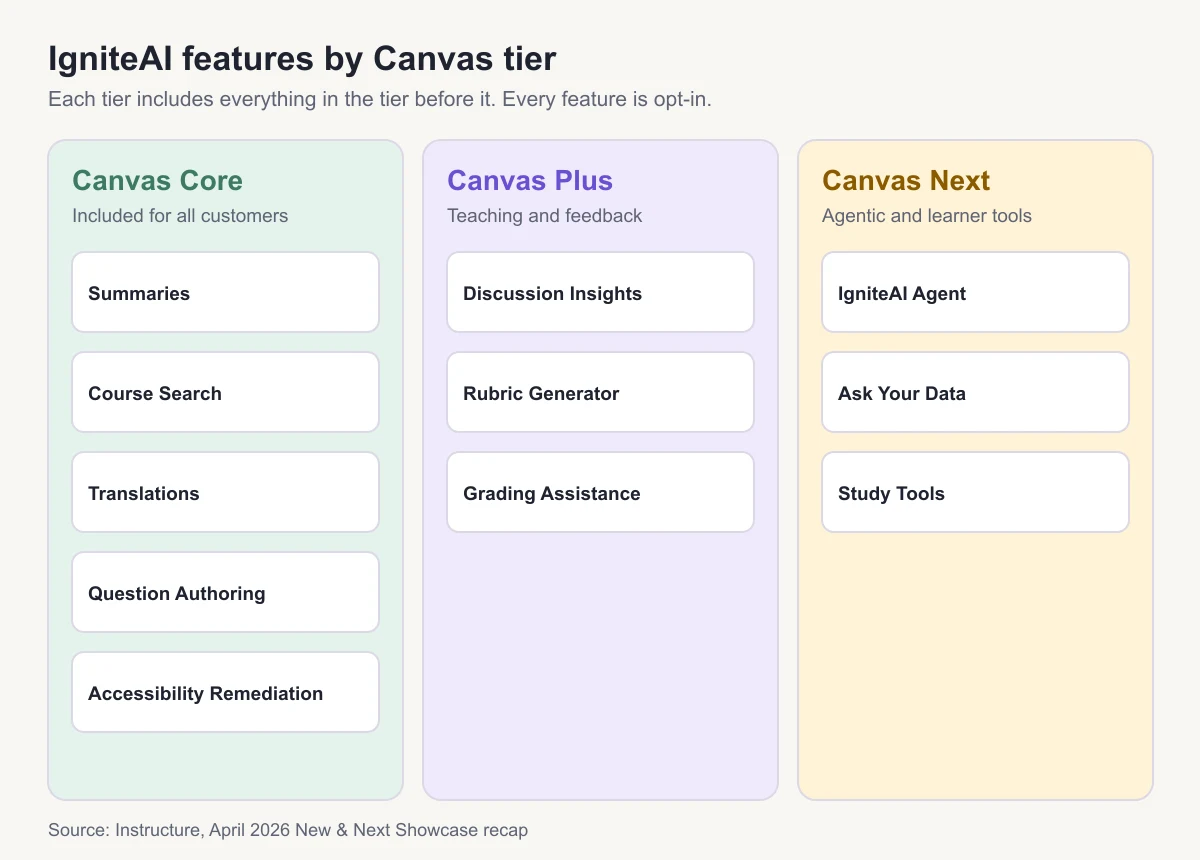
Source: Instructure, April 2026 New & Next recap. Instructure states that release notes now say which tier each update applies to, so check those notes when a feature does not appear for you.
What IgniteAI is (and what it is not)
IgniteAI launched in July 2025 as the umbrella for AI inside Canvas and Mastery. It runs on AWS Bedrock and uses models from providers Instructure partners with, including Anthropic and OpenAI. It is not a separate app or chatbot that students sign up for. The features appear inside the Canvas pages you already use, marked with a consistent IgniteAI icon.
Two things it is not:
- It is not an AI detector. Canvas does not produce an "AI written" score by itself. Those reports come from third-party services your school connects. See does Canvas detect AI for how that works.
- It is not the Better Canvas (BetterCampus) extension. That browser add-on changes how Canvas looks and is not made by Instructure. See the Better Canvas extension guide.
AI in Canvas for instructors
Most IgniteAI features are built for teaching staff. Students do not see discussion summaries, insights or grading suggestions.
Summaries and Insights for Discussions
Summaries give a short overview of the main points, questions and ideas in a thread. You can add a prompt to focus the summary and regenerate it as new replies arrive. Insights goes further: it reviews individual replies, highlights strong contributions and flags ones that may need a look. Use both as a starting point for reading, not a replacement for it.
Quiz questions, rubrics and grading help
Question Authoring Assistance drafts quiz questions from your course content. The Rubric Generator drafts criteria and performance levels from your assignment details; it requires Enhanced Rubrics to be enabled. Grading Assistance in SpeedGrader suggests scores and comments against your rubric. In every case you review, edit and approve the result.
IgniteAI Agent
The Agent takes a plain-language request and performs several steps across Canvas, for example "push every quiz in Module 4 back one week" or "reorganize this module into weekly folders." Instructure says it works across more than 500 Canvas APIs. Because it can change many items at once, test it on a sandbox course first.
Translations and accessibility
Translations work in discussions, Inbox and announcements, which helps in multilingual classes and with family communication in K–12. Accessibility Remediation suggests fixes for problems found by the Course Accessibility Checker, such as missing alt text or low color contrast.
AI in Canvas for students
Students see less AI than instructors do:
- Search for Courses, if your instructor or school enables it.
- Translations in discussions, Inbox and announcements.
- Study Tools (flashcards and practice quizzes from course materials), only at schools on Canvas Next.
If your course does not show these, it is a setting, not a bug. Ask your instructor; many schools review each feature before turning it on.
Using AI outside Canvas, such as ChatGPT for drafts, is governed by your course's academic integrity policy, not by IgniteAI. When in doubt, ask before you submit.
How to turn on AI features in Canvas
Features are off until someone enables them. The exact menu wording can change between releases, so treat this as the general flow and check your school's help pages.
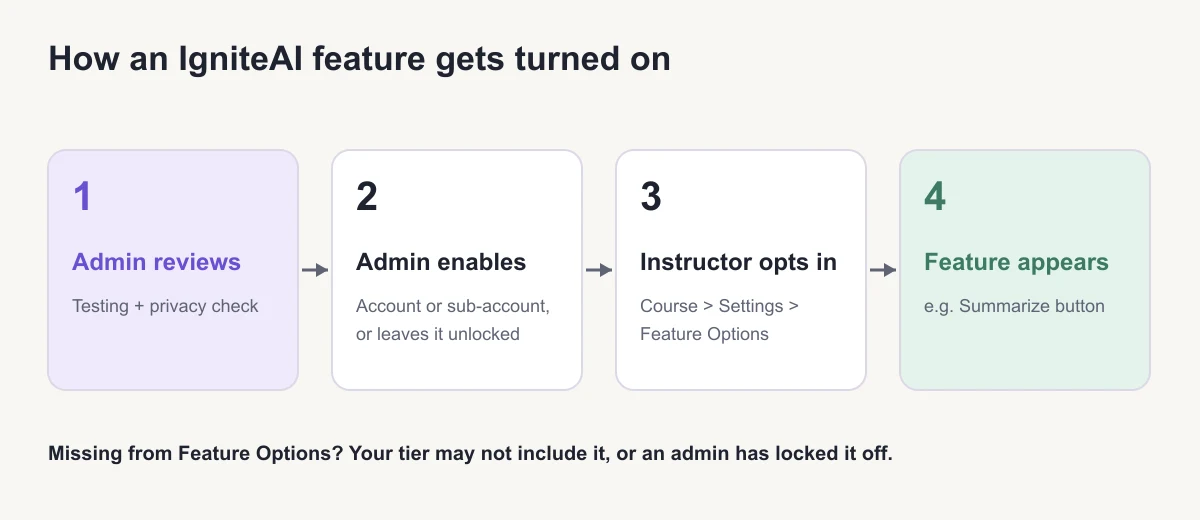
- Admin reviews the feature. Many schools test features and check privacy terms first. CU Boulder, for example, ran a faculty preview from March to June 2026 before deciding on adoption.
- Admin sets availability. In Admin > Settings > Feature Options, the admin enables the feature for the whole account, or leaves it "unlocked" so it can be turned on lower down.
- Instructor opts in. In Course > Settings > Feature Options, the instructor switches the feature on for that course.
- Feature appears. For example, a Summarize button shows at the top of a discussion, or AI search appears in course navigation.
If a feature is missing from the Feature Options list, your school's tier may not include it, or the admin has locked it off.
Privacy, data and student information
This is the question faculty raise most often. Here is what Instructure has published, and the limits to keep in mind.
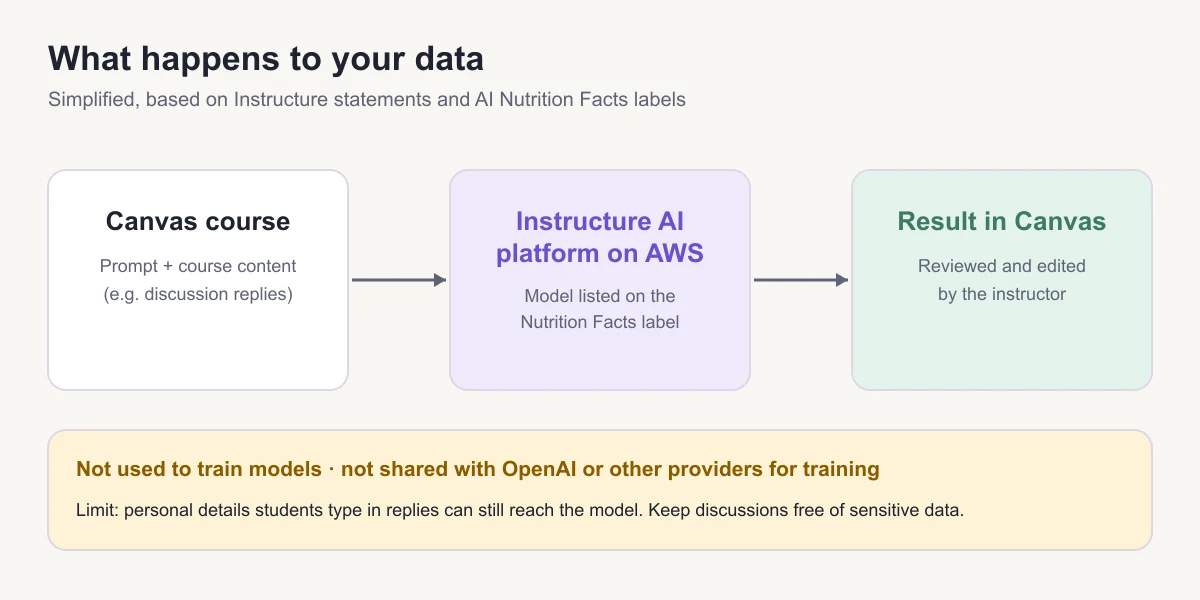
- No model training on your data. Instructure states that data is not shared with OpenAI or other providers to train external models, and that institutional data is never used for training without consent.
- AI Nutrition Facts. Each feature has a label listing the model, the data it receives and how privacy is handled. For example, the Discussion Insights label lists Anthropic Claude Haiku models and says the discussion prompt and student replies are used as input, with no customer data used for training.
- Opt-in control. Features can be enabled per institution, department or course.
- A real limit. The University of Chicago notes that while features do not intentionally send personal information to models, personal details that students write in discussion replies can still be included. Tell students not to post sensitive information in discussions that use AI.
Instructure lists FERPA, COPPA and GDPR compliance in its IgniteAI principles. Your school's contract and IT security review are the authority for your own campus.
Pricing and availability in 2026
- Canvas Core includes the five essentials listed above at no extra cost. Every existing Canvas customer is on Core.
- Canvas Plus and Canvas Next are paid upgrades that add the teaching, feedback and agent features.
- Free access to premium IgniteAI features ended June 30, 2026 in the US and September 30, 2026 for international customers. Work created during the free period stays.
- Plus and Next launched in North America first and became available globally by August 15, 2026, with some exclusions.
Instructure does not publish per-seat prices. Your institution's account team sets them.
A simple student workflow: Canvas plus a planning workspace
Canvas is the official record for assignments, grades and announcements. Many students still keep their own notes and study plan elsewhere. A setup that works:
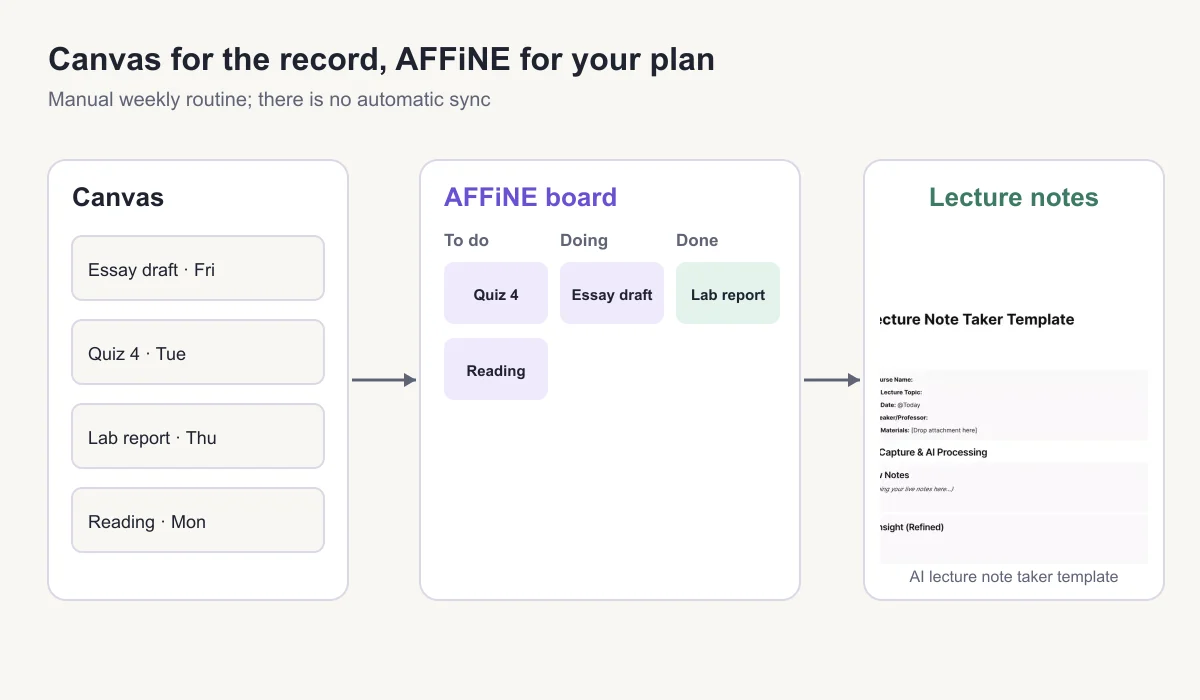
- Check Canvas weekly for new due dates and announcements.
- Copy the week's deadlines into a task board. Our guide to turning a Canvas calendar into a Kanban board walks through the columns.
- Take lecture notes in a structured page, such as the AI lecture note taker template or the academic AI note taker, and link each note to the related assignment.
- Before an exam, ask AFFiNE AI to summarize your own notes into a review sheet, then check it against the course materials.
This is a manual workflow. AFFiNE does not sync with Canvas automatically.
Instructors planning lessons outside Canvas can start from a basic lesson plan template or a hybrid and online lesson plan template, then paste the finished content into Canvas pages.
Frequently Asked Questions
1. Does Canvas use AI?
Yes. Canvas LMS includes AI features under the IgniteAI name, such as discussion summaries, AI course search, translations, quiz question drafting, rubric generation and an AI agent. They are opt-in, so your school or instructor must enable them.
2. What is IgniteAI in Canvas?
IgniteAI is Instructure's name for the AI built into Canvas and Mastery. It launched in July 2025, runs on AWS Bedrock and puts AI tools directly inside Canvas pages instead of in a separate app.
3. Can students see AI discussion summaries?
No. Discussion summaries and insights are visible only to instructors and admins. Students may see AI search, translations and, at schools on Canvas Next, Study Tools.
4. What is Canvas Smart Search?
Smart Search, now called IgniteAI Search for Courses, finds course pages, announcements, discussion prompts and assignment descriptions by meaning rather than exact words. It is included in Canvas Core.
5. Does Canvas AI use student data to train models?
Instructure says no. Data is not shared with OpenAI or other providers to train their models, and each feature's AI Nutrition Facts label lists what data it uses. Students should still avoid posting sensitive personal details in discussions.
6. Is Canvas AI free?
Partly. The Core features (summaries, search, translations, question authoring and accessibility remediation) come with every Canvas license. Rubric generation, grading assistance, the Agent and Study Tools require the paid Plus or Next tiers.