10 Best Tools to Reduce Online Distractions and Stay Focused in 2026
Some days you can lose an hour without doing anything especially interesting. You went online to check a figure, saw a message, and ended up reading something unrelated to the job. By lunch, you've touched six tasks and finished none of them.
The irritating part is that plenty of these interruptions happen while you're trying to be productive. Research requires a browser. Colleagues need replies. You can't exactly throw your laptop in a drawer until the deadline passes.
A bit of friction in the right place helps. So does saving things somewhere you'll actually find them later. Neither requires an elaborate new routine, and this guide covers ten tools that do one of those two jobs well.
Key takeaways
- Different distractions need different fixes: cluttered pages, tempting sites, open tabs, unclear tasks and noisy rooms each have their own kind of tool.
- Blockers such as Freedom and Cold Turkey add friction; trackers such as RescueTime show where the time actually goes.
- Capture tools (Todoist, Instapaper, OneTab) work only if you also decide when you will come back to what you saved.
- Start with the single interruption that happens most often, and keep the rest of your setup familiar.
Notice where the work breaks down
An email arrives halfway through a difficult paragraph. You answer it in thirty seconds, but now you have to remember what that paragraph was supposed to say. There's a measurable cost to that sort of switching; the American Psychological Association's overview of multitasking explains why moving between tasks takes more effort than it seems. Try returning to a spreadsheet formula or a complicated argument after a string of messages.
Before installing anything, name the problem. It might be tempting websites, tabs you won't close, a task you can't quite begin, or noise around you. Each calls for a different fix:
| If your main problem is… | Try | What it does |
|---|---|---|
| Cluttered, ad-heavy pages | AdBlock | Filters banners and pop-ups while you read |
| Tempting sites and apps | Freedom, Cold Turkey Blocker | Blocks them on a schedule or behind a lock |
| Reaching for your phone | Forest | Rewards you for staying in a focus session |
| Not knowing where time goes | RescueTime | Reports time spent per app and website |
| Trouble getting started | Focusmate | Pairs you with a coworking partner on video |
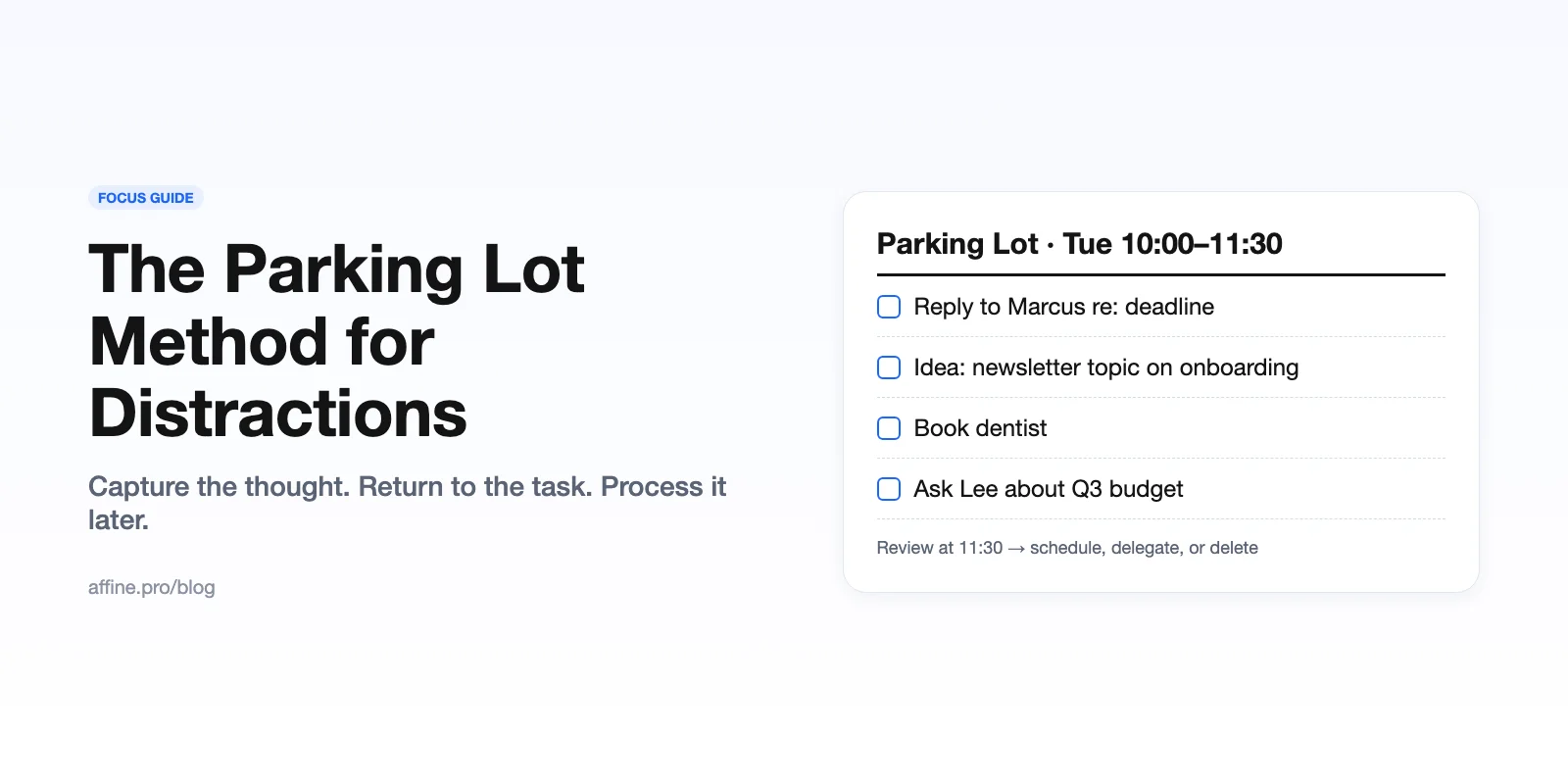
| Tasks popping into your head | Todoist | Captures them so you can stay on the current job |
| Long articles mid-research | Instapaper | Saves them to read later |
| Too many open tabs | OneTab | Collapses tabs into a restorable list |
| Noise around you | Noisli | Plays ambient sound with a session timer |
10 tools that earn their place on your screen
1. AdBlock
You open a useful article and half the screen seems to belong to banners and pop-ups. AdBlock filters many common banners, pop-ups and other online ads, so there's less competing for your attention as you read. It also lets you choose which sites are allowed to display advertising, which is handy for publishers you want to support.
It won't clear every ad on every site, and some publishers ask visitors to switch blocking off. Nonintrusive ads may also appear under its default settings. Still, a calmer page makes a real difference when you're reading for an hour rather than a minute.
Best for: long reading and research sessions in the browser.
2. Freedom
Blocking social media on your computer is less impressive when you can pick up your phone and open the same app. Freedom lets you schedule restrictions for websites and apps across supported devices. You could block entertainment during a morning writing session but leave email and research sites available.
Check what it can block on your devices before paying, particularly if your phone is the main culprit.
Best for: people who get distracted on more than one device.
3. Cold Turkey Blocker
Cold Turkey is for the days when you already know you'll ignore a polite reminder. It blocks selected websites and desktop applications, with locking options that make changing your mind harder. That's appealing during exam revision, less so when work throws unexpected requests at you.
Check your blocklist before locking it. Discovering you've blocked access to your course notes is a lousy way to start studying.
Best for: exam periods and deadlines where you need a hard stop.
4. Forest
Forest gives you a virtual tree to grow while you stay focused. Depending on your device and chosen mode, abandoning a session can interrupt that progress. It's a small, visible record of time spent working rather than reaching for your phone.
Try it for a reading assignment or the first half hour of a difficult report. If you need a more deliberate plan for the rest of the day, a time-blocking template can reserve space for focused work and for the errands that tend to creep into it. Leave yourself a break; there's no prize for never getting up from your desk.
Best for: phone habits and short, gamified focus sessions.
5. RescueTime
RescueTime records time spent in apps and on websites. Its reports can answer an awkward question: how much of your afternoon went to email and admin instead of the project you meant to finish? Look for patterns rather than scoring every minute.
Because it monitors computer activity, check its privacy settings and any workplace rules before switching it on.
Best for: finding out where your hours actually go.
6. Focusmate
Focusmate is a video coworking service for people who find it easier to begin when someone else is expecting them. Book a 25-, 50- or 75-minute session, tell your partner what you're working on, and get on with it. You check in again at the end.
The other person is working quietly too; you're not expected to make conversation. You do have to keep your camera on, though, and that may be reason enough to give this one a miss.
Best for: tasks you keep putting off.
7. Todoist
A task often pops into your head at the least useful moment: send that invoice, update a slide, call someone back. Todoist gives you somewhere to put it so you don't have to hold it in your head for the next three hours. Recurring reminders also take care of jobs that come back every week.
The danger is becoming more interested in organizing the list than completing it. A task called "finish introduction" is easier to act on than a color-coded collection of vague goals. Keep today's list short enough that you can see what's left at a glance.
Best for: capturing stray tasks without breaking focus.
8. Instapaper
You're gathering sources for a presentation and find a long article that looks promising. Reading it now would derail your search; leaving it open means another tab to manage. Instapaper saves articles to read later in a stripped-back reading layout, with offline access through supported apps.
Book time to read your saved articles, though, or the reading list becomes a second inbox.
Best for: research sessions that keep turning up good reading.
9. OneTab
If your browser's tab labels have shrunk to tiny icons, OneTab can gather those pages into a restorable list. Open individual tabs when you need them rather than leaving everything on display during a product comparison or literature review.
Save anything important elsewhere as well. A tab list isn't a permanent research archive.
Best for: clearing tab overload without losing pages.
10. Noisli
A conversation at the next table can be harder to ignore than music. Noisli lets you mix ambient sounds, from rain to café noise, and has a timer for working in sessions. Background noise is personal: some people find it comforting, others can't think with it on. Test it during a short reading session before committing to it for a whole working day.
Best for: open offices, cafés and noisy homes.
Keep the system smaller than the job
It's easy to spend the first hour of a new project arranging the tools you'll use to finish it. A timer, a blocker, a task list, a reading list. Soon you're looking for the notes you made about the article you saved in a different app.
Pick the biggest annoyance first. If you already keep your tasks reliably in a notebook, you don't need to migrate them because an app has nicer labels. And if saved links are the real mess, decide where the material will go after you've read it. Organizing a digital whiteboard into separate spaces for references, decisions and action items can stop a research project from turning into a junk drawer. A plain document with three headings works too.
Be careful with permissions as well. Google's instructions for managing Chrome extensions show how to inspect an extension and limit which websites it can access. Check before installing software that reads page content or tracks what you do online.
Frequently asked questions
What is the best tool to block distracting websites?
It depends on how strict you need to be. Freedom suits people who want scheduled blocks across their computer and phone. Cold Turkey Blocker suits people who need a lock they can't easily undo, such as during exams. If the distraction is mostly on-page clutter rather than whole websites, an ad blocker like AdBlock may be enough.
Do ad blockers actually help you focus?
They can. Removing banners, pop-ups and autoplay ads reduces the number of things competing for your attention while you read. They won't stop you from opening a distracting site in the first place, so pair one with a site blocker if that's your bigger problem.
How many focus tools should I use at once?
Start with one, aimed at the interruption that happens most often. Add a second only when you know the first is working. A stack of half-configured tools usually creates more switching, not less.
Are focus and time-tracking apps safe for privacy?
Many of them read browser activity or app usage, so review what data each one collects, check its permissions, and follow your workplace's rules before installing it on a work machine.
Wrap-up
An uninterrupted hour can be hard to come by, especially when your work depends on being online. You don't need to protect every minute of the day to make progress on a difficult task. Remove the interruption that happens most often, and keep the rest of your setup familiar. If a new tool needs constant fiddling, it isn't earning its place.
Today, notice the first thing that pulls you away from your work, then try one small change that makes it less likely to happen again.