AI Presentation Maker: From Source Notes to Usable Slides
Choose the right output, build a story from your sources, and check the deck before you share it.

An AI presentation maker turns a prompt, notes, or a document into a draft slide deck. Depending on the tool, it can propose an outline, write slide text, suggest visuals, and arrange layouts. You still need to check the evidence, refine the story, and test the file your audience will receive.
Start with the handoff: Do you need an editable PowerPoint file, a shared Google Slides deck, or a link to present online? That choice matters more than how impressive the first generated slide looks. This guide helps you choose a workflow, prepare source material, and build a six-slide presentation you can verify.
About this guide: Product capabilities were checked against official pages on October 12, 2026. The comparisons are based on documented features, not a hands-on speed or output-quality benchmark. The worked example is fictional. AFFiNE publishes this article and is included for organizing sources, storyboards, and talking points; see our editorial policy.
Choose an AI presentation maker by your final format
A browser-based editor and an add-on inside PowerPoint solve different problems. Choose where the deck needs to live, then test a small sample before building the whole presentation.
| Your requirement | Options to investigate | Documented workflow | What to check first |
|---|---|---|---|
| Create a web presentation, with a downloadable copy | Gamma | Generates presentations and exports PDF, PNG, and PPTX | Open a sample export in your destination app; check branding and layout |
| Draft inside your team's existing slide editor | Plus AI or SlidesAI | Both describe workflows for PowerPoint and Google Slides | Add-on approval, account access, document import, and the relevant plan |
| Work within Microsoft 365 | Copilot in PowerPoint | Creates a draft from a prompt; file-based workflows depend on the available interface | Your license, organization settings, and whether the file workflow is enabled |
| Begin with a visual template and customize it | Canva | Magic Design drafts presentations; Canva supports PowerPoint and PDF downloads | Included assets, AI allowance, and fidelity after export |
| Organize evidence and the story before designing slides | AFFiNE | Keep source notes, a storyboard, and AI-assisted talking points together | Confirm your required presentation and export workflow separately |
Sources: Gamma export help, Plus AI, SlidesAI, Microsoft's creation guide, Canva Magic Design, and the AFFiNE presentation workflow.
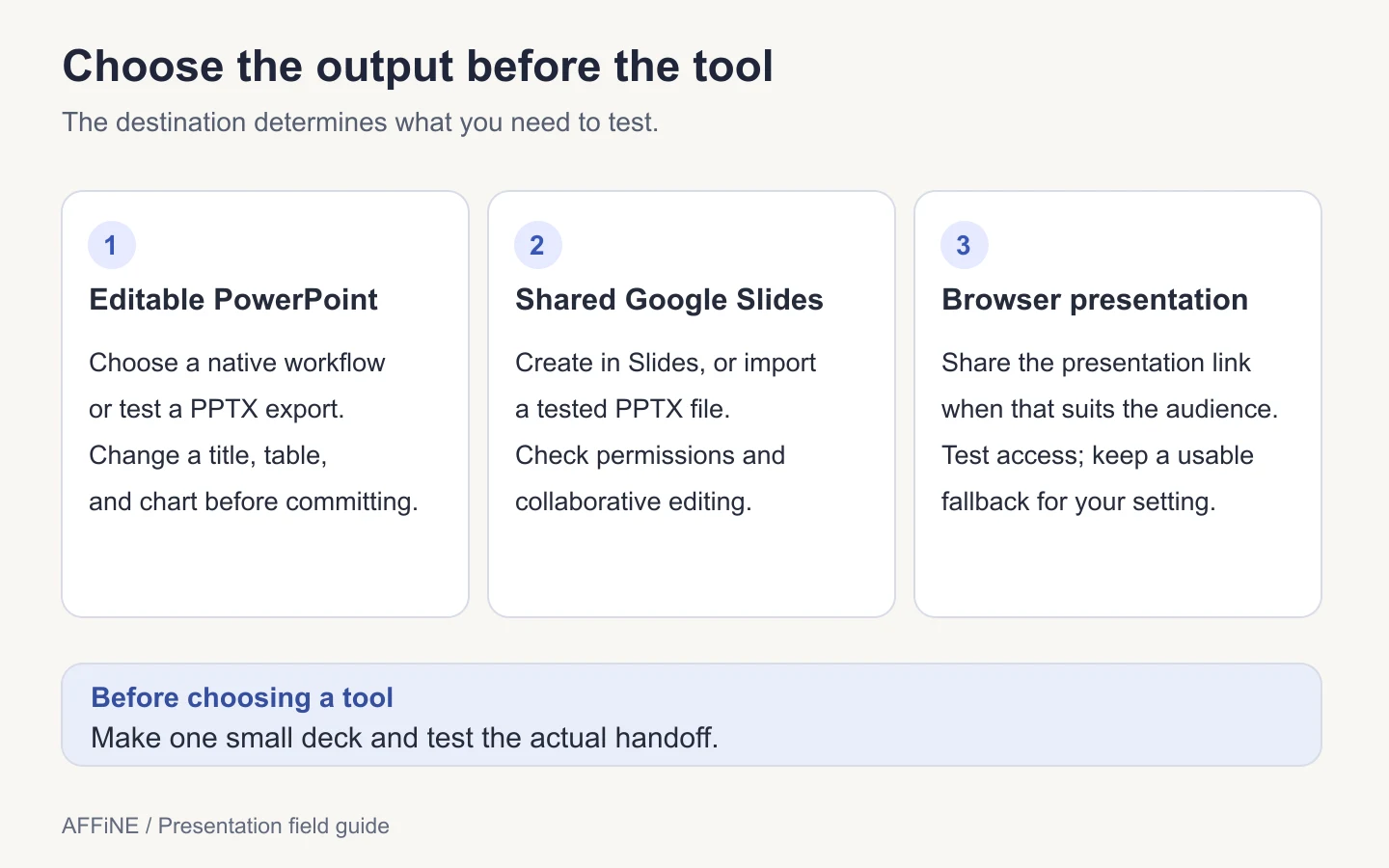
PowerPoint and Google Slides: distinguish native editing from conversion
If colleagues will revise your slides, start by testing tools that work in their editor. Plus AI describes creation and editing inside PowerPoint and Google Slides. SlidesAI also documents these integrations and how to save or export a PowerPoint file.
A standalone tool can still be a good fit. Gamma's documented route to Google Slides is to export a PPTX and upload it. That is a conversion step, so inspect text wrapping, charts, links, and speaker notes in the destination application. Do not assume that an editable title means every diagram is editable.
For Copilot, follow the instructions available in your own account. Microsoft's current support page describes different creation paths and notes that some functionality is still rolling out. A tutorial for one interface is not proof that every subscription has the same controls.
Other needs: templates, document conversion, and audience participation
For template-led drafting, Slidesgo is another option to inspect. Presentations.AI offers a dedicated presentation platform. Evaluate either with the same source brief and required output, rather than comparing only gallery images.
For document conversion, SketchBubble AI describes PDF or Word input and editable PPTX output, while warning that scanned or handwritten PDFs can produce limited results. Twistly distinguishes free PDF downloading from editable PPTX access through a trial. Check the current terms before treating “free generation” as free delivery.
If audience participation matters, ask whether you need live questions, polls, or post-session viewing data. Those are separate requirements from slide generation. Our guide to presentation tools with analytics explores that use case.
An outdated recommendation to avoid: Tome Slides is no longer a current option. Its official sunset notice states that the product closed on April 30, 2025. Older roundups may still recommend it.
What does a free AI presentation maker actually include?
“Free” can refer to generating a draft, downloading a file, or using a limited trial. Check all three before you invest time in a tool.
- Generation allowance: Is it a renewable allowance, a one-time credit balance, or a trial? Does revising a slide use more credits?
- Download rights: Can you export the format you need, or only present through a link?
- Branding and assets: Will the export include a watermark? Are the selected images, fonts, or templates included?
- Collaboration: Can another person edit the file using their existing account?
- Paid transition: What happens when the trial ends, and do you retain access to your work?
For example, Gamma's pricing page lists a Free plan, while Plus AI's pricing page describes a trial followed by paid plans. These are different offers. Limits can change; verify them for the account you intend to use. For more budget-focused options, see our free AI presentation tools guide.
Prepare text, an essay, or a PDF before generating slides
A report is organized for reading. A presentation needs an argument the audience can follow while you speak. Before importing a document, write down the decision or idea the audience should leave with.
Create a short source brief with:
- Audience and goal: Who is listening, what do they already know, and what should happen afterward?
- Time and format: Speaking time, approximate slide count, and the required delivery format.
- Approved evidence: Facts, dates, quotations, and source locations you can check.
- Uncertainty: Missing data, assumptions, and questions the deck must leave open.
- Visual needs: A process diagram, comparison, photograph, or chart tied to a specific point.
For PDFs, try selecting and copying a paragraph first. If you cannot, the file may need OCR before a text-based workflow can use it reliably. Check extracted tables against the original: a missing negative sign or a shifted column can reverse the meaning. Upload only material you are allowed to share with the selected service.
For an essay, keep the thesis, the supporting evidence, and the conclusion. Move detailed qualifications into speaker notes where appropriate; do not remove them just to shorten the deck. A slide generator should not invent citations to fill gaps.
Download the presentation brief and review checklist, or copy the prompt below into your chosen tool after adding your source material.
Create an outline for a six-slide presentation.
Audience: [who will attend and what they already know]
Goal: [the decision or idea they should leave with]
Speaking time: [minutes]
Delivery format: [PowerPoint / Google Slides / browser link]
Approved source material: [paste notes with source IDs and dates]

For each slide, return:
- A title that communicates one point
- Up to three supporting bullets
- A suggested visual and the data it requires
- Speaker notes with source IDs for factual claims

Use only the supplied evidence. Mark missing information as
[NEEDS SOURCE]. Do not invent statistics, quotations, or results.
Return the outline first so I can approve the story before design.
A worked example: turn a project brief into six slides
Suppose a team is considering a shared onboarding checklist. This is a fictional teaching example, not an AFFiNE customer case or the recorded output of any product.
The source brief contains three items: S1, a process note listing today's handoffs; S2, interview notes describing repeated questions; and S3, a draft proposal to trial a shared checklist. There is no measured time-saving result. That distinction should survive every stage of generation.
| Slide | One point to communicate | Evidence or visual | Avoid adding |
|---|---|---|---|
| 1. The decision | Agree whether to run a limited checklist pilot | The proposal in S3 | A claim that the pilot has already succeeded |
| 2. Current process | Show where onboarding changes hands | A handoff diagram from S1 | An invented average completion time |
| 3. Observed friction | Explain the repeated questions | An anonymized summary of S2 | A percentage presented as survey data |
| 4. Proposed change | Give the checklist a clear place in the process | A before-and-after process sketch | Unsupported product capabilities |
| 5. How to evaluate | Define what the team will measure | Proposed measures, labeled as proposals | Forecast savings presented as results |
| 6. Next step | Confirm an owner, scope, and review date | Open decisions from S3 | Names or dates the team has not agreed |
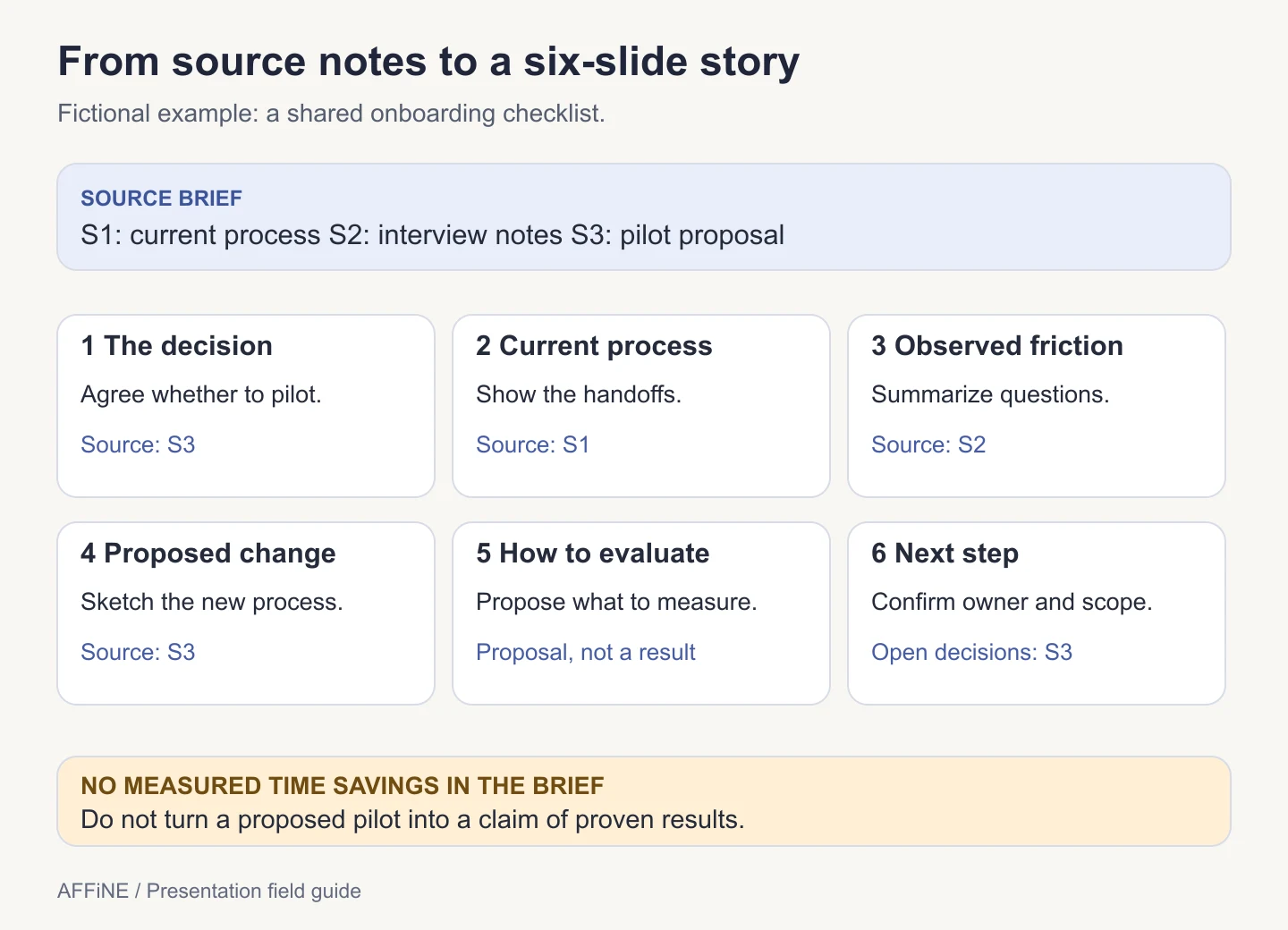
The useful test is not whether the deck looks finished. It is whether someone can trace a claim back to the brief. If a generated slide says “cuts onboarding time by 40%,” delete it: none of these sources supports that number. “Measure completion time during the pilot” is a proposal the team can evaluate.
Use AFFiNE to keep the story beside its sources
Place the brief in an AFFiNE document and use the Storyboard Template to arrange the sequence. For each frame, keep four things together: the slide's message, its supporting source, the intended visual, and an open question. Rearrange the frames until the argument makes sense without decoration.
The AFFiNE AI presentation workflow can help structure notes and talking points. Review that output against your source brief, then use the slide editor or export route your audience requires. This workflow does not assume that a finished PowerPoint file, all embedded media, or every formatting feature will transfer automatically. Check current AI plan access separately from the availability of the storyboard template.
How to make and review an AI presentation
1. Define the handoff
Choose the destination app, audience, speaking time, and decision you want the presentation to support. Test a small export before building the full deck.
2. Assemble the evidence
Collect the approved notes, facts, and source locations in a brief. Label missing information and distinguish observations from proposals.
3. Approve the outline
Ask for one point per slide, with evidence and speaker notes. Remove unsupported claims and reorder the argument before generating the design.
4. Build the visual draft
Apply a suitable template and add visuals that explain the message. Use the actual data for charts and label illustrative diagrams clearly.
5. Check the destination file
Open the exported deck in the application your audience will use. Check text, tables, charts, images, links, notes, and any required offline playback.
6. Rehearse and revise
Present the deck aloud within the available time. Shorten overloaded slides, verify the final claims, and keep a fallback copy in an appropriate format.
Check the export before you send it
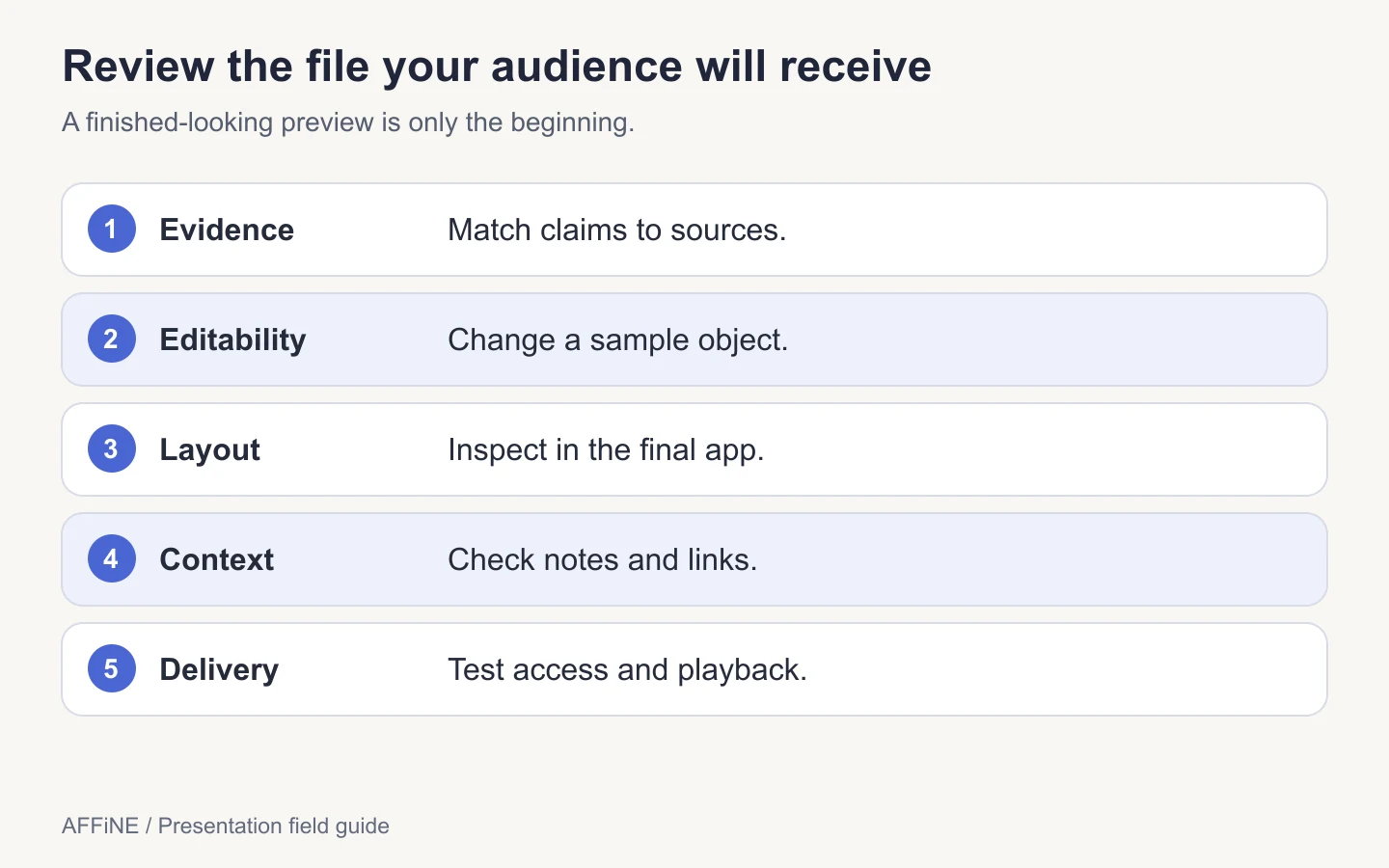
Use the same small test deck for every candidate: a title, a dense paragraph, a table, a chart, a link, and speaker notes. It makes weaknesses easier to spot than a polished vendor demo.
| Check | How to test it | What a pass looks like |
|---|---|---|
| Facts and citations | Follow each factual claim back to its source | Numbers, dates, and qualifications still match |
| Editability | Change a title, table cell, and chart value | Required elements remain editable objects |
| Layout | Open the deck in the destination app | No clipped text, substituted symbols, or overlapping objects |
| Notes and links | Read the notes pane and open links | Important context remains available; links reach the intended source |
| Accessibility | Check contrast, reading order, and image descriptions | Meaning does not depend only on color or an unexplained picture |
| Delivery | Test the actual file, account, and playback conditions | The audience can access and use what you send |
For additional perspectives on the tradeoffs, Sendsteps' benefits and drawbacks guide and PitchWorx's presentation-design overview discuss AI-assisted creation. They are vendor perspectives; your own source check and export test should determine whether the result is ready.
Frequently asked questions
What is the best AI presentation maker?
Choose by the required handoff and the work you need to do afterward. Consider an in-editor tool when colleagues must revise a PowerPoint or Google Slides deck, a web-based tool when link delivery is suitable, and a planning workspace when the source material and story still need organizing. Test with your own brief before committing.
Can AI turn a PDF into a presentation?
Some tools support PDF input, but the result depends on the document and the supported workflow. Text-based PDFs are easier to inspect than scans. Check extracted tables, retain source locations, and review the generated outline before accepting the slides. Document conversion does not guarantee factual accuracy.
Can I make an AI presentation for free?
Some services offer a free plan or trial. Check generation limits, watermark rules, and whether the required download format is included. A free draft or PDF download does not necessarily include an editable PowerPoint file. Follow the current plan terms for the account you will use.
Will my AI-generated presentation remain editable in PowerPoint?
That depends on the tool and the exported elements. A PPTX file may contain editable text alongside images of charts or diagrams. Open a sample in PowerPoint and try editing the elements you need to change before producing the full deck.
How can I stop an AI presentation from inventing facts?
Supply approved evidence, request source labels, and tell the tool to flag missing information instead of filling it in. These instructions reduce ambiguity but do not guarantee accuracy. Check every factual claim against the source yourself and remove anything you cannot support.
Is AFFiNE a presentation planning tool or a slide generator?
This guide uses AFFiNE for the source brief, storyboard, and AI-assisted structure and talking points. Keep those materials connected while you revise the argument, and confirm the presentation or export workflow needed for delivery. Do not assume that planning content is already a finished PowerPoint deck.