
Getting started with AFFiNE: your first doc and whiteboard
Getting started with AFFiNE is easiest when you make something you can use. In this guide, you will create a project brief, add a short task list, place supporting material on its Edgeless canvas, and check where the work is saved before sharing it.
The short path: open AFFiNE → choose a workspace → create a doc → write the brief → switch to Edgeless → check storage and sharing. You do not need AI or a paid plan to write the brief and arrange its canvas locally.
This guide is published by the AFFiNE team. Revised using official product information and the 0.27.4 stable release. Menu wording can differ by platform and deployment. The diagrams below explain the workflow; they are not product screenshots.
Start AFFiNE
For this first project, use the desktop app or a desktop browser:
- Desktop: get the stable installer for your operating system from Download AFFiNE. Windows, macOS and Linux builds are available. Choose Stable for everyday work; Beta and Canary preview changes.
- Browser: open the AFFiNE web app. It is a convenient way to try the editor without installing anything.
- Phone or tablet: the download page also links to iOS and Android apps. Use desktop for the canvas walkthrough here; do not assume every desktop control is available on mobile.
The stable release checked for this guide is 0.27.4. Use the download page for subsequent updates rather than searching for an old installer.
Creating a new workspace
A workspace is the container for your documents. A doc is an individual item inside it, with a page view for writing and an Edgeless view for spatial work.
Open the workspace name near the top of the sidebar to see your workspaces. Use Create workspace if you want a separate space for this exercise; name it Launch planning. You can also use an existing workspace that you own. There is no need to delete the welcome documents first.
Before writing, decide where this project should live:
| Your need | Choose | What to remember |
|---|---|---|
| Work on one computer without an account | A local workspace in the desktop app | Local work does not automatically appear on another device. Keep an export or backup outside the app. |
| Open the same work on your other devices or collaborate | A workspace synced to AFFiNE Cloud | Sign in and enable sync for that workspace. Check the account, workspace and sync status on both devices. |
| Use a server your organization operates | Your team's self-hosted workspace | Ask the administrator for the server address and access instructions. This is separate from AFFiNE Cloud. |
The download guide explains the local desktop experience. Self-hosting is a server deployment choice, not a prerequisite for keeping a desktop workspace local.
Creating new pages
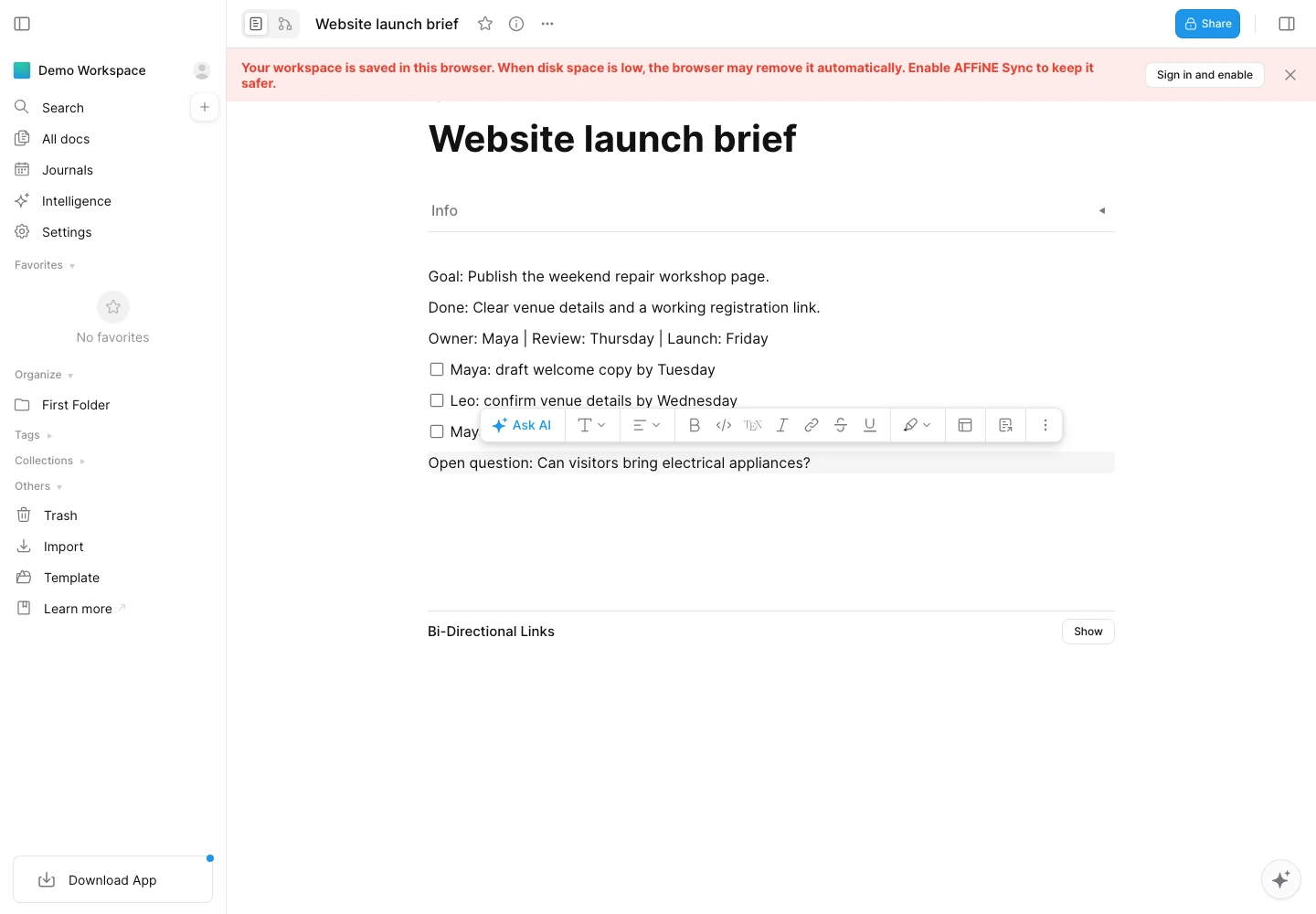
Create a new doc using the add/new-doc control in the sidebar. If AFFiNE asks which mode to start with, choose Page. Give it the title Website launch brief.
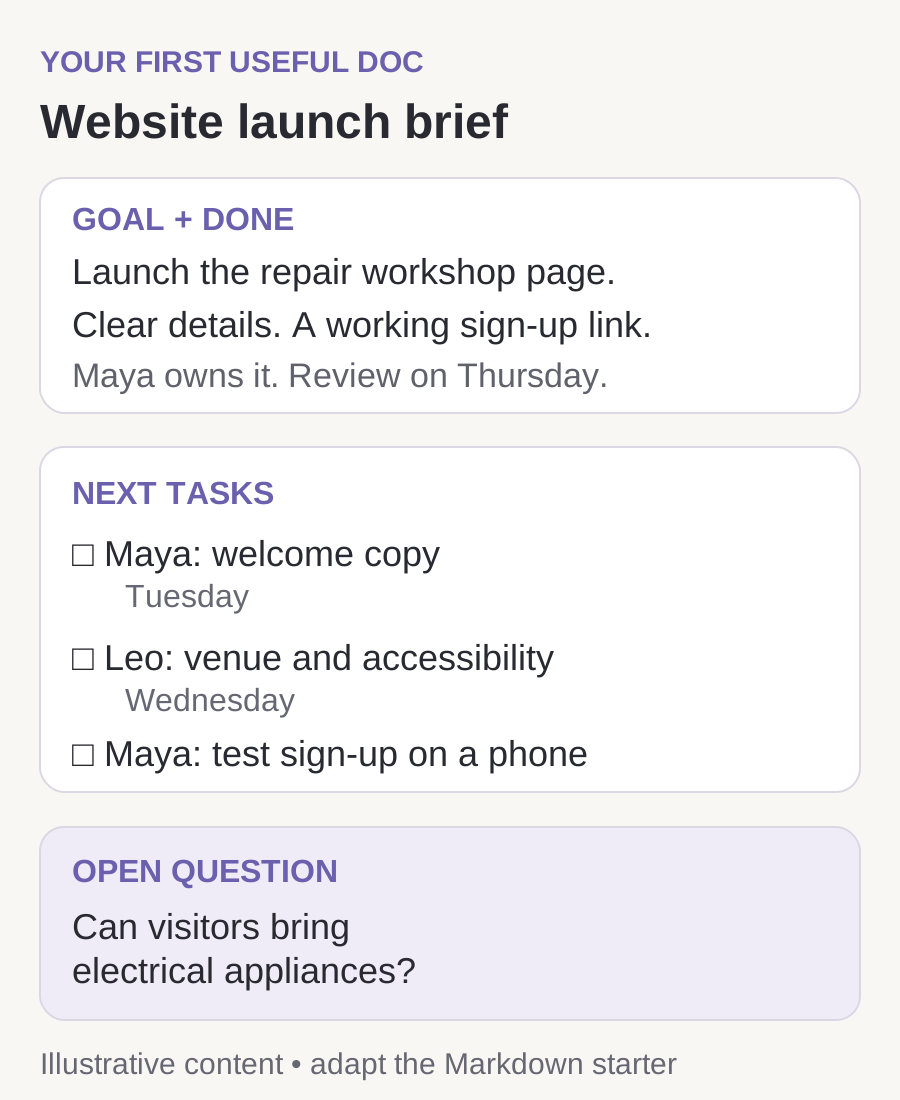
Write a goal, a definition of done and the next tasks. Here is a completed example you can adapt; names and deadlines are illustrative:
Website launch brief
Goal: Publish a clear landing page for our weekend repair workshop.
Audience: Neighbors deciding whether to bring a broken household item.
Done means: The page explains what we can repair, lists the time and location, and has a working registration link.
Owner: Maya. Review: Thursday. Launch: Friday.
Add a heading called Next tasks. Type / on an empty line, choose the to-do/checklist block, and make one item for each action:
- Maya — draft the welcome paragraph by Tuesday.
- Leo — confirm the venue and accessibility details by Wednesday.
- Maya — test the registration link on a phone before Thursday's review.
These are ordinary checklist items. Writing a person's name or deadline in the text does not, by itself, send an assignment or schedule a reminder.
Add a Decisions heading with: “Keep the launch page to one page. Put detailed repair guidance in a separate doc.” Under Open questions, write: “Can visitors bring electrical appliances?” Now the brief holds both the work and the unanswered question that could change it.
Download this example as Markdown if you prefer to keep a copy. It is a plain-text starter, not an AFFiNE workspace backup.
Bring the brief into Edgeless
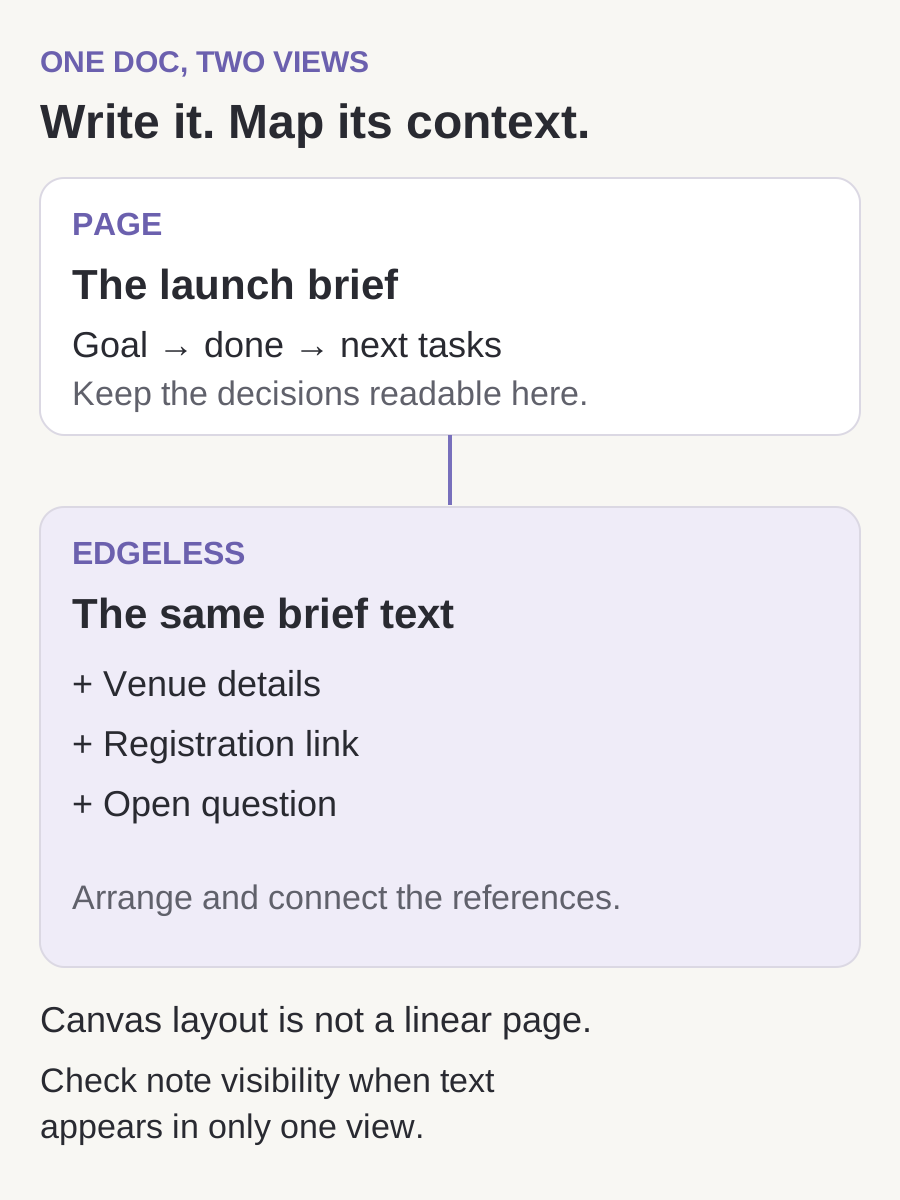
Use the Page / Edgeless mode control at the top of the doc to switch to Edgeless. This is another view of the same doc, so you do not need to paste the brief into a second file. See the Docs overview and Edgeless overview for the relationship between the two modes.
Build a small reference area beside the brief:
- Add a note called Venue details and put the confirmed address in it.
- Add a second note called Registration and paste the link you intend to use.
- Add a third note called Open question with the appliance question.
- Use a connector to show which part of the brief each note supports. If you have a suitable photo, add it as a visual reference and label its purpose.
Keep the board small enough to understand at a glance. A reference earns its place when it helps someone make a decision or complete a task.
Check both views: change a line in the brief's text, then switch back to Page and find the edit. Shared note content belongs to the same doc, but free-floating shapes, connectors and canvas layout are not a linear page. Notes also have visibility settings. If a note appears only on the canvas, inspect its display/visibility setting rather than creating a duplicate. Put essential decisions in the brief's page text so a reader does not need to explore the entire board.
Managing your pages
Return to All docs in the sidebar, then reopen Website launch brief. You can also use Search to find its title. This simple check is worth doing before building a larger project: it confirms that you know which workspace contains the doc.
Keep the welcome content if it is helpful. Trash is for documents you actually want to remove; clearing it is not an onboarding step.
Workspace Settings
General
Open Settings for the workspace and check its name and storage/sync state. Naming this workspace Launch planning helps distinguish it from a demo workspace or another team's space.
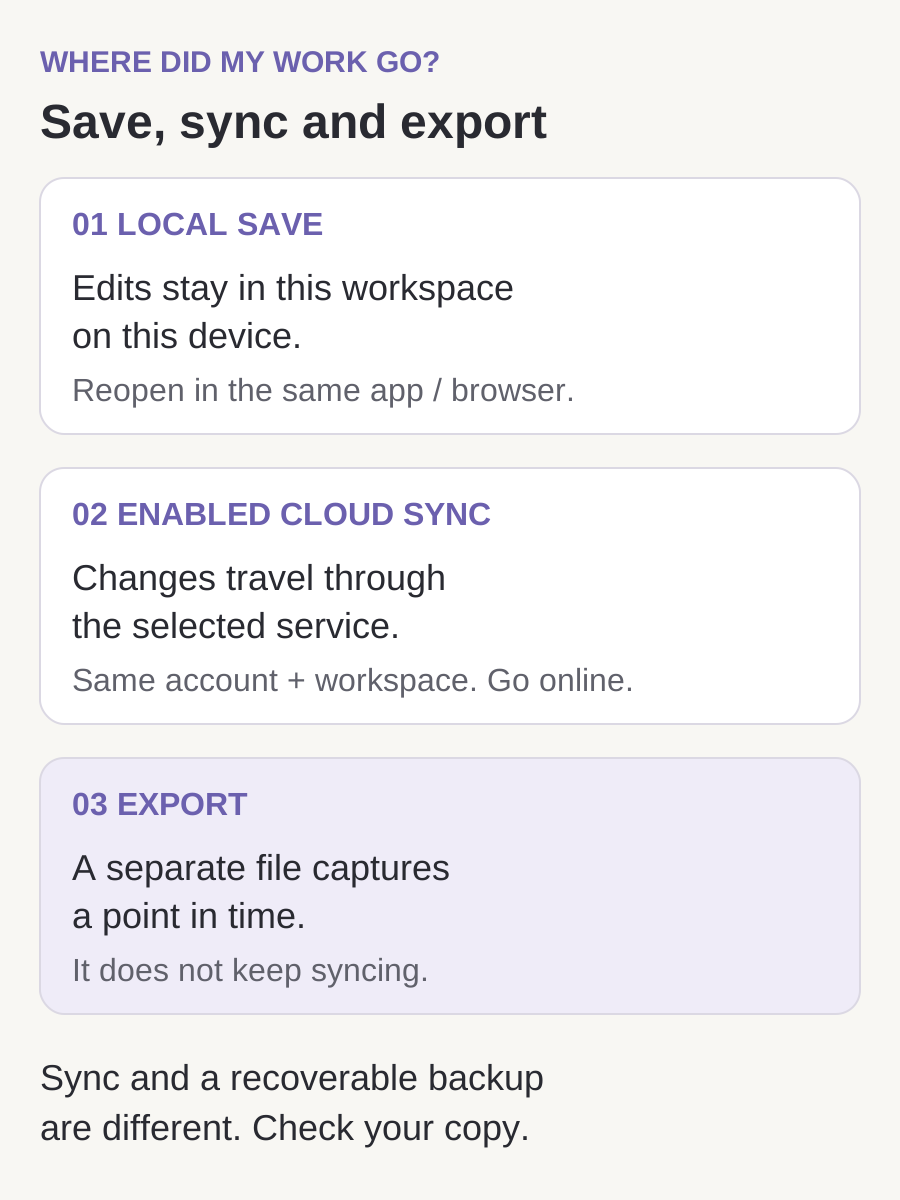
AFFiNE saves edits within the workspace as you work; you do not choose a .docx file location for each page. To find the brief again, use the same app/browser profile and workspace. To create a separate file that you can put in a folder, use Export.
A local browser workspace depends on that browser's site storage. Do not treat a temporary or private browser session as a durable archive. Before clearing browser data, removing an app, or moving to another computer, make a recoverable copy and check that you can open it.
AFFiNE Cloud
Activating AFFiNE Cloud
If you want cross-device access, sign in and enable AFFiNE Cloud sync for the workspace you are using. Look for its sync option in the workspace settings or the prompt shown when you try to share a local doc. Follow the offered sign-in method. The old instruction that you must have a Gmail address is obsolete: the stable client includes email sign-in as well as configured third-party options.
Check the destination before enabling sync. An AFFiNE Cloud account and an account on your organization's self-hosted server are different contexts; matching email addresses do not make their workspaces interchangeable.
Sync
Local editing and cloud sync are separate events. When you are online, let the workspace finish syncing. On the second device, sign in to the same service/account, choose the same workspace and reopen the brief. Check one recognizable sentence or task to confirm that the expected version arrived.
For offline work, open and let the needed content load before disconnecting. The desktop app supports local editing; reaching a cloud service, downloading material you do not already have, and delivering changes to collaborators still require a connection. If another device shows an old version, check connectivity and sync status before duplicating or deleting anything.
Collaboration
Open Share on the brief and inspect who already has access. For collaborators, use the available member/invite controls and choose the narrowest permission that lets them do the job. Workspace membership and a doc's permissions are related but different settings. Some permission controls require a paid plan, and owners/admins retain management rights; do not promise a private read-only invitation without checking what your workspace offers.
For this example, a teammate editing the launch copy needs editing access. A stakeholder who only needs to review the finished brief may be better served by a static export. Ask the recipient to confirm that they can open the intended doc with the intended access.
Publish
A public link is another choice. In the doc's Share controls, check Anyone with the link and its access setting. A public read-only link is for information you are comfortable making available to anyone who receives that URL. It is not a private invitation and it is not the same as publishing your whole workspace.
Before sending a link, open it in a signed-out/private window and review what a visitor sees. Check both the brief and any references you expect them to open; linked docs can have their own access rules. If the content should stop being public, turn off public access and recheck the link. Revoking a link cannot recall files or screenshots someone already saved.
Export a copy you can keep
In the desktop/web doc, open Share → Export, or the doc's ⋯ → Export menu. Pick the format for the next job:
| Next job | Starting point | Check after export |
|---|---|---|
| Reuse the brief's text elsewhere | Markdown or HTML | Open the output and inspect headings, checklists, links and included assets. |
| Keep a doc for reimport into AFFiNE | Snapshot, where offered | Try importing into a separate test doc/workspace; confirm the page, canvas and attachments you need. |
| Give someone a printable page | Print / save as PDF through the available print flow | Inspect page breaks and whether the canvas material you need is included. |
| Share a visual view | An image export/canvas export option available in your mode | Check the selected area, labels and resolution. |
Available export controls differ between Page and Edgeless. Markdown preserves a text-oriented representation; it is not a complete backup of a spatial canvas. An export is a point-in-time copy, and importing it does not establish two-way sync with the original. For important work, keep a separate backup and verify restoration instead of assuming that sync alone protects every past state.
Do I need Free, Pro or AI?
Start with the free local editor for this exercise. The current pricing page separates local editing, cloud plans and AFFiNE AI. Cloud Free has quotas for storage, file size, members, history and login devices; paid plans change those allowances and available controls. Check the current limits before importing a large collection or inviting a team.
AI is optional for this brief. You can write, check tasks and arrange the board yourself. Do not interpret a cloud subscription, an AI subscription and a self-hosted deployment as the same purchase or setup.
Looking for more?
You have finished this first project when you can:
- Reopen Website launch brief from the correct workspace.
- Point to a goal, a definition of done and three actionable tasks.
- Explain which information is in the page and which is canvas-only.
- Tell whether the workspace is local or synced, and to which service.
- Open your exported copy, or verify the recipient's link and permission.
For the next step, explore the AFFiNE documentation, official community, or GitHub issue tracker. When reporting a problem, include your app version, platform, workspace type and the step that failed, without posting private document contents.
Verification note: this revision uses official download, product and pricing pages plus the released 0.27.4 source to check sign-in, sharing and export behavior. The screenshot comes from a newly created local doc in the public web app. We checked local creation, checklist entry and switching the same doc to Edgeless; we did not run a two-device sync test or an authenticated cloud permission test.