Project Planner: Free Template, Example, and Planning Guide
A project planner is a document, spreadsheet, app, or notebook that connects a project's goal to the tasks, owners, dates, and decisions needed to deliver it. A useful planner tells you what happens next, who is responsible, and what could prevent the work from finishing.
For an individual project, start with a one-page brief and a task list. For a team, add shared ownership, dependencies, and a regular review. When dates must recalculate automatically or several projects compete for the same people, evaluate dedicated scheduling software.
Start here: copy the project planner template, see a filled example, or choose a planner format. The downloadable CSV files below are free and require no account.
Updated September 23, 2026. This is an AFFiNE editorial guide, so we have a commercial interest in the AFFiNE workflow described below. The example is fictional; it is not a customer case study or a claim of measured results.
What should a project planner include?
A task list records work. A project planner also records the outcome, boundaries, sequence, and review process that make the work useful. These are the fields to agree on before choosing software:
| Field | What to write | Why it matters |
|---|---|---|
| Outcome and acceptance criteria | The deliverable and observable conditions for approval | Prevents different definitions of “done” |
| Scope | What is included and explicitly excluded | Makes new requests easier to assess |
| Owner and approver | One person accountable for delivery; one who accepts it | Clarifies decisions and handoffs |
| Tasks and dependencies | Concrete actions and any work that must finish first | Reveals blocked work before its due date |
| Dates and milestones | Target start/finish dates and approval checkpoints | Connects daily work to the deadline |
| Capacity and budget | Available effort, spending limit, and assumptions | Tests whether the plan is feasible |
| Risks and issues | What might go wrong, what has happened, and the response owner | Separates prevention from immediate action |
| Review and changes | Next review date and a log of approved changes | Keeps the plan useful after kickoff |
This structure is consistent with Asana's project plan guide, which covers goals, scope, budgets, milestones, dependencies, and communication. Atlassian's project plan template also makes ownership and out-of-scope work explicit. The worksheet and worked example here are our own practical implementation.
Free project planner template: copy it or download the task sheet
Use the brief for project-level decisions and the task sheet for execution. Keep both together; a spreadsheet of dates alone does not explain what the project is meant to achieve.
1. Copy this one-page project brief
| Project brief | Your entry |
|---|---|
| Project name | [Short, recognizable name] |
| Goal | [Who benefits, and what changes for them?] |
| Deliverable and acceptance criteria | [What will be delivered? What must pass before approval?] |
| In scope / out of scope | [Included work] / [Excluded work] |
| Project owner / approver | [Name] / [Name] |
| Target start / finish | [YYYY-MM-DD] / [YYYY-MM-DD] |
| Capacity / spending limit | [Available hours or people] / [Amount and currency] |
| Key milestones | [Checkpoint, owner, and target date] |
| Main risk / response | [If this happens, then…] / [Action and owner] |
| Review cadence / next review | [When and where] / [Date] |
| Change decision | [Who approves scope, budget, or deadline changes?] |
For a printed project planner, copy this brief onto one page and keep the task list on a second sheet. Leave space for a dated weekly update. A notebook works well for one person; a shared project needs a clear way to communicate changes.
2. Download or copy the task sheet
Download the blank project planner CSV · Download the filled example CSV
Open a CSV in Excel, or import it into Google Sheets using File → Import. Set the start and due-date columns to your preferred date format. These are plain task tables: they contain no formulas, macros, automatic reminders, or Gantt-chart scheduling. They do not require an AFFiNE account.
| ID | Task / deliverable | Owner | Start | Due | Depends on | Status | Done when |
|---|---|---|---|---|---|---|---|
| T1 | [Action and output] | [Name] | [Date] | [Date] | None | Not started | [Acceptance condition] |
| T2 | [Action and output] | [Name] | [Date] | [Date] | T1 | Not started | [Acceptance condition] |
Use consistent statuses such as Not started, In progress, Blocked, In review, Done. Put the blocker and next action in a notes column. Mark a task done only after its acceptance condition is met, not simply because someone has stopped working on it.
If you need a specific planning framework rather than a general worksheet, explore the project planning templates collection.
Project planner example: a small website launch
Suppose a three-person team is preparing a single landing page. The dates, names, and estimates below are illustrative. Replace them with your team's availability before using the plan.
- Goal: publish a page that lets visitors submit a demo request.
- Acceptance criteria: approved copy, working form submission and confirmation, usable mobile layout, and no broken navigation links.
- Scope: one page and its form. A complete rebrand, paid advertising, and CRM migration are excluded.
- Owner / approver: Maya coordinates delivery; Sam approves the launch.
- Window: October 5–16, 2026. Delivery is targeted for October 14, with October 15–16 held for fixes if needed.
- Capacity assumption: Maya has 8 hours, Leo 18 hours, and Sam 4 hours available across the project. This is a planning allowance, not a benchmark.
- Reviews: a short check-in on October 8 and October 12; launch approval on October 14.
| ID | Task | Owner | Start | Due | Depends on | Done when |
|---|---|---|---|---|---|---|
| T1 | Confirm brief | Maya | Oct 5 | Oct 5 | None | Sam approves scope and acceptance criteria |
| T2 | Draft page copy | Maya | Oct 6 | Oct 7 | T1 | Copy is ready for approval |
| T3 | Approve copy | Sam | Oct 8 | Oct 8 | T2 | Copy approval is recorded |
| T4 | Build page and form | Leo | Oct 9 | Oct 12 | T3 | Page and form are ready for review |
| T5 | Check mobile layout and submission | Leo | Oct 13 | Oct 13 | T4 | Acceptance checks pass; evidence is linked |
| T6 | Approve and publish | Sam | Oct 14 | Oct 14 | T5 | Approval is recorded and live page is checked |
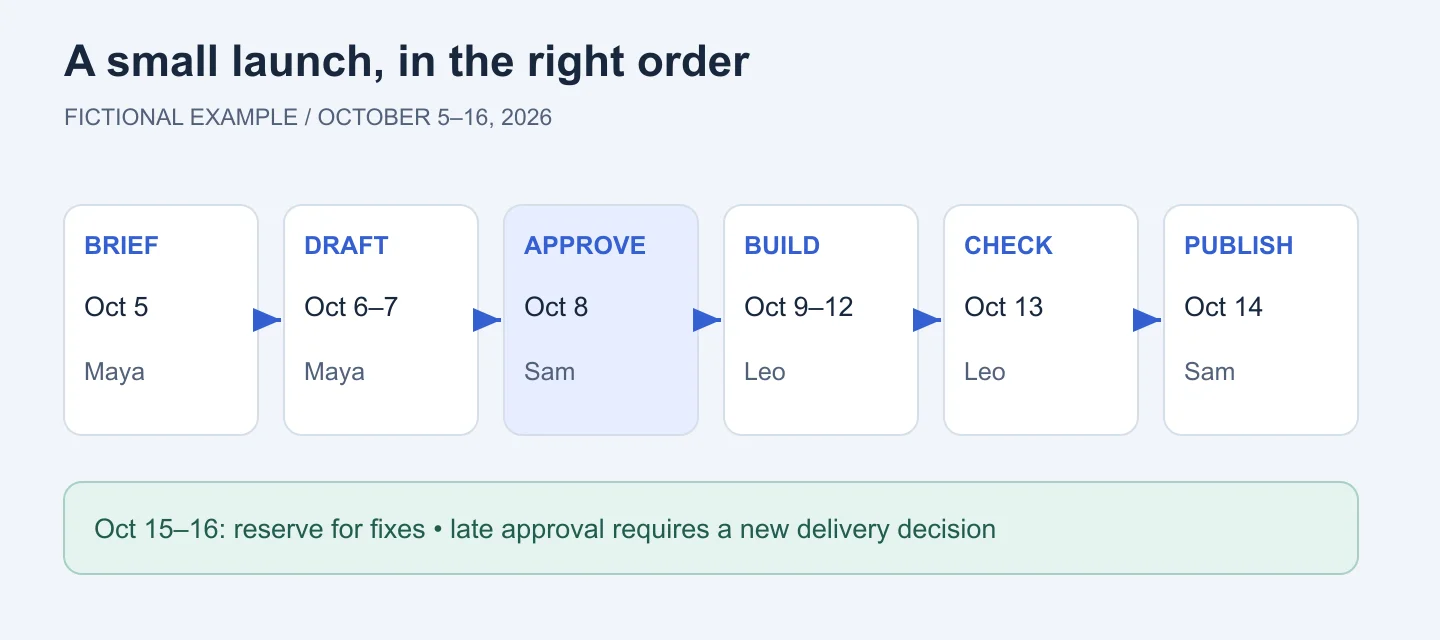
Figure: A dependency sequence for the fictional launch. A downstream task starts after its predecessor is accepted; the two reserve days are not extra scope.
What happens if approval is late?
If T3 is still unapproved on October 9, T4 is blocked. Record the blocker, ask Sam for a new decision date, and have Leo estimate the effect on build and review time. Then choose a response: move the launch, reduce agreed scope, or use some reserved time if the remaining work fits.
Do not keep the old launch date by silently deleting the form check. Log the revised date, reason, approver, and affected tasks. A planner makes the tradeoff visible; it cannot make unavailable capacity appear.
How to create a project planner in seven steps
These seven steps are a practical workflow for this guide, not a universal project-management standard.
- Define the result. Write one sentence describing the output and who needs it. Add observable acceptance criteria. “Launch a better website” is too vague; “publish an approved page with a working demo form” is testable.
- Set boundaries. List included and excluded work. Name the approver and note decisions that are still open. Ask whether a new request changes the goal or can wait for another project.
- Break the deliverable into tasks. Use verbs and concrete outputs: draft copy, approve copy, build form, check submission. Split a task when its owner cannot explain the next action or its acceptance condition.
- Sequence the work. Record dependencies before assigning dates. Allow for review and rework. Work can run in parallel only when it does not require the unfinished output of another task.
- Check capacity and costs. Ask owners how much time they actually have after other commitments. Record effort estimates separately from calendar dates; two hours of work can still take several days to schedule.
- Assign dates, owners, and responses. Give each task one accountable owner. Identify the most consequential uncertainties and record a response trigger. Use a risk register when several risks need separate owners and reviews.
- Agree on the review routine. Share the plan before work starts. Confirm when updates happen, where decisions are recorded, and who can approve changes. Preserve the original target alongside revised dates so the reason for a delay remains visible.
For day-to-day task triage, use an urgent-important matrix; keep dependencies and capacity in the project plan.
For each review, ask: What finished? What is blocked? What is due next? What decision is needed? Update the planner during the conversation rather than writing a separate status report that will drift away from it.
Which project planner format should you choose?
Choose based on the hardest coordination problem in your project. More features help only when the team will use them.
| Format | A good fit when… | Check before choosing |
|---|---|---|
| Paper planner or printable brief | One person needs a visible plan and a short task list | How will changes reach collaborators? |
| Excel or Google Sheets | You need a sortable task table and a familiar place for estimates | Who owns the file, and which dates need manual updates? |
| Shared document and visual canvas | The project needs written context, decisions, and a map of related work | Can teammates find the authoritative task list? |
| Kanban board | The main question is what is waiting, active, blocked, or done | Are due dates and dependencies visible too? |
| Dedicated scheduling software | Linked dates, resource conflicts, or multiple schedules drive decisions | Does your actual license support the scheduling behavior you need? |
A Gantt chart shows tasks across time; these free Gantt chart templates cover daily, weekly, and monthly scales. A Kanban board groups tasks by workflow status. Neither replaces the project brief. Start with an AFFiNE timeline template when you need to explain sequence, or a Kanban board template when you need to discuss work in progress.
What about Microsoft Planner and Microsoft Project?
If your team already works in Microsoft 365, include Microsoft Planner in your evaluation. Avoid choosing from an old “Project is advanced, Planner is basic” comparison alone. Product names, plan entitlements, and organizational access can change.
Ask your administrator to demonstrate the capabilities your project needs in the version you can actually use: task ownership, dependencies, timeline changes, workload visibility, guest access, and export. Test a delayed task and check whether its successors move as expected. A feature checklist is useful only when it matches your available product and license.
Adapt the fields to your project
For a research project, include supervisor feedback, ethics approval where applicable, and access to data as dependencies. For an event, record venue confirmation, supplier deadlines, and the person who makes the go/no-go decision. For software work, link tasks to issues and acceptance checks rather than maintaining conflicting status lists.
If a long plan feels overwhelming, show the next action and its blocker in a short daily view while keeping the full plan available. Choose the layout that you can maintain consistently; no planner format guarantees a particular productivity outcome.
Use AFFiNE to keep the brief and visual plan together
AFFiNE brings documents and a whiteboard canvas into one workspace. That makes it an option when the project brief, notes, and visual explanation need to stay close together.
Create a project page, copy the brief above, and record the task list beneath it. Use the canvas to sketch deliverables and draw connections between work that depends on other work. Link the detailed notes from the project page so the diagram remains readable. The timeline template provides another starting point for the visual plan.
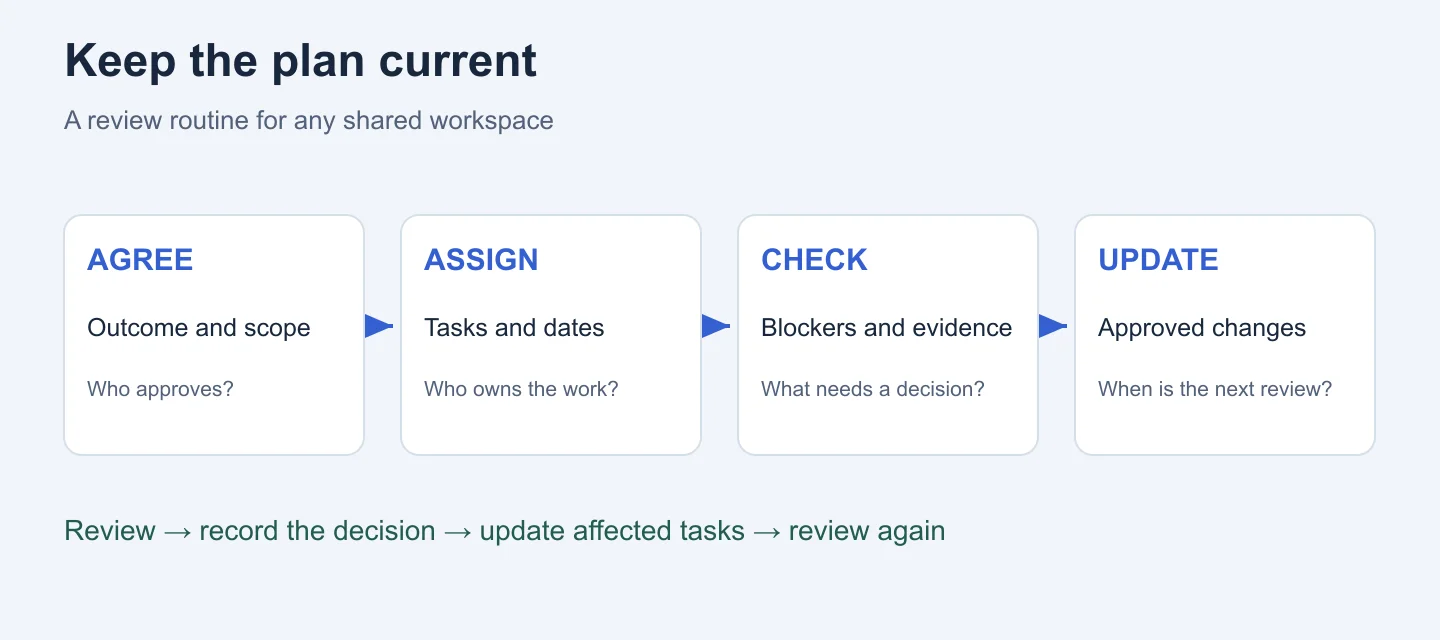
Figure: A suggested review routine you can implement in AFFiNE or another shared workspace. This is a workflow diagram, not an application screenshot or an automated feature.
Choose one place for authoritative task status. If another system already controls the schedule, link it from the brief and use AFFiNE for context and decisions. Drawing a dependency arrow does not automatically reschedule work. If automatic scheduling or resource leveling is essential, validate those requirements separately before selecting your tool.
Start with the blank task sheet, fill in one real project, and run one review with its owners. That will reveal which fields and views you need more clearly than comparing long feature lists.
Sources and editorial notes
- Asana: Project Management Plan — reference for the core planning components and the distinction between a plan, scope, and deliverables; accessed September 23, 2026.
- Atlassian: Project plan template — reference for ownership, explicit scope boundaries, milestones, and supporting resources; accessed September 23, 2026.
- AFFiNE product overview and timeline template — product context for the suggested workspace workflow.
The CSV files, fictional launch example, and diagrams were created for this guide. They demonstrate a method rather than measured performance. Product pricing and license-specific feature claims are intentionally omitted. For corrections and how we review content, see the AFFiNE editorial policy.
Project planner FAQs
What does a project planner do?
A project planner connects tasks, owners, dates, dependencies, and progress to a defined outcome. The term can also refer to a person who maintains project schedules. This guide focuses on the document or tool; a project manager has broader responsibility for coordinating delivery and decisions.
What is the difference between a project planner and a project plan?
A project plan is the agreed description of how a project will be delivered. A project planner is the document, template, notebook, or application used to create and maintain that plan. Teams sometimes use the terms interchangeably, so agree on which artifact contains the authoritative information.
How do I make a project planner in Excel or Google Sheets?
Download the blank CSV above, open or import it, and fill in the task, owner, start, due, dependency, status, and acceptance columns. Keep the project brief alongside it. Add filters to review each owner's work. The supplied CSV is a plain table and does not automatically calculate schedules.
Is there a free project planner template?
Yes. The blank and filled CSV files on this page are free to download without an account. You can also copy the brief and task table into a document or notebook. Any paid app you choose to use with them has its own licensing terms.
Can I use a printable project planner for a team?
Yes, if everyone can see the latest version and knows who updates it. Put a revision date and owner on the page, record changes, and share an updated copy after each review. For frequent changes across locations, a shared digital plan is usually easier to maintain.
Which project planner is best for a small team?
Choose the simplest format that keeps ownership, blockers, dates, and decisions visible. A shared document or spreadsheet can be enough for a small project. Use a board for workflow status, a canvas for visual context, or scheduling software when dependencies and resource conflicts need more control.