Free Digital Storyboard Templates for Google Slides & Docs
What changed (Nov 14, 2026): Rewrote the guide around digital storyboard templates: added seven downloadable templates (Google Slides 16:9 and 9:16, Google Docs shot list, app and website, eLearning and animation sheets), filled examples, layout and panel guidance, and corrected the description of the AFFiNE storyboard template.
A digital storyboard template is a layout you fill in on a computer instead of on paper: a row of frames for each shot or screen, with fields for the action, dialogue and timing. This page gives you seven free templates in formats that open in Google Slides, Google Docs, Google Sheets and the AFFiNE whiteboard, each with a filled example you can copy. If you want sheets to print and draw on by hand, use our printable storyboard templates (PDF) instead.
Checked November 14, 2026. Every file on this page was made for this guide. The example project, a launch video for a habit app called Daybreak, is fictional.
Free digital storyboard templates on this page
| Template | Opens in | Download |
|---|---|---|
| 16:9 video storyboard, 3 frames per slide | Google Slides, PowerPoint, Keynote | storyboard-template-16x9-slides-v1.pptx |
| 9:16 vertical storyboard for Reels, TikTok and Shorts | Google Slides, PowerPoint, Keynote | storyboard-template-9x16-vertical-v1.pptx |
| Shot-list storyboard table | Google Docs, Word | storyboard-shot-list-template-v1.docx |
| App and website screen-by-screen storyboard | Google Sheets, Excel | CSV or the workbook |
| eLearning screen storyboard | Google Sheets, Excel | CSV or the workbook |
| Animation timing storyboard | Google Sheets, Excel | CSV or the workbook |
| Scene cards with User and AI System lanes | AFFiNE whiteboard | AFFiNE storyboard template |
Each file has a filled example first and a blank copy after it. The workbook has one tab for each sheet template plus a video shot list.
Digital vs printable storyboard templates
Pick the format by how your team reviews the board, not by how it looks. A Google Slides deck suits a director who wants to comment on each frame. A sheet suits a product team that filters screens by status. Paper suits someone sketching on set.
| Format | Best for | Collaboration | Printing | Template on this page |
|---|---|---|---|---|
| Google Slides (.pptx here) | Video, ads, pitches | Live co-editing and comments | Print slides or save as PDF | 16:9 and 9:16 files below |
| Google Docs or Word (.docx) | Script-heavy video, training | Comments and suggestions | Prints as a table | Shot-list table below |
| Google Sheets or Excel (.xlsx, .csv) | App, website and eLearning screens | Filters, comments, many editors | Prints as a grid | Screen and timing sheets below |
| Online whiteboard (AFFiNE) | UX flows, early ideas, mixed media | Shared workspace; frames become slides | Screenshot or Copy as Image | AFFiNE storyboard template |
| Printable PDF | Drawing by hand, on set | None | Yes | See printable PDF templates |
A digital template is easier to change. You can paste a screenshot, reorder shots and share one link instead of scanning pages. Paper is still faster for a first sketch, and many storyboard artists draw by hand and then move the frames into a digital board.
Google Slides storyboard template (16:9)
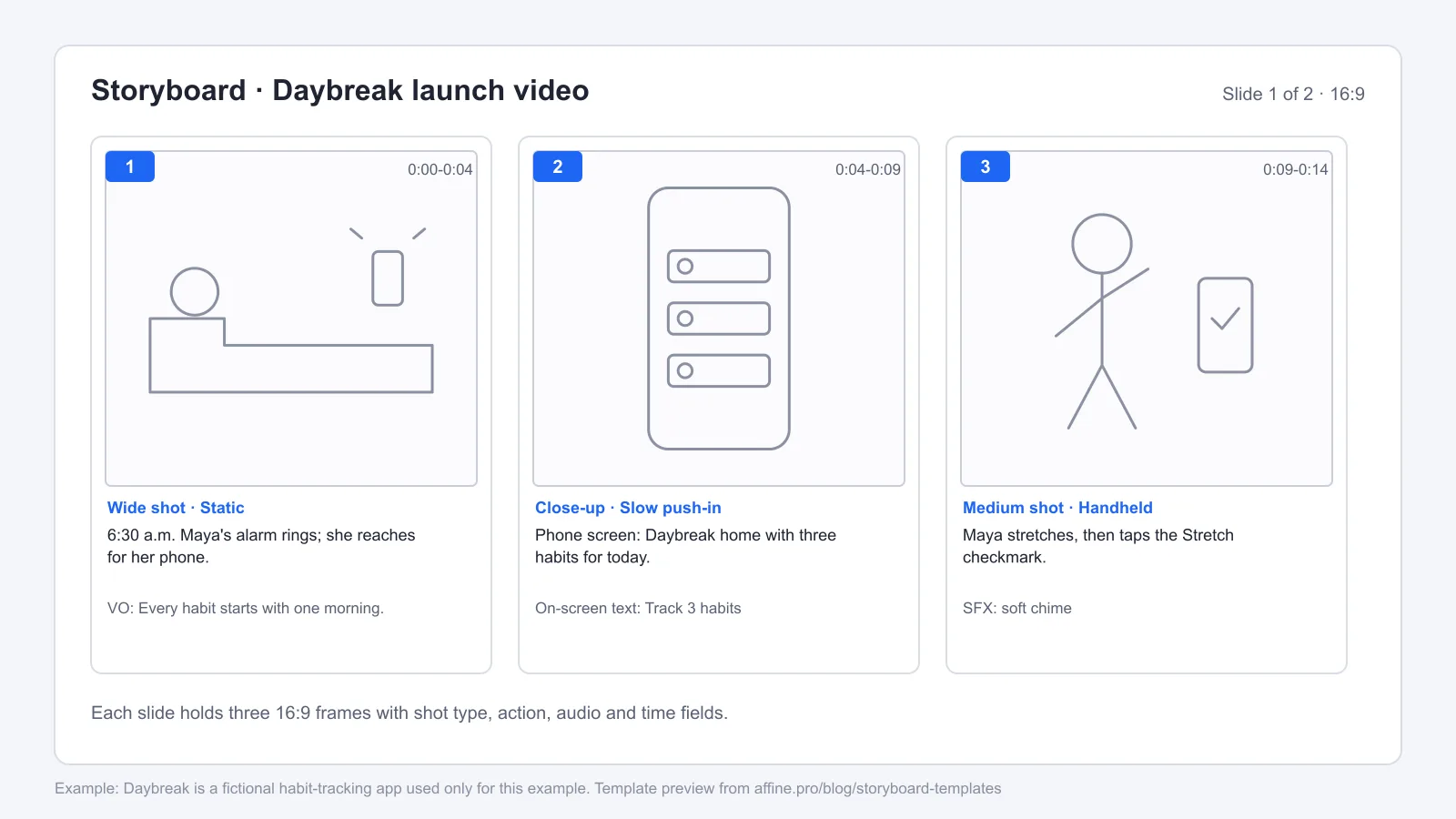
The 16:9 deck has three frames per slide. Under each frame are four fields: shot type and camera, action, dialogue or sound, and time. Slides 1 and 2 hold the Daybreak example. Slide 3 is blank, so duplicate it for more shots.
To open it in Google Slides:
- Download storyboard-template-16x9-slides-v1.pptx.
- In Google Slides, choose File > Open > Upload and pick the file. Slides converts it into an editable deck.
- Share the deck with your team and ask reviewers to comment on a frame number, such as "Shot 4".
- Drop a sketch, photo or screen grab into each frame. Delete the "[sketch or paste a frame]" placeholder.
Here is the whole example as a table, so you can see how much fits in a 30-second video. The same shots are in the video shot list CSV for Google Sheets.
| Shot | Shot type and camera | Action | Audio or text | Time |
|---|---|---|---|---|
| 1 | Wide shot, static | 6:30 a.m. Maya's alarm rings; she reaches for her phone. | VO: Every habit starts with one morning. | 0:00-0:04 |
| 2 | Close-up, slow push-in | Phone screen: Daybreak home with three habits for today. | On-screen text: Track 3 habits | 0:04-0:09 |
| 3 | Medium shot, handheld | Maya stretches, then taps the Stretch checkmark. | SFX: soft chime | 0:09-0:14 |
| 4 | Insert, static | Streak counter flips from 6 to 7 days. | SFX: tick | 0:14-0:18 |
| 5 | Over-the-shoulder, slide left | Weekly chart fills in; a friend's cheer pops up. | VO: See your week at a glance. | 0:18-0:24 |
| 6 | End card, static | Logo and app store badges. | VO: Daybreak. Free to try. | 0:24-0:30 |
Six shots for 30 seconds is about five seconds per shot. For a full film storyboard with coverage and continuity notes, see our movie storyboard guide.
Vertical storyboard template (9:16) for Reels, TikTok and Shorts
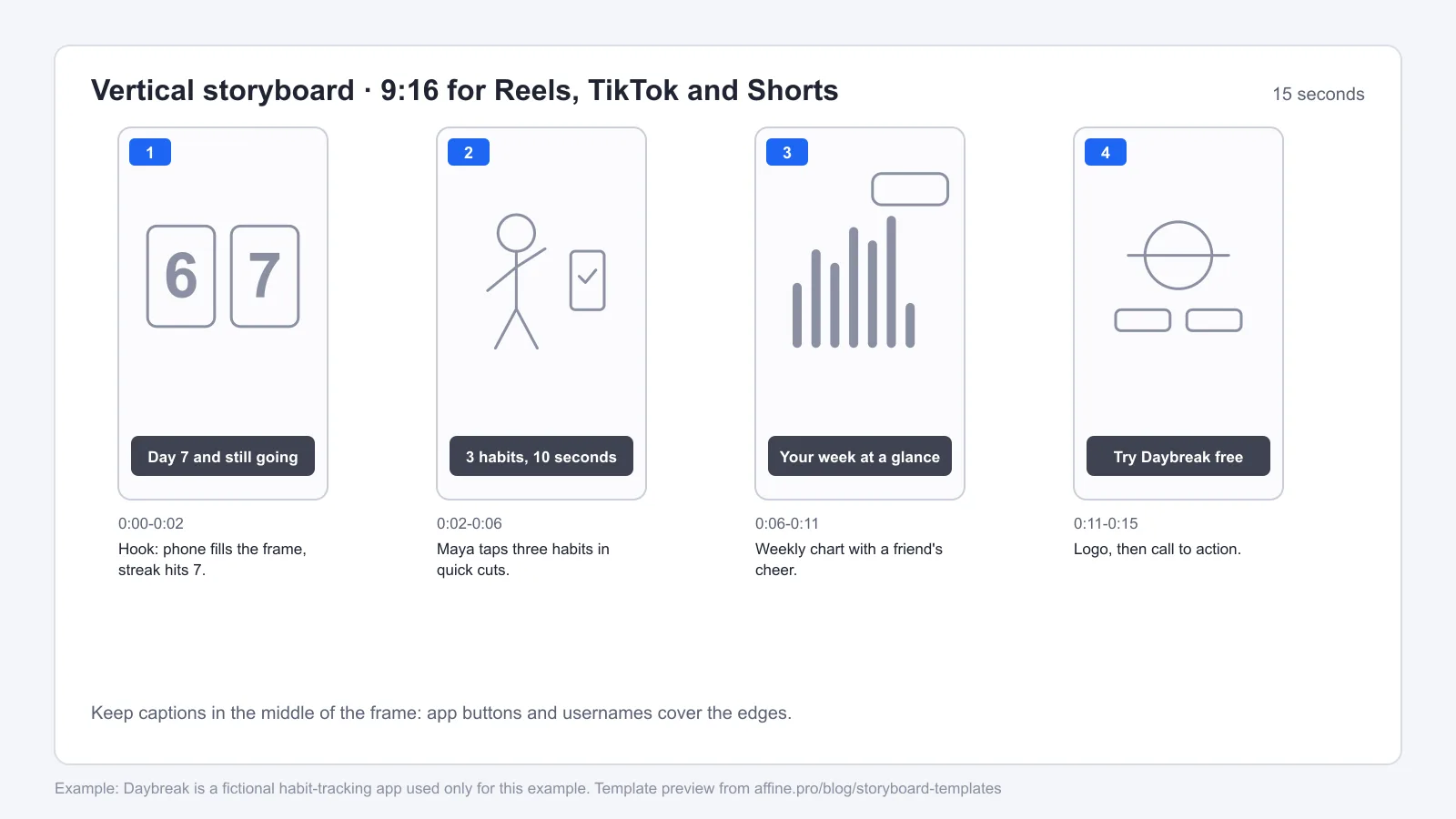
Vertical video needs its own frame shape. If you plan a Reel in 16:9 frames, the subject ends up too small once it is cropped. The vertical deck has four 9:16 frames on each slide, a caption field inside each frame, and time and action fields underneath.
| Panel | Action | Caption | Time |
|---|---|---|---|
| 1 | Hook: phone fills the frame, streak hits 7. | Day 7 and still going | 0:00-0:02 |
| 2 | Maya taps three habits in quick cuts. | 3 habits, 10 seconds | 0:02-0:06 |
| 3 | Weekly chart with a friend's cheer. | Your week at a glance | 0:06-0:11 |
| 4 | Logo, then call to action. | Try Daybreak free | 0:11-0:15 |
Two rules make vertical boards work. First, put the hook in the first two seconds, because viewers swipe fast. Second, keep captions and faces in the middle of the frame. The app's buttons, usernames and progress bar cover the top, bottom and right edges.
Google Docs storyboard template (shot-list table)
Some projects are more script than picture: training videos, interviews, product demos. A table in Google Docs or Word keeps the script readable and still leaves room for a frame. The shot-list template is a landscape page with six columns: shot, frame, shot type and camera, action, dialogue or sound, and time. Page 1 is the filled example and page 2 is blank.
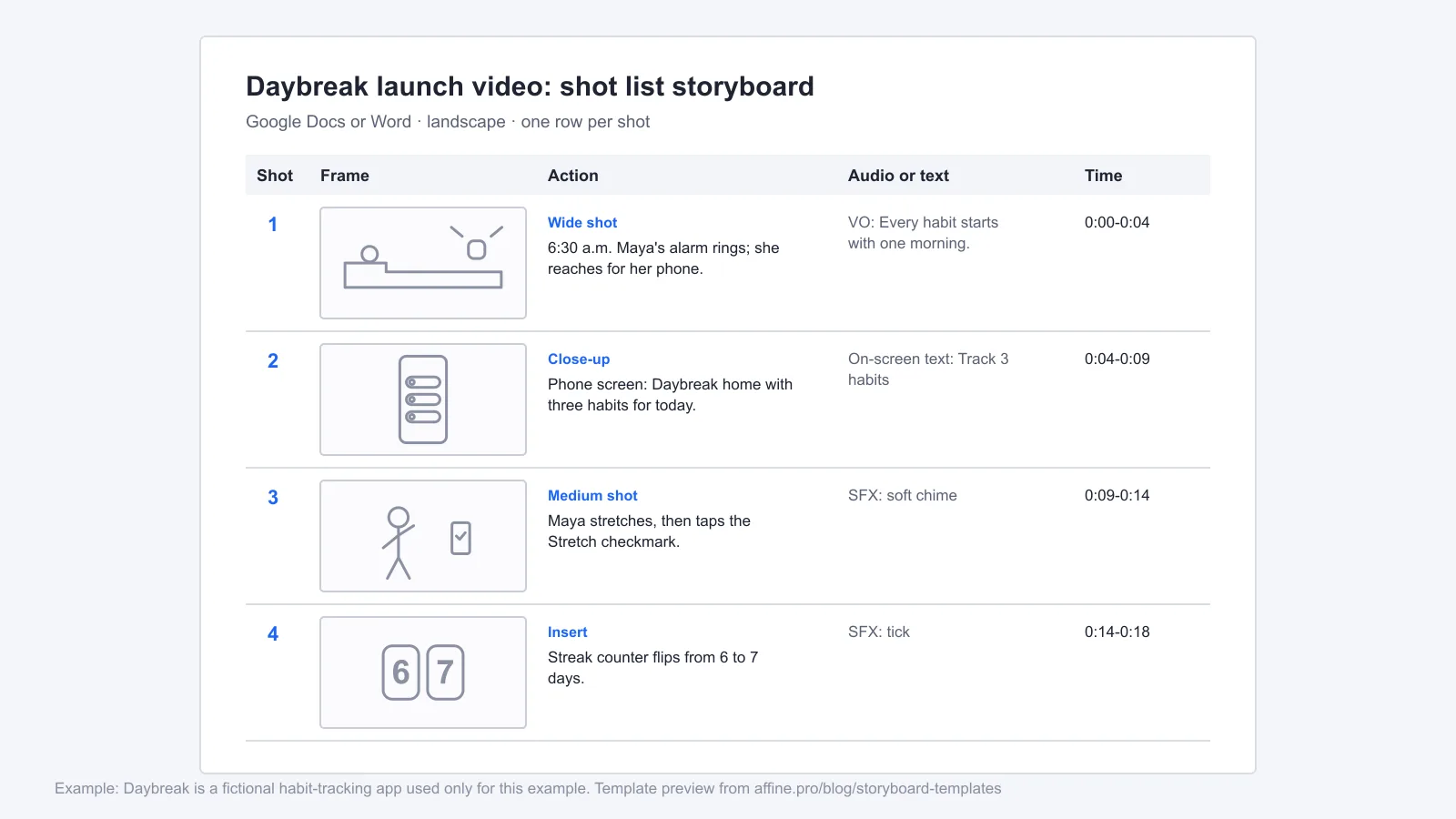
Upload the .docx to Google Drive and open it with Google Docs, or open it in Word. To add an image, click inside a Frame cell and use Insert > Image. Suggesting mode in Google Docs works well here: the writer can approve wording changes without losing track of the shot order.
App, website and UX storyboard template
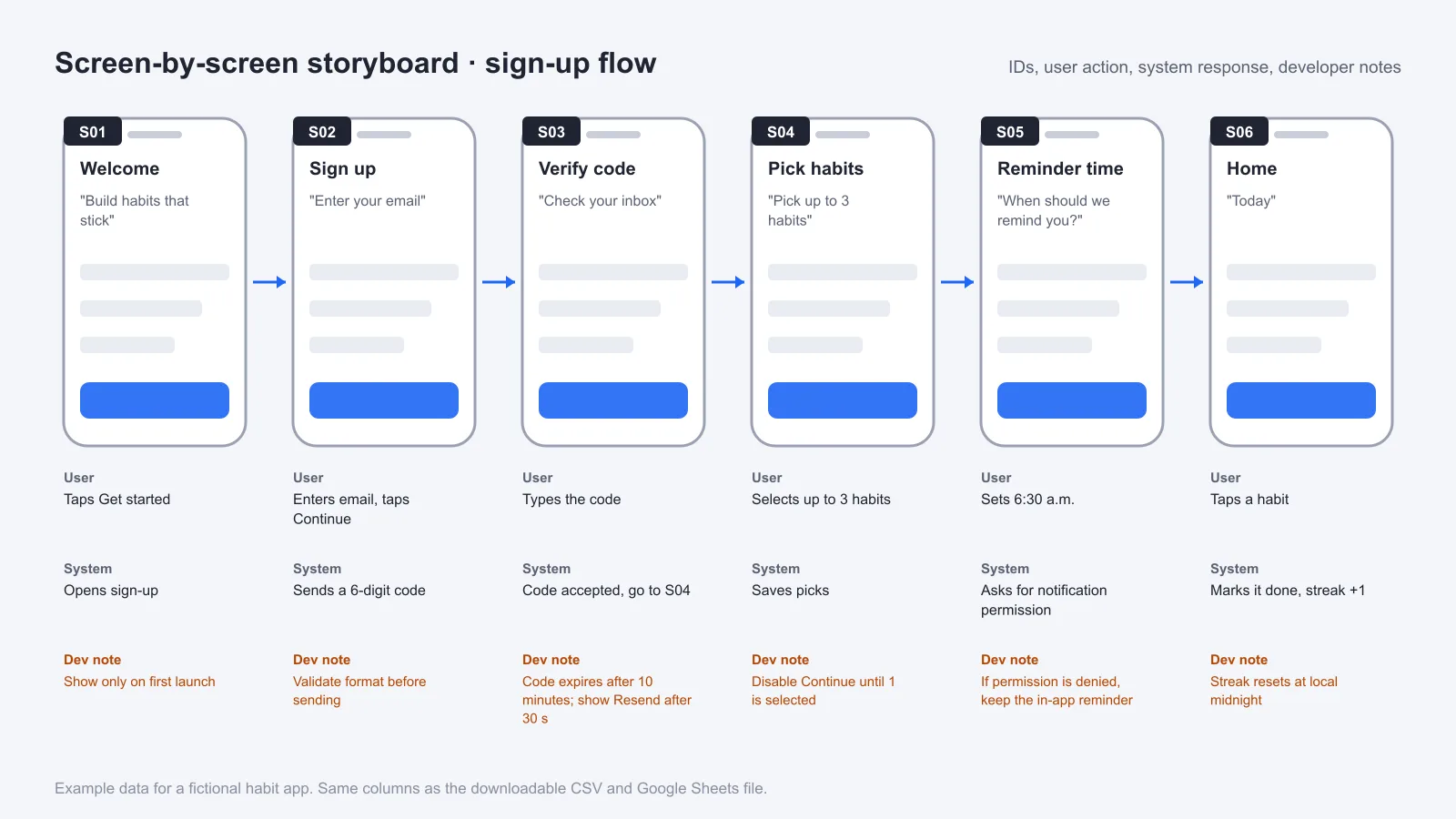
An app or website storyboard follows screens instead of camera shots. Each panel is one screen, and the fields describe what the user does, how the system responds and what the developer needs to know. Give every screen an ID so a bug report or design comment can point to "S03" instead of "the code screen".
| Screen ID | Screen | User action | System response | Notes to developer |
|---|---|---|---|---|
| S01 | Welcome | Taps Get started | Opens sign-up | Show only on first launch |
| S02 | Sign up | Enters email, taps Continue | Sends a 6-digit code | Validate format before sending |
| S03 | Verify code | Types the code | Code accepted, go to S04 | Code expires after 10 minutes; show Resend after 30 s |
| S04 | Pick habits | Selects up to 3 habits | Saves picks | Disable Continue until 1 is selected |
| S05 | Reminder time | Sets 6:30 a.m. | Asks for notification permission | If permission is denied, keep the in-app reminder |
| S06 | Home | Taps a habit | Marks it done, streak +1 | Streak resets at local midnight |
The CSV and the workbook also include an on-screen copy column. Import the CSV in Google Sheets with File > Import > Upload, then add a Status column if you track design and build progress.
For early UX work, a whiteboard is often better than a sheet, because you can draw the journey and the screens side by side. The AFFiNE storyboard template starts with five illustrated scene cards for a companion AI product: Onboarding, Emotional Support, Reminders and Check-ins and more. Below them is a service design board with two lanes, User and AI System, so each scene shows what the person does and what the product does in response.
eLearning storyboard template (screen by screen)
Instructional designers use the same screen-by-screen idea. The difference is the fields: media, on-screen text, voice-over, interaction and notes to the developer who builds the course. The example is a four-screen phishing-awareness lesson.
| Screen ID | On-screen text | Voice-over | Interaction |
|---|---|---|---|
| M1-01 | Spot a phishing email in 5 minutes | In five minutes you will learn three signs of a phishing email. | Start button |
| M1-02 | Sign 1: the sender address does not match | Look at the sender first. | Click the sender to reveal the full address |
| M1-03 | Sign 2: the link goes somewhere else | Hover before you click. | Hover reveals the real URL |
| M1-04 | Which one is safe? | Pick the email you would trust. | Multiple choice, 2 options |
The eLearning CSV has the media and developer-note columns too. Write the voice-over as the exact script, because it is what the narrator will read. Note accessibility needs on the screen where they apply. In the example, the hover tooltip on screen M1-03 must also appear with keyboard focus.
Animation storyboard template with timing
An animation storyboard needs timing, not just pictures. The timing sheet counts frames at 24 frames per second, so the director can see that a jump takes half a second and the landing a sixth of a second. The example is a five-panel fox jump: anticipation, jump, squash on landing, recovery and exit.
| Panel | Action | Frames at 24 fps | Duration | Camera or transition |
|---|---|---|---|---|
| 1 | Fox crouches (anticipation) | 8 | 0.33 s | Static wide |
| 2 | Jump up and over the log | 12 | 0.50 s | Static wide |
| 3 | Land, squash on contact | 4 | 0.17 s | Static wide |
| 4 | Recover and look back | 16 | 0.67 s | Cut to medium shot |
| 5 | Run off screen right | 12 | 0.50 s | Pan right, then cut |
Use the animation timing CSV next to your drawn panels. Add a dialogue or sound column if the scene has lip sync. For fast sequences such as fights and chases, our guide to storyboarding action scenes covers motion arrows and camera moves.
What to include in each storyboard panel
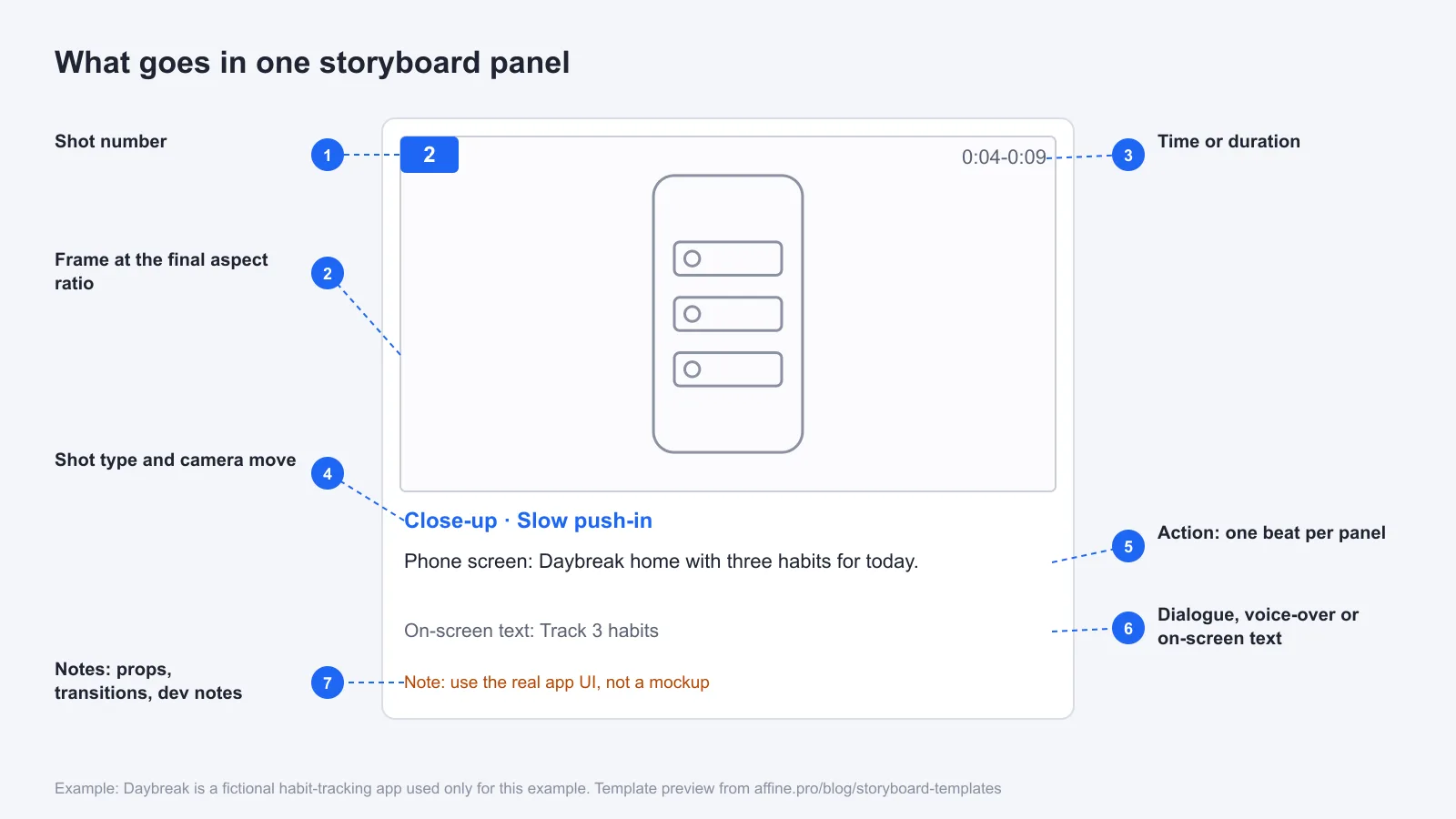
Whatever the format, a useful panel answers the same questions: which shot this is, what we see, what we hear and how long it lasts.
| Field | What to write | Why it matters |
|---|---|---|
| Shot or screen number | A unique ID such as 3 or S03 | Reviewers can point to one panel |
| Frame | Sketch, screenshot or reference image | Shows composition at the final aspect ratio |
| Shot type and camera | Wide, close-up, insert; static, pan, push-in | The crew knows what to set up |
| Action | One sentence on what happens | Keeps each panel to one beat |
| Dialogue, voice-over or copy | Exact words, or on-screen text | Script and visuals stay in sync |
| Sound | Music cue or sound effect | Editors and sound designers plan ahead |
| Duration | Seconds or timecode, for example 0:04-0:09 | The total shows if the piece fits its length |
| Notes | Props, transitions, developer notes | Catches details that do not fit elsewhere |
Keep one beat per panel. If a panel needs two sentences of action, split it into two panels. Rough sketches are fine. Stick figures and arrows are enough to show framing and movement.
Storyboard layout: aspect ratio and panels per page
Match the frame to the screen where the work will be seen, then choose how many frames fit on a slide or page.
| Aspect ratio | Use it for | Panels per page or slide |
|---|---|---|
| 16:9 | YouTube, ads, explainers, presentations | 3 per slide or 6 per page |
| 2.39:1 | Film and cinematic shorts | 3 to 4 per page, extra note space |
| 9:16 | TikTok, Reels, YouTube Shorts | 4 per landscape slide |
| 1:1 | Feed posts and square ads | 6 per page |
| Phone or browser screen | App and website flows | 1 screen per panel, 5 to 8 per sheet |
Number the panels in the order they will appear on screen, even if you shoot them out of order. Leave the numbers fixed once reviews start. If you add a shot between 3 and 4, call it 3A so comments on shot 4 still point to the same frame.
How to make a storyboard with these templates
- Write the script or outline first. List the beats in order. For a video, a planning board such as the video planner template holds the goal, audience and script outline in one place.
- Pick the format. Use slides for picture-led video, a doc for script-led video, a sheet for screens, and a whiteboard for early UX flows.
- Rough out every panel before you polish any of them. You will see pacing problems sooner.
- Fill in the fields. Shot type, action, audio and time for video; user action, system response and notes for screens.
- Review with the people who will build it. Ask for comments that name a panel number, then update the board.
Make a storyboard on the AFFiNE whiteboard
AFFiNE is an open-source workspace that puts docs and an infinite whiteboard together. A storyboard there is a set of frames on the canvas, with the script in a doc next to it.
- Open the AFFiNE storyboard template and click Use this template to copy the board into your workspace. You can start in the browser or the desktop app without an account.
- Replace the five scene cards with your own scenes. Paste a sketch or screenshot into each card and rewrite the title and notes.
- Rename the service design stages and the User and AI System lanes, or delete them if you are planning a video.
- To add panels, press F for the frame tool and draw a frame for each new scene.
- Click the presentation icon to step through the frames as slides during a review.
There are limits. In the browser, the whiteboard's Export menu offers HTML, Markdown, Copy as Markdown and Snapshot, not PNG or PDF. To get an image for a client deck or to print, take a screenshot of the board, or select a frame and use Copy as Image in the AFFiNE desktop app. The free cloud plan allows three members per workspace, so larger teams need a paid plan or the Google Slides template above. If you are still choosing a tool, our comparison of the best storyboard software covers dedicated apps such as Storyboard Pro and Boords. For generating frames from a script, see our guide to AI storyboard generators.
Digital storyboard template FAQs
What is a digital storyboard template?
A digital storyboard template is a ready-made layout of frames and fields that you fill in on a computer, in tools such as Google Slides, Google Docs, Google Sheets or an online whiteboard. Each frame holds one shot or screen, with fields for the action, dialogue or copy, and timing.
Is there a storyboard template for Google Slides or Google Docs?
Yes. Upload the .pptx file on this page to Google Slides with File > Open > Upload for a 16:9 or 9:16 storyboard, or open the .docx in Google Docs for a shot-list table. Both include a filled example and a blank copy.
How do I make a storyboard for an app or website?
Give each screen an ID, then list the user action, the system response, the on-screen copy and any notes for the developer. The screen-by-screen CSV on this page has these columns and a six-screen sign-up example you can import into Google Sheets.
How many panels should a storyboard have?
Use one panel per shot or per screen. A 30-second ad usually needs six to ten panels, about one every three to five seconds. A 15-second vertical video often needs four or five. Split any panel that needs more than one sentence of action.
What should be included in an eLearning storyboard?
Include a screen ID, the media on screen, the exact on-screen text, the voice-over script, the interaction and notes to the developer. Add accessibility notes, such as keyboard access for hover content, on the screen where they apply.
Can I print a digital storyboard?
Yes. Print the Google Slides deck or save it as a PDF from the File menu, and print the Google Docs table like any document. On the AFFiNE whiteboard, take a screenshot or use Copy as Image in the desktop app. For sheets made for drawing by hand, use our printable storyboard templates.