3 Free To-Do List Excel Templates (XLSX Downloads)
An Excel to-do list template is an editable .xlsx workbook that tracks tasks, priorities, statuses, due dates, and completion in one sortable table. Download the pack below or choose the daily, weekly, or team file. Each includes a blank sheet, a filled fictional example, drop-down lists, progress bars, and overdue flags.
Start here: download the complete Excel to-do list pack. It contains all three templates, six working sheets, a setup page, and editable validation lists. No AFFiNE account, macro, add-in, or external data connection is required.
Updated September 28, 2026. The task names, people, projects, hours, and dates in the filled sheets are fictional. The files were created for this guide, not collected from third-party template homepages.
This guide is for Excel users who need a personal daily list, a five-day work plan, or a lightweight team status tracker without macros or a new task-management account.
Jump to: downloads · daily · weekly · team · five-minute setup · troubleshooting · compatibility · FAQs
Download the free to-do list Excel templates
Each individual workbook contains a blank template, a filled example, a Start Here sheet, and Lists & Settings. Choose the full pack if you want to compare all three before deciding.
| Download | Best for | Main fields |
|---|---|---|
| Complete template pack (.xlsx) | Comparing all three layouts | All fields in the three files below |
| Daily to-do list (.xlsx) | Personal errands and a short daily queue | Task, priority, status, due date, progress, alert |
| Weekly work planner (.xlsx) | Planning five workdays and available hours | Day, task, project, hours, progress, due date |
| Team task tracker (.xlsx) | Reviewing work by owner, project, date, and status | ID, task, owner, project, dates, status, progress |
The workbooks are designed for Excel 2016 and later with standard .xlsx tables, formulas, data validation, and conditional formatting. They contain no VBA. Microsoft's Excel file-format documentation states that .xlsx files cannot store VBA macro code or Excel 4.0 macro sheets; macro-enabled workbooks use formats such as .xlsm instead. Opening or editing the files in a particular application may still depend on that application's license or sign-in rules.
Which Excel to-do list template should you choose?
Use the smallest file that answers the question you review most often. Extra columns help only when someone keeps them current.
| Template | Choose it when | Do not choose it when |
|---|---|---|
| Daily to-do list | One person needs a short, sortable list for errands, study, or desk work | Tasks need owners, dependencies, or capacity planning |
| Weekly work planner | You allocate tasks across Monday to Friday and want planned hours beside progress | Several people need separate ownership and project filters |
| Team task tracker | A lead reviews owners, projects, start dates, due dates, progress, and missing assignments | The work needs automatic dependency scheduling or resource leveling |
For a non-spreadsheet checklist, printable format, or broader collection of layouts, use the general to-do list template guide. This page stays focused on editable Excel workbooks, formulas, and actual .xlsx downloads.
1. Daily to-do list: the simplest personal template
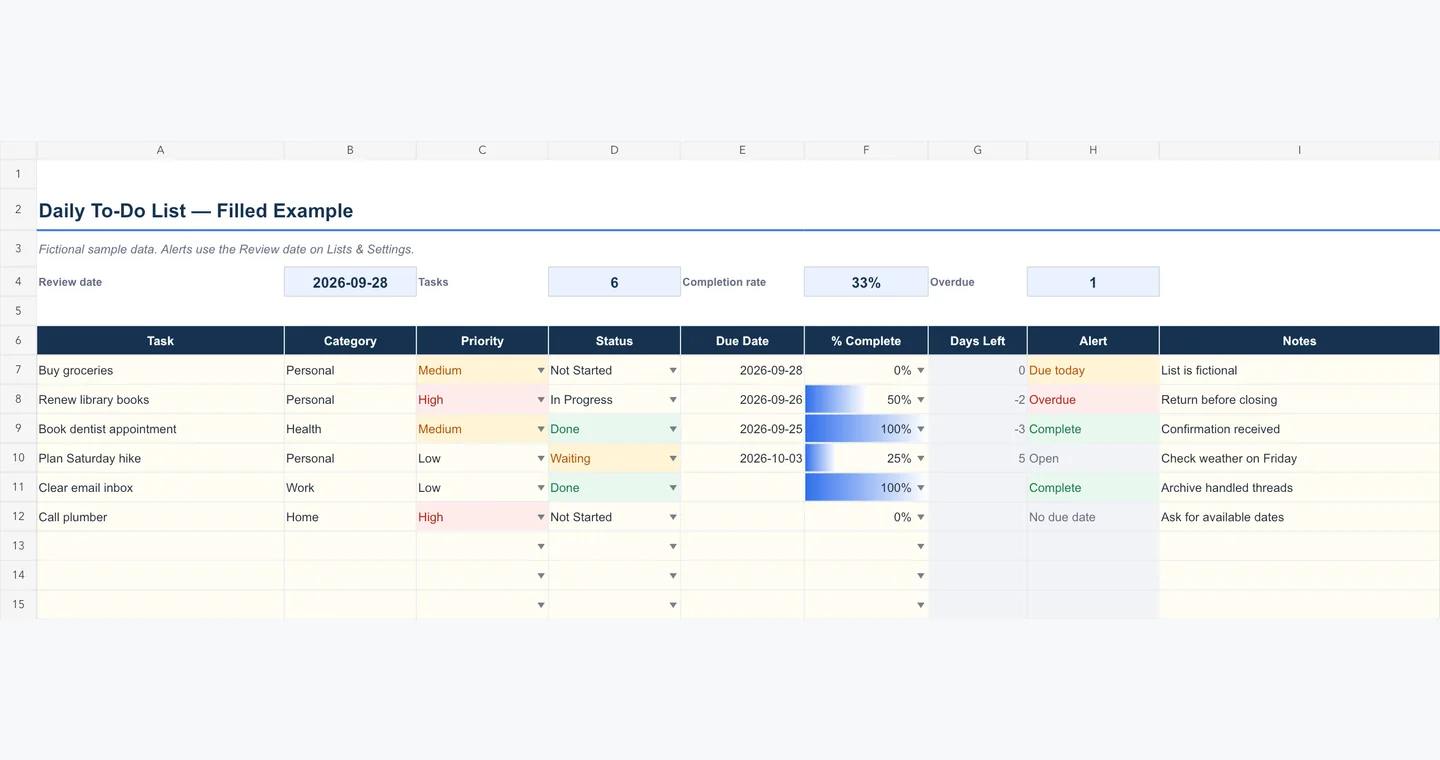
The daily template has nine columns and no owner field. Use it when the list belongs to one person. The Category column separates personal, work, home, health, or study tasks without creating separate sheets. Days Left and Alert are formulas; the other columns are inputs.
The filled example has six fictional tasks. Two are done, one is overdue, one is due on the review date, one is open, and one has no due date. That mix makes it possible to check the formula behavior before replacing the sample rows.
If your main problem is deciding what to do first rather than tracking dates, pair the list with an urgent-important matrix. Keep the task itself in one authoritative place instead of maintaining two competing status lists.
2. Weekly work planner: days, hours, and progress
The weekly planner adds Day, Project / Area, and Planned Hours. It works well for a personal weekly review: filter by day, compare planned hours with available time, and move unfinished tasks deliberately instead of leaving them hidden in an old week.
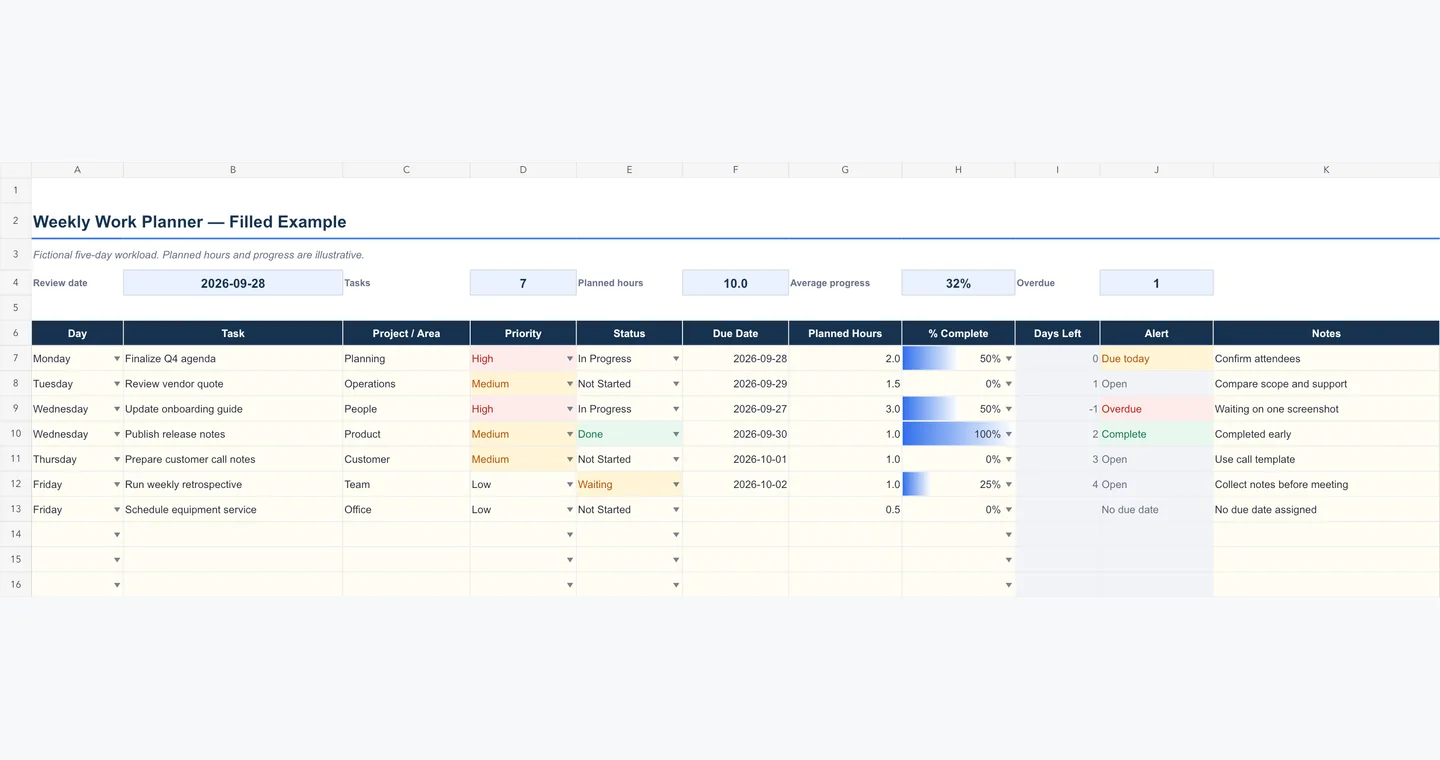
The Average Progress summary divides the sum of task progress by the number of nonblank tasks. It does not use COUNTA on formula columns. Microsoft notes in its COUNTA documentation that the function also counts formulas that return an empty string, which can make an apparently blank template report too many rows.
For a schedule organized around shifts rather than an individual's workweek, see the weekly work schedule template guide. For tasks that must occupy specific time blocks, use a time-blocking template instead of adding more columns here.
3. Team task tracker: owners and project review
The team template adds a task ID, owner, project, start date, and an Unassigned summary. Use one accountable owner per row. Put a handoff, blocker, or next action in Notes / Next action; do not hide a blocked task by changing its status to Done.
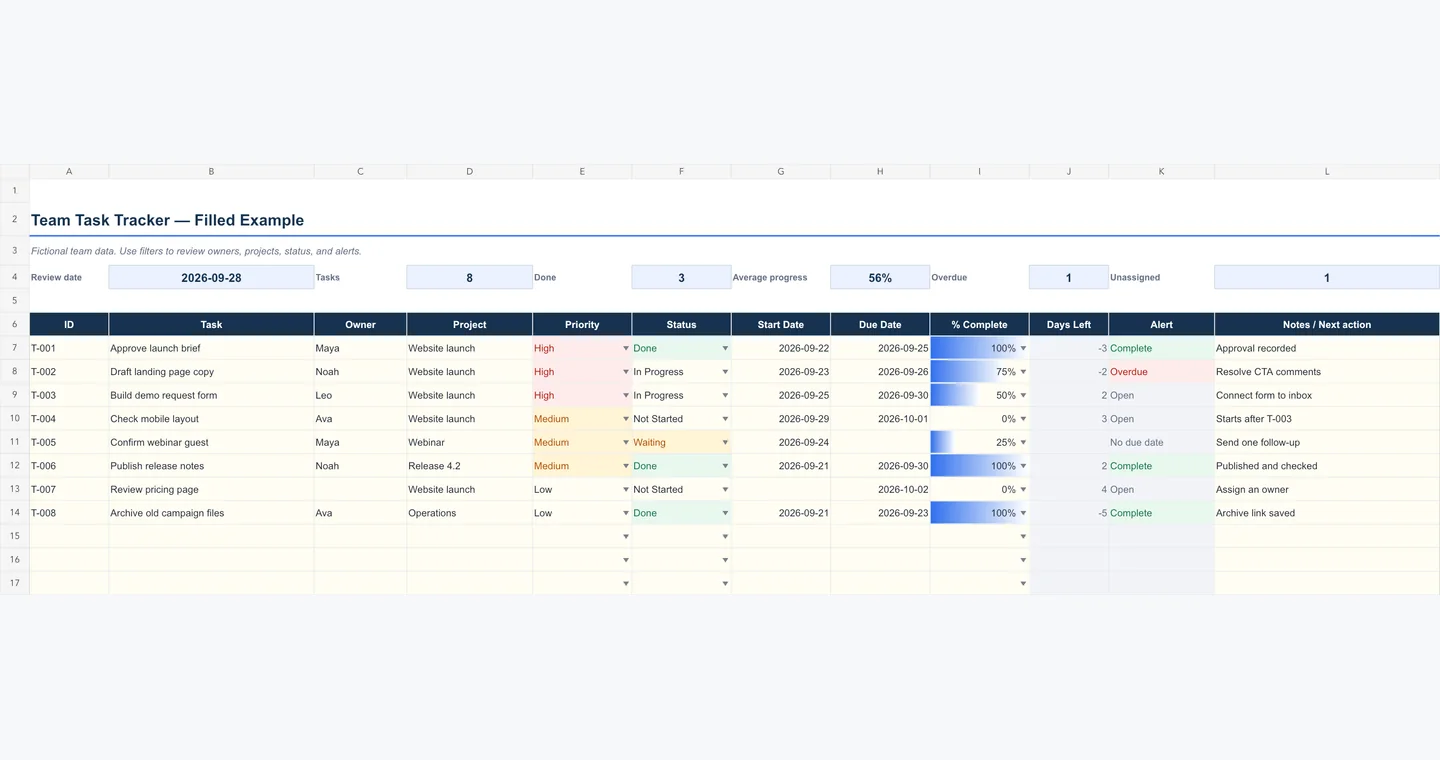
Use a project planner when dependencies, acceptance criteria, capacity, risks, and change decisions matter. This task tracker records execution status; it does not reschedule dependent work when a due date moves.
What is included in each workbook?
Every template uses the same control logic so that moving between files does not require learning new status names.
| Feature | Delivered behavior and edit notes |
|---|---|
| Review date | Fixed at 2026-09-28 for reproducible examples; change it on Lists & Settings or enter =TODAY() for a moving date |
| Priority | Drop-down with Low, Medium, High; edit the source list on Lists & Settings |
| Status | Drop-down with Not Started, In Progress, Waiting, Done; edit carefully because the Alert formula expects Done exactly |
| Progress | Drop-down with 0%, 25%, 50%, 75%, 100% and a data bar; other values from 0% to 100% may be entered if your Excel settings allow them |
| Days Left | Due date minus Review date in calendar days; leave the gray formula column intact or replace it with a workday formula |
| Alert | Blank, Open, Due today, Overdue, Complete, or No due date; Done takes precedence over an old due date |
| Table filters | Available on each task header for sorting and filtering the fields in that template |
The pale-yellow cells are intended for task inputs. Gray cells contain formulas. The worksheets are not password-protected, so make a copy before changing formula columns. Rows 7–36 are prepared. For any row below 36, copy the formulas, data validation, and formatting from row 36 before entering task data; inserting a row alone may not populate the formula cells.
Set up a template in five minutes
- Download and save a working copy. If Excel opens the downloaded file in Protected View, click Enable Editing before entering tasks. Keep the original file unchanged so you can recover a formula or validation rule later.
- Open the blank sheet for your use case. Use Daily for one person's queue, Weekly for a five-day plan, or Team for owners and projects.
- Set the Review date. Go to Lists & Settings and edit cell B6. Keep it fixed for a dated report, or enter
=TODAY()if alerts should move with the current date. - Enter tasks in pale-yellow cells. Choose Priority, Status, and % Complete from the drop-downs. Enter due dates as real Excel dates rather than pasted text.
- Check the test states before clearing examples. A blank row should have no alert; a future task should show Open; a past unfinished task should show Overdue; and a Done task should show Complete even when its due date has passed.
Microsoft's current drop-down list instructions explain how Data Validation limits a cell to a list and how to edit the list source. The template keeps those source values in one visible sheet rather than hiding them in a distant range.
How the drop-downs and conditional formatting work
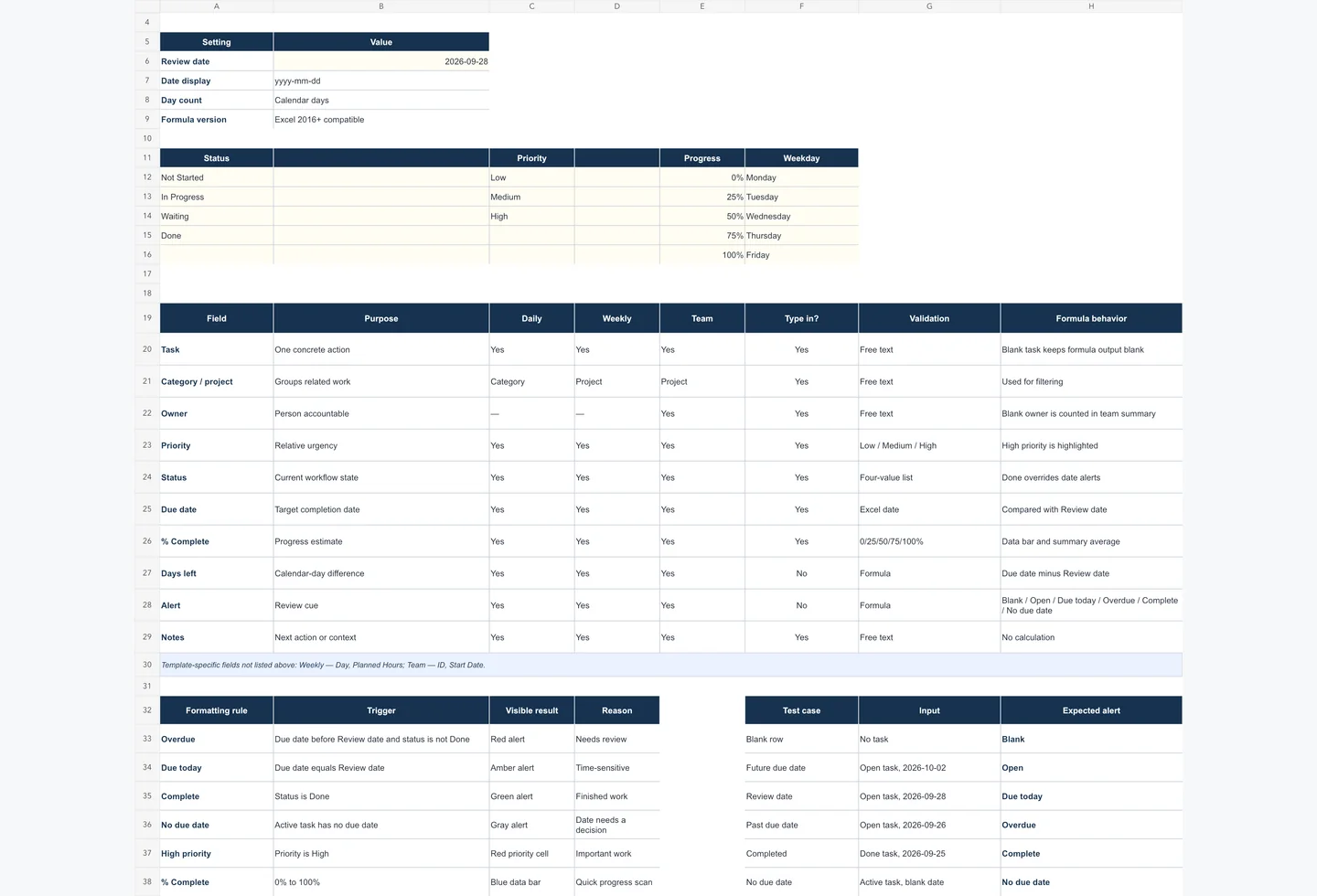
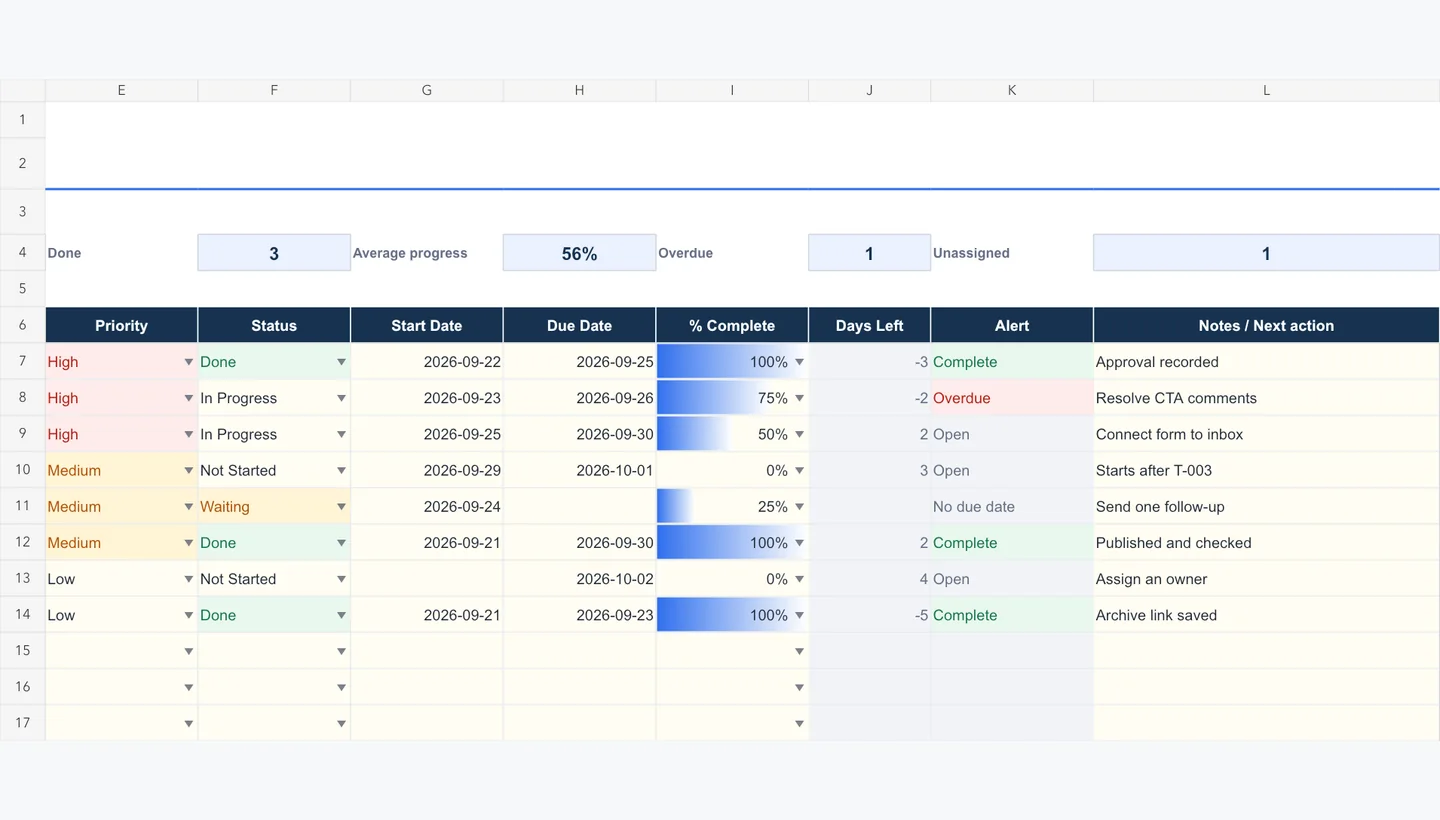
Excel Data Validation supplies the four status choices, three priorities, five progress steps, and five weekdays. Conditional formatting then changes only the relevant cells:
- High priority is red; Medium is amber.
- Done is green; Waiting is amber.
- Overdue is red; Due today is amber; Complete is green; No due date is gray.
- % Complete uses a blue data bar from 0% to 100%.
Conditional formatting does not calculate status. It displays the result of the cell value or formula. Microsoft's conditional-formatting guide notes that formula rules must start with = and return a value Excel can evaluate; a formula error prevents the intended format from appearing.
The alert formula follows this order:
Blank task → blank alert
Status = Done → Complete
Blank due date → No due date
Due date before Review date → Overdue
Due date equals Review date → Due today
Otherwise → Open
That order matters. Checking Done before the date prevents a completed task from being marked overdue.
The Daily sheet's first task row uses this literal Alert formula:
=IF(A7="","",IF(D7="Done","Complete",IF(E7="","No due date",IF(E7<'Lists & Settings'!$B$6,"Overdue",IF(E7='Lists & Settings'!$B$6,"Due today","Open")))))
Date, workday, and formula settings
Calendar days are the safe default
The supplied Days Left formula subtracts the Review date from the Due date. It therefore counts calendar days. That is intentional: a reader can understand -2, 0, or 4 without assuming which weekend or holiday calendar applies.
If your team works Monday through Friday, replace the calendar-day subtraction with NETWORKDAYS when you want a count of working days. NETWORKDAYS counts both the start and end dates when they are workdays, so a task due on the same workday as the Review date returns 1, not 0. Use WORKDAY when you instead want a target date after a number of working days. Microsoft documents that WORKDAY(start_date, days, [holidays]) excludes weekends and listed holidays. For nonstandard weekends, WORKDAY.INTL exposes a weekend argument. Do not paste one team's holiday list into another team's workbook without reviewing it.
Keep dates as dates, not labels
The delivered cells store actual date values and display them as yyyy-mm-dd. A display format does not repair a text value such as Friday or Sept 28-ish. If an alert looks wrong, select the due date and confirm that Excel recognizes it as a date.
Microsoft explains that date display can follow system regional settings, especially for formats marked with an asterisk. Its date-systems documentation states that the older 1900 and 1904 workbook date systems differ by 1,462 days. If dates shift by about four years after copying from an old workbook, check the workbook date system before rewriting formulas.
Use TODAY only when you want a moving result
The examples use a fixed Review date so the screenshots and expected results stay reproducible. Enter =TODAY() in the Review date cell when you want alerts to update each day. Microsoft's TODAY function documentation says the function returns the current date. If the value does not refresh, check that workbook calculation is set to Automatic.
Common Excel to-do list problems
| Problem | Likely cause | Fix |
|---|---|---|
| A new task below row 36 has no drop-down or alert | The row was added without copying the prepared formula, validation, and formatting cells | Before entering task data, copy the formulas, data validation, and formatting from row 36 into the new row |
| A due date looks right but the alert is wrong | The date is stored as text, the Review date is stale, or calculation is manual | Re-enter a real date, update Review date, and recalculate |
Days Left shows #VALUE! while Alert says Open | Due Date contains non-date text such as Friday | Replace the text with a date value Excel recognizes, then recalculate |
| A completed task still says Overdue | Status was typed differently from Done, or the formula was overwritten | Select Done from the drop-down and restore the Alert formula from a neighboring row |
| The completion percentage includes blank rows | A denominator counts formulas that return empty text | Count nonblank task cells, as these workbooks do, rather than counting a formula column |
A date displays as ##### | The column is too narrow, or a negative date is being displayed as a date | Widen the column and keep Days Left formatted as a number |
| Drop-down choices cannot be edited | The sheet or workbook may be protected, or organization policy may restrict changes | Use an editable copy and review Excel's Data Validation or protection settings |
| Formatting changes in another spreadsheet app | The app interprets Excel tables, validation, or conditional formatting differently | Review the file after import; do not assume cross-platform behavior is identical |
Compatibility, accounts, macros, and limits
- File type: all four downloads are
.xlsx. Their package contents were checked for ZIP integrity, VBA projects, external links, and external data connections. - Macros: none. The files do not require Enable Content. A downloaded file may still open in Protected View; click Enable Editing if you want to change it.
- Account: downloading from this page does not require an AFFiNE account. The file itself contains no sign-in check. Microsoft's sign-in documentation explains the Microsoft or work/school account used with Office services such as Excel for the web.
- Excel version: the formulas are limited to
IF,OR,COUNTIF,COUNTIFS,SUM, andSUMPRODUCT; the workbooks are designed for Excel 2016 and later. We did not claim or test identical behavior in every Excel build. - Other apps: the final
.xlsxfiles were opened in LibreOffice as a second-engine check. Google Sheets, Apple Numbers, and other apps may change validation arrows, table styles, formulas, or conditional formatting. - Automation: there are no reminders, emails, recurring-task generation, dependency rescheduling, or multi-user conflict resolution. A formula can flag a date; it cannot notify an owner by itself.
When a shared workspace is a better fit than Excel
Excel is a good fit when the task table and formulas are the work product. A shared workspace is a better fit when each task needs substantial notes, linked documents, visual explanation, or a board that several people update together.
AFFiNE is a document-and-canvas workspace with native table and Kanban views. It is not an Excel workbook, the AFFiNE template gallery is not an .xlsx download library, and this guide does not claim that these files import into AFFiNE. If you choose AFFiNE, recreate the fields you need in an AFFiNE table and keep one authoritative status source.
For readers who want the wider choice of printable, document, or app-based layouts, return to the general to-do list template guide. That separation keeps this page about Excel-specific files, formulas, and troubleshooting.
Choose a file and start with the blank sheet
Download the complete pack if you want to compare layouts; otherwise choose Daily for one person's queue, Weekly for a five-day plan, or Team for owner and project reviews. Open the filled example first to confirm the expected alerts, then copy the blank sheet and enter your own tasks. Keep the original download unchanged so you always have a clean reference for formulas, validation, and formatting.
Sources and test notes
- Microsoft Support: Create a drop-down list — Data Validation list setup and troubleshooting; accessed September 28, 2026.
- Microsoft Support: Use conditional formatting to highlight information — rule and formula behavior; accessed September 28, 2026.
- Microsoft Support: TODAY function, NETWORKDAYS, WORKDAY, and WORKDAY.INTL — date and workday behavior; accessed September 28, 2026.
- Microsoft Support: COUNTA function and Excel functions by version — counting behavior and function-version boundaries; accessed September 28, 2026.
- Microsoft Support: Excel file formats, date formatting, and date systems — format and compatibility boundaries; accessed September 28, 2026.
- Microsoft Support: Sign in to Office — Office account boundary; accessed September 28, 2026.
- AFFiNE database blocks documentation — table and Kanban workflow context; accessed September 28, 2026.
We inspected formulas and requested features before export, reopened the final pack, scanned it for formula errors, checked the four ZIP packages, and opened every final workbook in LibreOffice. These checks do not prove identical behavior in every Excel version, browser, locale, or third-party spreadsheet application.
Excel to-do list template FAQs
Is there a free to-do list Excel template?
Yes. This page provides a complete .xlsx pack plus separate daily, weekly work, and team task workbooks. Each file contains a blank sheet and a fictional filled example. The downloads require no AFFiNE account and contain no macros, add-ins, external links, or external data connections.
How do I add a status drop-down to an Excel to-do list?
Select the status cells, open Data > Data Validation, choose List, and point the Source to a range containing your allowed statuses. These workbooks use Not Started, In Progress, Waiting, and Done. Keep the source list visible on Lists & Settings so future editors can understand and update it.
What formula marks an Excel task overdue?
The Daily sheet's first task row uses this formula: =IF(A7="","",IF(D7="Done","Complete",IF(E7="","No due date",IF(E7<'Lists & Settings'!$B$6,"Overdue",IF(E7='Lists & Settings'!$B$6,"Due today","Open"))))). It checks whether the task is blank or Done before comparing Due Date with Review date, so a completed task does not show as overdue.
Do these Excel task templates use macros or require an account?
No macros are present. The files use standard .xlsx formulas, validation, tables, and conditional formatting. Downloading does not require an AFFiNE account, and the workbook itself has no sign-in check. The spreadsheet application you use may still require a license or account, especially a web-based editor.
Can I use these Excel templates in Google Sheets or LibreOffice?
You can often open .xlsx files in other spreadsheet applications, and we opened the final files in LibreOffice as a compatibility check. However, data-validation menus, table styling, formulas, and conditional formatting may be interpreted differently. Review the imported copy before relying on its alerts or sharing it with a team.
Is AFFiNE an Excel to-do list template?
No. AFFiNE is a separate document-and-canvas workspace with native table and Kanban views. Its templates are not .xlsx files, and this guide does not claim an Excel import workflow. Use the downloads above when Excel is the required format; consider AFFiNE when shared notes and visual planning are the main need.