5 Free Mind Map Tools Compared, With a Starter Map for Each
Disclosure: AFFiNE publishes this article, and AFFiNE is one of the tools it covers. How we review products
What changed (Nov 14, 2026): Repositioned the guide as a comparison of free mind map tools: new title and description, the five examples reframed as starter maps for testing each tool, and a link to the separate mind map examples guide for fully worked examples.
Most mind map tools are free to start, but their free plans differ more than their feature lists suggest. This guide compares five of them by what the free plan allows, which devices they run on, and what happens to a map after the first brainstorm.
It starts with five short starter maps (project, study, brainstorm, decision, and personal goal) that you can rebuild in each tool as a quick test, then compares AFFiNE, Xmind, Miro, ClickUp, and Coggle by free plan, price, platform, strengths, limitations, and best use case. If you want fully worked examples with downloadable outlines rather than a tool comparison, see our mind map examples guide.
Key Takeaways
-
A useful mind map starts with one specific central topic and a small set of clearly labeled primary branches.
-
Project, study, brainstorming, decision, and personal-goal maps solve different problems, so their branch structures should not be identical.
-
AFFiNE is the strongest fit here for people who want mind maps, documents, whiteboards, and structured knowledge in one local-first workspace.
-
Xmind is better for dedicated personal mind mapping, Miro for large collaborative canvases, ClickUp for task-connected planning, and Coggle for fast browser-based mapping.
-
Free plans vary sharply: some limit boards or private maps, while ClickUp does not include its Mind Map view in Free Forever.
5 Starter Maps to Test Each Tool
Each starter map below includes a ready-to-copy branch structure and the tool that fits its next step. Rebuild one or two of them in any tool you are considering before you commit to a plan. Start with the suggested central topic, keep only the branches you need, and add details gradually.
1. Project Planning Mind Map
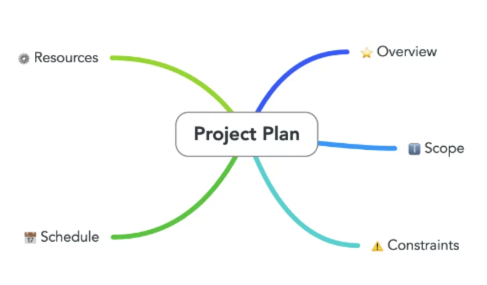
Best for: Project kickoffs, campaign planning, product launches, events, and small cross-functional projects.
Central topic: Use a specific outcome such as “Q1 Website Redesign” or “2027 Product Launch.”
Suggested primary branches:
-
Goals and success metrics: business objective, target audience, KPIs, and definition of done.
-
Scope and deliverables: pages, features, assets, documentation, or launch materials.
-
Timeline and milestones: discovery, design, build, testing, approval, and launch.
-
People and resources: owner, contributors, budget, tools, and external support.
-
Risks and dependencies: blockers, approvals, technical dependencies, and mitigation plans.
-
Next actions: immediate tasks, responsible person, and due date.
How to use it: Build the map during the kickoff, then review each primary branch before converting the smallest actionable nodes into tasks. Keep risks visible as a dedicated branch instead of hiding them under a general notes section.
Ready to build it? Start with ClickUp when the smallest branches need to become assigned tasks and deadlines. If the map also needs to stay connected to project briefs, research, meeting notes, and decision records, start with AFFiNE instead.
2. Study and Exam-Prep Mind Map
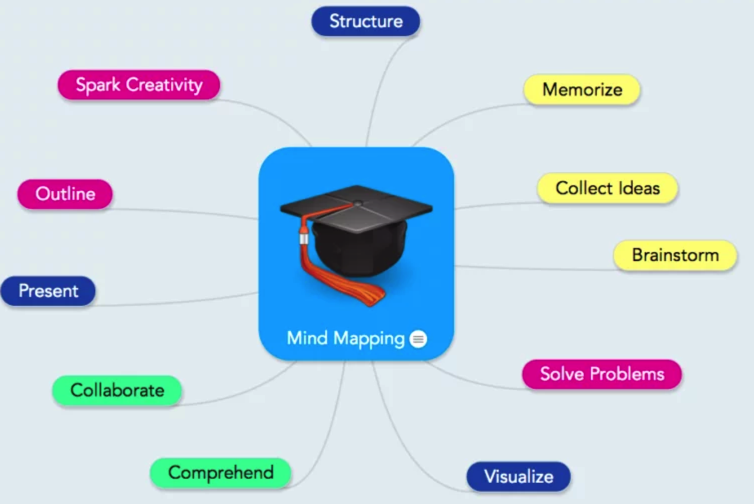
Best for: Students reviewing a course, summarizing a chapter, preparing an essay, or connecting concepts across lectures.
Central topic: Use the subject or exam focus, such as “Cell Biology Final” or “Causes of World War I.”
Suggested primary branches:
-
Core concepts: definitions, theories, formulas, or events.
-
Evidence and examples: experiments, quotations, cases, diagrams, or worked problems.
-
Relationships: cause and effect, comparison, sequence, or part-to-whole connections.
-
Questions: unclear points, likely exam prompts, and topics to ask the instructor.
-
Recall check: facts you can explain, facts that need review, and practice questions.
-
Sources: textbook chapters, lecture slides, papers, and links.
How to use it: Organize information by concept rather than copying the textbook chapter by chapter. After building the first version, hide or cover details and try to reconstruct each branch from memory.
Ready to build it? Start with Xmind for focused individual revision and polished exports. Choose AFFiNE when you want the map to remain connected to source notes, reading summaries, essay drafts, and longer-term study knowledge.
3. Brainstorming and Content-Ideation Mind Map
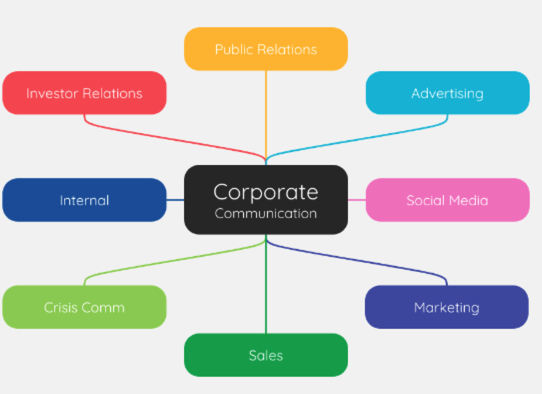
Best for: Naming ideas, content planning, product concepts, campaign themes, and team ideation sessions.
Central topic: Frame a focused prompt, such as “How can we improve customer onboarding?” instead of a broad label like “Ideas.”
Suggested primary branches:
-
Audience or user needs: goals, frustrations, questions, and context.
-
Idea categories: education, product, community, partnership, automation, or promotion.
-
Channels or formats: blog, video, email, webinar, social, or in-product message.
-
Constraints: time, budget, brand, legal, technical, and staffing limits.
-
Evaluation: impact, effort, confidence, strategic fit, and urgency.
-
Shortlist: ideas to test now, later, or not pursue.
How to use it: Separate idea generation from evaluation. Add ideas freely first, then use a second pass to group duplicates and score the strongest options. This prevents early criticism from narrowing the map too quickly.
Ready to build it? Start with Miro for a live workshop where many people add and group ideas together. Choose AFFiNE when the selected ideas need to become content briefs, research notes, or working documents without rebuilding the context elsewhere.
4. Decision-Making Mind Map
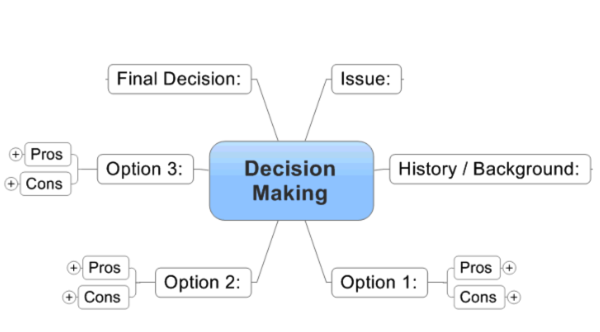
Best for: Comparing software, selecting a vendor, choosing a course, evaluating a move, or deciding between strategic options.
Central topic: Write the decision as a question, such as “Which note-taking app should our research team adopt?”
Suggested primary branches:
-
Decision criteria: cost, usability, compatibility, security, support, and required features.
-
Options: one branch for each realistic choice.
-
Benefits: the specific value each option provides.
-
Risks and tradeoffs: limitations, switching costs, uncertainty, and dependencies.
-
Evidence: trial notes, official documentation, stakeholder feedback, and test results.
-
Final choice and review date: the decision, rationale, owner, and when it should be reconsidered.
How to use it: Define criteria before judging the options. If one criterion matters more than another, label its weight explicitly rather than treating every branch as equally important.
Ready to build it? Start with AFFiNE when the evidence, tradeoffs, and final rationale need to remain linked to supporting documents. Choose Xmind for a polished standalone comparison map or presentation.
5. Personal Goals and Life-Planning Mind Map
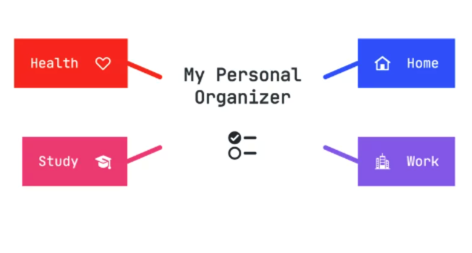
Best for: Annual planning, career development, habit building, travel planning, and balancing multiple life areas.
Central topic: Use a time-bound focus such as “My 2027 Plan” or a single outcome such as “Career Transition.”
Suggested primary branches:
-
Outcomes: what success should look like by the target date.
-
Life areas: career, learning, health, finances, relationships, and recreation.
-
Milestones: monthly or quarterly checkpoints.
-
Habits and systems: recurring actions that support the goal.
-
Resources and support: people, courses, tools, savings, and time.
-
Obstacles and fallback plans: likely barriers and the smallest alternative action.
How to use it: Limit each life area to one or two meaningful outcomes. A personal map becomes less useful when every possible wish is treated as a priority.
Ready to build it? Start with Xmind for structured personal planning and presentation-ready maps. Choose Coggle for a quick browser map, but use a private diagram for sensitive goals or financial information.
Once you have found the example that matches your goal, use the recommendations to make a shortlist. The comparison below covers free-plan limits, pricing, platforms, collaboration, and broader workflows so you can choose the tool that fits the entire process—not just the first map.
Quick Comparison: 5 Free Mind Map Tools
| App | Best For | Key Features | Free Plan | Starting Price | Platforms |
|---|---|---|---|---|---|
| AFFiNE | Mind maps that become documents and knowledge | Edgeless + Page; linked docs; local-first | Yes; free local workspaces and Doc/Edgeless editing | $6.75/month (Pro, annual option) | Web; Windows; macOS; Linux; iOS; Android |
| Xmind | Polished personal maps and presentations | Multiple structures; Outliner; Pitch; exports | Yes; up to 10 online maps | $4.92/month (Pro, billed yearly) | Web; Windows; macOS; Linux; iOS; Android |
| Miro | Collaborative workshops and team canvases | Infinite canvas; templates; AI; integrations | Yes; 3 editable boards | $8/member/month (Starter, billed yearly) | Web; desktop; tablet; mobile |
| ClickUp | Turning map nodes into project tasks | Blank/Tasks modes; task hierarchy; Re-Layout | Free plan exists, but Mind Map view is not included | $9/user/month (Core, billed yearly; current promotional price; Mind Map Trial) | Web; Windows; macOS; Linux; iOS; Android |
| Coggle | Fast, simple browser-based mapping | Real-time collaboration; history; exports | Yes; 3 private and unlimited public diagrams | $5/month (Awesome) | Web and mobile browsers |
Note: Pricing information is accurate at the time of the latest update and is subject to change. Taxes, regional pricing, promotions, education discounts, and plan rollouts may change the amount shown at checkout.
1. AFFiNE — Best for Turning Mind Maps into Connected Documents and Knowledge
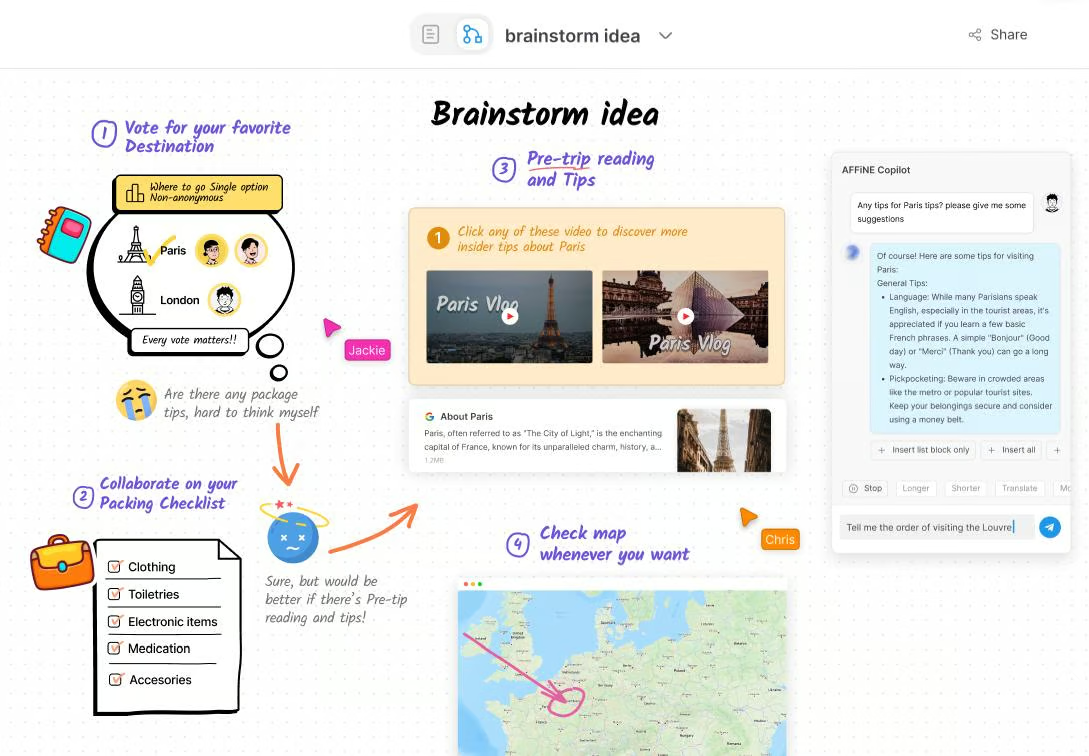
AFFiNE is a local-first workspace that combines Page documents, databases, linked knowledge, and an Edgeless whiteboard. A user can create a mind map on the visual canvas and keep related notes, references, and written deliverables in the same workspace instead of treating the map as an isolated diagram.
Best for: Students, researchers, knowledge workers, and small teams that want to move from visual thinking to structured notes, briefs, or project knowledge without changing tools.
Key features
-
Edgeless whiteboard with mind maps, connectors, frames, notes, images, and free spatial arrangement.
-
Page and Edgeless modes within the same doc, so shared blocks can support both linear reading and visual planning.
-
Local-first desktop workflows with optional AFFiNE Cloud sync and real-time collaboration.
-
Linked docs, databases, collections, and templates for organizing the work that grows out of a map.
-
Windows, macOS, Linux, browser, iOS, and Android access; the desktop app provides the most complete Edgeless experience.
Pricing: The Free plan includes unlimited local workspaces, unlimited Doc and Edgeless editing, 10 GB of cloud storage, a 10 MB maximum file size, up to three members per workspace, seven-day cloud version history, and up to three login devices. Pro starts at $6.75 per month under the annual-billing option shown on the official AFFiNE pricing page and increases cloud storage to 100 GB, maximum file size to 100 MB, workspace members to 10, and version history to 30 days. Team starts at $10 per seat per month.
Pros
-
The map can remain connected to documents, references, and structured knowledge in one workspace.
-
Free local editing and offline-capable desktop use reduce dependence on a cloud-only workflow.
-
Page and Edgeless modes make AFFiNE more useful after brainstorming than a diagram-only tool.
Cons
- Cloud collaboration, storage, and version-history limits depend on the selected plan.
Verdict: Choose AFFiNE if you want to brainstorm visually and then develop the same material into research notes, project briefs, documents, or a reusable knowledge base. Choose Coggle or Xmind if you only need quick standalone mind maps.
If you want worked layouts with downloadable outlines, see these mind map examples for meetings, study, and decisions.
2. Xmind — Best for Dedicated Personal Mind Mapping and Presentation
Xmind is a specialized mind mapping application with multiple map structures, an outliner, themes, exports, and Pitch mode. Its focused interface suits people who care about polished individual maps more than an all-purpose team workspace.
Best for: Individual students, consultants, writers, and professionals who want a mature dedicated mind map editor with structured presentation and export options.
Key features
-
Multiple mind map structures, themes, stickers, relationships, summaries, labels, and attachments.
-
Outliner, Zen mode, and Pitch mode for switching between planning, focus, and presentation.
-
Export to PNG, SVG, PDF, Markdown, and Office formats on paid plans.
-
Web, Windows, macOS, Linux, iOS, and Android support.
Pricing: Free allows up to 10 manually created online maps, basic themes and stickers, three-day version history, link publishing, up to five Pitch slides, and 50 introductory AI credits. Pro starts at $4.92 per month when billed yearly and raises the online-map limit to 50 while adding basic collaboration, custom themes, watermark-free export, and unlimited Pitch slides. Premium starts at $8.25 per month when billed yearly and adds unlimited collaborative maps, real-time collaboration, 30-day version history, unlimited sheets, Gantt charts, task assignment, and 500 AI credits per month. See the official Xmind pricing page.
Pros
-
Purpose-built mind mapping controls and polished layouts.
-
Strong export and presentation options for sharing finished maps.
-
Broad desktop and mobile platform support.
Cons
-
The Free plan limits online maps, version history, and Pitch slides.
-
Advanced collaboration, project features, and higher AI allowances require Premium.
-
It is less suited than AFFiNE or ClickUp to turning a map into a connected document system or task workspace.
Verdict: Choose Xmind when the quality and presentation of the mind map itself are the priority. Choose AFFiNE instead when the map must remain connected to longer documents and knowledge, or ClickUp when the branches need to become operational tasks.
3. Miro — Best for Collaborative Workshops on an Infinite Canvas
Miro is a broad visual collaboration platform. Mind maps live alongside sticky notes, documents, tables, slides, diagrams, and workshop activities on an infinite canvas, making it a strong choice for facilitated team sessions.
Best for: Distributed product, design, research, and strategy teams running live or asynchronous workshops.

Key features
-
Real-time and asynchronous collaboration, comments, sharing, presentation, and Talktracks.
-
Infinite canvas with mind maps, sticky notes, images, PDFs, tables, slides, and many other formats.
-
Auto-layout, collapsible branches, dependency links, templates, and AI-assisted generation or expansion.
-
Browser, desktop, tablet, and mobile access, although mobile functionality is more limited.
Pricing: Free includes one workspace, three editable boards, templates, integrations, limited AI use, and five Talktracks. Starter costs $8 per member per month billed annually or $10 billed monthly and adds unlimited private boards, high-resolution exports, version history, custom templates, unlimited visitors, and 25 AI credits per member per month. Business costs $20 per member per month billed annually or $25 monthly. See the official Miro pricing page.
Pros
-
Excellent for live collaboration, workshops, and mixed visual formats.
-
A large template ecosystem and integrations support many team workflows.
-
The mind map can sit beside supporting files, sticky notes, diagrams, and project artifacts.
Cons
-
Free users can keep only three boards editable.
-
The breadth of the platform can feel heavier than a dedicated mind map editor.
-
Images cannot currently be attached directly to a mind map node.
Verdict: Choose Miro for collaborative workshops and complex team canvases. Choose Xmind for focused personal mapping, or AFFiNE when you want local-first documents and knowledge to remain part of the same workspace.
4. ClickUp — Best for Turning Mind Map Nodes into Tasks
ClickUp is a work-management platform whose Mind Map view can display existing tasks or start as a blank map. Its key difference is operational: branches can be connected directly to tasks and subtasks rather than recreated in a separate project system.
Best for: Teams that already manage projects in ClickUp and want visual planning to feed directly into task execution.

Key features
-
Blank mode for free-form planning and Tasks mode for visualizing workspace tasks.
-
Create, edit, delete, and rearrange tasks and subtasks from the map.
-
Re-Layout tools keep hierarchies aligned as the plan changes.
-
Connected Docs, tasks, views, dashboards, goals, and automations within the wider ClickUp workspace.
Pricing: Free Forever is a true free plan, but Mind Map is unavailable on that tier currently. Core currently starts at a promotional price of $9 per user per month billed yearly and includes Mind Map access as a Trial; Business currently starts at a promotional price of $17 per user per month billed yearly and includes unlimited Mind Map access. Plan rollouts can vary, so confirm the official ClickUp pricing and view-limits pages before purchase.
Pros
-
Converts visual planning into tasks without rebuilding the project elsewhere.
-
Tasks mode is useful for seeing hierarchy and reorganizing existing work.
-
Strong fit for teams already using ClickUp for delivery.
Cons
-
Mind Map view is not included in Free Forever.
-
Core includes Mind Map access as a Trial; unlimited Mind Map access requires Business or a higher plan.
-
Visual styling and pure ideation are less central than in Xmind, Miro, or Coggle.
Verdict: Choose ClickUp when the map must become tasks inside an existing project workspace. It is not the strongest free choice for casual mind mapping, and teams should check the Mind Map trial terms and plan availability before upgrading.
5. Coggle — Best for Fast, Beginner-Friendly Browser Mind Maps
Coggle is a streamlined web-based mind mapping and flowchart tool. It emphasizes quick branch creation, sharing, version history, and real-time collaboration without the broader workspace complexity of Miro or ClickUp.
Best for: Beginners, students, and small groups that want to create and share a clear map quickly in a browser.

Key features
-
Real-time collaboration, link or QR sharing, comments, and full change history.
-
Automatic branch arrangement, icons, image uploads, multiple starting points, loops, and joined branches.
-
Export to PDF, image, .mm, text, and Microsoft Visio formats.
-
Browser-based access with no installation required.
Pricing: Free Forever includes three private diagrams, unlimited public diagrams, real-time collaboration, unlimited image uploads, full change history, and PDF or image downloads. Awesome costs $5 per month and adds unlimited private diagrams, more shapes and line controls, high-resolution uploads, full chat history, and no-login collaboration by link. Organisation costs $8 per member per month and adds SAML single sign-on, consolidated billing, bulk export, user and data management, and branded diagrams. See Coggle's official pricing section.
Pros
-
Very quick to learn and use for traditional branching maps.
-
The free plan supports unlimited public diagrams and real-time collaboration.
-
Full change history and multiple export formats are available on Free.
Cons
-
Free users are limited to three private diagrams.
-
Public diagrams may be unsuitable for confidential study, client, or company material.
-
It offers fewer document, database, task, and workshop workflows than AFFiNE, ClickUp, or Miro.
Verdict: Choose Coggle when speed, simplicity, and browser sharing matter most. Choose AFFiNE when your map needs to develop into private documents and knowledge, or Miro when the session needs broader workshop tools.
How to Choose the Right Mind Mapping Tool
-
Choose AFFiNE if you want a local-first workspace where a mind map can stay connected to documents, research, and structured knowledge.
-
Choose Xmind if you want a dedicated editor for polished personal maps, exports, and presentations.
-
Choose Miro if you run collaborative workshops and need many visual formats on one canvas.
-
Choose ClickUp if visual planning must become tasks in an existing work-management system.
-
Choose Coggle if you want the simplest route to a shareable browser-based map.
Before paying, create one real map from this guide and test the complete workflow: capture ideas, reorganize branches, add context, share or export, and convert the result into whatever comes next. The best tool is the one that removes the most friction from that full process. If you want the first draft generated from your notes, also compare AI mind map generators and their free limits.
How to Create a Mind Map in 7 Steps
-
Write one clear central topic or question.
-
Add three to seven primary branches for the main categories.
-
Expand each branch with short keywords or compact phrases.
-
Rearrange nodes so related ideas sit together, and the hierarchy is easy to scan.
-
Use color, icons, images, or line styles consistently to add meaning.
-
Add evidence, links, owners, deadlines, or cross-connections where they help.
-
Review the map, remove duplicates, and decide the next action for each important branch.
You can also start with the Visual & Mind Map Study Planner or browse AFFiNE's free templates.
Frequently Asked Questions
What is a mind map and an example?
A mind map is a visual hierarchy built around one central topic. A project-planning mind map, for example, can place a product launch at the center and branch into goals, deliverables, timeline, people, risks, and next actions.
What are the seven steps to mind mapping?
Define the central topic, create the main branches, add sub-branches, reorganize related ideas, apply consistent visual cues, add useful context, and review the map for clarity and next actions.
What are the three main types of mind maps?
There is no universal official list. In practice, three useful categories are hierarchical radial mind maps, process or flow maps, and relationship-focused concept maps. The right structure depends on whether you are organizing a topic, following a sequence, or showing cross-connections.
What does a good mind map look like?
A good mind map has a specific center, distinct primary branches, short labels, a readable hierarchy, and visual cues that carry meaning. It should help the reader understand or act—not merely decorate the page.
Are mind mapping tools free?
Yes, all five tools in this guide offer either a free plan or free local use, but their limits differ. AFFiNE includes free local Doc and Edgeless editing; Xmind limits online maps on Free; Miro limits editable boards; Coggle limits private diagrams; and ClickUp’s Free Forever plan does not include Mind Map view.
What is the difference between a mind map and a concept map?
A mind map usually radiates from one central topic in a hierarchy. A concept map can have multiple focal points and labeled links that show relationships between concepts, including cross-links that do not follow a single tree.
Start with a Map—and Keep the Work Moving
The starter maps above give you a structure, but the real value comes from what happens after the first brainstorm. A useful map should make the next decision, study session, draft, or project step easier.
Choose AFFiNE if you want your mind map to stay connected to the documents and knowledge that follow. Start in the Edgeless whiteboard, connect ideas visually, and continue developing research notes, project plans, or supporting documents in the same workspace. Try AFFiNE for free or explore the official whiteboard and template pages to build your first map.