How to Plan YouTube Videos: Free Video Planner Template
Short answer: to plan a YouTube video, take it through five stages: idea, script, shoot, edit and publish. For each video, write down who it is for and what it promises, a hook for the first 30 seconds, a timed outline, a shot and resource list, an edit checklist, and the publish details (title, thumbnail, chapters and date). A video planner keeps all of that on one page, so nothing is left for upload day.
Get the free Video Planner template to follow along. This guide shows the real template, a filled-in plan for one example video, and how to write the hook and outline.
Update note (November 4, 2026): rebuilt around real screenshots of the AFFiNE Video Planner, a hook and outline section, a Shorts plan and an expanded FAQ. YouTube thumbnail, chapter and Shorts details were re-checked against YouTube Help on November 4, 2026. Written by Allen under our editorial policy.
The 5 stages of planning a YouTube video
Most videos that slip do so between stages: the script is done but nobody wrote a shot list, or the edit is finished but the thumbnail and chapters were never planned. Giving every video the same five stages makes each hand-off visible.
| Stage | What to decide | Done when |
|---|---|---|
| Idea | Working title, target viewer, the one question the video answers, two or three reference videos | You can say the video's promise in one sentence |
| Script | Hook for the first 30 seconds, timed outline or full script, call to action | Every section has a time range |
| Shoot | Visual style, audio, gear, location, props, B-roll, budget | Every scripted section has at least one shot |
| Edit | Rough cut, captions, music, graphics, chapter timestamps | The final export has been watched end to end |
| Publish | Final title, description, thumbnail, end screen, Shorts, publish date | The video is scheduled |
The free AFFiNE template does not use these stage names. It has eight sections instead, and they map onto the stages like this:
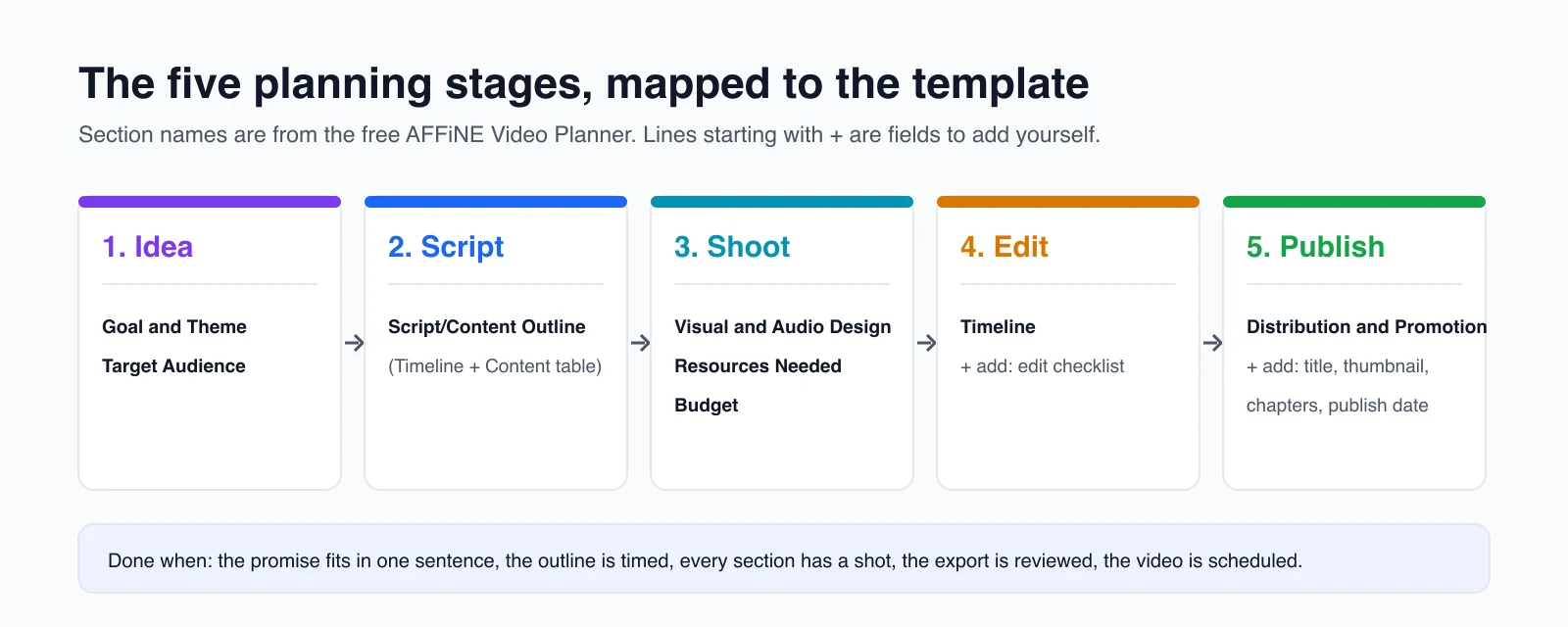
Keep the plan short. If you never fill in a field, delete it.
How to write the hook and outline
The script stage decides most of a video's quality, so it gets its own section here.
Write the hook for the first 30 seconds
The hook is the opening that tells viewers they clicked on the right video. Write it before the rest of the script, and make sure it delivers what the title and thumbnail promised. Three patterns cover most videos:
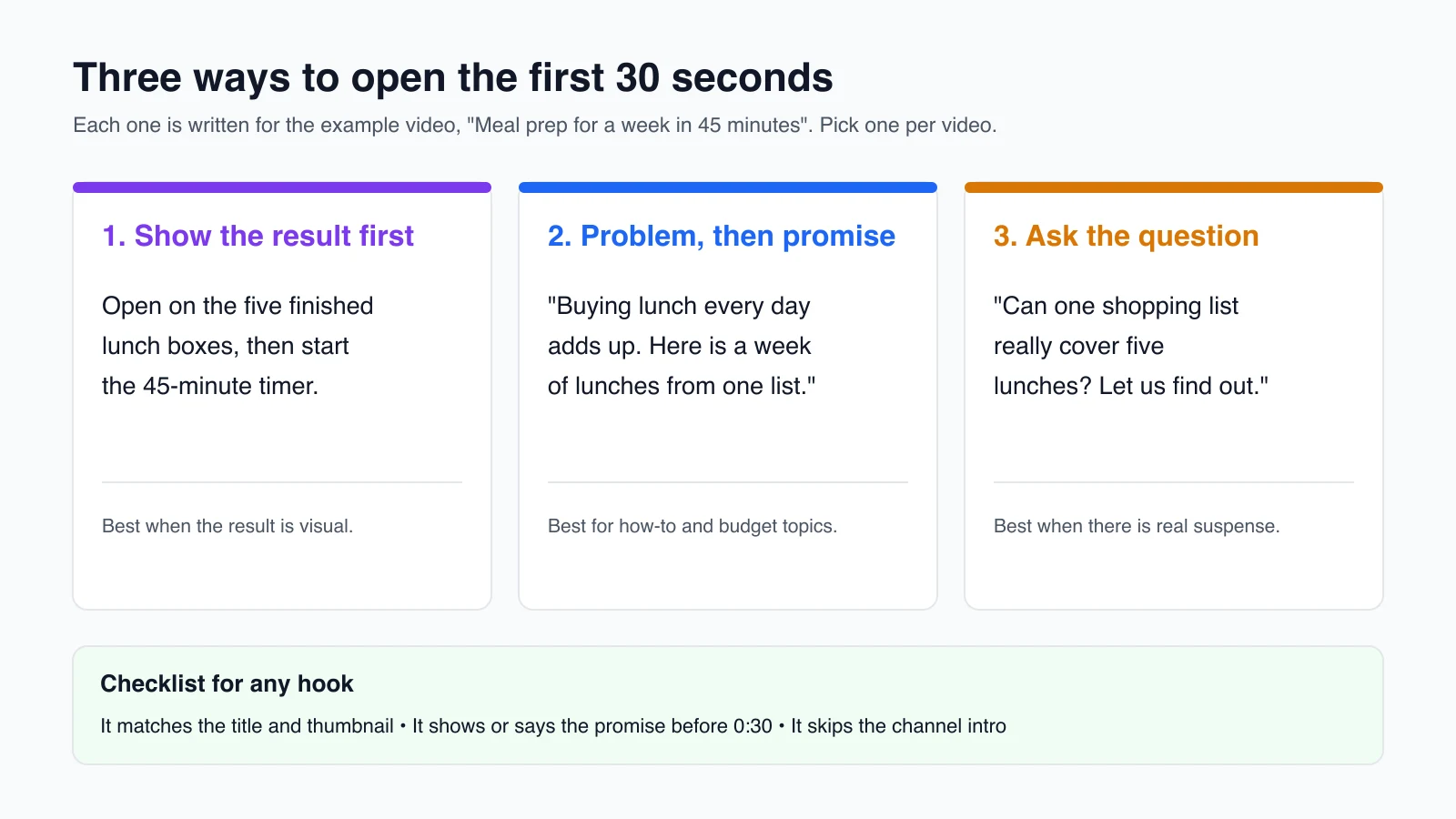
- Show the result first when the result is visual: the finished dish, the edited room, the working code.
- Problem, then promise for how-to and budget topics: name the pain, then say what the viewer will have by the end.
- Ask the question only when there is real suspense, and answer it in the video.
Skip the channel intro and the "before we start" requests. Put them after you have delivered something.
Turn the outline into timed sections
Split the script into three parts and give each one a time range: opening (the hook), middle (the steps or story) and ending (the payoff and call to action). In the AFFiNE template this is the Script/Content Outline table, which already has a Timeline column and a Content column with Opening, Middle and Ending rows.
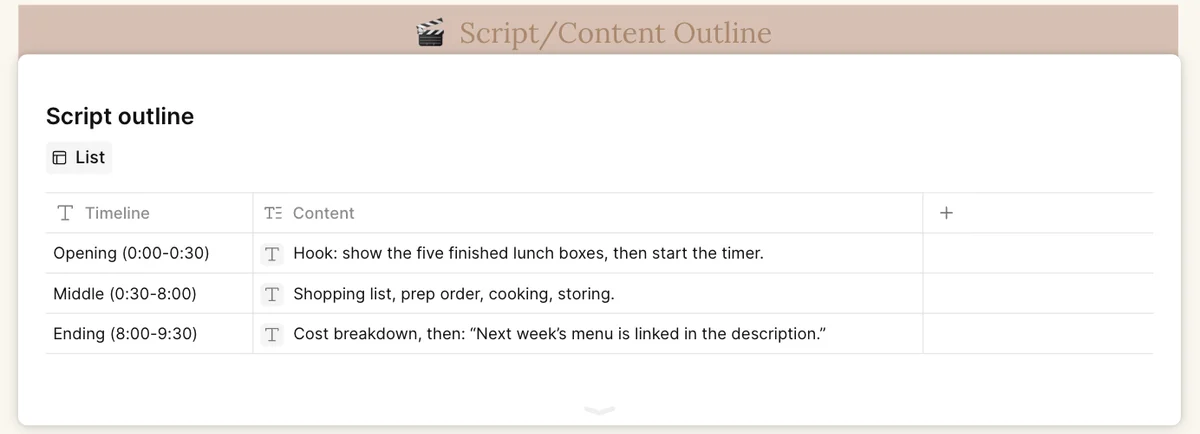
A timed outline helps in three ways. It shows when the middle is too long before you film it. It turns directly into a shot list, one shot or more per row. And the row start times become your first draft of the chapter timestamps.
For visual videos, sketch the key shots too. Our guide to storyboarding and planning videos and the free storyboard template cover that step.
Example: a filled-in video plan in AFFiNE
Here is the AFFiNE Video Planner filled in for one example video, "Meal prep for a week in 45 minutes". The channel and video are fictional, but the screenshot is the real template in AFFiNE with every section completed.
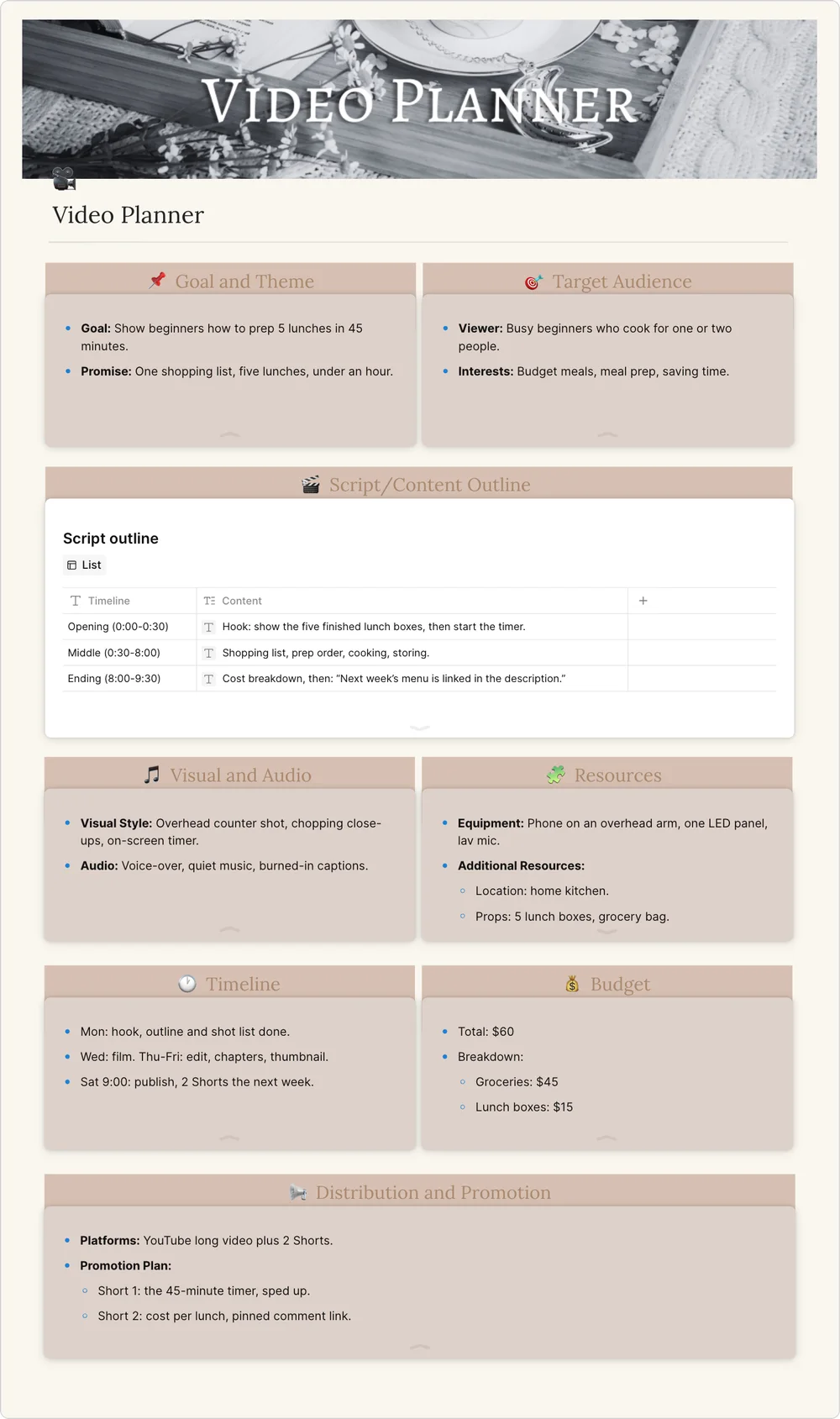
The same plan as text, section by section:
- Goal and Theme: show beginners how to prep five lunches in 45 minutes. Promise: one shopping list, five lunches, under an hour.
- Target Audience: busy beginners who cook for one or two people, interested in budget meals and saving time.
- Script outline: Opening (0:00 to 0:30) shows the five finished boxes, then starts the timer. Middle (0:30 to 8:00) covers the shopping list, prep order, cooking and storing. Ending (8:00 to 9:30) gives the cost breakdown and points to next week's menu.
- Visual and Audio: overhead counter shot, chopping close-ups, an on-screen timer, voice-over with quiet music and burned-in captions.
- Resources: a phone on an overhead arm, one LED panel and a lav mic. Location: home kitchen. Props: five lunch boxes and a grocery bag.
- Timeline: Monday for the hook, outline and shot list. Wednesday to film. Thursday and Friday to edit, add chapters and make the thumbnail. Publish Saturday at 9:00.
- Budget: $60 in total, $45 for groceries and $15 for lunch boxes.
- Distribution and Promotion: the long video plus two Shorts cut from it (see the Shorts section below).
Notice that the publish details are planned on Monday, not after the edit. Writing the title and thumbnail idea early also keeps the hook honest, because the opening has to match them.
How to set up the free video planner in AFFiNE
This is the template as it opens before you change anything:
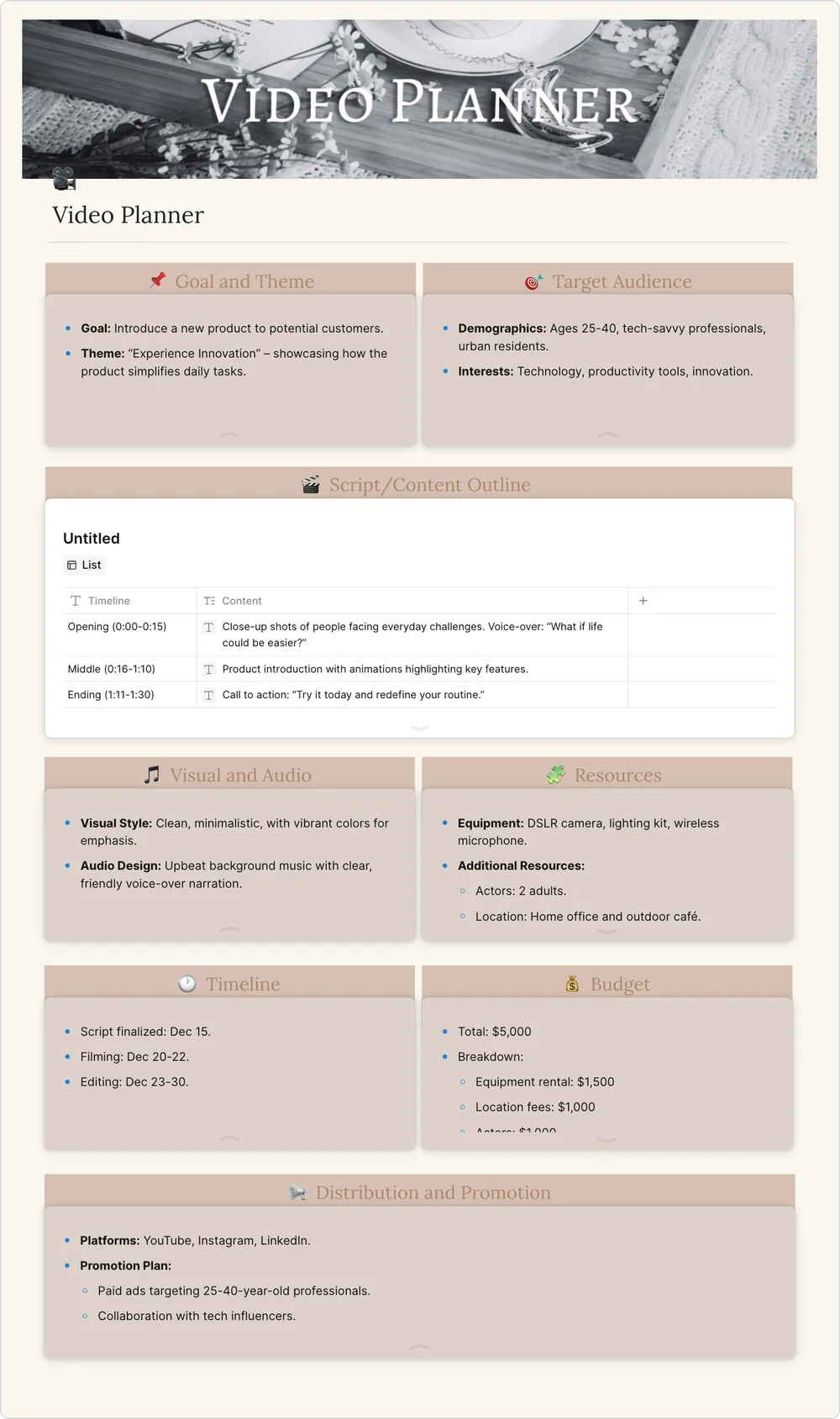
Step 1: Add the template to a workspace
Open the Video Planner template page and click Use this template to copy it into a workspace. If you are not signed in, AFFiNE offers to sign in or to start without an account; without an account, the workspace is saved in your browser. The plan opens as one page that you can view as a doc or as an edgeless whiteboard.
Step 2: Rename it and fill in Goal and Theme and Target Audience
Rename the page after the video, for example "Video plan: Meal prep for a week in 45 minutes". Replace the sample bullets with your goal, the promise in one sentence, and the viewer you are making it for.
Step 3: Write the hook and outline in the Script/Content Outline table
Write the hook in the Opening row first, then fill in Middle and Ending with time ranges. Add more rows if the video has more sections.
Step 4: List the shoot details in Visual and Audio Design, Resources Needed and Budget
List the look, the sound, the gear, the location, the props and what each one costs. Then check that every outline row has at least one shot. Each section is a separate note, so if your text gets cut off at the bottom, drag the note's edge to make it taller.
Step 5: Add dates in Timeline and plan publishing
Put a date on the script, shoot, edit and publish steps in the Timeline section. Use Distribution and Promotion for the platforms and Shorts. Then add one note with the edit checklist and publish details the template does not include: captions, chapters, final title, description, thumbnail and end screen.
For your next video, duplicate the finished page and overwrite it. If you publish more than a few videos a month, keep the dates in a content calendar template as well, so you can see the whole month in one view.
Customize the planner for your niche
The eight sections work for most channels. Adjust a few fields to fit how you make videos:
| Niche | Add | Can usually drop |
|---|---|---|
| Tutorials and education | Research sources, "after this video the viewer can..." line, on-screen examples | Budget |
| Vlogs and lifestyle | Story beats (setup, problem, turn, payoff), B-roll list, locations by day | Detailed script |
| Gaming | Game and version, recording sessions, settings to show, stream date | Location |
| Reviews | Product, test checklist, price at the time of filming, sponsor disclosure | Props |
| Interviews and podcasts | Guest, question list, release form, clip ideas | Visual style |
Planning Shorts alongside long videos
YouTube Shorts can be up to three minutes long, in a square or vertical format. Plan them on the long video's page instead of making them after the fact.
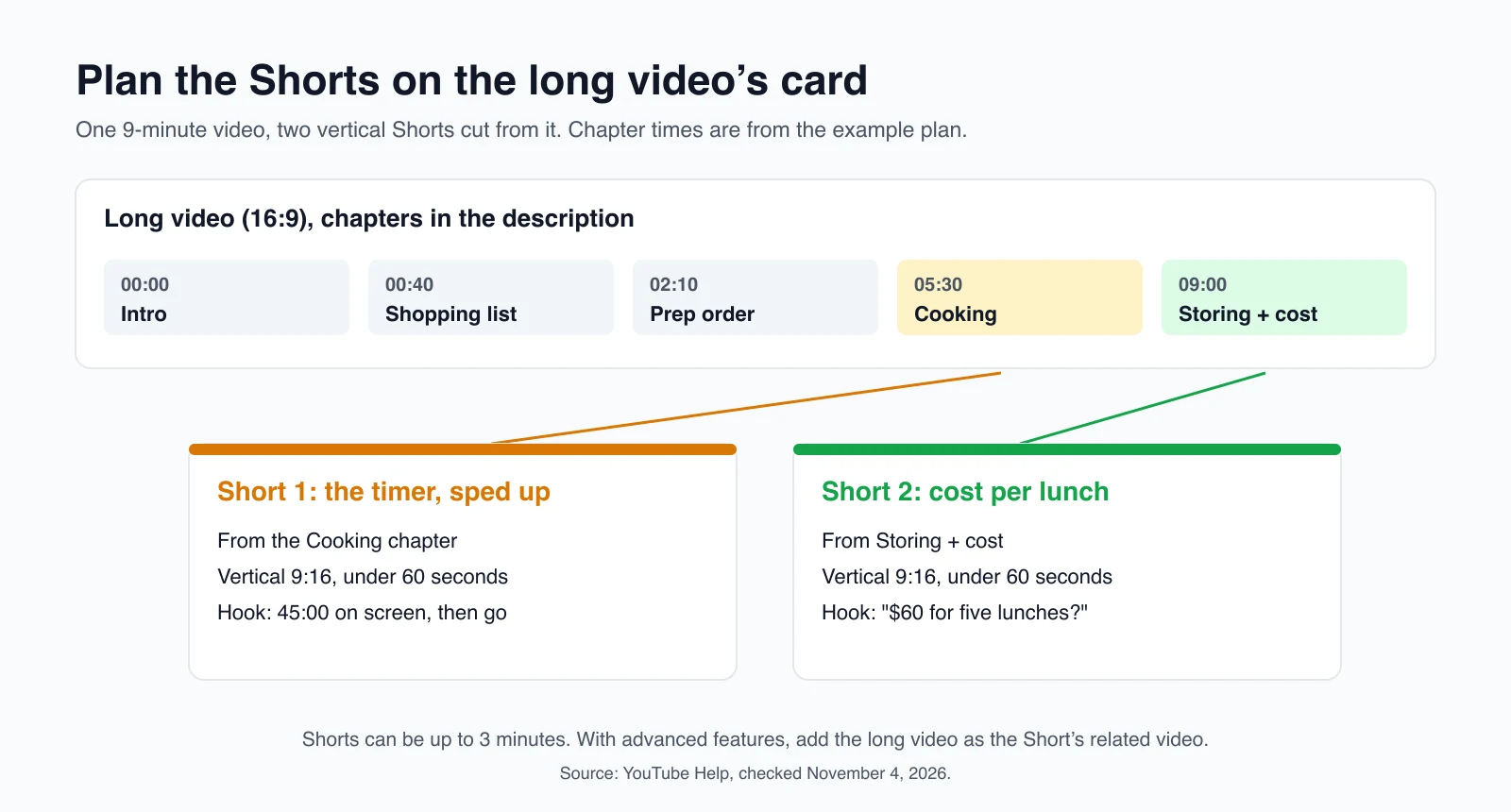
- Mark one or two moments in the outline that work on their own, such as a single tip, a before and after, or a surprising number.
- Plan the vertical shots in the resources section. A moment framed for 16:9 often loses the subject when you crop it to 9:16.
- Give each Short its own hook. It is watched without the long video's opening.
- Link the Short to the long video. Channels with advanced feature access can add a related video to a Short in YouTube Studio, and it appears as a link below the channel handle (YouTube Help: Add a related video to your Shorts).
YouTube publish checklist
These are the details creators most often leave until the last minute. Each one was checked against YouTube Help on November 4, 2026.
- Thumbnail: YouTube recommends 3840 x 2160 pixels for videos (minimum width 640 pixels) and 2160 x 3840 for Shorts (minimum height 640 pixels), in a format such as JPG or PNG. Use 16:9 for videos and 9:16 for Shorts. Uploads from mobile are limited to 2 MB. If a vertical video has a 16:9 custom thumbnail, YouTube shows an auto-generated 4:5 thumbnail instead on the home, explore and subscription pages (YouTube Help: Add video thumbnails).
- Chapters: list timestamps in the description. The first must be 00:00, you need at least three in ascending order, and each chapter must be at least 10 seconds long (YouTube Help: Video chapters).
- Shorts: up to three minutes, square or vertical (YouTube Help: Upload YouTube Shorts).
- Title and description: the title should match the hook. Write the first two lines of the description so they still make sense when the rest is cut off.
- End screen and next video: decide which video to point viewers to next while you plan, not after upload.
YouTube changes these limits from time to time, so check the help pages before you rely on an exact number.
Frequently Asked Questions
Is the AFFiNE video planner template free?
Yes. The Video Planner template is free to add to a workspace and edit. You can also start without an account, in which case the workspace is saved in your browser.
What should a YouTube video plan include?
At minimum: the target viewer and the video's promise, a hook for the first 30 seconds, a timed outline, a shot and resource list, a schedule with a publish date, and the publish details (title, thumbnail and chapters). The AFFiNE template covers all of these except the edit checklist and publish details, which you can add as one note.
What is the difference between a video planner and a content calendar?
A video planner holds one video's details from idea to publish. A content calendar shows when each video and post goes out across weeks or months. Most creators use both: a planner page per video, and a calendar for the dates. See our social media content calendar template for the calendar side.
How far ahead should I plan YouTube videos?
There is no rule from YouTube. A practical target is to have the next two videos fully planned (hook, outline and shot list) before you film the current one. That way a busy week costs you editing time, not an upload. If you post weekly, that is about two weeks of buffer.
Can I use the planner with a team?
Yes, if the workspace is in AFFiNE Cloud. A workspace started without an account lives only in your browser, so sign in and enable cloud sync first, then invite your editor or co-host to the workspace.
Conclusion
A good video plan answers the same questions for every video: who it is for, what it promises, how it opens, what you need to film, and what has to be ready on publish day. Start with the five stages, write the hook before the rest of the script, and use the free Video Planner template to keep each video on one page. For more planner layouts, browse the digital planner templates.