Summary Generator

An AFFiNE whiteboard template with a sample article that shows how to condense text into key points using the AFFiNE AI Summarize and outline actions.

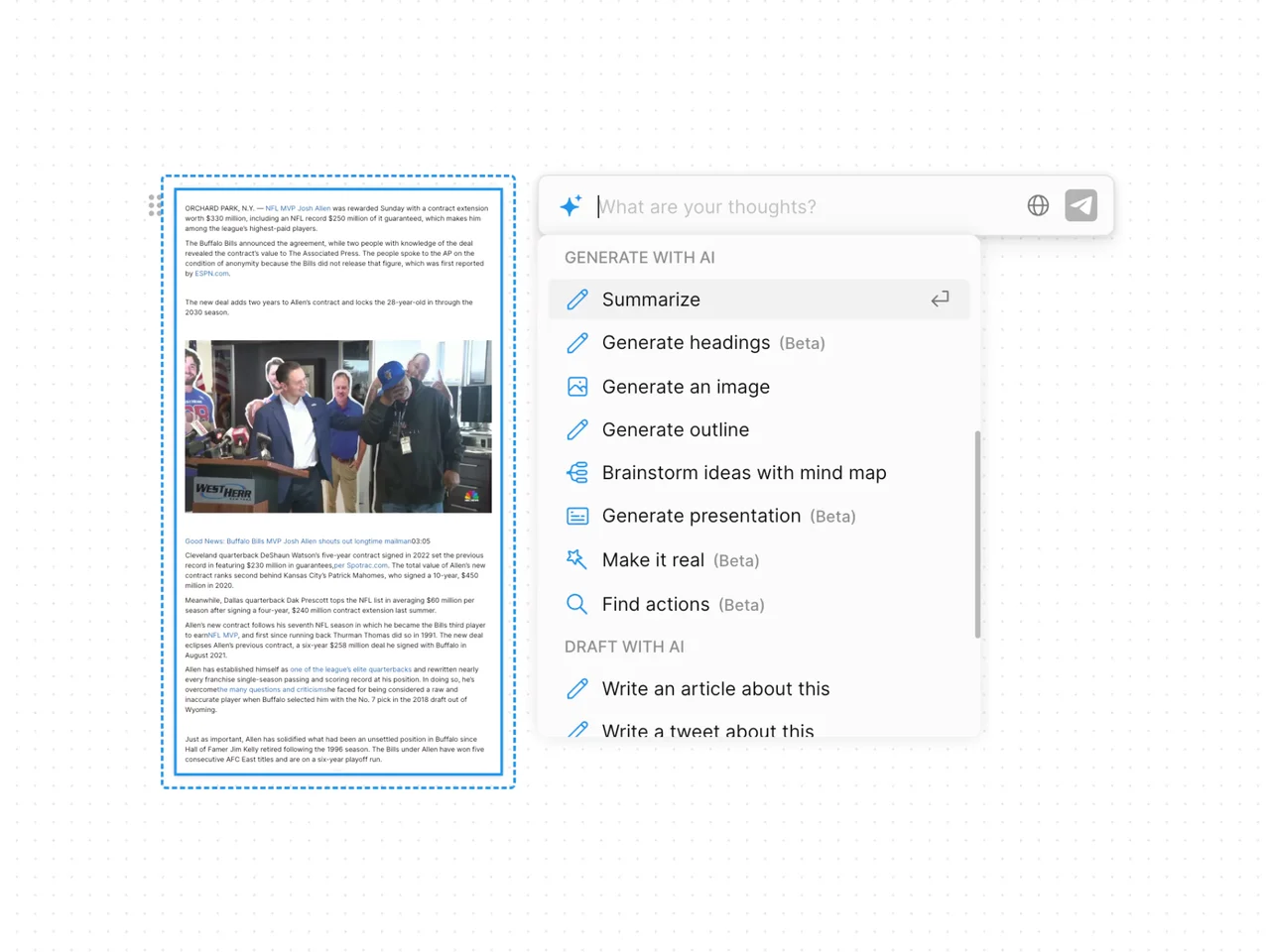
Whiteboard with a sample news article selected and the AFFiNE AI menu open showing Summarize and other generate options

A summary generator is a tool that condenses a long text, such as an article, report, or set of notes, into its main points. This AFFiNE template is an edgeless whiteboard that shows how to summarize text with AFFiNE AI: it holds a sample news article in a note block, and the AFFiNE AI menu (with options such as Summarize, Generate headings, Generate outline, and Brainstorm ideas with mind map) is used on that block. The template itself does not summarize anything; the summarizing is done by AFFiNE AI, a separate feature of the AFFiNE app.

For long research PDFs and reports, AFFiNE’s AI PDF summarizer for reading notes helps extract reusable notes before you move into the AI research assistant for synthesis.

What's included in this template

  • A whiteboard canvas with a sample article placed in a note block.
  • An example of the AFFiNE AI menu opened on that block, with Summarize at the top of the "Generate with AI" options.
  • Space on the canvas to paste your own text and keep the AI-generated summary next to the original.

When to use a summary generator

  • Reading articles and reports when you need the key points before deciding whether to read in full.
  • Studying to turn lecture notes or a chapter into a short review sheet.
  • Work updates to draft an executive summary of a longer document for your team.
  • Research to compare several sources side by side on one canvas.

How to use this summary generator in AFFiNE

  1. Copy the template. Click Use this template to add the whiteboard to your AFFiNE workspace.
  2. Paste your text. Replace the sample article with the text you want to condense.
  3. Open AFFiNE AI. Select the note block and click the AI button to open the menu.
  4. Choose Summarize. Pick Summarize, or try Generate outline or Generate headings for a structured version.
  5. Review the result. Check the summary against the original and correct anything that is missing or wrong.
  6. Keep or refine it. Insert the summary on the canvas, then edit it or ask AFFiNE AI to make it shorter.

Tips for a reliable summary

  • Read the original at least once, because AI summaries can omit or misstate details.
  • Ask for a specific format, such as five bullet points or one paragraph, when you use Continue with AI.
  • Keep numbers, names, and quotes exactly as written in the source.
  • If you use a summary in schoolwork, follow your school's rules on AI tools and cite the original source.

Frequently asked questions

What is a summary generator?

A summary generator is a tool that shortens a longer text into its main ideas. In this template, the summary is produced by AFFiNE AI's Summarize action applied to a block on the whiteboard.

Does this template summarize text automatically?

No. The template is a whiteboard with a sample article and layout. You run AFFiNE AI on your text to create the summary, and AFFiNE AI usage depends on your AFFiNE account and plan.

Can I summarize a PDF in AFFiNE?

Yes. You can use the AI PDF summarizer for long PDFs, then bring the notes onto this whiteboard.

How do I make an AI summary more accurate?

Give the AI clean text, ask for a specific length and format, and compare the output with the source. Our guide on improving AI summary quality covers this in more detail.

You can also read our overview of summary generators, try the companion citation generator template, or browse more AI templates.
Get more things done, your creativity isn't monotone