Custom Educational Software Development: Notes, Whiteboards, Feedback
Schools, universities, and training companies often rely on separate tools for taking notes, sharing ideas on digital whiteboards, and providing feedback. Each application may work well individually, but moving between them makes it harder to keep teaching materials, student contributions, and assessments connected. For institutions facing these limitations, custom educational software development offers a way to bring these activities into a single learning environment designed around their actual needs. Such a workspace can connect notes, collaborative boards, and teacher feedback to the same course structure while maintaining appropriate access permissions and integrating with the existing learning management system.
Building this kind of platform involves more than combining several familiar features. Academic IT leads, edtech product owners, and instructional designers need to consider how students work together, where information is stored, and how teachers manage feedback across different courses. The following sections examine the core modules, technical decisions, and integration requirements that shape a practical educational workspace.
Key takeaways
- A custom learning workspace pays off when the teaching method is specific (studio critiques, case discussions, pair programming, blended academies) and generic tools need constant permission workarounds.
- Decide early whether notes and whiteboards share one block-based data model. It is the architecture choice that is hardest to change later.
- Anchor feedback to the exact sentence or diagram, give every comment an open or resolved status, and sync rubric scores to the LMS gradebook.
- Integrate through LTI 1.3 and the LTI Advantage services from 1EdTech, single sign-on via SAML 2.0 or OpenID Connect, and OneRoster for SIS rosters. Let the LMS stay the system of record for courses and final grades.
- Scope roles to institution, course, section, group, and document, add deadline-based rules, and log every permission change.
Why Institutions Build Their Own Learning Workspace
Most classrooms already use plenty of software. Lecture notes live in a document editor, group brainstorming happens on a whiteboard inside a video call, and written feedback sits in the comment field of an assignment. Each tool works on its own. The trouble starts when a teacher wants to understand how a student arrived at an answer, because the context of the work gets lost between tools.
General collaboration products are usually designed for companies. Their permission models think in terms of workspace owners and members, not semesters, courses, sections, and project groups. A teaching assistant who should grade one section but not another, or a student who should see a group board only until the deadline, often needs workarounds that break the first time someone forgets a setting.
Data handling is another reason. Student work counts as an education record in many regions, and schools that teach minors have extra duties around consent and retention. Rules such as FERPA (the Family Educational Rights and Privacy Act) in the United States and the GDPR in the European Union shape where data is stored and who may access it. A custom platform lets the institution decide those details instead of accepting a vendor's defaults, including whether the workspace runs on infrastructure the institution controls, as a self-hosted deployment does.
That said, off-the-shelf tools remain a good fit for many courses. If a course mainly needs a shared canvas for live lessons, an existing online whiteboard for teaching may be enough. A tailored workspace tends to pay off when the teaching method itself is specific: studio critiques in design schools, case discussions in medical training, pair programming in computer science, or blended corporate academies that mix live sessions with self-paced modules.
Custom Build vs. Off-the-Shelf Tools
The decision is rarely all or nothing. The table summarizes where each approach usually fits:
| Need | Off-the-shelf tools | Custom learning workspace |
|---|---|---|
| Permissions | workspace owner and member roles | course, section, group, and deadline-scoped roles |
| Notes and whiteboards | separate apps, content copied between them | one block model shared by documents and canvas |
| Feedback | comments in a separate file or gradebook field | anchored to the exact content, with open or resolved status |
| LMS connection | links or basic embeds | LTI 1.3 launch, Deep Linking, roster sync, and grade passback |
| Data location and retention | vendor defaults | set by institutional policy (FERPA, GDPR) |
| Best fit | standard courses and short projects | specific teaching methods across many courses |
What Custom Educational Software Development Involves
When a university commissions custom educational software, development rarely starts with code. It starts with understanding how lessons actually run, what students struggle with, and which systems the new workspace must talk to. This early discovery phase helps establish the platform's requirements before architectural decisions and development begin.
Discovery with teachers and students
Good discovery means sitting in on real classes, not only interviewing department heads. The team watches how a seminar moves from reading notes to group discussion to a short written reflection. It records where people copy text from one app into another, where files get renamed "final_v3", and where feedback arrives too late to be useful.
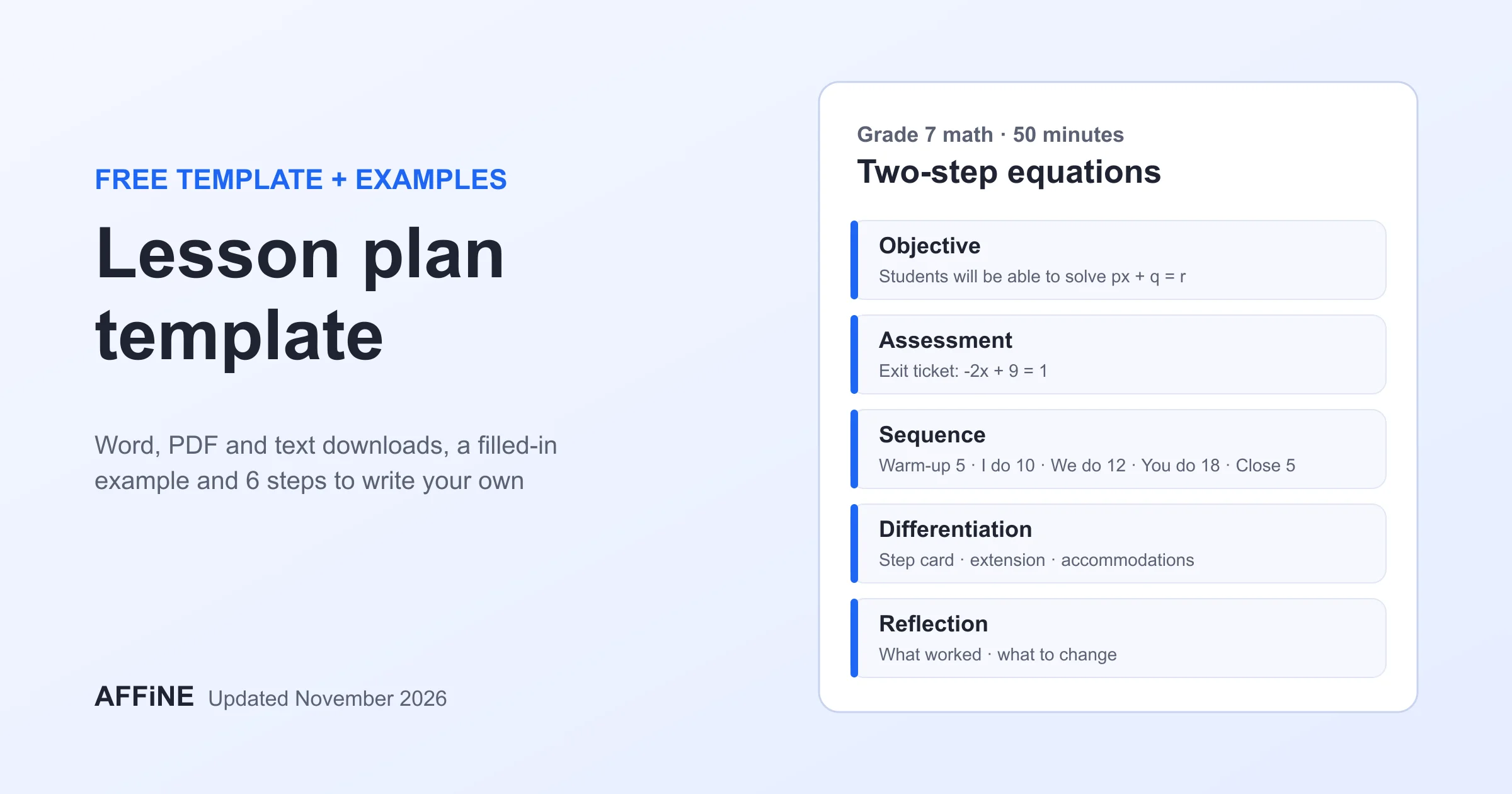
The output is a set of teaching scenarios, each described from start to finish. A scenario might read: "Groups of four map a historical event on a shared board, attach sources from their notes, and receive one round of comments before presenting." These scenarios become the acceptance criteria that QA engineers later test against. Existing course artifacts, such as a lesson plan template teachers already use, are a useful input because they show the structure a lesson follows today.
Choosing the architecture
Most learning workspaces are web-first, so students can open them on school laptops without installing anything. Native apps for iOS and Android are added when students work mainly on tablets or phones, or when stylus input matters. Real-time editing usually relies on WebSocket connections and a conflict-free replicated data type (CRDT) so several people can type or draw at once without overwriting each other. A CRDT also makes offline editing practical, which matters on unreliable school networks; the local-first approach shows how changes made offline merge once a device reconnects.
Real-time features should be tested in conditions that match a school, not an office. Thirty tablets joining the same board at the start of a lesson through one classroom access point create a very different load from a few colleagues opening a document during the day. Testing on the institution's own network early avoids unpleasant surprises in the first week of term.
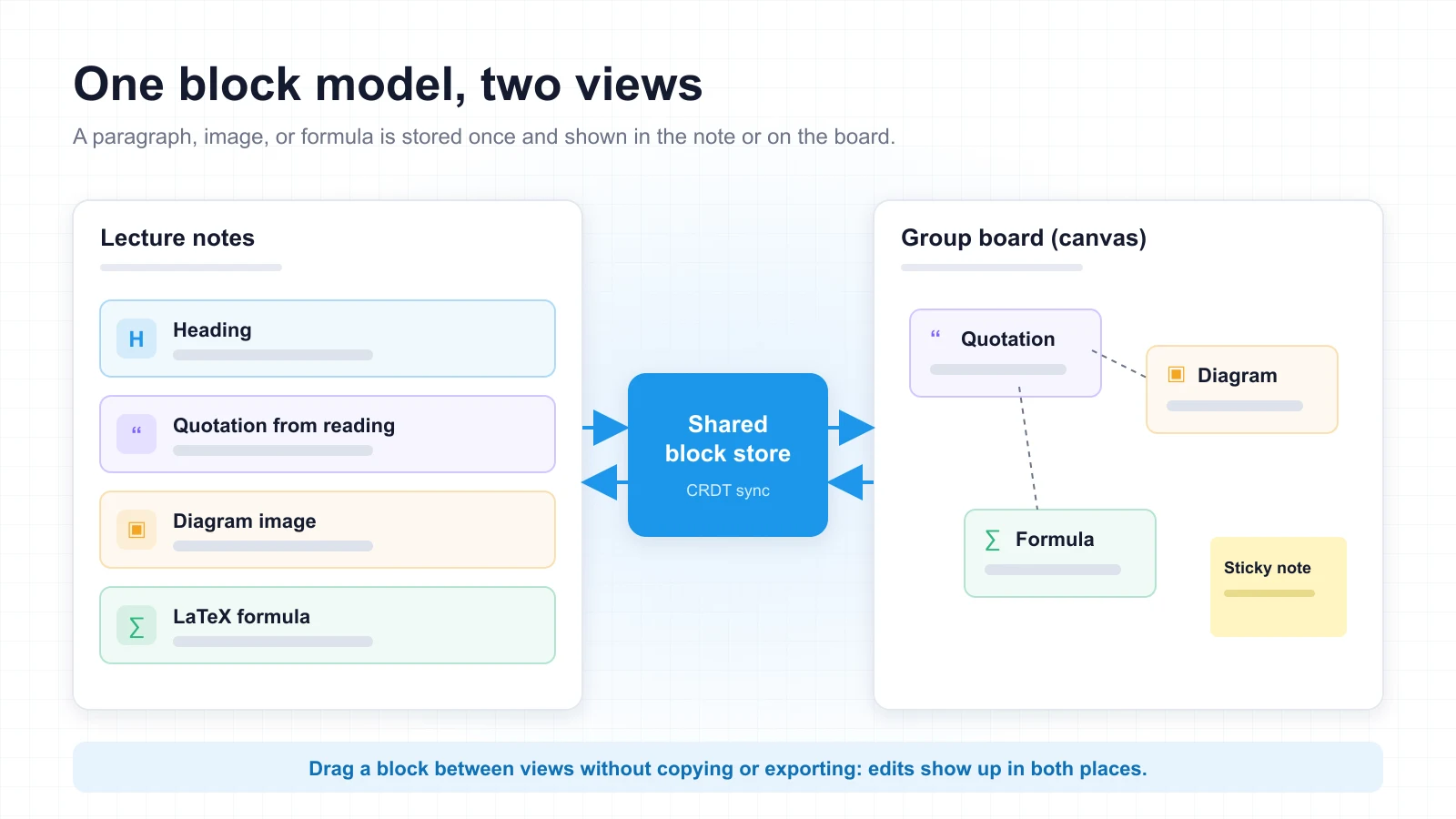
A key decision is whether notes and whiteboards share one data model. When a paragraph, an image, or a task list is stored as a block that can live either in a document or on a canvas, students can drag content between the two without copying. That choice is hard to change later, so it belongs in the first architecture review.
Notes as the Foundation of the Workspace
In custom educational software development, the note editor usually takes more effort than teams expect. Students use it for lecture notes, lab reports, reading responses, and drafts of essays. Teachers use it to publish course material. Both groups need it to feel fast and predictable, because they will spend most of their time there.
A block-based editor works well here. Each heading, paragraph, image, formula, or code snippet is its own block that can be moved, linked, or commented on. Subject-specific blocks make a real difference: LaTeX formulas for math and physics, syntax-highlighted code for programming courses, chemical structures for chemistry, and audio clips for language learning.
Educational content management sits on top of the editor. Teachers need to organize material by course, unit, and learning outcome, then reuse it next semester without rebuilding everything.
Templates help with recurring assignments, such as a lab report with fixed sections. Version history lets a teacher update a handout without losing the copy students have already annotated. Tags that connect a note to a learning outcome make later reporting much easier, and a single search across a student's own notes and the shared course library saves time during revision weeks.
Accessibility should be built in from the first sprint. The W3C Web Content Accessibility Guidelines (WCAG) are the usual reference: proper heading structure for screen readers, full keyboard navigation, adjustable text size, sufficient color contrast, and captions for embedded video. Adding these features after launch is slower and more expensive than designing for them early.
Digital Whiteboards for Education: More Than a Blank Canvas
A whiteboard in a business tool is mostly an empty space with sticky notes. Digital whiteboards for education need more structure, because a teacher is guiding thirty people rather than hosting a workshop for six colleagues.
The basics still matter: an infinite canvas, shapes and connectors, sticky notes, freehand drawing, and smooth stylus input on tablets such as the iPad. Beyond that, classroom boards benefit from teaching templates. Concept maps, Venn diagrams, timelines, KWL charts, and simple argument maps let students start working in seconds instead of spending half the lesson drawing boxes.
Facilitation features make the canvas usable in a live lesson. A teacher can lock the background so nobody moves the template by accident, ask every participant to follow their view, or briefly spotlight one group's work for the whole class. With one click, the same template can be copied into a separate board for each group, and the teacher can move between those boards to check progress.
One of the most useful options is the ability to replay the board history. Watching how a group built its diagram step by step shows who contributed what and where the reasoning changed direction. That is often more informative than the finished picture.
The link between canvas and notes is just as important. Open-source tools such as AFFiNE have shown how documents and an edgeless canvas can share the same blocks, and the same idea works well in a classroom product. A student should be able to drop a quotation from their reading notes onto the board, or turn a finished board into a page of their portfolio without exporting images.
Building Feedback Into the Workspace
Feedback works best when it arrives while students can still act on it. In many current setups, comments come back as a separate document or a few lines in the gradebook, days after submission. A custom workspace can make feedback part of the work itself.
The starting point is feedback attached to the exact sentence or diagram it refers to. A teacher highlights a paragraph in a note, or circles an area on a board, and leaves a comment right there. The student sees it in context, replies, revises, and marks it as addressed. The teacher then sees which comments are still open across the whole class, instead of opening every submission one by one.
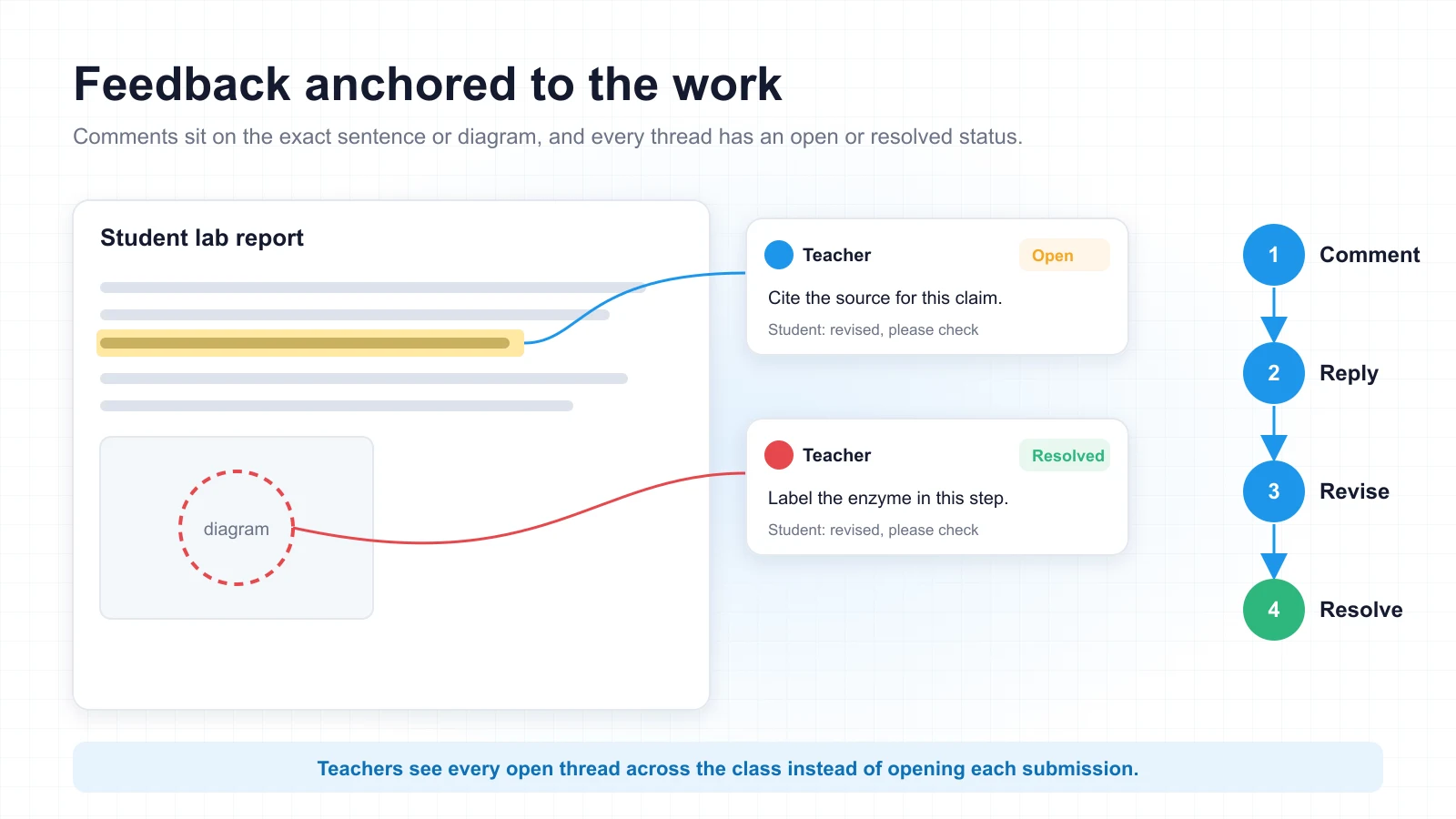
Several formats help teachers work faster. Rubric-based comments let them score against shared criteria and add a short personal note. Voice or short video comments are useful for language courses and design critiques, where tone and gesture carry meaning. Comment banks save time on remarks that come up every term, such as missing citations or unclear thesis statements.
Peer review deserves its own workflow. The system can assign reviewers automatically, hide names when the teacher wants anonymous review, and limit what reviewers can change. Students learn to comment on drafts, not just finished work, and the teacher can see the quality of peer comments before grading.
Finally, feedback data should flow somewhere useful. When rubric scores sync to the gradebook and unresolved comments appear on a simple teacher dashboard, the workspace saves time instead of adding one more place to check.
Student Collaboration Tools That Support Real Group Work
A collaborative learning workspace has to handle group projects fairly, which is harder than it sounds. Students want to see who else is editing, avoid stepping on each other's work, and get credit for what they contributed. Teachers want to support the group without hovering over it.
Presence indicators and live cursors show who is working on which part of a document or board. Group spaces collect the notes, boards, files, and discussion threads for one team in one place, and they can open and close on a schedule set by the teacher. Mentions let a student ask a teammate a question inside the work rather than in a separate chat.
Contribution tracking is useful, but it needs careful design. A simple summary of who added or edited which blocks helps teachers settle disputes over group grades. Detailed activity logs, on the other hand, can feel like surveillance and may discourage students from trying out rough ideas. Many institutions choose to show contribution summaries to the group itself first, so students can raise problems before the teacher steps in.
For younger learners, moderation tools are essential. Teachers may need to approve comments before they become visible, turn off private messages, or limit sharing to the class. These settings should be easy to change per course, because what suits a primary school class will not suit a postgraduate seminar.
LMS Integration Without Duplicate Work
Very few institutions will replace their learning management system to adopt a new workspace, and they should not have to. LMS integration lets the workspace act as an extension of Moodle, Canvas LMS, Blackboard Learn, D2L Brightspace, or another platform the school already uses.
The standard route is LTI 1.3 together with the LTI Advantage services published by 1EdTech (formerly IMS Global Learning Consortium). Deep Linking allows a teacher to place a specific board or note template inside an LMS module. Names and Role Provisioning Services (NRPS) bring in the class list and each person's role, so nobody has to rebuild rosters by hand. Assignment and Grade Services (AGS) handle grade passback, sending scores from the workspace straight into the LMS gradebook.
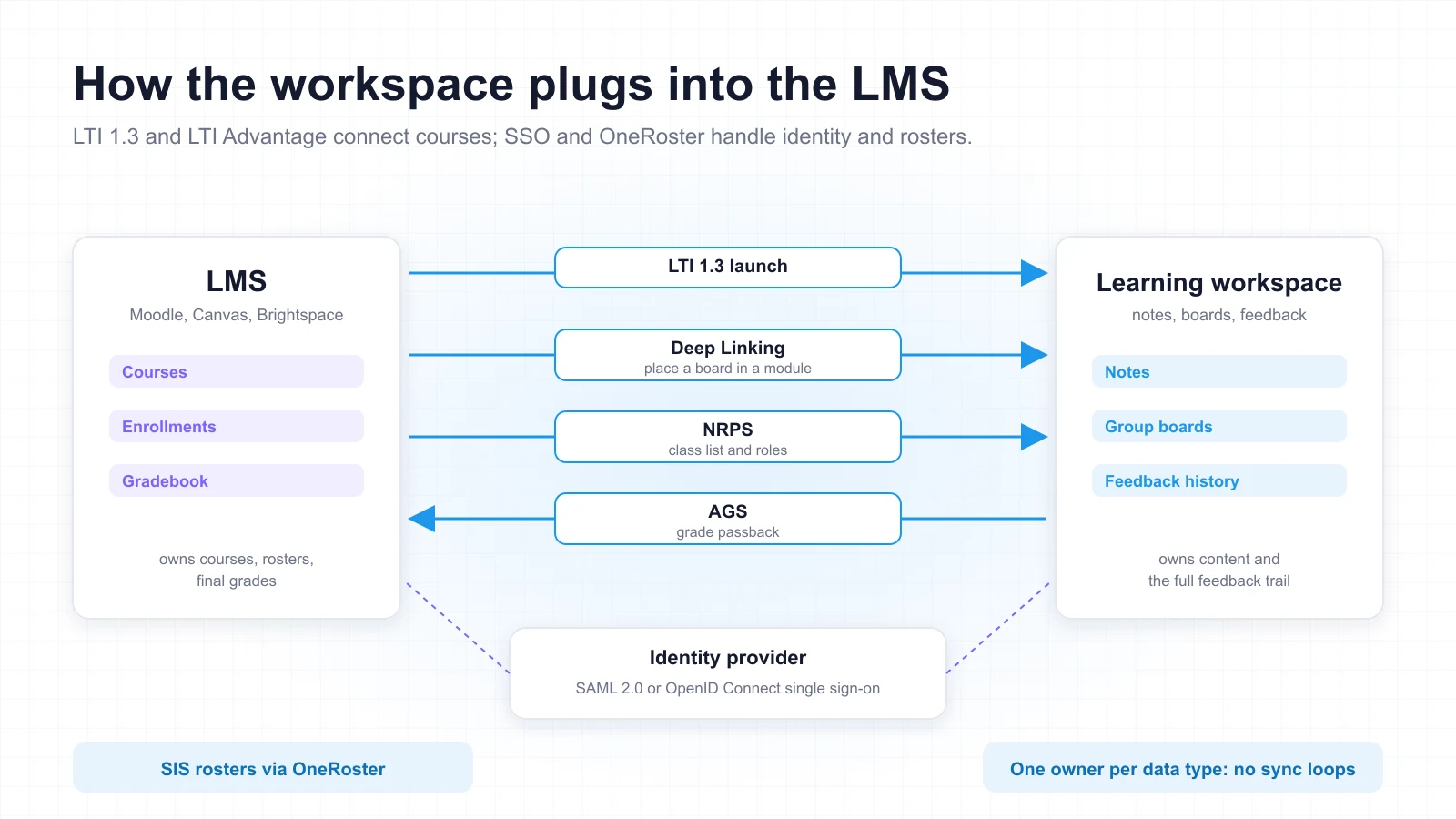
Sign-in should go through the institution's existing identity provider using SAML 2.0 or OpenID Connect. Students then use the same account they use for email and the library, and accounts are switched off automatically when someone leaves. Where rosters come from a student information system, the OneRoster standard, also maintained by 1EdTech, keeps courses and enrollments in sync.
Roster changes deserve particular attention. Students join late, switch sections, or withdraw in the middle of a term, and each of these events has to reach the workspace without deleting work a group still needs. These cases are worth testing in an LMS sandbox before the pilot, together with the timing of grade passback around busy deadlines.
Schools that rely on Google Classroom or Microsoft Teams need connectors for those environments too. In every case, the team should decide early which system owns which data. Usually the LMS owns courses, enrollments, and final grades, while the workspace owns notes, boards, and the full feedback history. Clear ownership prevents sync loops and conflicting records.
Role-Based Access in Educational Software
Role-based access in educational software is where many generic tools fall short. A school has far more roles than "admin" and "member", and the same person can hold different roles in different places. A doctoral student may be a learner in one course and a teaching assistant in another during the same week.
Typical roles include student, teacher, teaching assistant, course coordinator, department administrator, external examiner, and, in schools, parent or guardian. Each role needs permissions at several levels: the institution, the course, the section, the project group, and the single document or board. A teaching assistant might grade work in Section B, view but not grade Section A, and have no access to other courses at all.
Time also plays a part. Submissions can lock automatically at the deadline, group boards can turn read-only after a presentation, and an exam mode can hide notes and disable sharing for a fixed period. Pure role-based rules sometimes struggle with these cases, so many teams add attribute-based checks, such as "enrolled in this section" or "before the due date", on top of the core roles.
A related question is what happens to shared work when someone leaves. If a student withdraws, their contributions to a group board should usually stay in place for the rest of the team, while their private notes follow the institution's retention policy. Agreeing on this in advance is much easier than settling it later during a grade appeal.
When developing tailor-made education software, it pays to follow the principle of least privilege from day one. Every account gets only the access it needs, every change of permissions is written to an audit log, and data retention rules decide what happens to student work at the end of each term. The same controls that protect shared boards in companies apply here; see these online whiteboard security best practices for a checklist.
Planning the Development: A Practical Build Order
Teams that treat custom educational software development as a series of small, testable releases usually get better results than teams that aim for one large launch. Teachers can try each piece in a real course and report what works before the next piece is built. A sequence that suits most learning workspaces looks like this:
- Map the teaching scenarios. Write down five to ten real lessons from start to finish and agree which ones the first release must support.
- Design the data model and roles. Decide how courses, groups, notes, boards, and comments relate to each other, and who can do what at each level.
- Build the note editor and course structure. This is where users spend most of their time, so it should be stable before anything else is added.
- Add the whiteboard on the same block model. Reusing the note blocks keeps content portable between the two views.
- Layer in feedback and peer review. Start with inline comments and rubrics, then add audio comments and comment banks.
- Connect the LMS and identity provider. Set up LTI 1.3, single sign-on, and grade passback, and test them against the institution's real LMS instance.
- Run a pilot with two or three courses. Combine QA testing, an accessibility audit, and short weekly check-ins with teachers and students.
- Scale to more departments. Add features only when pilot feedback shows a clear need for them.
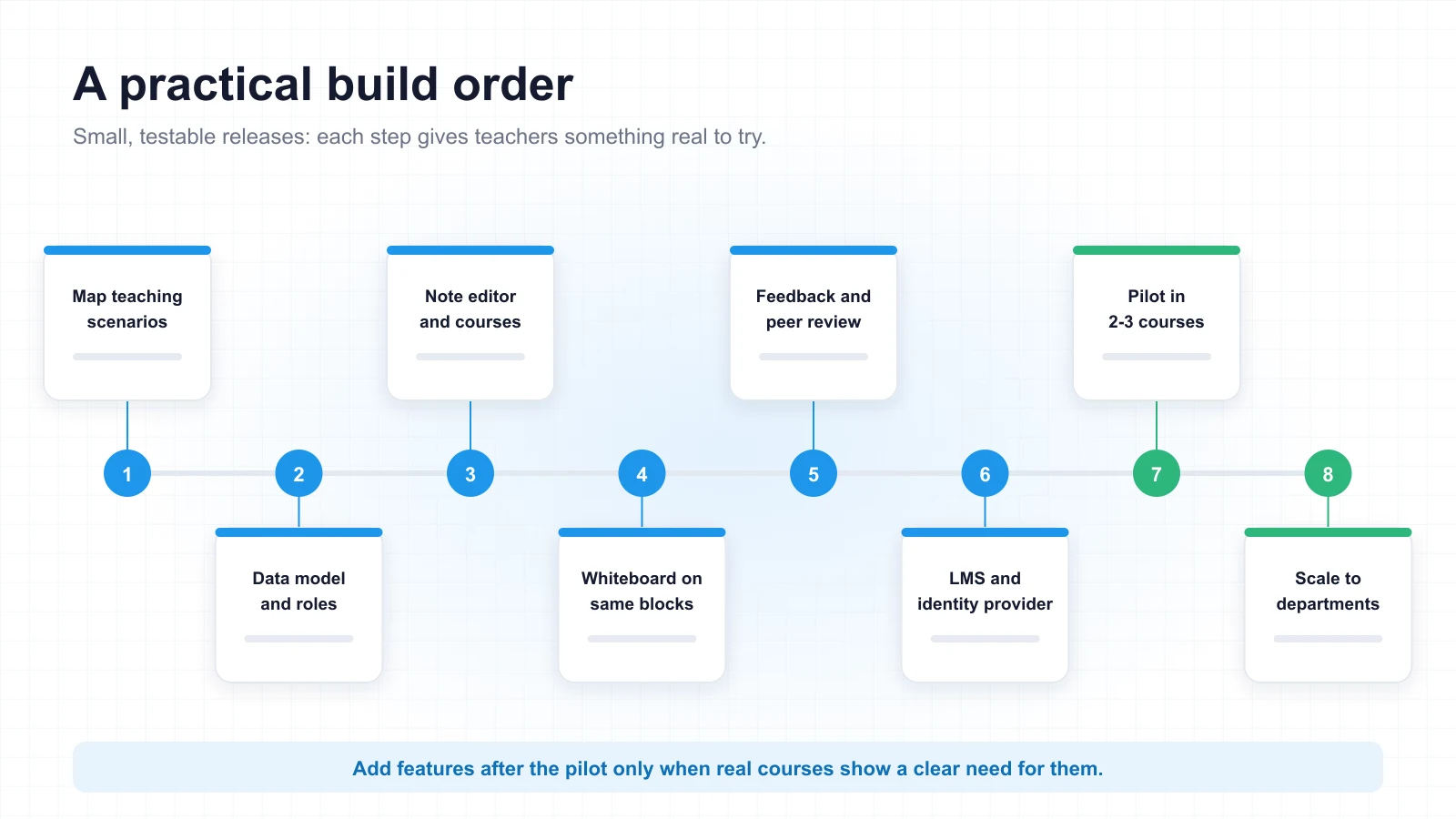
Each step produces something real users can try, which makes it easier to change course when a pilot reveals a problem.
To see how the pieces fit together, picture a first-year biology seminar. Students take notes during a lecture, then move to group boards to map a metabolic pathway, pulling diagrams and definitions straight from those notes. The teacher leaves comments on the two weakest links in each map, groups revise before the next session, and rubric scores reach the LMS gradebook on their own. If a pilot course can run a week like this without anyone copying files by hand, the core of the workspace is doing its job.
What a Well-Built Learning Workspace Delivers
A learning workspace for notes, whiteboards, and feedback succeeds when all three share one course structure and one content model. Students should be able to move a quotation from their notes onto a group board, receive a comment on the exact spot that needs work, and see their revised draft graded in the LMS without exporting a single file.
To reach that point, custom educational software development should focus on four concrete decisions. The first is a block-based model shared by documents and canvases. The second is feedback anchored to specific content, with a clear open or resolved status. The third is integration through LTI 1.3, single sign-on, and grade passback, so the existing LMS stays the system of record for grades. The fourth is a role model scoped to courses, sections, and groups, with deadline-based rules and audit logs.
Institutions that start with a short discovery phase and a pilot in two or three real courses can test each of these decisions with actual teachers and students. The result is a workspace that fits the way the institution teaches, rather than a teaching method bent to fit a generic tool.
Frequently Asked Questions
When does custom educational software make more sense than off-the-shelf tools?
When the teaching method is specific and generic permission models need constant workarounds: section-scoped grading, group boards that close at a deadline, anonymous peer review, or strict data residency requirements. For standard courses that only need a shared document or canvas, existing tools are usually faster and cheaper to adopt.
What is LTI 1.3 and why does a learning workspace need it?
LTI (Learning Tools Interoperability) 1.3 is the 1EdTech standard that lets an external tool launch securely from inside an LMS such as Moodle, Canvas, Blackboard Learn, or D2L Brightspace. Its LTI Advantage services add Deep Linking for placing content in a course, Names and Role Provisioning Services for class lists, and Assignment and Grade Services for grade passback, so teachers do not maintain rosters or grades twice.
Should notes and whiteboards share one data model?
In most cases, yes. When paragraphs, images, and formulas are stored as blocks that can appear in a document or on a canvas, students move content between the two without copying or exporting, and feedback stays attached when content moves. Retrofitting a shared model after launch is expensive, so the decision belongs in the first architecture review.
How should student data be handled under FERPA and GDPR?
Treat student work as an education record or personal data from the start. Decide where data is stored, who can access it at each level, how long it is kept, and what happens to private and shared work when a student leaves. Use the institution's identity provider for sign-in, apply least privilege, and log every permission change. Institutional legal and data protection teams should confirm the policy for each region.
How long should the pilot phase run?
Long enough to cover a full teaching cycle in two or three real courses, including at least one assignment that goes from notes to group board to feedback and grade passback. Roster changes, deadlines, and accessibility checks should all be exercised during the pilot before the workspace scales to more departments.