Daily To-Do List Categories: Examples and a Simple System
Daily to-do list categories are groups that help you find related tasks. Start with Work, Home, and Personal, then add a separate category only when you need it. Keep priority, due dates, and progress alongside the task: a work task can be urgent today and still belong to Work tomorrow.
If your list already feels crowded, try this first: choose one category for each task, write the next action, and select only the work that fits today. Below are category examples, a worked daily plan, and a blank list you can copy.
Daily to-do list categories: examples you can use
Treat this table as a menu. You do not need an entry in every category every day. Work, Home, and Personal can hold a small list; the other groups are useful when you regularly need to review those responsibilities separately.
| Category | What belongs here | Example of a clear next action |
|---|---|---|
| Work | Job responsibilities and client deliverables | Send the revised proposal to Maya |
| Home | Cleaning, maintenance, and household administration | Measure the shelf before ordering brackets |
| Personal admin | Appointments, forms, and personal paperwork | Book the car service for next week |
| Health and wellbeing | Activities and appointments you have chosen to plan | Pack a bag for tomorrow's swim |
| Family and relationships | Arrangements involving people in your life | Ask Alex which evening works for dinner |
| Learning | Coursework and skills you are actively developing | Complete lesson four and write three practice sentences |
| Money admin | Bills, receipts, and budgeting administration | File the electricity receipt |
| Hobbies and recreation | Leisure projects and activities | Sketch a layout for the garden bed |
“Errands” is another useful label, but it describes where you can act, rather than a life area. If you already use Home and Personal, mark errands beside those tasks instead of making duplicate entries. For example: Home — return the parcel — Errands.
There is no need to turn rest, relationships, or every hobby into a measurable project. Put an activity on the list when the reminder helps you.
Separate category, priority, status, and date
A list becomes difficult to maintain when Work, Urgent, Waiting, and Tomorrow all compete as categories. Each answers a different question.
| Field | Question it answers | Example |
|---|---|---|
| Category | Which responsibility does this belong to? | Work |
| Project, if needed | Which outcome does it support? | Website launch |
| Priority | How does this compare with my other commitments? | Must finish today |
| Status | Can I act on it, or is it blocked? | Waiting for approval |
| Due date | When is it actually due? | Thursday, 3 p.m. |
| Context, if useful | What place, person, or tool does it need? | Computer |
You do not have to fill in all six fields. On paper, a heading, a checkbox, and an occasional note may be enough. In a longer digital list, separate columns can make review easier.

If the list belongs mainly to one role, choose categories within that role. A student might use Coursework, Campus admin, and Personal. A freelancer might separate Client work, Business admin, and Personal. These are starting examples; change the labels to match the decisions you make.
How to turn a categorized list into today's plan
Sorting is only the first decision. A master list holds possible work; a daily list contains a deliberate selection from it. This distinction lets you keep useful reminders without treating all of them as commitments for today.
1. Capture the loose tasks
Write down the tasks you are trying to remember in one temporary inbox. Include requests, errands, and unfinished work. Keep appointments with fixed times on your calendar so they remain visible when you estimate the time left for tasks.
2. Write the next visible action
Replace “presentation” with “draft the opening slide.” If an item needs several actions, keep the project name as context and identify the next step you can actually take.
The official Getting Things Done overview distinguishes collecting inputs from clarifying whether they are actionable, organizing them, and reviewing them. You can use that distinction without adopting the entire method.
3. Give each task a home
Choose a category by the responsibility it serves. “Send a client invoice” belongs in Work even though it involves money. “File the household electricity receipt” can sit in Home, or Money admin if you already review household finances separately. Decide the rule once and use it consistently.
4. Choose priorities across the whole list
Check real deadlines, consequences, and commitments across categories. Do not require one “top priority” from every category: eight categories would create eight competing priorities.
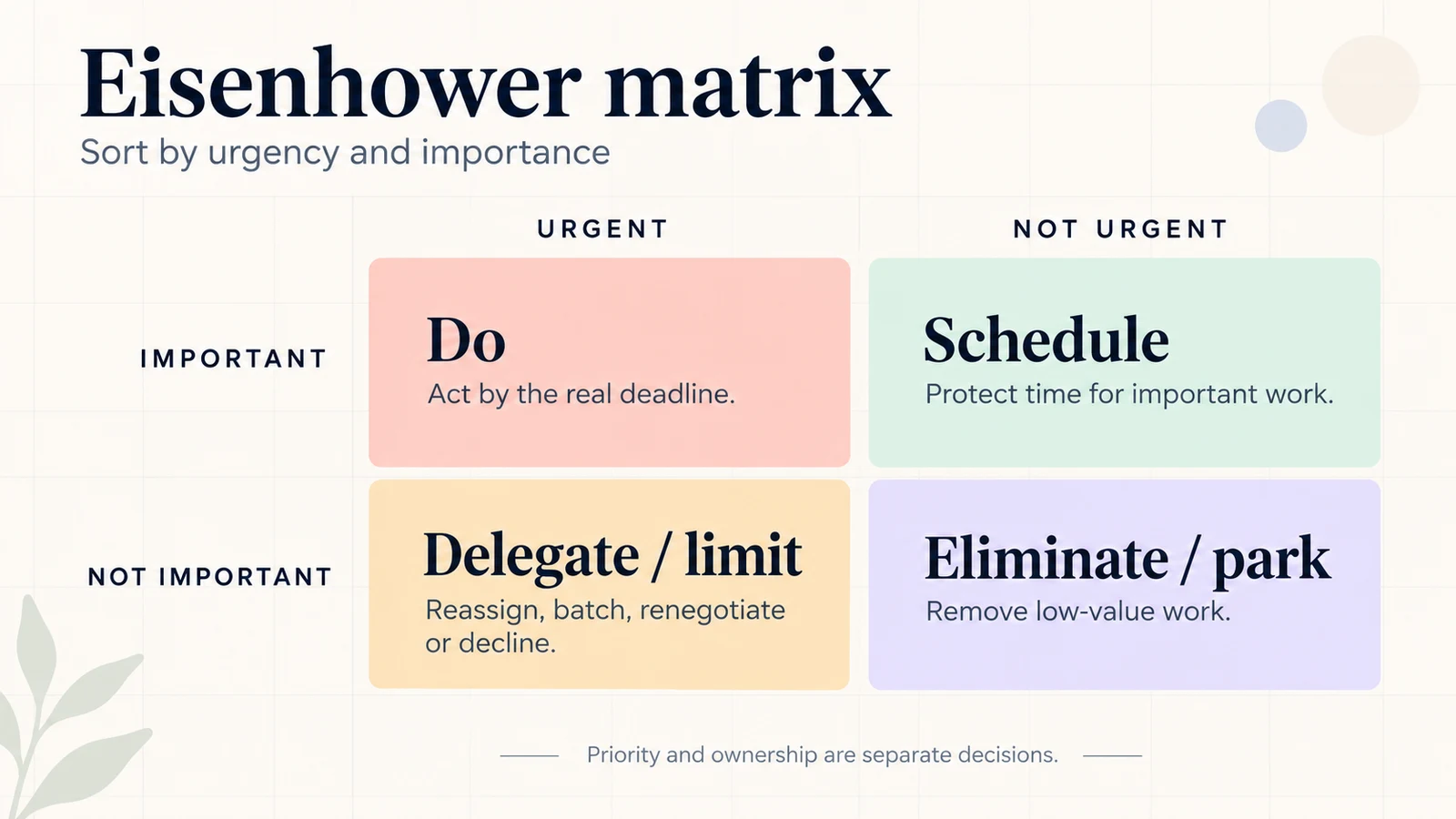
For a simple plan, mark a small number of must-finish tasks and put optional tasks below them. If urgent requests keep crowding out important work, use the Eisenhower matrix guide to compare urgency with importance. The matrix is a prioritization aid; it does not replace your categories or create more available time.
5. Check capacity and review unfinished work
Estimate the selected tasks against the time left after appointments, breaks, travel, and routine responsibilities. Leave some space for interruptions. When the day ends, decide whether each unfinished task needs a smaller next step, a new planned day, a follow-up, or removal.
Use the daily planner template when you want to place the selected tasks beside a schedule. The categories tell you where tasks belong; the schedule tells you when you intend to do them.
A worked example: from loose notes to a realistic day
This is a fictional planning example, with illustrative time estimates. It demonstrates the decisions, rather than reporting a productivity result.
The original notes read: proposal, shelf, Spanish, service car, invoice approval, parcel. These are reminders, but several do not say what to do next.
| Clear action | Category | Time estimate | Decision for today |
|---|---|---|---|
| Send the revised proposal to Maya | Work | 45 minutes | Do today: due at 3 p.m. |
| Measure the shelf for brackets | Home | 10 minutes | Do today: quick preparation for the weekend |
| Complete Spanish lesson four | Personal | 20 minutes | Schedule tomorrow |
| Book the car service | Personal | 10 minutes | Do today during opening hours |
| Ask Sam whether the invoice is approved | Work | 5 minutes | Follow up today; approval itself is waiting on Sam |
| Return the parcel | Home | 30 minutes including travel | Do today: return window closes tomorrow |
Suppose there are 120 usable minutes outside the day's fixed commitments. The five selected actions total 100 minutes, leaving 20 minutes unallocated. Adding the lesson would consume the whole allowance. It remains on the master list with a planned day, rather than appearing as another missed commitment tonight.
Notice that “waiting for invoice approval” became two distinct things: Sam's pending decision and your short follow-up action. You can do the follow-up; you cannot complete Sam's decision by putting it at the top of your list.

Copy this simple categorized to-do list
Use this in a notebook or a document. The headings hold your master list; write today's selection using the same task wording. If you copy an item onto a paper daily page, mark completion on the master list too.
DATE:
TIME AVAILABLE AFTER FIXED COMMITMENTS:

TODAY'S SELECTION
- [ ] Action — category — estimate — actual deadline, if any
- [ ] Action — category — estimate
- [ ] Action — category — estimate

MASTER LIST
Work
- [ ] Next action
Home
- [ ] Next action
Personal
- [ ] Next action

WAITING FOR
Person / pending item / next follow-up date:

END-OF-DAY REVIEW
Completed:
Unfinished: smaller action, reschedule, follow up, or remove?
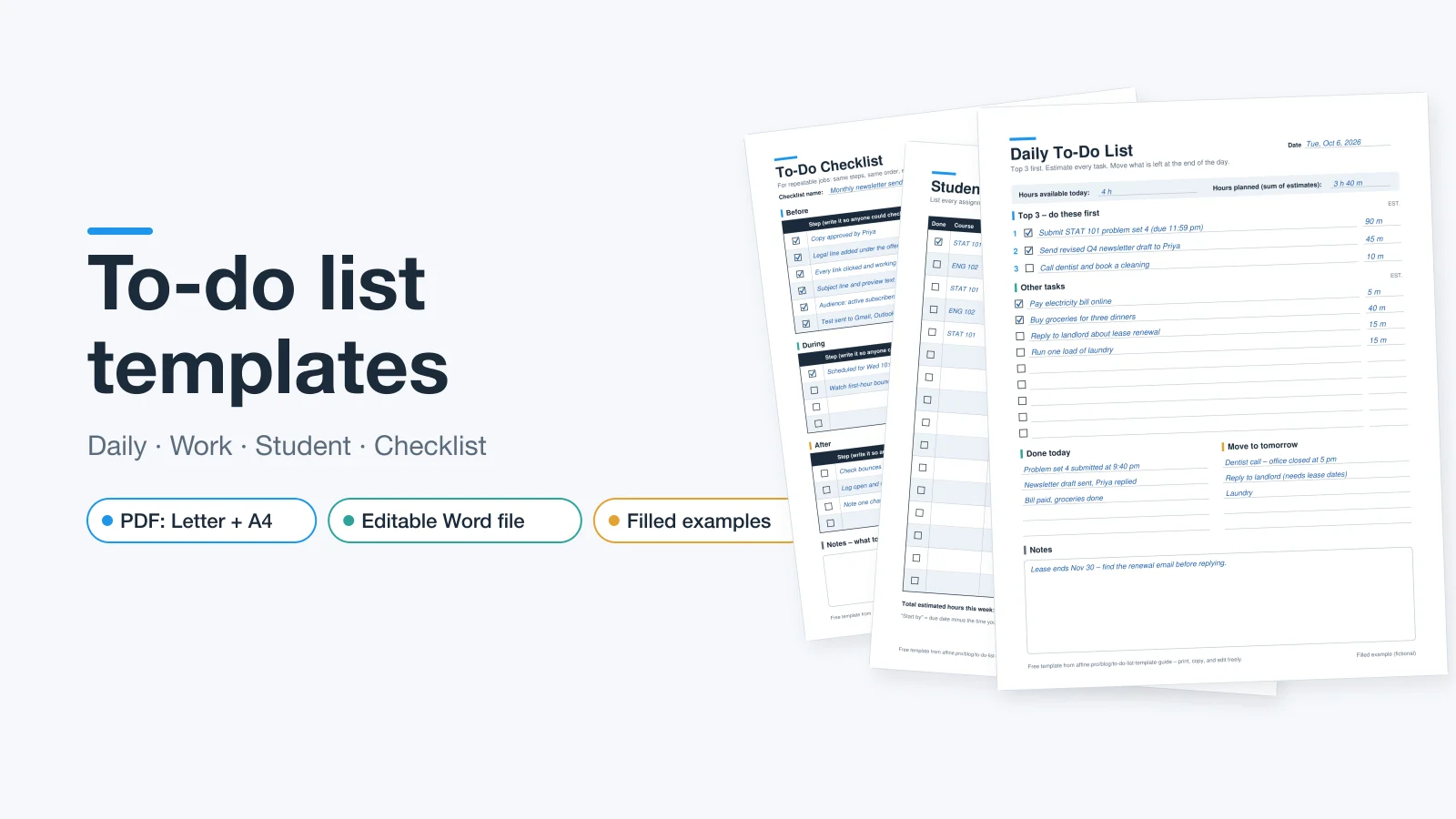
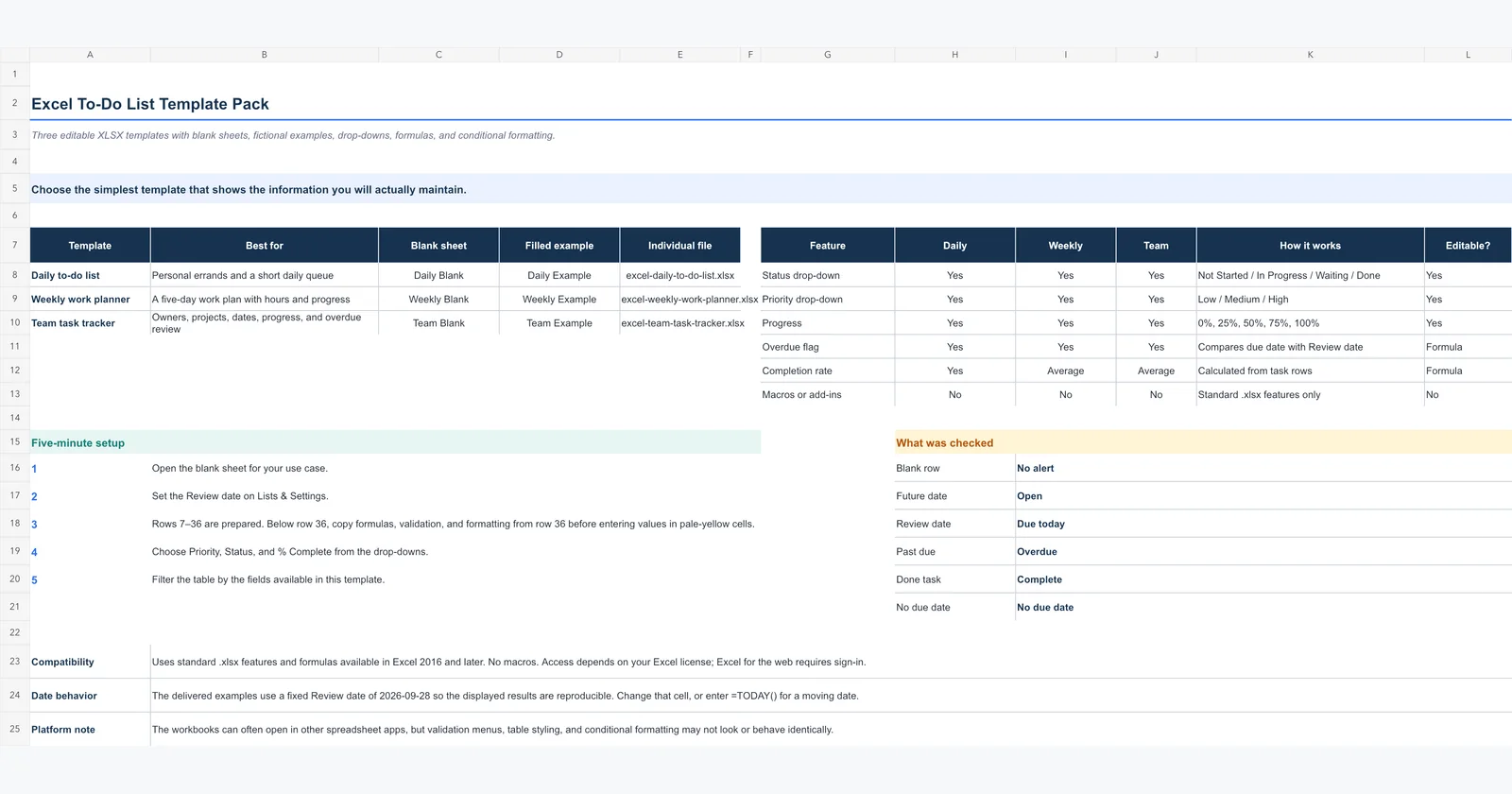
Download the blank Markdown worksheet to keep an editable text copy. It contains headings and checkboxes, with no automatic reminders or scheduling. For a formatted printable or editable Word file, use the free to-do list templates. For columns and spreadsheet filtering, see the Excel to-do list templates.
Keep your daily list and notes together in AFFiNE
If your tasks need supporting notes, use an AFFiNE document for the categorized list and the details you need to act. Put Work, Home, and Personal under separate headings, write checklists below them, and keep today's selection near the top. This is a suggested manual layout, not a claim that the app automatically sorts or schedules your tasks.
The daily planner provides a starting point for priorities, a schedule, and notes. Adapt its task area to your categories, then review the plan when your commitments change. If you only need a short checklist, paper or a plain document can be enough.
Fix the problems that make categorized lists hard to use
| What you notice | What to change |
|---|---|
| You hesitate between two categories every time | Write a short rule for each, or combine the overlapping groups |
| A category has many vague project names | Replace each name with its next action; keep the project as context |
| Everything is marked urgent | Check actual deadlines and consequences, then order tasks across categories |
| The same task appears in several places | Keep one main record; use a note, label, or reference for other attributes |
| The daily list keeps growing | Recheck the time available before accepting another commitment for today |
| Blocked tasks keep returning unfinished | Record who or what you are waiting for, plus your next follow-up date |
| A category is always empty | Remove it until you have a reason to review it separately |
At the end of the week, look through the master list as well as today's page. Check the categories you tend to skip, clear outdated reminders, and choose what needs attention next. A tidy daily page is only useful if important work has not disappeared into an unreviewed list.
Frequently asked questions
What are good daily to-do list categories?
Work, Home, and Personal are a simple starting set. Add groups such as Learning, Family, or Money admin when reviewing them separately helps. The example table above offers options; it is not a requirement to create eight lists.
How many categories should a to-do list have?
Use enough to find tasks without making filing them a chore. Try a small set first and review it after using it. If two groups always overlap, merge them. If one group hides an area you repeatedly forget to check, consider splitting it.
Should “urgent” and “waiting” be categories?
They work better as separate attributes when your main categories are life areas. Urgent describes priority; waiting describes status. A Work task can be both. A dedicated waiting-for list can still help, provided you keep the original task's context and a follow-up date.
What if a task belongs to more than one category?
Choose its main responsibility as its home. For example, a client invoice belongs to Work. Record “email” or a due date beside it if those details help you act. Avoid making several independently maintained copies of the task.
Should work and personal tasks share one list?
They can if it is a private list you control. Keep them in separate systems when workplace rules, account ownership, or sharing would expose personal information. Category labels alone do not provide access control.
Do I need to finish something in every category each day?
No. Choose today's tasks by commitments, available time, and what you can act on. Review other categories regularly, but leave work that does not fit today on the master list rather than assigning yourself a quota in every area.
Sources and editorial notes
This guide uses the David Allen Company's explanation of GTD for the distinction between capturing, clarifying, organizing, and reviewing tasks. Asana's to-do list guidance also recommends actionable task wording and separating larger goals from individual tasks.
The category menu, worksheet, diagrams, and time-budget example were created for this article. They are practical suggestions, not a tested productivity intervention or a universal category system. The example is fictional, the hero is an AI-generated conceptual illustration, and none of the visuals are product screenshots. The refresh used AI-assisted research and drafting with source checks; no personal product trial is claimed.