
Digital Calendar Planner Templates: 4 Free PDFs + Setup Guide
A useful digital calendar planner template gives you somewhere to put dates, commitments, and the work between them. Start with a monthly calendar for deadlines, a weekly planner for priorities, a daily sheet for time blocks, or a work schedule for shifts. Download the four free PDFs below, or choose a linked AFFiNE template for editable planning.
A template provides the layout; the app determines whether you can edit, share, receive reminders, or sync events. A PDF calendar, a spreadsheet, and a calendar app can look similar while behaving very differently.
Choose and download a calendar planner template
All four downloads are original, undated A4 landscape worksheets. No account is needed to download them. Print at “Fit to page,” or import them into a PDF annotation app and write over the page. They are static PDFs, without interactive form fields, automatic dates, or notifications. The previews below show the actual downloads.
| Template | Choose it when you need to… | Free PDF | Editable AFFiNE alternative |
|---|---|---|---|
| Monthly calendar | See deadlines, appointments, and milestones together | Download monthly calendar | Monthly Planner |
| Weekly planner | Balance fixed commitments with flexible tasks | Download weekly planner | Weekly Schedule & To-Do List |
| Daily time blocks | Assign a start, end, and expected result to each work session | Download daily planner | Hourly Planner |
| Work schedule | Record who covers each shift and what needs a handoff | Download work schedule | Work Planner |
Quick choice: If you are unsure, start with the weekly planner. Add a monthly page when you need a longer view, and use a daily page only on days that need more detail. The AFFiNE alternatives are separate workspace templates, not editable versions of these PDF files.
1. Monthly calendar template: see dates before adding tasks
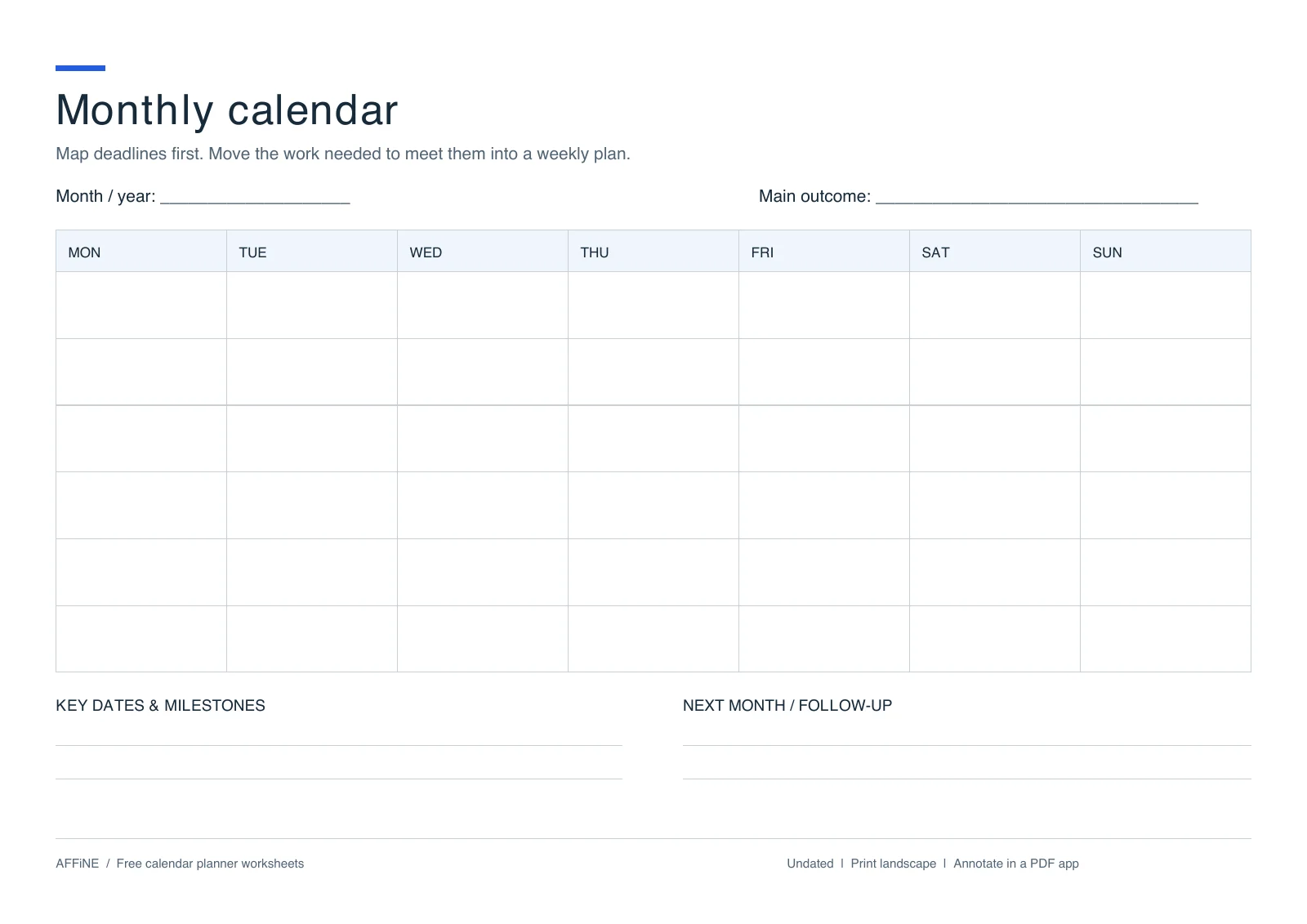
Preview of the downloadable monthly calendar worksheet.
Use this layout for project milestones, exams, appointments, or family plans. Its six-row grid accommodates months that span six calendar weeks. Fill in the month and year, place day 1 under the correct weekday, and number the remaining days. Leave unused cells blank. Because it is undated, you can reuse it in 2026, 2027, or a later year.
Keep each calendar entry short: “Proposal due, 4 pm” is easier to scan than a whole project checklist. Put the work required to meet that deadline into the weekly planner. Record preparation dates as well as the final deadline: a Friday presentation may need a Wednesday draft and a Thursday rehearsal.
Before using it: Confirm the weekday of the first date and add holidays relevant to your location. This worksheet does not calculate dates or include country-specific holidays.
Download the monthly calendar PDF, or use the Monthly Planner in AFFiNE for a planning document with goals and notes. For other layouts, see our printable monthly calendar template guide.
2. Weekly planner template: separate appointments from next actions
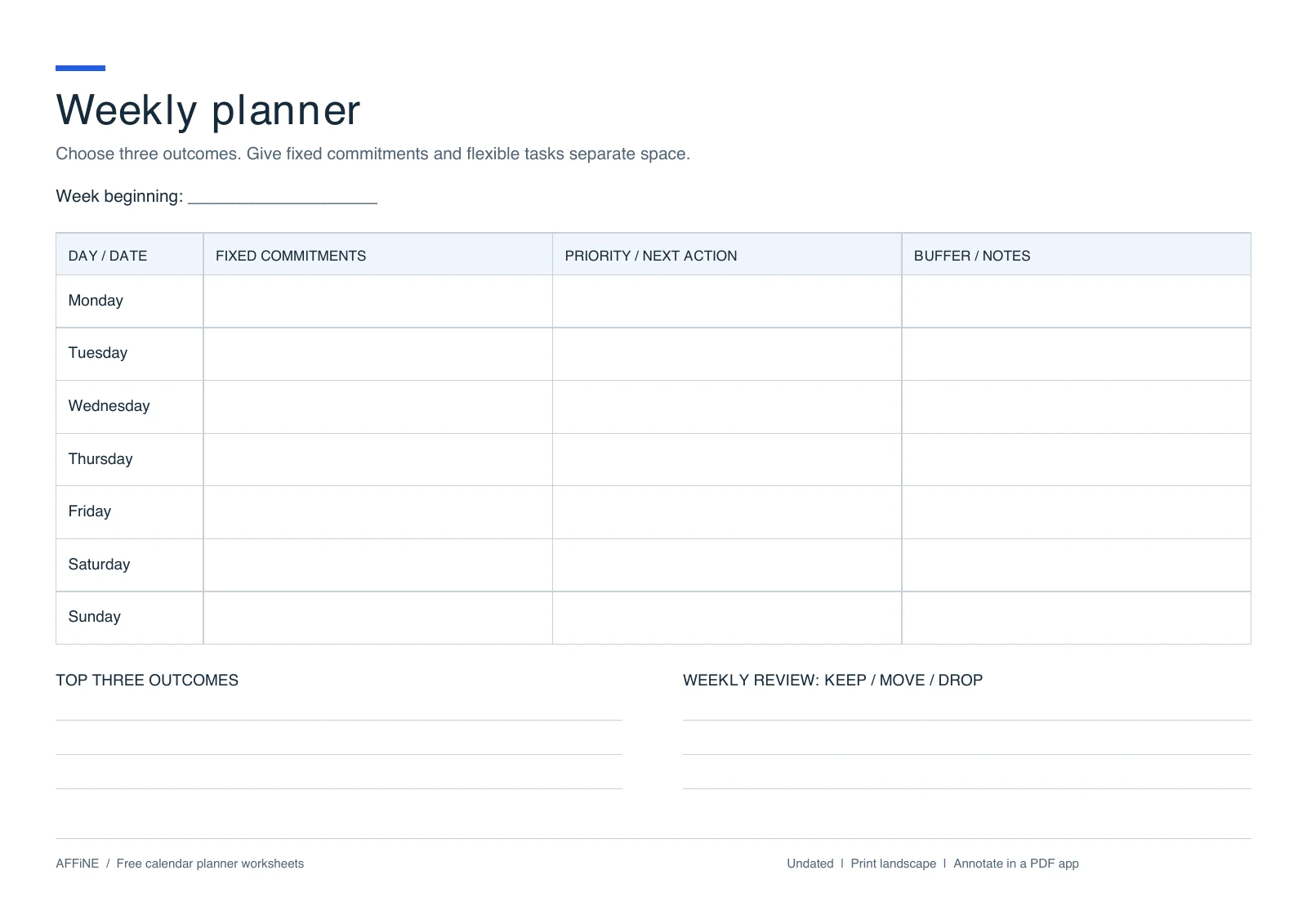
Preview of the downloadable weekly planner worksheet.
A weekly view helps you spot overloaded days before they happen. Write fixed commitments first, then decide which tasks fit around them. The separate “Buffer / notes” column is a reminder to leave capacity for travel, overruns, or work that arrives during the week.
For example, “Tuesday, 10–11 am: client call” belongs in fixed commitments. “Send revised estimate” belongs in the priority column. If the call runs late, move the estimate deliberately instead of leaving it on an increasingly unrealistic list.
At the end of the week, mark each unfinished task keep, move, or drop. A task moved repeatedly may need to become smaller, receive a real deadline, or leave the plan. The template gives that review a visible place rather than hiding it in yesterday’s page.
Download the weekly planner PDF, or open the Weekly Schedule & To-Do List template to combine your schedule with editable tasks in AFFiNE.
3. Daily planner template: turn tasks into time blocks
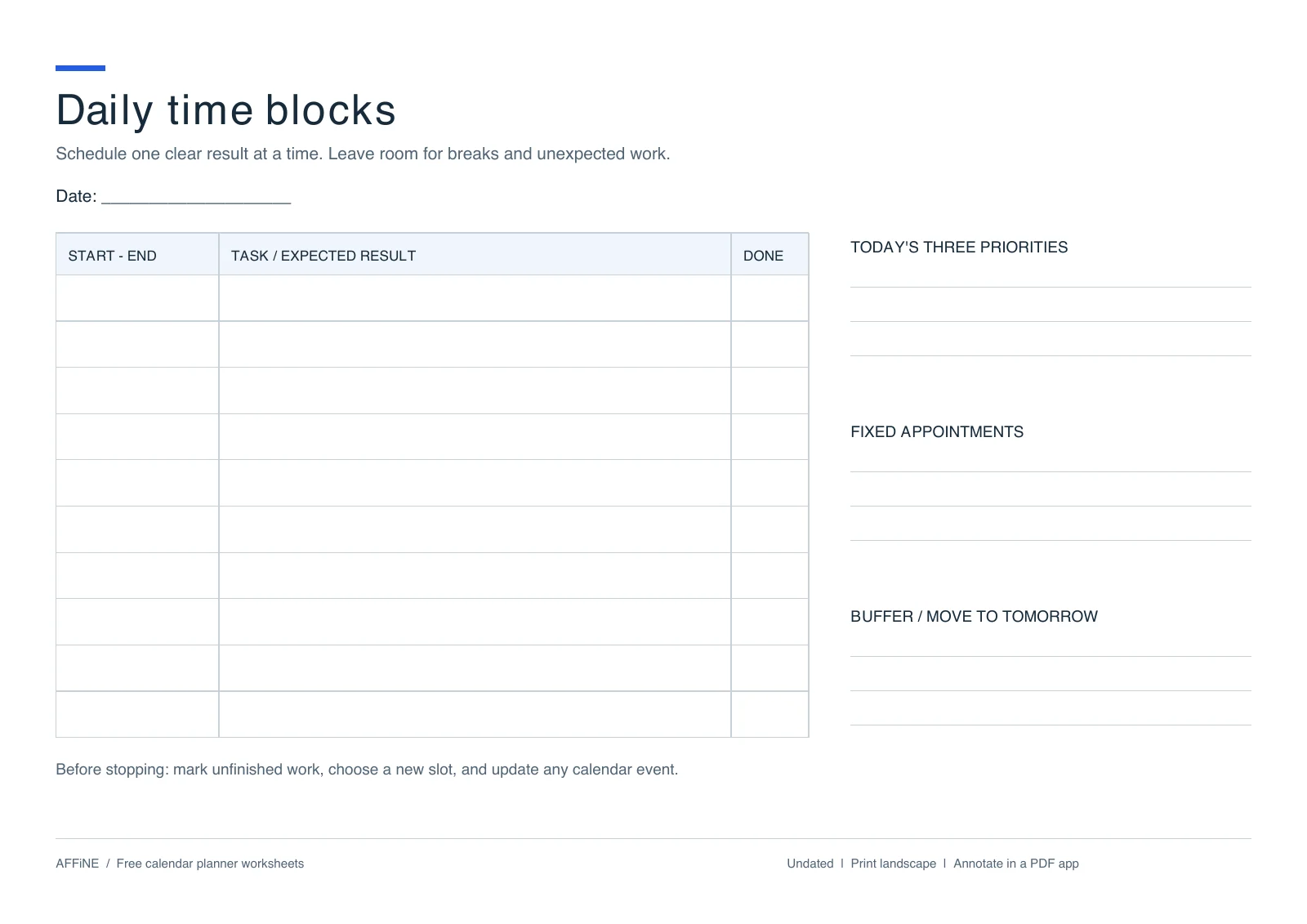
Preview of the downloadable daily time-blocking worksheet.
Choose this page when a task list alone does not tell you what to do next. Each row has a start and end time, an expected result, and a completion column. The time fields are blank, so you can plan an early shift, an evening study session, or an ordinary workday without changing the layout.
A practical example:
| Time | Expected result |
|---|---|
| 09:00–09:15 | Review commitments and choose today’s three priorities |
| 09:15–10:15 | Draft the proposal outline |
| 10:15–10:30 | Break and buffer |
| 10:30–11:00 | Client call; record decisions |
| 11:00–11:30 | Revise the estimate and send the next-step summary |
This is an illustrative schedule, not a tested productivity prescription. Start with estimates, then compare them with how long your own work takes. Include breaks and fixed appointments before filling every remaining slot.
Download the daily time-blocking PDF, explore the Hourly Planner, or follow our time-blocking template guide for more scheduling approaches.
4. Work schedule template: make coverage and handoffs visible
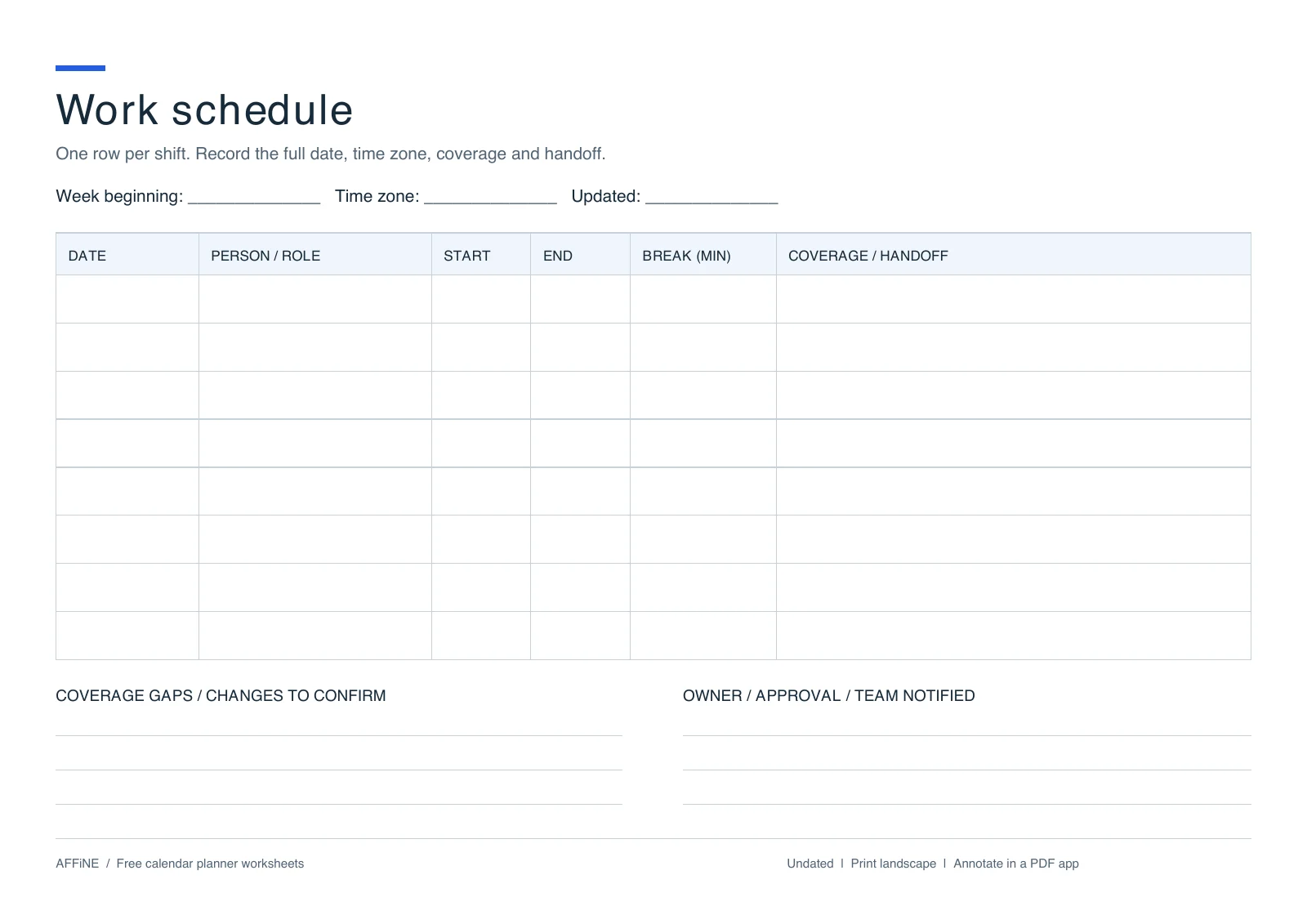
Preview of the downloadable work schedule worksheet.
A personal planner asks, “What will I work on?” A team work schedule also asks, “Who is available, and who takes over?” Use one row per shift, include the full date, and put the shared time zone at the top. Record a new row when one person has two separate shifts.
Here is a filled example you can copy into a document or spreadsheet:
| Date | Person / role | Start | End | Break (min) | Coverage / handoff |
|---|---|---|---|---|---|
| 2026-10-05 | Alex / support | 09:00 | 17:00 | 30 | Inbox; hand off open tickets at 16:45 |
| 2026-10-05 | Sam / support | 12:00 | 20:00 | 30 | Cover Alex’s break; take evening queue |
| 2026-10-06 | Alex / support | 09:00 | 17:00 | 30 | Review overnight tickets first |
Example time zone: Europe/London. Names and shifts are illustrative.
Before sharing, check for uncovered hours, overlapping assignments, and changes that the affected person has not acknowledged. For an overnight shift, write the end date as well as the time. Add another worksheet when you need more rows; do not squeeze several people’s shifts into one unreadable cell.
This PDF records the schedule but does not calculate hours, approve leave, or notify staff. If those are required, use a spreadsheet with checked formulas or a scheduling application. For additional formats, see our weekly work schedule templates.
Download the work schedule PDF, or use the AFFiNE Work Planner for work priorities and supporting notes. That workspace template serves a different purpose from an automated staff roster.
PDF, Google Sheets, Excel, or a calendar app?
Choose the format based on the action you need to perform, not just the appearance of its calendar grid.
| Format | Good fit | Editing and sharing | Reminders and synchronization |
|---|---|---|---|
| PDF worksheet | Handwriting, printing, a stable page layout | Annotate in a compatible app; share a copy | These PDFs have neither event reminders nor calendar sync |
| Excel or Google Sheets | Repeated rows, formulas, filtering, hour totals | Edit cells; sharing depends on the app and permissions | A calendar-looking sheet is not automatically a calendar integration |
| Google Calendar or another calendar app | Appointments, recurring events, time zones | Create events and configure calendar access | Use the app’s event notifications and supported sync settings |
| AFFiNE planning document | Tasks alongside notes, goals, and project context | Start from a workspace template and edit the content | This guide uses a manual handoff to a separate calendar for event alerts |
If you specifically want a spreadsheet, Vertex42’s calendar collection includes Excel and Google Sheets options. Microsoft’s scheduling templates offer another starting point for Excel. Check each template’s file format and instructions before assuming that dates or totals update automatically.
For tablet handwriting, import a PDF into a compatible note-taking app. A hyperlinked planner adds links between pages; it does not gain live calendar synchronization just because those links exist. Goodnotes’ documentation explains that navigation links must already exist in an imported PDF. Our single-page worksheets do not need a linked page index.
Set up a planner and calendar that stay consistent
Use the planner to decide what needs doing, and the calendar to reserve time for commitments. This five-step setup avoids maintaining two conflicting schedules:
- Choose the home for each kind of information. Keep appointment times in your calendar and task details in your planner. When an appointment changes, update the calendar first.
- Enter fixed commitments. Add meetings, classes, shifts, travel, and appointments before estimating the time available for flexible work.
- Break deadlines into next actions. Turn “finish report” into research, outline, draft, and review. Put each action on a day with enough capacity.
- Create calendar events where alerts matter. Copy the relevant date and time into your calendar, check the time zone, and configure its notification. Link to the planning document if useful; a pasted link does not establish synchronization.
- Review and reconcile changes. Compare the next week with your planner. Move unfinished tasks, remove obsolete events, and tell collaborators when a shared commitment changes.
If you have a compatible event file, Google Calendar supports ICS and CSV imports on a computer through Settings → Import & export. A PDF cannot be imported as calendar events through that flow. Google also states that imported events do not stay synchronized with the source and that guest and conference information is not imported. Follow the official Google Calendar import instructions and test a small batch before importing a large schedule.
For AFFiNE, start with the template that matches your planning horizon, then add the notes, checklists, and project context you actually need. Keep event alerts in your chosen calendar for the manual workflow described here. Browse the digital planner template collection if you need a study, budget, or goal-specific layout.
Editorial note: This guide is published by AFFiNE. The four downloadable worksheets were created for this article; their previews are renders of those files. The hero is an AI-generated conceptual illustration. The scheduling examples are illustrative, not product screenshots or results from a comparative product test. Format guidance was checked against the linked publisher documentation for this September 2026 update.
Frequently asked questions
What is a digital calendar planner template?
A digital calendar planner template is a reusable layout for dates, commitments, tasks, and notes. It can be a PDF, spreadsheet, or editable document. The template supplies structure; the application determines whether it supports collaboration, calculations, notifications, or calendar synchronization. A calendar-shaped page does not guarantee those features.
Where can I get free digital calendar planner templates?
This guide includes four free PDF downloads: a monthly calendar, weekly planner, daily time-blocking sheet, and work schedule. No account is needed to download the PDFs. The linked AFFiNE templates provide separate editable planning options, while Vertex42 and Microsoft offer spreadsheet alternatives.
Can I use these templates in Google Calendar?
The PDF worksheets cannot be imported as Google Calendar events. Enter important commitments manually, or import a compatible ICS or CSV event file using Google Calendar on a computer. File import is a one-time transfer and does not keep your planner and calendar synchronized.
Does using an AFFiNE planner automatically sync with Google Calendar?
Using one of the AFFiNE planning templates linked here does not by itself set up a Google Calendar connection. This guide describes a manual workflow: maintain tasks and notes in your planner, create the corresponding calendar events, and update both when a scheduled commitment changes.
Can I use the PDF planners in Goodnotes or offline?
You can import the worksheets into a PDF-compatible annotation app, including Goodnotes, to write on them, or print them. Download the files before going offline. The PDFs contain static pages, not interactive form fields; app-specific editing, cloud access, and synchronization depend on your software and settings.
Should I choose a daily, weekly, or monthly planner?
Choose a monthly planner for deadlines and milestones, a weekly planner for balancing commitments and tasks, and a daily planner for timed work sessions. Use a work schedule when coverage depends on who is on shift. Start with one main view and add another only when it solves a specific planning problem.
Will these undated templates work in 2027?
Yes. Fill in the dates for the month, week, or day you need. The monthly grid has six rows to accommodate different month layouts. Check where the first day falls and add your local holidays manually; the PDFs do not generate dates automatically.
![8 Best Free Printable Monthly Calendar Templates 2026 [Editable]](/og.jpeg)