8 Monthly Calendar Templates: Free & Editable Options
Disclosure: AFFiNE publishes this article, and AFFiNE is one of the tools it covers. How we review products
A monthly calendar template gives you one place to see appointments, deadlines, and events before the month gets crowded. For a free printable option you can use immediately, download this blank monthly calendar PDF. For changes before printing, choose a Word or Excel template; for goals and supporting notes, use an editable workspace planner.
The eight options below cover those different needs. A free PDF download, an editable document, and an online planning board have different limits—especially around accounts, watermarks, and reminders.
Compare eight monthly calendar templates
Quick choice: Start with the blank PDF for handwriting, CalendarLabs or Smartsheet for editable office files, and AFFiNE for monthly goals alongside notes. Check the “Access and limits” column before choosing.
| Template | Best fit | Format and customization | Access and limits |
|---|---|---|---|
| AFFiNE blank monthly worksheet | A printable month at a glance | Undated A4 landscape PDF; Monday-first grid | Free direct download; no account; static, not fillable |
| AFFiNE Monthly Planner | Goals, important dates, and reflection | Editable AFFiNE workspace template | Open through the template gallery; workspace setup applies |
| CalendarLabs | Dated calendars with holiday options | Word, Excel, and PDF options; formats vary by design | Free downloads; retain the publisher’s copyright notice |
| Smartsheet template collection | Blank grids, school plans, and work schedules | Word, Excel, PDF, and selected Google formats | Free downloadable files; Smartsheet app access is separate |
| CalendarsQuick Classic Monthly | A customized printout | PDF with paper-size and week-start choices | Free sample months; other date ranges may require a subscription |
| OnPlanners Monthly Calendar | Planner inserts and page-size choices | Configurable PDF layout | Free non-editable version has a watermark; editable, watermark-free version is paid |
| Cheqmark monthly templates | Checklist-style monthly tracking | Browser-based customization and printable layouts | Advertised free templates; check the chosen template’s account/download flow |
| Lucidspark Monthly Calendar | A visual planning board for a team | Editable online board with movable notes | Available to all Lucid plan types; account and plan limits apply |
Publisher pages reviewed October 12, 2026. This is a format-and-use-case comparison, not a hands-on performance ranking. Download availability and plan limits can change. AFFiNE publishes this guide and provides the first two options.
What is a monthly calendar template?
A monthly calendar template is a reusable layout that arranges one month into weekday columns and dated or blank cells. It helps you place appointments, deadlines, and events in context. Some layouts add notes, goals, or checklists; the file format determines whether you can edit the layout, annotate it, or only print it.
A monthly calendar emphasizes when something happens. A monthly planner adds what you want to accomplish and the next actions required. Neither a paper grid nor a static PDF creates automatic event notifications. Use a calendar application when a missed reminder would matter.
1. AFFiNE blank monthly calendar PDF: print and start planning
Download the free monthly calendar PDF. It is an undated, one-page A4 landscape worksheet with seven weekday columns, six calendar rows, and space for key dates and follow-up notes. No account is needed for the download.
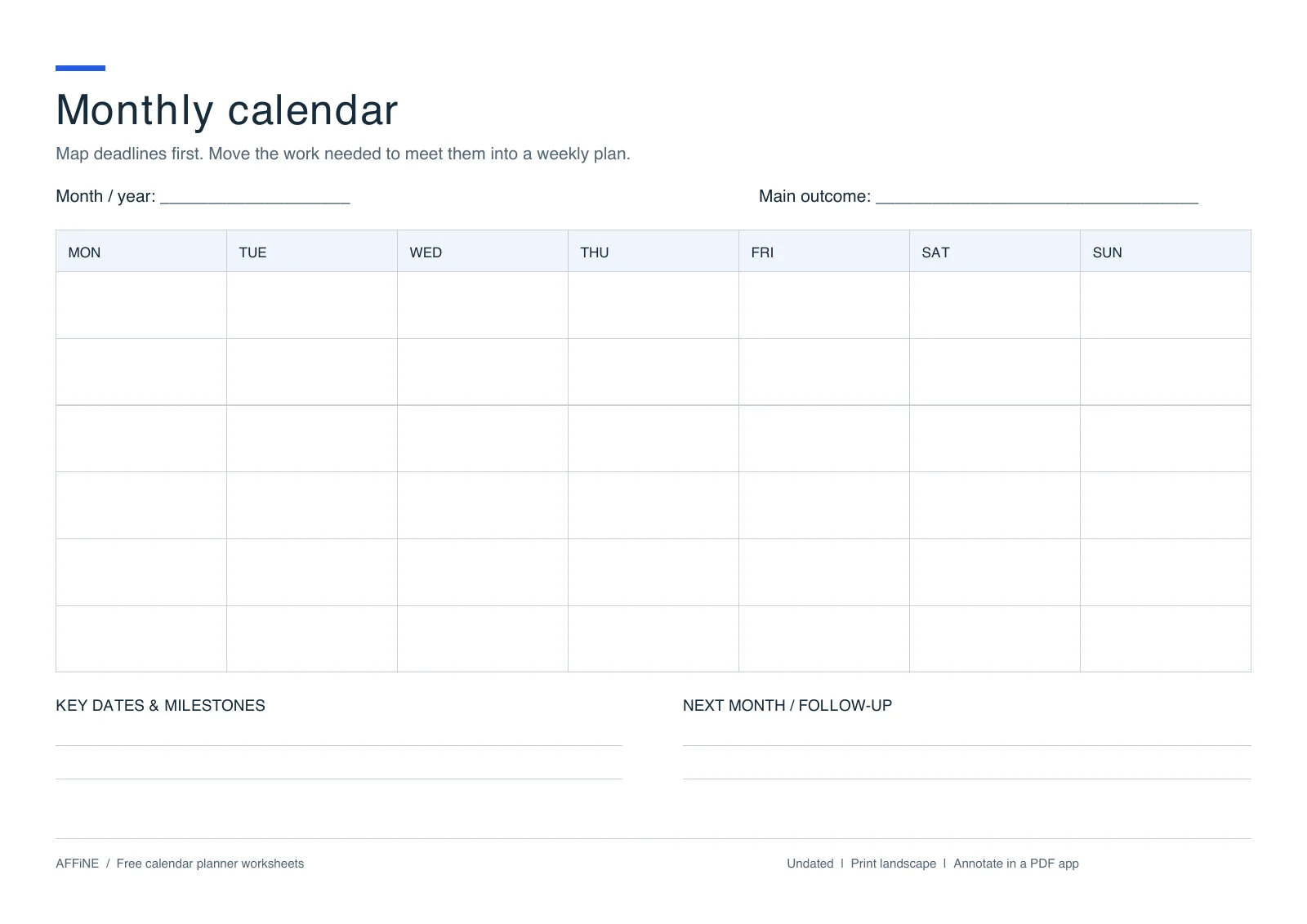
Actual preview of the linked PDF, also available in our calendar planner collection.
Write the month and year, find the weekday of day 1, and then number the cells. The six rows leave room for months that span six calendar weeks. Because the worksheet is undated, you can reuse it next month or next year without downloading a new design.
Choose it for: a desk calendar, a family noticeboard, or handwritten deadline planning. Know its limit: this is a static PDF without fillable form fields, automatic dates, or built-in holidays. You can write on paper or annotate it in a compatible PDF app.
Need a weekly or daily page beside it? The digital calendar planner template collection includes those separate downloads.
2. AFFiNE Monthly Planner: connect dates with goals and notes
The AFFiNE Monthly Planner combines a monthly overview with goals, important dates, and reflection. Choose it when your calendar entries need context: a project deadline may need research notes, or a study milestone may need a task list.
Open the gallery preview, then use the template in your workspace. Replace example content and check any dates before planning. This is a separate editable workspace template, not an editable copy of the PDF above.
Keep time-sensitive appointments in your calendar app and supporting material in your planner. This workflow uses a manual handoff; it does not assume automatic calendar synchronization or event reminders. For more visual planning approaches, see our whiteboard calendar guide.
3. CalendarLabs: editable monthly calendars with holiday choices
CalendarLabs’ monthly calendar collection offers downloadable Word, Excel, and PDF options across its designs. It is a useful starting point if you want a dated calendar and the ability to change text before printing.
Choose the year, layout, and file format first. Check the holiday country rather than assuming every template matches your location: the collection includes US holidays and links to other country calendars. Keep the publisher’s copyright text when printing copies.
For a reusable grid instead of a dated year, its blank monthly calendar collection includes undated options. A Word file supports layout edits; a PDF is generally the simpler choice when you only need a consistent printout.
4. Smartsheet: blank grids, school calendars, and work schedules
Smartsheet’s free monthly calendar templates include Sunday-first and Monday-first blank grids, dated monthly layouts, school calendars, and shift calendars. Download formats vary by template, so use the link for the specific Word, Excel, PDF, or Google version you need.
The blank Monday-first option is available in Excel, Word, and PDF. That makes it a practical choice when different people need the same basic layout in different tools.
The downloadable files and the Smartsheet application are separate offerings. Downloading a spreadsheet does not include the app’s automation or collaboration features. If you need staffing coverage as well as a month view, compare the weekly work schedule templates.
5. CalendarsQuick: customize a monthly PDF before printing
CalendarsQuick’s Classic Monthly calendar lets you choose settings such as Letter or A4 paper, week start, and holidays. It suits readers who want to configure a calendar in the browser and then print a PDF.
Start from its free printable calendar selection to see which sample months are available. Free samples do not mean every date range is free; check access for the month you need before spending time customizing it.
This is particularly useful when the default Sunday-first layout does not match your working week. Preview the downloaded file once more to confirm that the selected month and first weekday are correct.
6. OnPlanners: planner inserts with a clear free-version tradeoff
The OnPlanners Monthly Calendar has controls for dates, week start, format, and page layout, plus a notes area. It is worth considering when the page must fit a particular planner format.
The publisher distinguishes a non-editable version with a watermark from paid upgrades that include an editable, watermark-free PDF. Its download flow may also request an email address. Do not choose it expecting every version to be a free editable file.
If a watermark-free, no-account printout is your priority, use the direct blank PDF in option 1. If a specific insert layout matters more, inspect OnPlanners’ preview and current upgrade terms before downloading.
7. Cheqmark: monthly checklists and progress tracking
Cheqmark’s monthly template collection emphasizes browser customization, printable layouts, and checklist-style tracking. It is a useful alternative when the question is “Did I do this?” rather than “What time is this appointment?”
The collection includes monthly checklists and goal trackers. Pick the layout that matches your task: a tracker with daily checkboxes and a conventional seven-column calendar solve different problems. The publisher advertises free templates, but inspect the selected template’s download and account steps before relying on a particular export format.
For example, track whether you completed a reading session in a checklist, while keeping the library visit itself on the calendar.
8. Lucidspark: a shared visual monthly planning board
The former Lucidchart monthly-calendar link now leads to Lucidspark’s Monthly Calendar template. The current page lists it for all Lucid plan types and describes an online board for events, tasks, and movable notes.
Choose it when several people need to discuss and rearrange a month together. Use labels as well as colors so a colleague can identify the owner of each note without relying on color alone.
This is an account-based planning board, not an unrestricted PDF download. Check your plan’s sharing and export options before choosing it for a printed handout. The publisher updates the template monthly; verify the displayed month when opening it.
How to choose a printable or editable monthly calendar
Start with the changes you need to make, then choose the format. “Editable” can mean editing cells, changing the page design, or simply writing over a PDF; those are different capabilities.
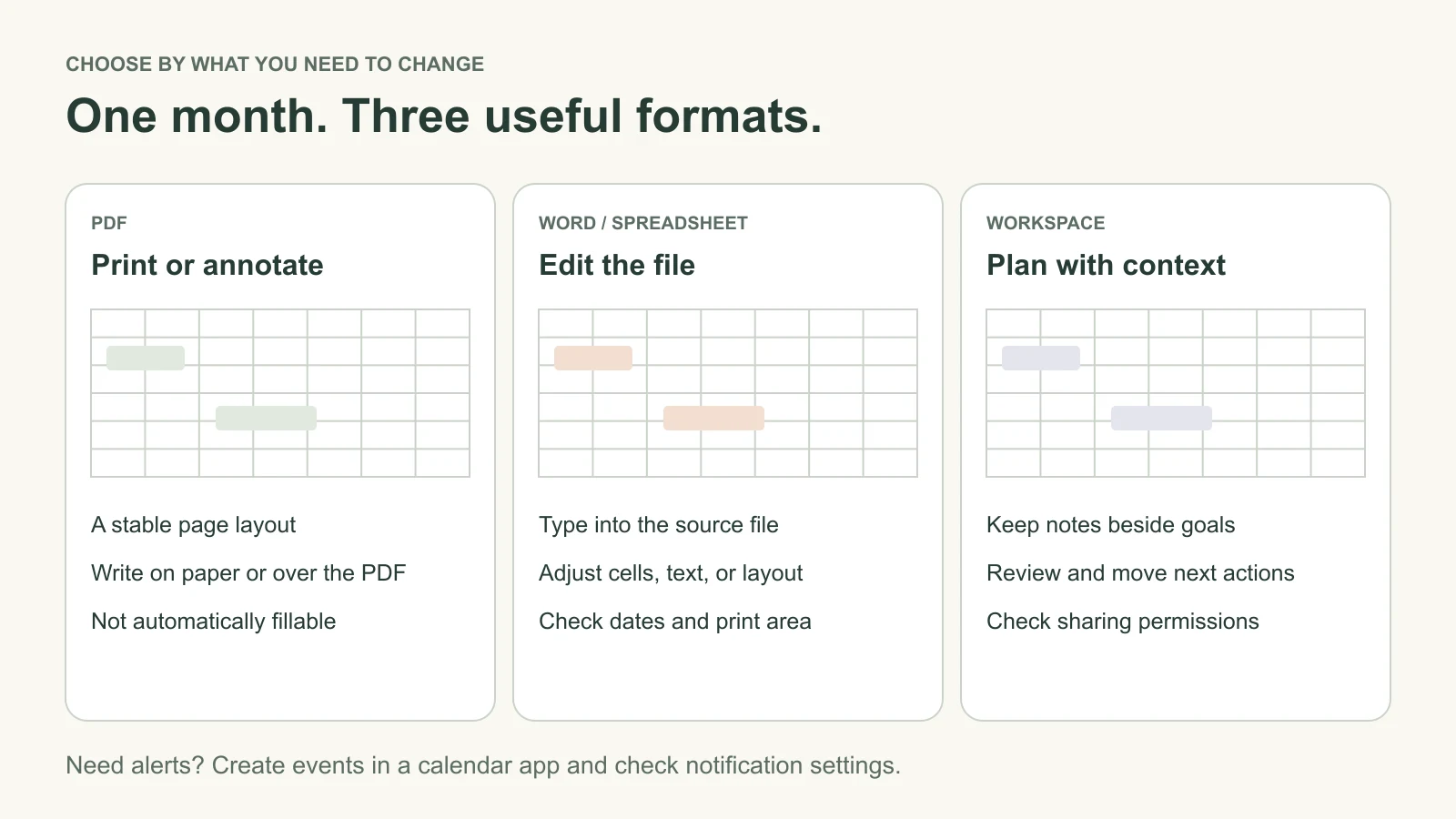
Format guide, not product screenshots. Check each file’s capabilities before downloading.
| Your requirement | Look for | Check before using |
|---|---|---|
| Print and write by hand | A simple PDF with spacious day cells | Paper size, margins, and readable lines |
| Type events before printing | Word, Excel, Google Docs, or Google Sheets | Whether the specific file supports the edits you need |
| Reuse the same page every month | An undated grid with six rows | Correct weekday for day 1 and the month’s final date |
| Coordinate a team | A shared document or planning board | Access permissions, ownership, and how changes are communicated |
| Receive appointment alerts | A calendar app with event notifications | Notification settings and the correct time zone |
Choose Monday-first when you want the workweek grouped together and Sunday-first when that matches your existing calendars. For family planning, use a short owner label beside each event. For students, keep assignment deadlines on the monthly view and break the work into a study planner. For publishing schedules, use a dedicated content calendar template with draft and publication stages.
How to customize and print your monthly calendar
- Choose the month and week start. For an undated grid, place day 1 under its actual weekday. Count through the last date and leave unused cells blank.
- Add fixed commitments first. Enter appointments, classes, deadlines, and travel before adding flexible tasks. Include a time zone when people in different locations will read the page.
- Keep entries short and labeled. Use “Sam: presentation, 2 pm” rather than an unexplained colored mark. Move detailed checklists into a separate note.
- Match the paper and orientation. Choose A4 or US Letter to match the file. Use landscape for a wide grid; preserve the orientation of a portrait template.
- Preview one page before printing the batch. Check for cut-off borders, tiny text, and an unexpected second page. Try “Fit to page” if content is clipped; test at actual size when the file must fit a planner insert.
- Check dates and add reminders separately. Confirm local holidays and school closures, then create calendar-app events for appointments that need alerts. Review the printed page when plans change.
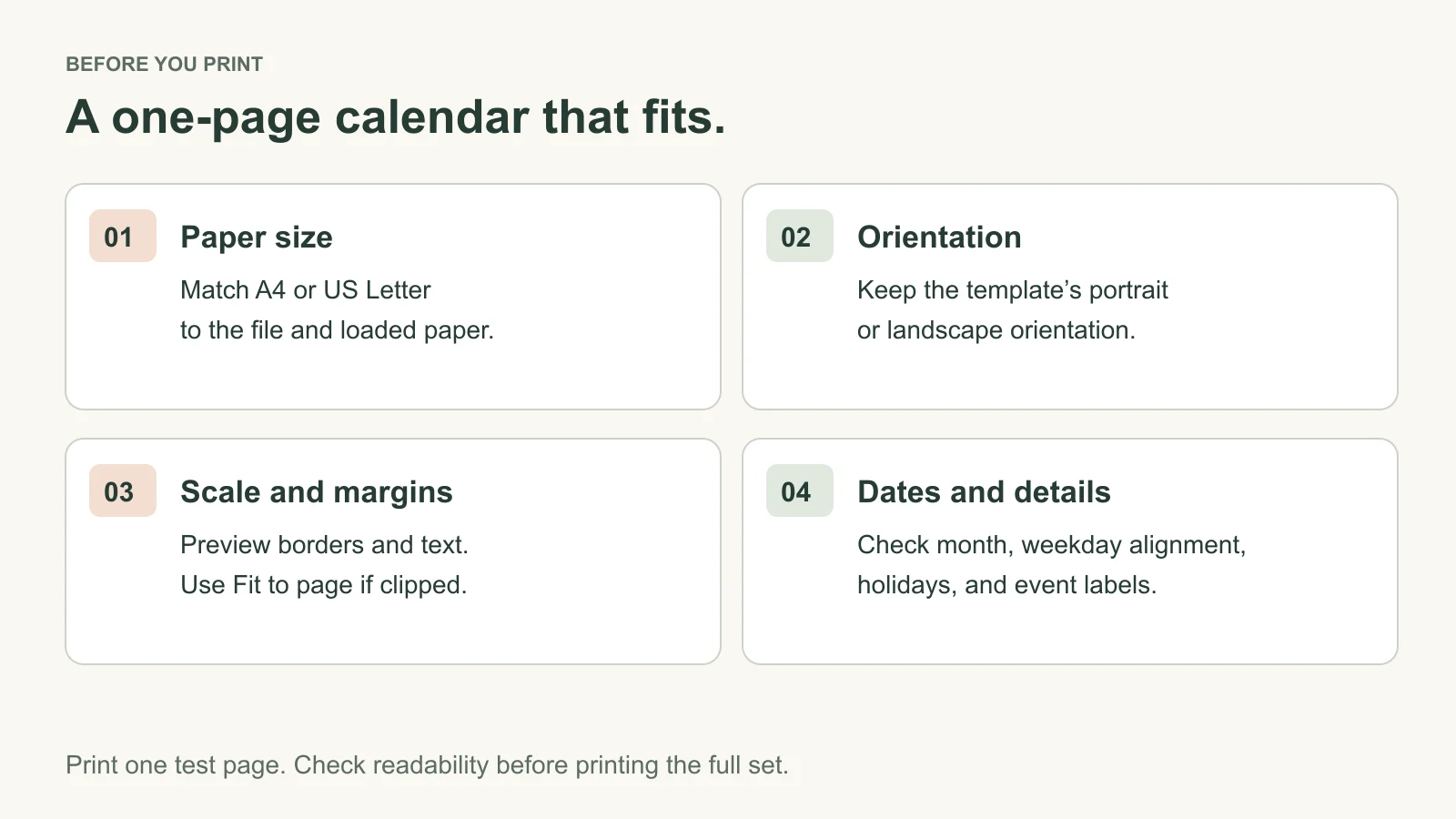
Print one test page before producing a full year or a set for your team.
A filled monthly calendar example
Here is an illustrative October 2026 plan with a Monday-first layout. October 1 falls on Thursday. The examples show how a deadline can lead to preparation dates without turning every cell into a long task list.
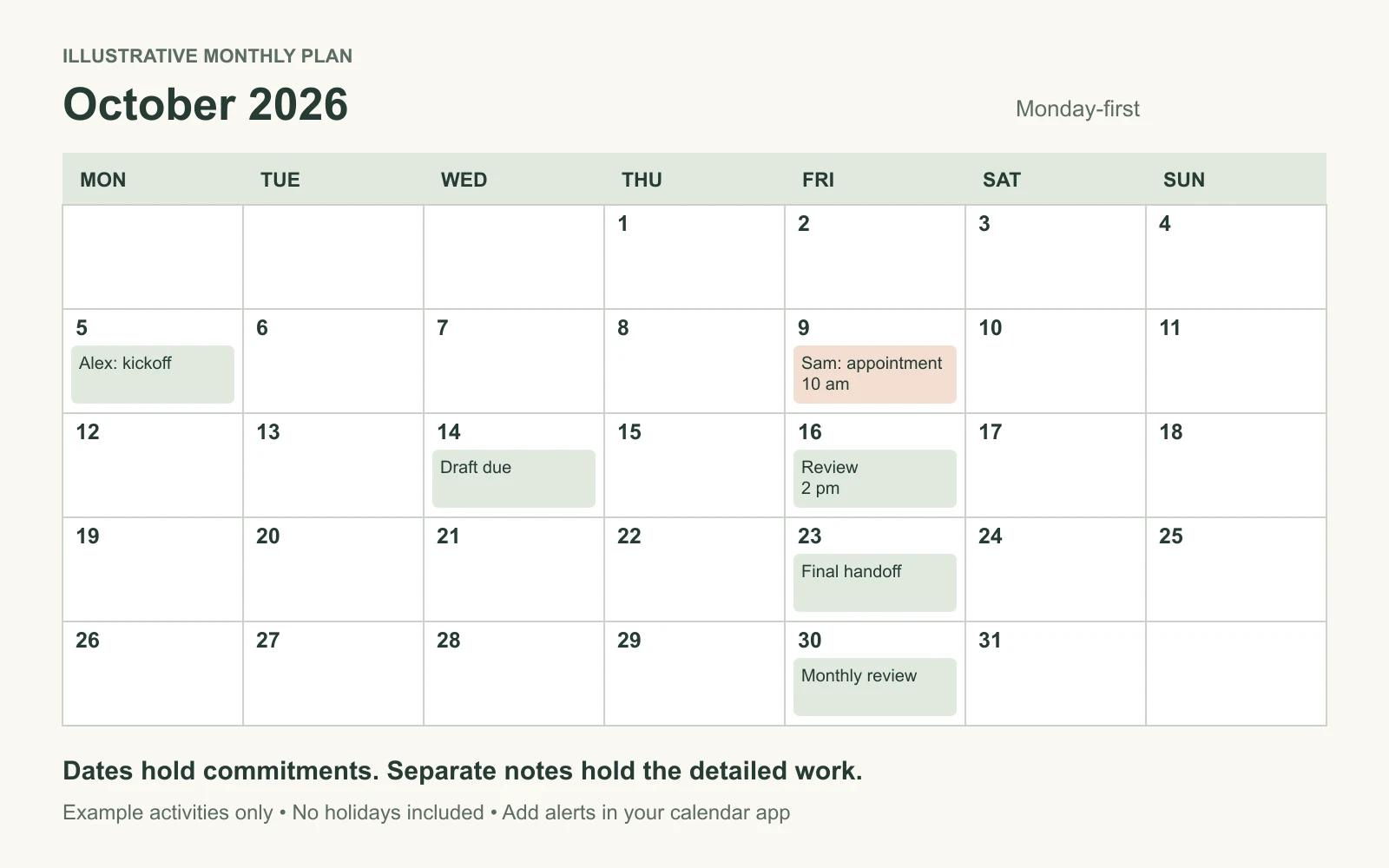
Original example layout, not an AFFiNE application screenshot. Names and activities are illustrative.
| Date | Calendar entry | Supporting action |
|---|---|---|
| October 5 | Alex: project kickoff | Keep the agenda and decisions in a project note |
| October 9 | Sam: appointment, 10 am | Set an event reminder in the calendar app |
| October 14 | Draft due | Schedule research and writing earlier in the week |
| October 16 | Review, 2 pm | Link the draft and record requested changes |
| October 23 | Final handoff | Confirm the recipient and remaining tasks |
| October 30 | Monthly review | Move, finish, or drop outstanding work |
The calendar shows the commitment; the planner holds the detail. When the final handoff moves, check the preparation dates too. For help assigning those preparation sessions, use our time-blocking template guide.
FAQ: monthly calendar templates
Where can I download a free printable monthly calendar without an account?
The blank monthly calendar PDF linked in this guide downloads directly without an account. It is an undated A4 landscape worksheet with a Monday-first grid. Add your own dates and holidays; it does not contain fillable fields or automatic reminders.
What is the difference between a blank and an undated monthly calendar?
“Blank” may mean that event spaces are empty even though dates are already printed. “Undated” means you supply the month and day numbers yourself. Check the preview: an undated six-row grid can accommodate any month when you place day 1 under the correct weekday.
Can I edit a monthly calendar in Word, Excel, or Google Sheets?
Yes, if you choose a template offered in that format. CalendarLabs and Smartsheet link to editable office files, and some Smartsheet options support Google formats. A PDF is not automatically editable: annotation adds writing over a page, while a fillable PDF needs interactive fields.
How do I print a monthly calendar on one page?
Match the file’s paper size and orientation in your print settings, then inspect the preview. Use “Fit to page” if borders are clipped, and print one test sheet. If you are printing from a spreadsheet, set the print area and check the one-page scaling before printing.
Can I reuse these monthly calendars in 2027 or another year?
You can reuse the undated worksheet by entering the new month, year, and correctly aligned dates. For dated templates, download or generate the correct year. Changing only the year label does not update weekday alignment, leap-year dates, or holidays.
Are all eight options completely free and editable?
No. The direct PDF is free but static; some other options provide editable files or a free online starting point. OnPlanners’ free version has a watermark and is non-editable, CalendarsQuick limits free sample months, and online boards have account or plan limits. Use the comparison table to choose the right option.
Will a printable calendar send reminders or sync with Google Calendar?
The static PDF in this guide cannot send reminders or sync events. A calendar-shaped document or board does not establish a calendar integration by itself. Put time-sensitive commitments in a calendar app and keep your planning notes alongside them; see our Google Calendar sharing guide when other people need access.
Start with the format you will actually use
Download the blank monthly PDF for a paper-first plan, or open the AFFiNE Monthly Planner to keep goals and notes with your monthly overview. Add fixed commitments, leave room for changes, and check the plan each week.