10 Best Work Schedule Apps in 2026, Compared by Use Case
Disclosure: AFFiNE publishes this article, and AFFiNE is one of the tools it covers. How we review products
What changed (Nov 14, 2026): Added a screenshot of each of the ten apps, captured on its official product page on November 14, 2026 (AFFiNE from its web app), and noted the screenshots in the methodology. Prices, rankings and recommendations did not change.
A work schedule app can mean three very different things: a calendar for meetings, a shift scheduler for hourly staff, or a planning workspace where tasks, notes, deadlines, and project context live together. Treating those as the same category is how teams end up paying for software that looks impressive but does not solve the scheduling problem they actually have.
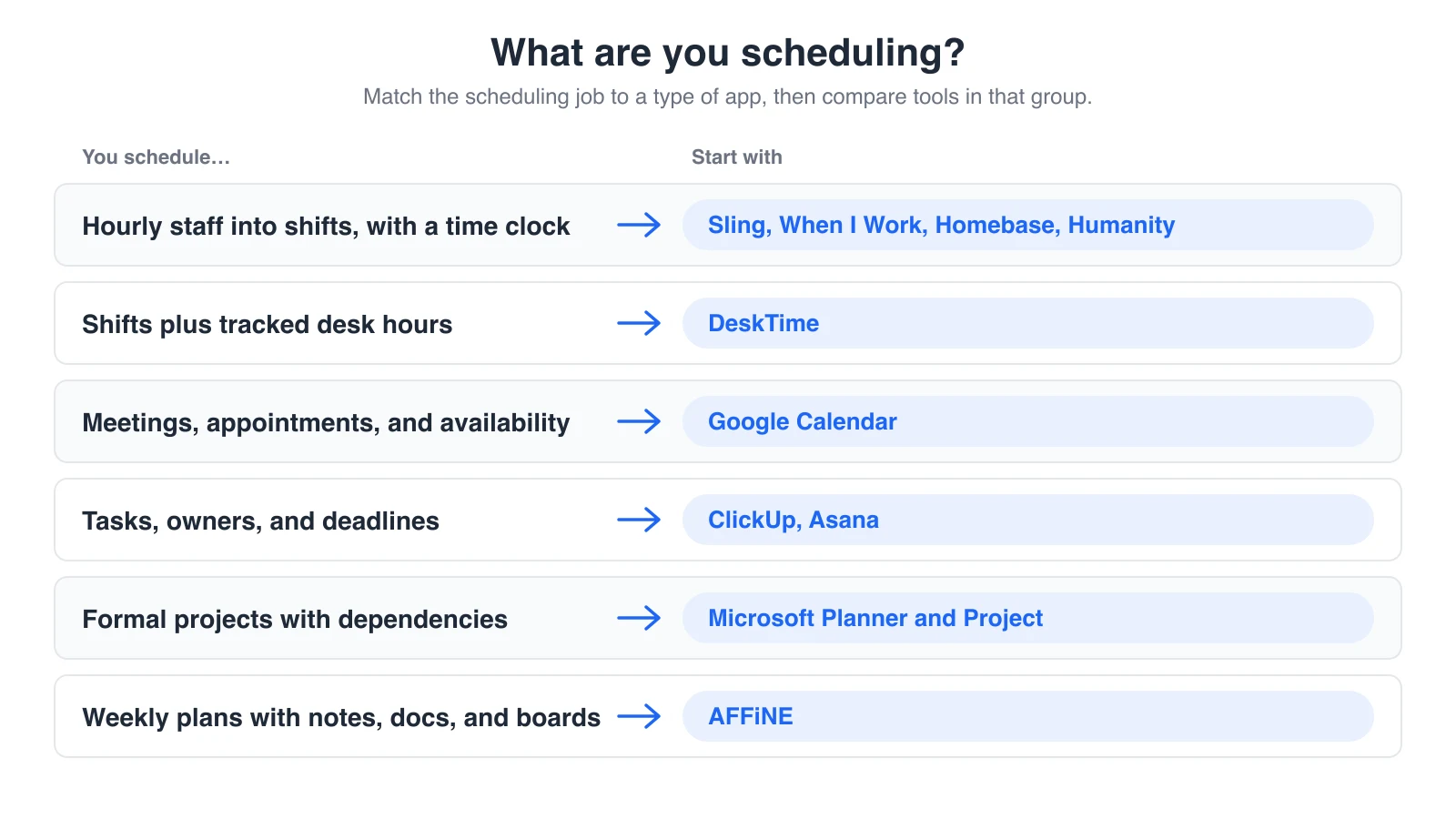
Short answer: if you schedule hourly staff into shifts, start with Sling, When I Work, Homebase, or Humanity. If your team works on computers and you want shift schedules and tracked work hours in one system, look at DeskTime. If you mostly need shared availability, Google Calendar may be enough. If the schedule is made of tasks and projects, compare ClickUp, Asana, and Microsoft Planner. If you want weekly plans connected to notes, docs, whiteboards, and project decisions, AFFiNE can hold that planning layer next to your scheduler.
This guide was refreshed on November 5, 2026. We rechecked every app's official product and pricing pages, replaced one pick, and updated the Microsoft entry after Project for the web and Project Online were retired. On November 13, 2026, we reordered the list so dedicated shift schedulers come first and moved AFFiNE to the end.
Quick Picks: Best Work Schedule Apps by Need
| Need | Best pick | Why it fits |
|---|---|---|
| Small hourly teams on a budget | Sling | Focuses on employee scheduling, shift communication, and basic time-clock workflows. |
| Hourly teams that want scheduling plus time tracking | When I Work | Combines schedules, time clock, attendance, and team messaging. |
| Small businesses that want scheduling plus payroll workflows | Homebase | Pairs scheduling and time clocks with payroll, hiring, and HR-adjacent tools. |
| Complex employee shift coverage | Humanity | Built around structured workforce scheduling and coverage planning. |
| Shift scheduling for computer-based teams | DeskTime | Combines shift planning, absence management, and automatic time tracking. |
| Simple shared calendars and meeting availability | Google Calendar | Fast, familiar, and easy to share across individuals and teams. |
| Project schedules, dashboards, and task timelines | ClickUp | Turns tasks, due dates, calendars, and dashboards into a scheduling system. |
| Cross-functional campaign or launch calendars | Asana | Strong for ownership, dependencies, and project calendar coordination. |
| Formal Gantt and resource scheduling | Microsoft Planner and Project | Best when project scheduling needs timelines, resource planning, and portfolio reporting. |
| Visual weekly planning with notes and project context | AFFiNE | Combines docs, whiteboards, tables, task planning, and templates in one workspace. |
How We Evaluated These Work Schedule Apps
This comparison was last checked on November 5, 2026. For each app we read the official product, pricing, and help pages, noted what each plan includes, and recorded status changes such as acquisitions, renamed products, and retired services. Where a vendor page did not make something clear, such as whether a price assumes annual billing, we say so instead of guessing. Prices change often, so treat the pricing table below as a starting point and confirm on the vendor's page before you buy.
We did not run paid trials of every app, and we do not publish scores. Each app section includes a screenshot of the vendor's official product page, captured on November 14, 2026, so you can see the scheduling interface before you sign up; the AFFiNE screenshot is from the AFFiNE web app. The list is organized by scheduling job, because a restaurant rota, a support desk's shift plan, and a product launch calendar need different tools.
The scoring lens was practical:
- Scheduling model: Does the app handle calendars, shifts, tracked hours, tasks, projects, or several of these?
- Change handling: Can users move work around when priorities, staffing, or deadlines shift?
- Collaboration: Can the team discuss the schedule where the work is planned?
- Context: Can notes, files, decisions, and project details live near the schedule?
- Integrations: Does the app connect to calendars, payroll, messaging, or project management tools?
- Trust and data control: Does the app make privacy, access, and ownership clear, especially when it tracks employees?
- Switching cost: Is the app lightweight enough for the team that will actually use it?
AFFiNE publishes this blog and makes AFFiNE. We list it last because it is a planning workspace, not a shift scheduler, and we list the jobs it does not do in its own section.
What to Look for in a Work Schedule App
Before choosing software, define the job you are hiring it to do.
If you run a restaurant, clinic, retail team, or field-service crew, you probably need shift coverage, availability, time clocks, break rules, and payroll handoff. A visual planner alone will not replace a workforce scheduling system.
If your team works at computers across time zones, such as an agency, a software team, or a support desk, you may need shift schedules and a record of the hours actually worked, so clients can be billed and coverage gaps show up early. Our guide to time management software covers tools that focus on the tracking side.
If you manage projects, content calendars, research, product launches, or weekly execution plans, the schedule is only part of the system. You also need context: why the work matters, what decisions were made, where the files are, and which tasks are blocked. In that case, a planning workspace or project management app can be more useful than a pure shift scheduler.
For most teams, the decision comes down to five questions:
- Do we schedule people, work, or both?
- Do we need to record the hours people actually work?
- Do we need payroll or time-clock workflows?
- Do we need visual planning and project context?
- Will the team keep using this after the first week?
Pricing and Free Plans at a Glance
| App | Free plan | Paid plans start at (as listed) | What to check |
|---|---|---|---|
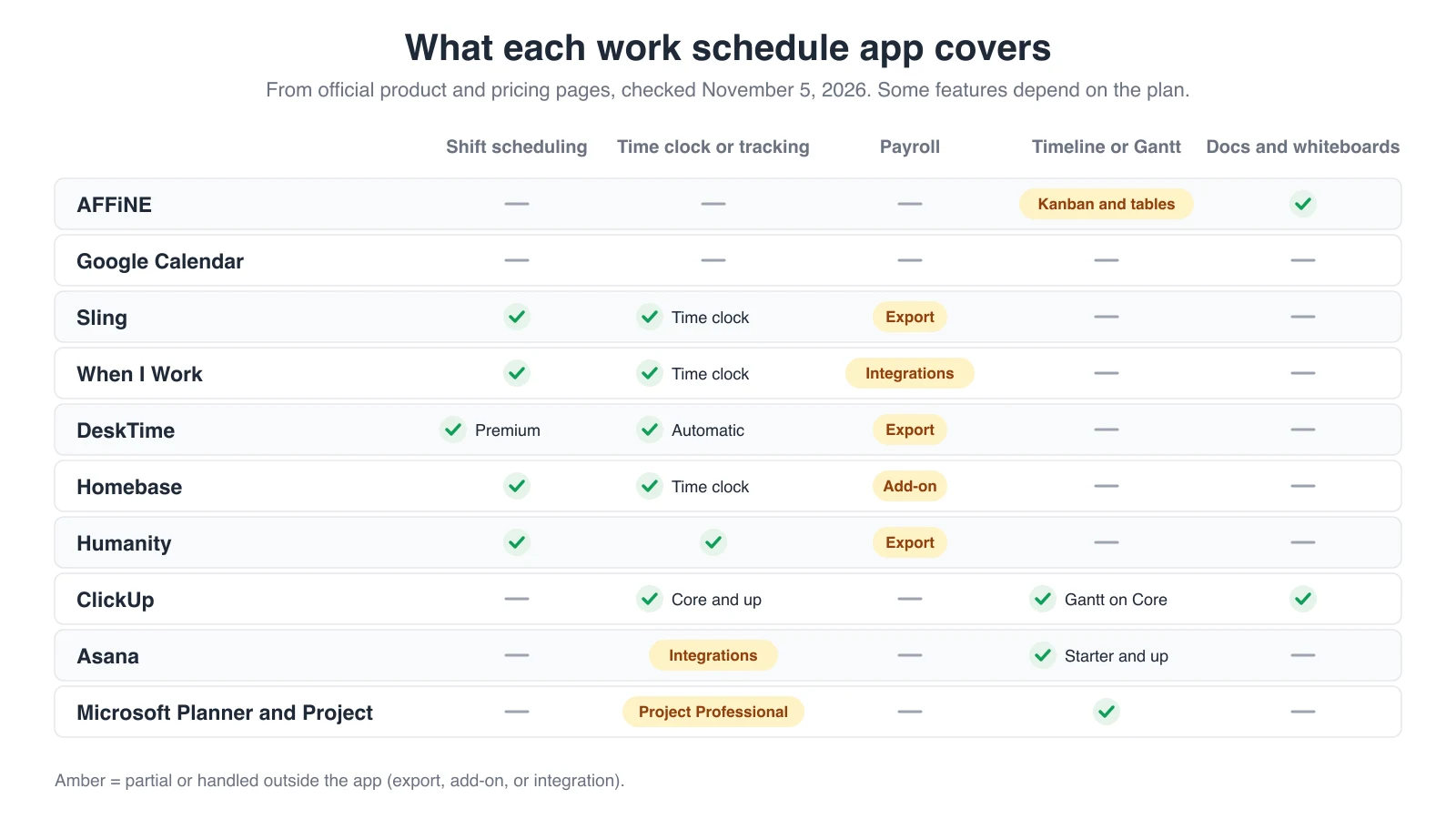
| Sling | Yes, for up to 30 users | Premium from $1.70 per user/month billed annually ($2.00 monthly) | Some time-clock features are on Business |
| When I Work | No; 14-day free trial | $2.50 per user/month for a single location or schedule | Multiple locations cost more |
| Homebase | Yes, for 1 location and up to 10 employees | Essentials from $30 per location/month | Payroll is an add-on with a base fee plus a per-employee fee |
| Humanity | No; 30-day free trial | Essentials from $2.75 per employee/month billed annually | Auto-scheduling is on Professional |
| DeskTime | No; 14-day free trial | Pro from $6.42 per user/month billed annually | Shift scheduling and screenshots are listed with Premium ($9.17) |
| Google Calendar | Yes, with a Google account, including one booking page | Premium appointment features need Google Workspace Business Standard or higher | Booking pages are created in a web browser |
| ClickUp | Yes, Free Forever | Core from $9 per user/month billed yearly | Gantt is a trial on Free; Timeline and Workload start on Business |
| Asana | Yes | Starter from $10.99 per user/month billed annually ($13.49 monthly) | Timeline and Gantt views start on Starter |
| Microsoft Planner and Project | Basic Planner comes with Microsoft 365 business plans | Planner Plan 1 from $10 per user/month paid yearly | Critical path, baselines, and Project desktop are in Planner and Project Plan 3 ($30) |
| AFFiNE | Yes. Local workspaces are free; the free cloud plan includes 10 GB of storage and up to 3 members per workspace | Pro from $6.75 per month, billed annually | Team pricing is per seat |
Prices are in US dollars as shown on each vendor's pricing page on November 5, 2026, before tax. "Billed annually" means the vendor listed that billing period next to the price.
The 10 Best Work Schedule Apps in 2026
1. Sling - best for small hourly teams
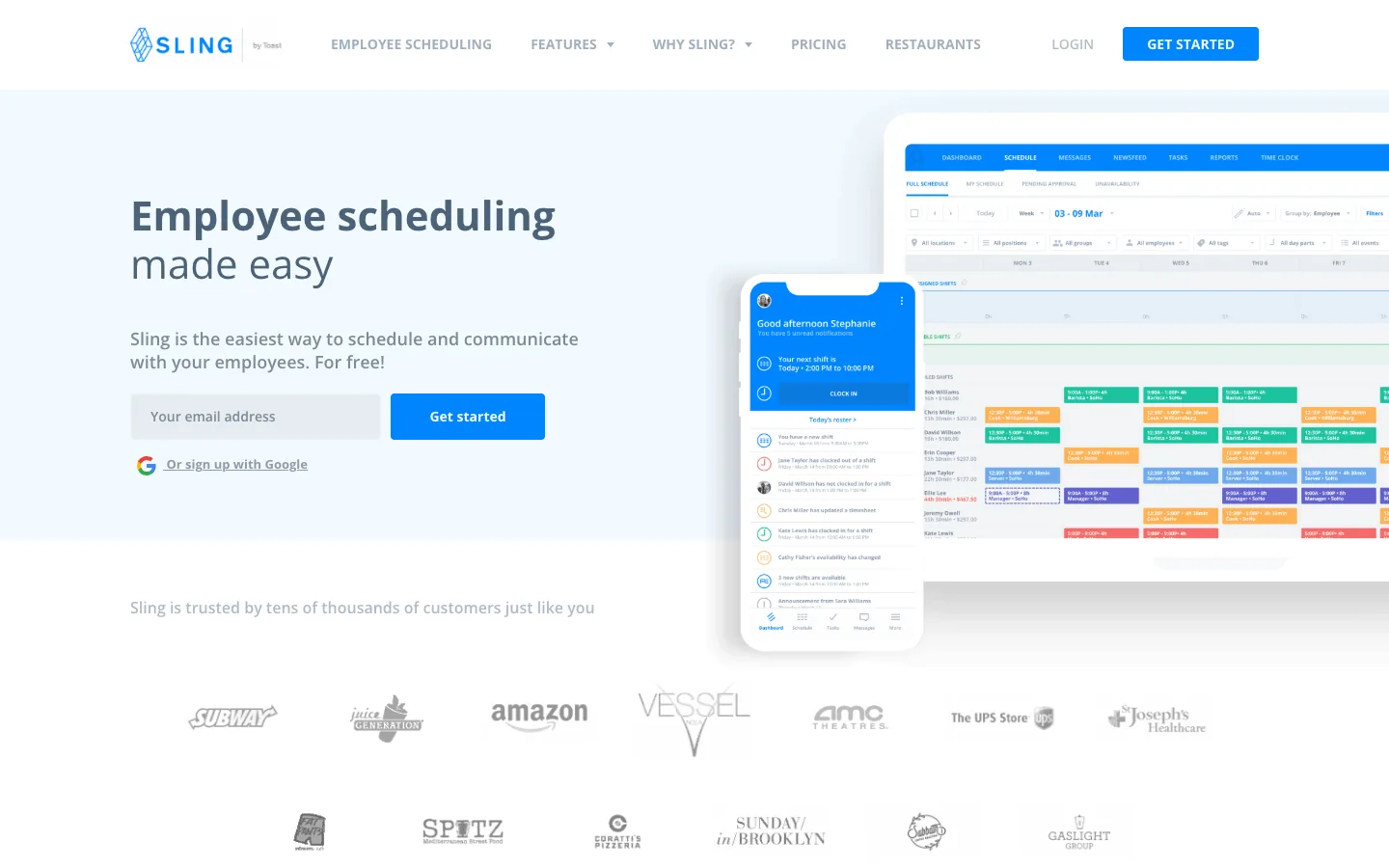
Sling, now branded Sling by Toast, is built for employee scheduling rather than knowledge-work planning. It is a practical option for small businesses that need to create shifts, communicate with staff, and manage time-clock basics without overcomplicating the workflow. Its free plan covers shift scheduling for up to 30 users, which is generous for a small team.
Where it works best
- Restaurants, shops, service teams, and other hourly staff environments.
- Shift planning and schedule publishing.
- Team communication around schedule changes.
- Basic time-clock and labor-cost workflows.
Watch out for
- It is not a replacement for a project planning workspace.
- Payroll is handled through reports and exports rather than built-in payroll.
- If your main problem is project deadlines and knowledge context, Sling is probably too workforce-specific.
Best fit: small hourly teams that need a practical shift scheduler.
2. When I Work - best for scheduling plus time tracking
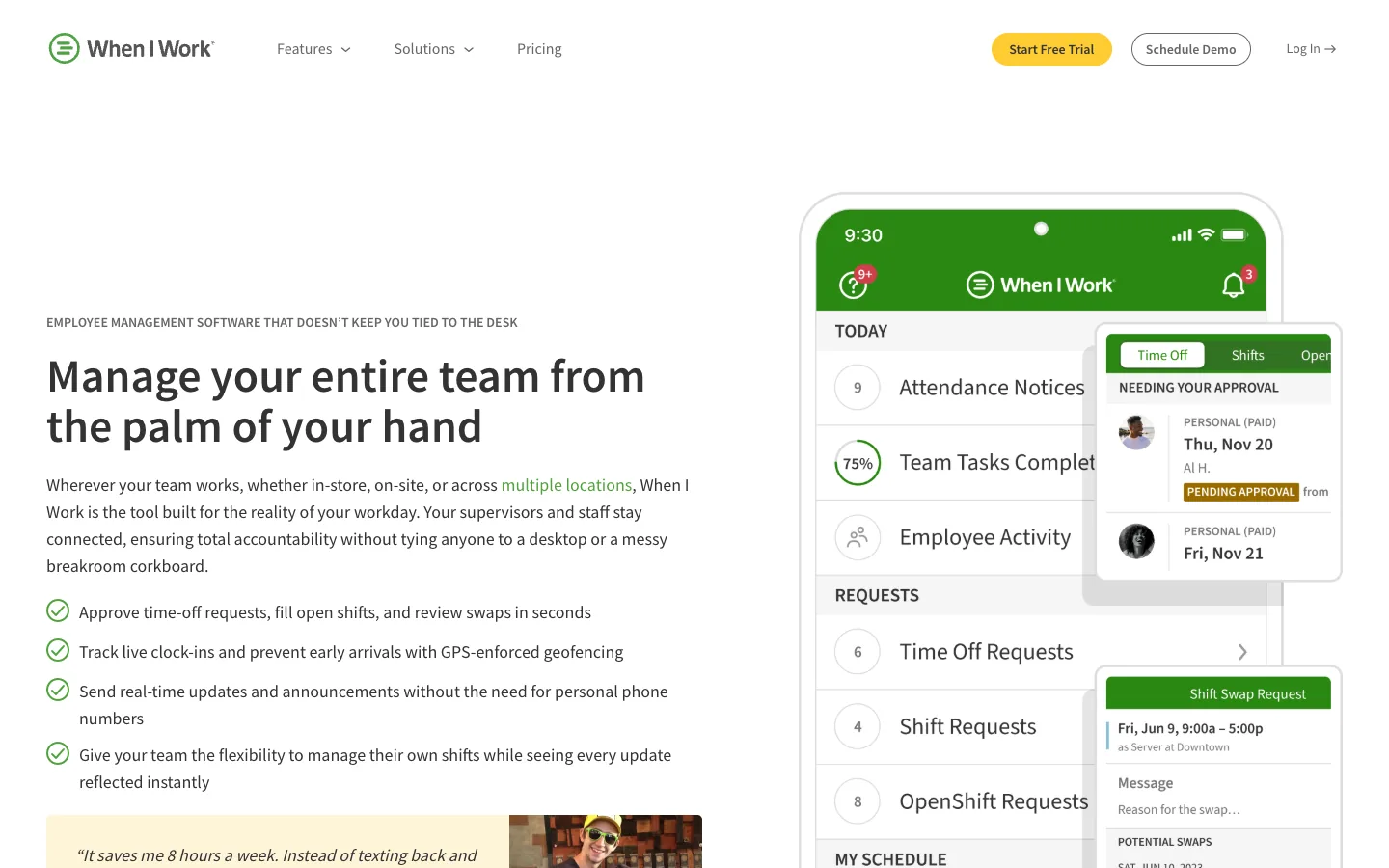
When I Work is another strong choice for hourly teams. It combines employee scheduling, a built-in time clock with GPS and geofencing options, attendance, and team messaging, which makes it more operational than a calendar and more focused than a general project management app.
Where it works best
- Creating and adjusting shifts, including auto scheduling.
- Tracking attendance and work hours.
- Messaging staff about schedule changes.
- Giving employees mobile access to their schedules.
Watch out for
- There is no free plan, only a free trial.
- It is designed for workforce scheduling, not research, documentation, or visual planning.
- Payroll runs through integrations rather than inside the app.
Best fit: hourly teams that want scheduling, time clock, and staff communication in one app.
3. Homebase - best for small business scheduling plus payroll workflows
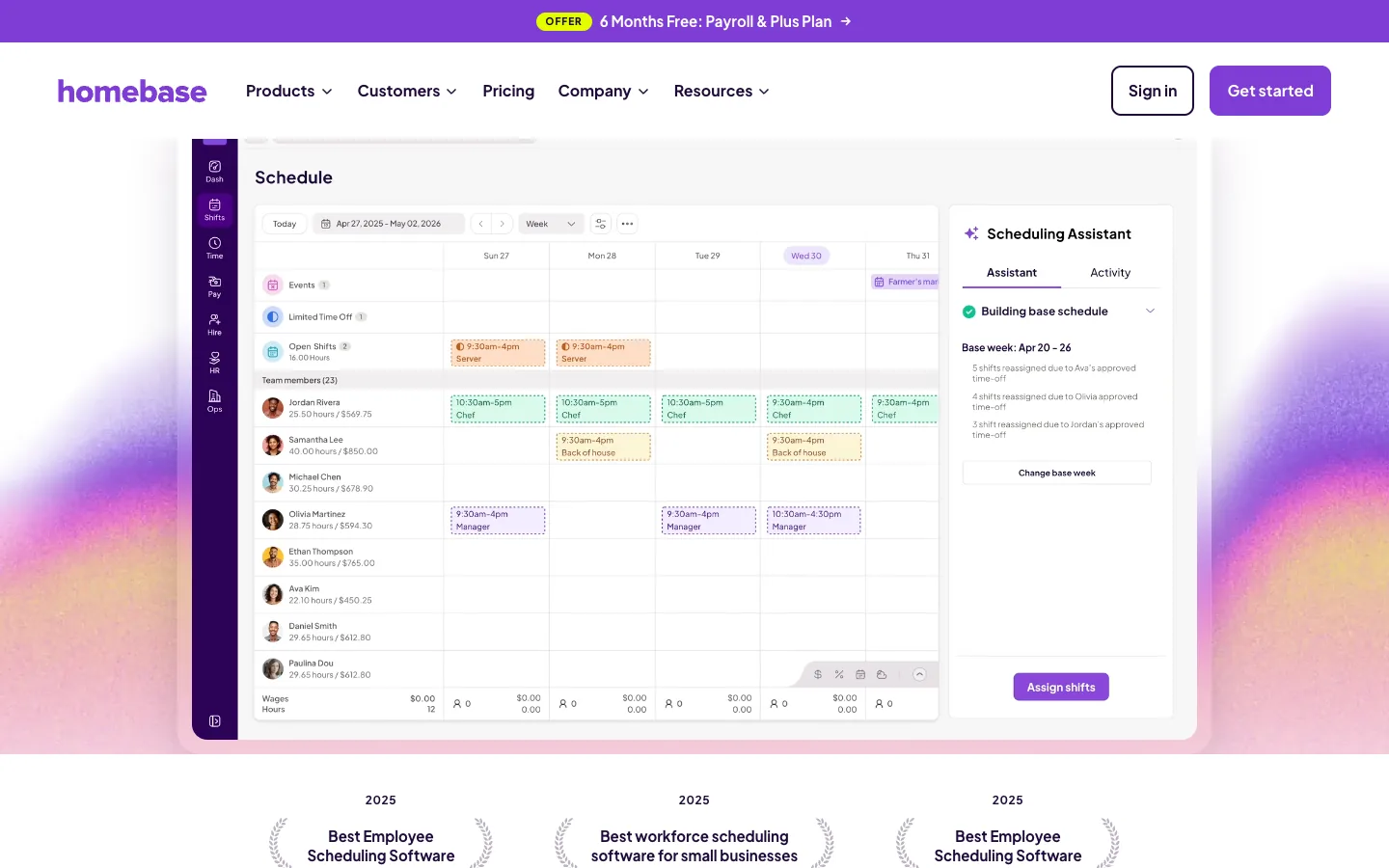
Homebase is useful when a small business wants scheduling, time clocks, payroll, hiring, and employee management workflows in one place. That broader scope can reduce tool sprawl for local businesses that do not want separate systems for every HR task. The free Basic plan covers one location with up to 10 employees.
Where it works best
- Small businesses with hourly employees.
- Scheduling and time-clock workflows, including a mobile time clock.
- Payroll-adjacent operations.
- Hiring and employee management tasks.
Watch out for
- Paid plans are priced per location, and payroll is an add-on with its own fees.
- If you only need weekly personal planning, Homebase will feel too HR-heavy.
- If you need a collaborative project knowledge base, pair it with a planning tool.
Best fit: small businesses that want schedule operations connected to payroll and team management.
4. Humanity - best for structured employee shift coverage
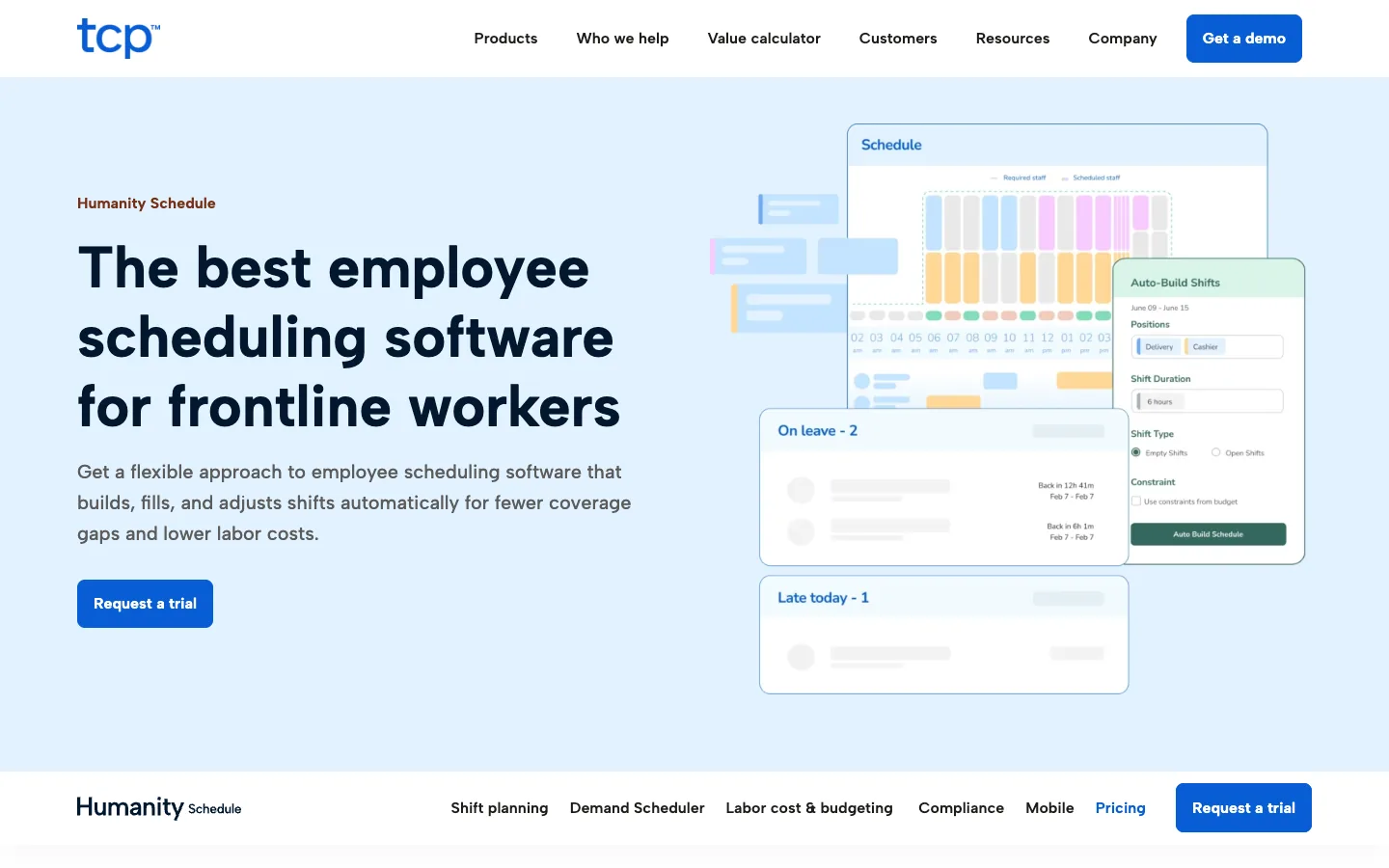
Humanity, now sold by TCP Software, focuses on employee scheduling and workforce management. It is a stronger fit for organizations that need structured shift planning, coverage visibility, and manager controls than for individuals looking for a personal schedule app. The Professional plan adds auto-fill and demand-based scheduling.
Where it works best
- Businesses with repeated shift-coverage needs.
- Managers coordinating employee availability.
- Teams that need more structure than a shared calendar.
- Workforce scheduling across multiple roles or locations.
Watch out for
- It is not a general-purpose note-taking or project-planning workspace.
- Payroll is handled by exporting hours, not inside the app.
- For lightweight scheduling, Google Calendar or a simpler planner may be faster to adopt.
Best fit: businesses that need employee shift coverage rather than project calendars.
5. DeskTime - best for shift scheduling plus automatic time tracking
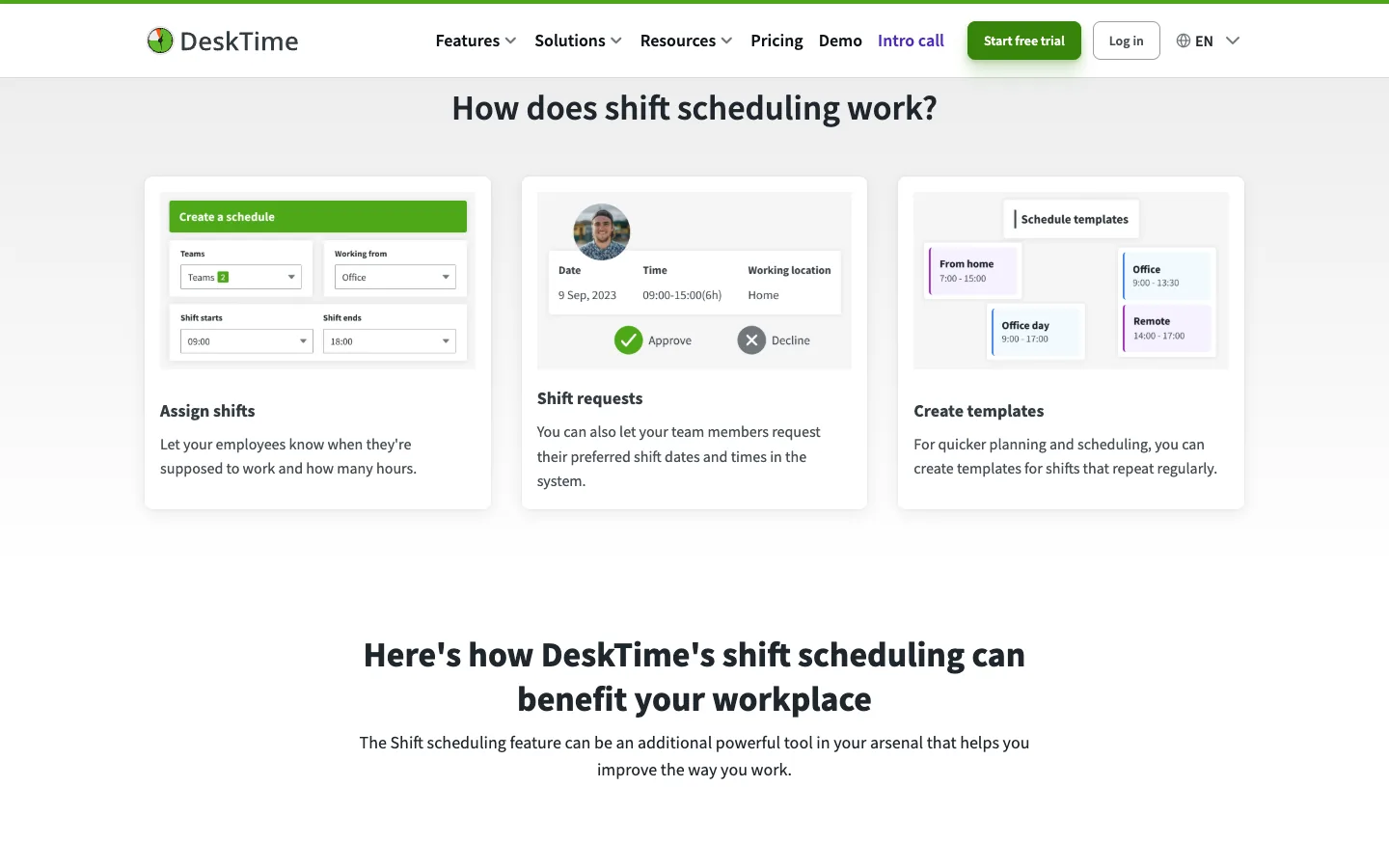
DeskTime is employee monitoring software for small and medium-sized businesses whose work happens on computers. It tracks working hours automatically in the background and pairs them with shift scheduling, so managers can see who is scheduled, who is working, and where the hours actually go.
That makes it a practical fit for agencies, software teams, support desks, and service businesses running shifts across time zones. Managers can build schedules, share them with the team, and keep absences in the same view without moving data between a calendar and a separate timesheet tool. Employees also get Private Time for personal tasks, which keeps tracking fair for everyone.
Where it works best
- Planning shifts and coverage across time zones and locations.
- Seeing scheduled shifts and tracked work hours in one place.
- Managing absences, time off, and vacations in a shared calendar.
- Attributing work hours to clients and projects.
- Using time tracking with screenshots, with optional blurring for privacy.
Watch out for
- It tracks computer-based work, so it is not built for frontline, retail, or field crews who rarely sit at a desk.
- It does not run payroll, so teams paying hourly staff will need to export hours to a payroll tool.
Best fit: computer-based teams that need shift schedules, attendance, and work hours in one system.
6. Google Calendar - best for shared calendars and availability
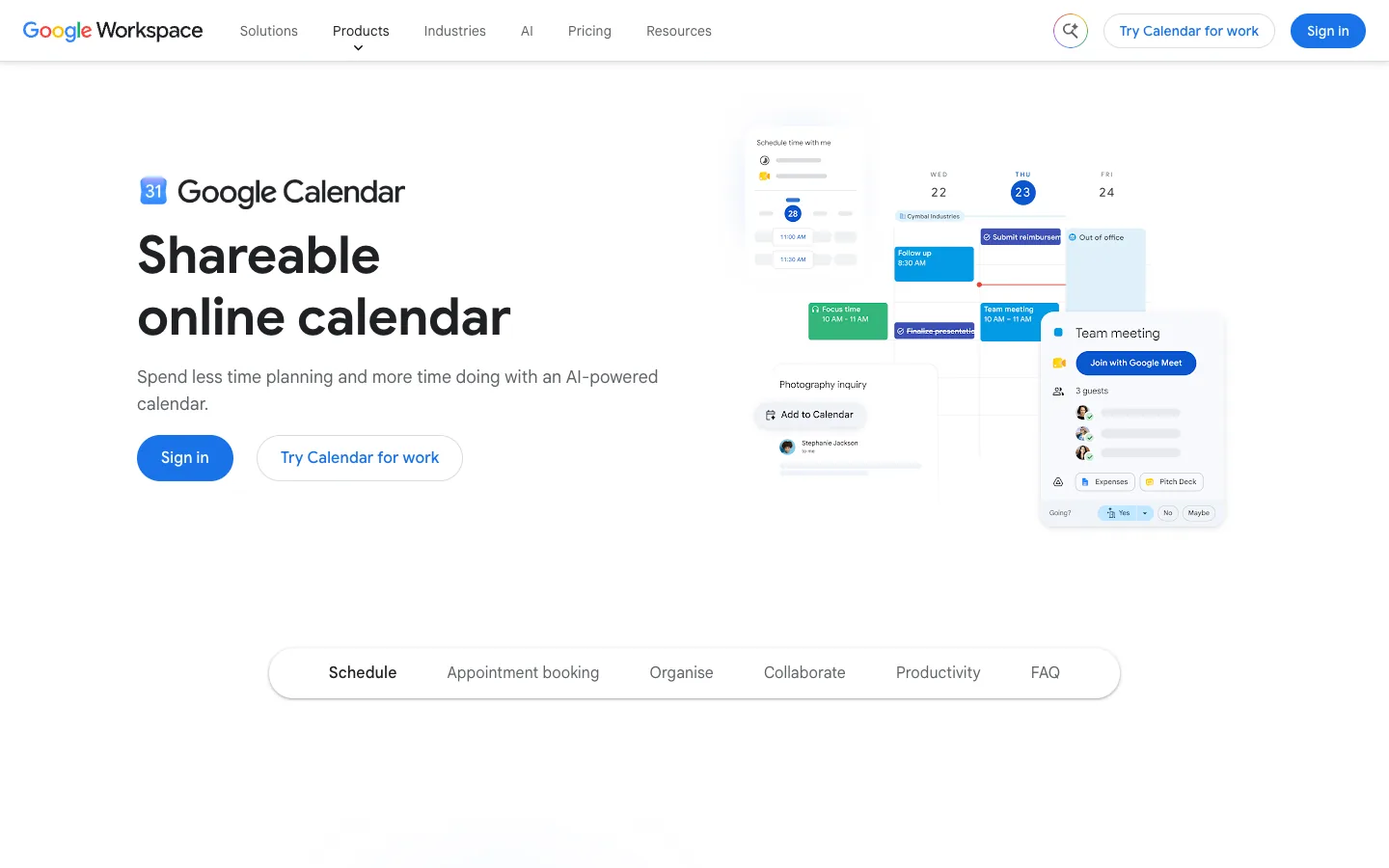
Google Calendar remains the easiest answer when the scheduling problem is simple: meetings, appointments, recurring events, reminders, and availability. It is familiar enough that most teams can adopt it without training. Appointment schedules let people book time with you from a booking page; a personal Google account gets one booking page, and extra booking pages and payments come with higher Google Workspace plans.
Where it works best
- Personal and team calendars.
- Recurring meetings and appointments.
- Sharing availability with coworkers, clients, or family. Our Google Calendar sharing guide walks through permission levels.
- Lightweight schedule visibility across devices.
Watch out for
- It does not manage shift swaps, time clocks, payroll, or project dependencies by itself.
- Notes and project context can become scattered unless you pair it with a workspace like AFFiNE or a project management tool.
Best fit: individuals and teams that mainly need shared time visibility, not a full workforce scheduling system. If you plan your own day in blocks, a time blocking template pairs well with a shared calendar.
7. ClickUp - best for task schedules and project dashboards
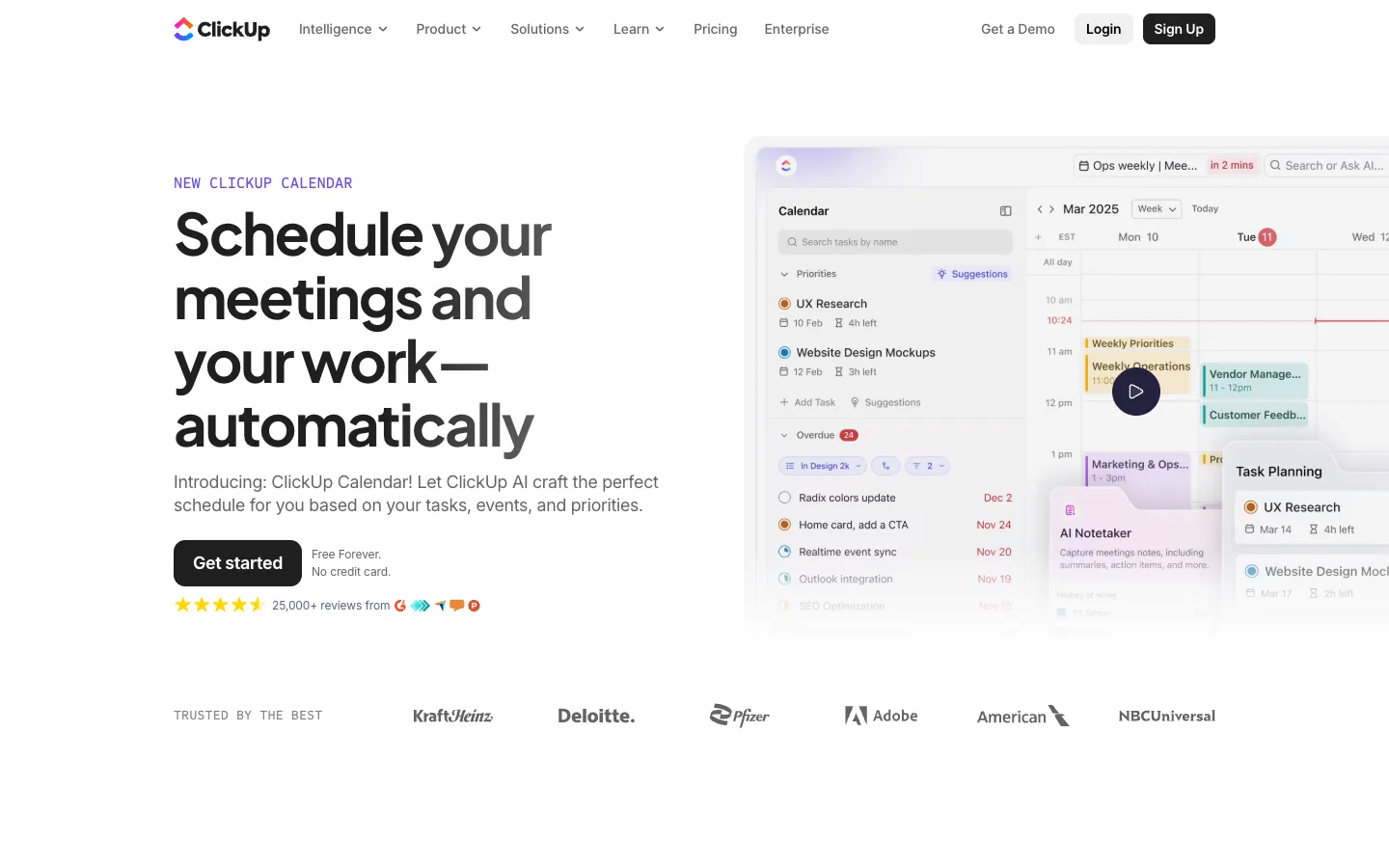
ClickUp is closest to a project management schedule hub. It works well when the schedule is made of tasks, owners, due dates, dashboards, and status views. It is especially useful when teams want one system for work tracking rather than separate apps for tasks, docs, goals, and calendars.
Where it works best
- Project schedules and task deadlines.
- Multiple views such as lists, boards, calendars, and dashboards, with Gantt from the Core plan.
- Teams that want reporting and status visibility.
- Cross-functional work that needs owners and due dates.
Watch out for
- Setup can become complex if the workspace is not governed.
- Timeline and Workload views start on the Business plan.
- It is not a dedicated employee shift scheduler or payroll tool.
Best fit: teams that manage schedules through tasks, dashboards, and project views. To see how its free plan compares with other options, read our free project management tools comparison.
8. Asana - best for cross-functional project calendars
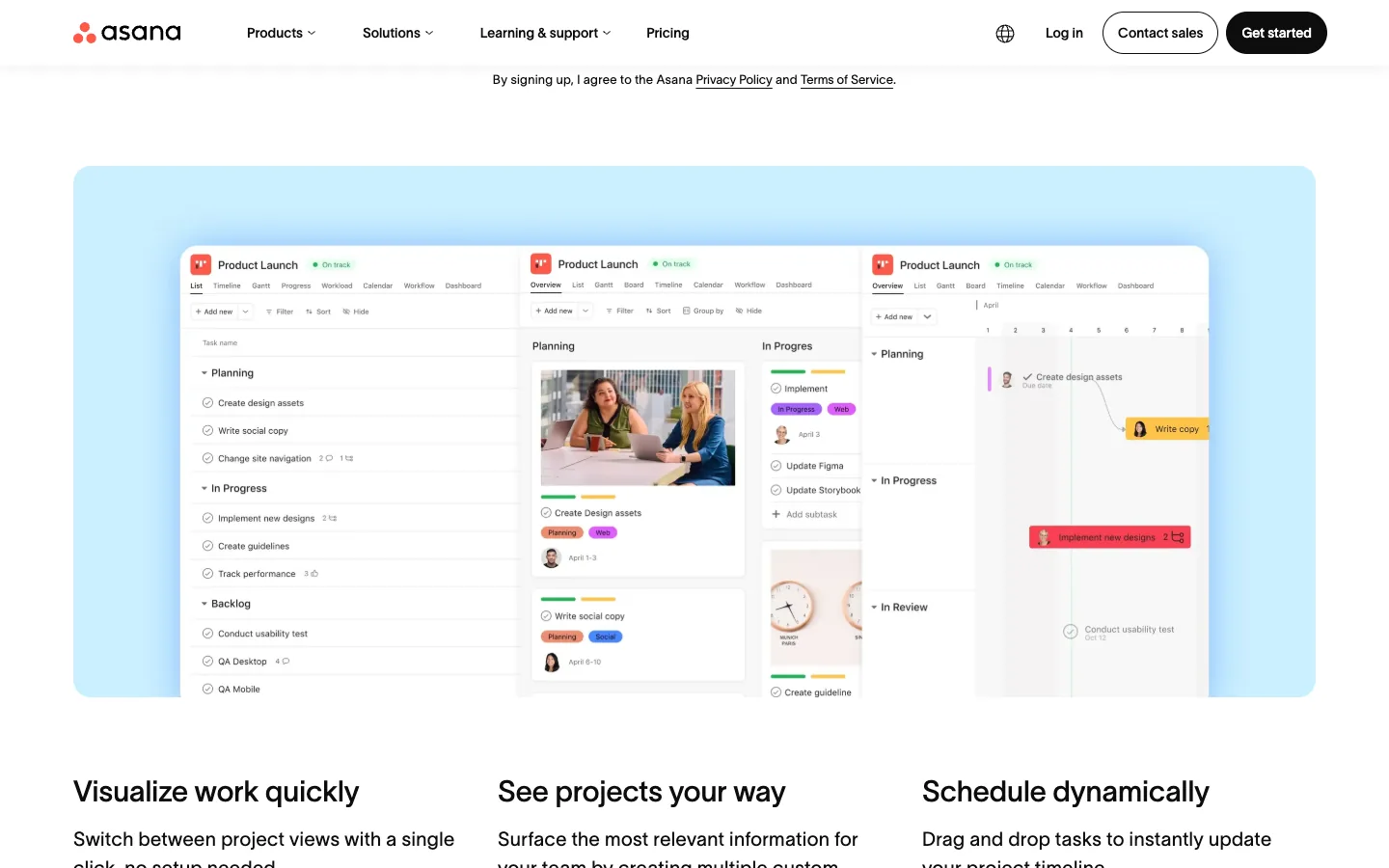
Asana is strong when scheduling means coordinating campaigns, launches, project tasks, and handoffs between teams. It gives owners, due dates, dependencies, and calendar views enough structure for teams that need alignment without the heavier project controls of Microsoft Project.
Where it works best
- Marketing calendars and launch schedules.
- Cross-functional task ownership.
- Project dependencies and milestones, with Timeline and Gantt views from the Starter plan.
- Team visibility into who is doing what by when.
Watch out for
- It is not designed for clocking employees in and out, and time tracking relies on integrations.
- If you need free-form notes, whiteboards, and a local-first knowledge base, AFFiNE may feel more flexible.
Best fit: teams that need clear task ownership and project calendar coordination.
9. Microsoft Planner and Project - best for formal project scheduling
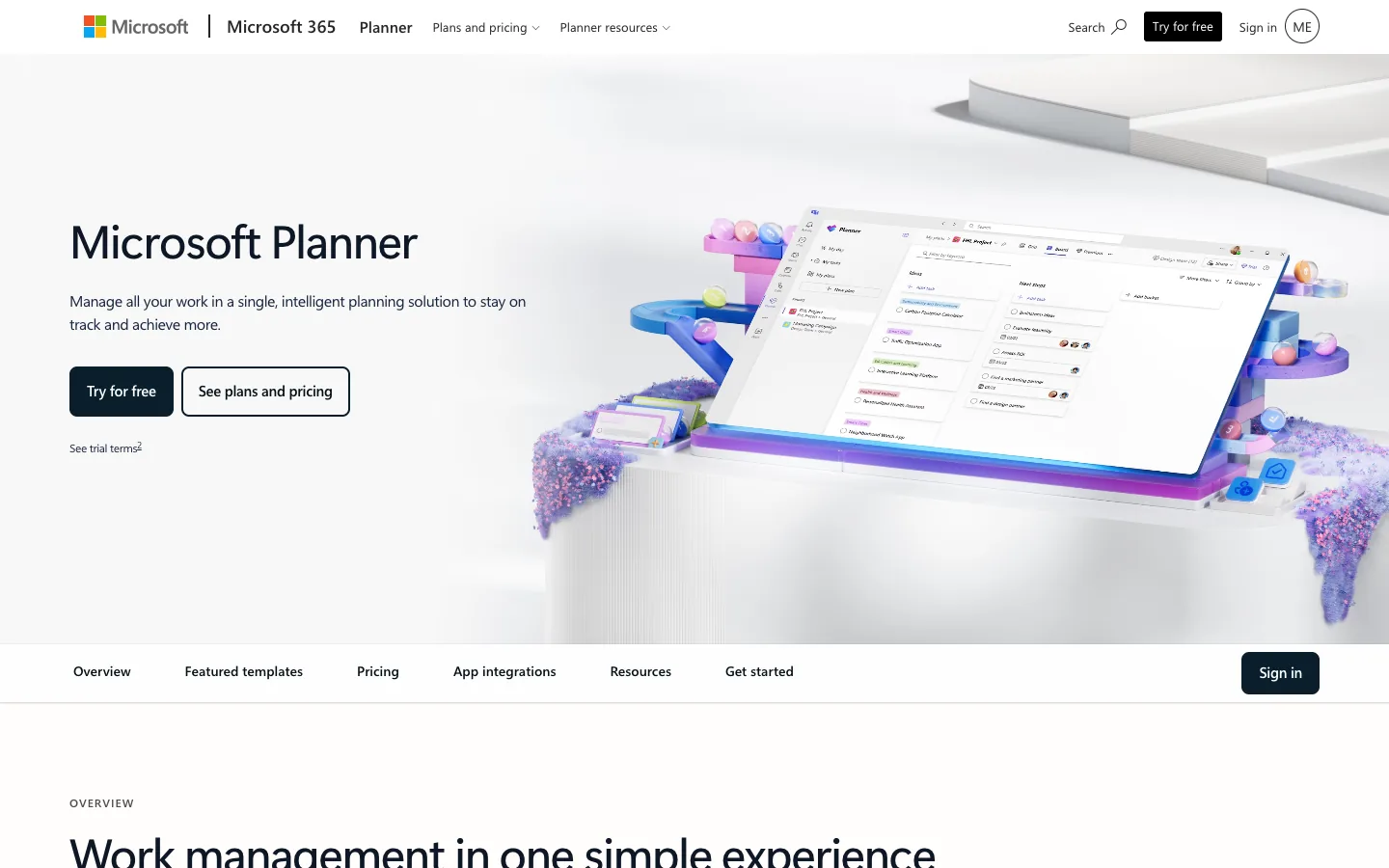
Microsoft's project scheduling now lives mostly in Microsoft Planner. In August 2025 Microsoft retired Project for the web and moved its features into Planner, and Project Online was retired on September 30, 2026. Planner Plan 1 adds Timeline (Gantt), Calendar, and People views to the basic Planner in Microsoft 365. Planner and Project Plan 3 adds portfolios, baselines, critical path, and the Project desktop app. Project Standard 2024 and Project Professional 2024 are still sold as one-time purchases.
It is the most formal option in this list. It is built for teams that need Gantt charts, resource plans, dependencies, and portfolio-level reporting rather than lightweight daily planning.
Where it works best
- Complex projects with dependencies.
- Resource planning and portfolio views.
- Teams already committed to the Microsoft ecosystem.
- Project managers who need formal schedule controls.
Watch out for
- It can be too heavy for simple weekly planning.
- If your team used Project for the web or Project Online, plan the move to Planner or Project desktop.
- It is not a staff shift scheduling app.
Best fit: project managers who need structured scheduling and resource planning. Our project planner guide explains when a simple plan is enough and when you need dedicated scheduling software.
10. AFFiNE - for planning the work around the schedule
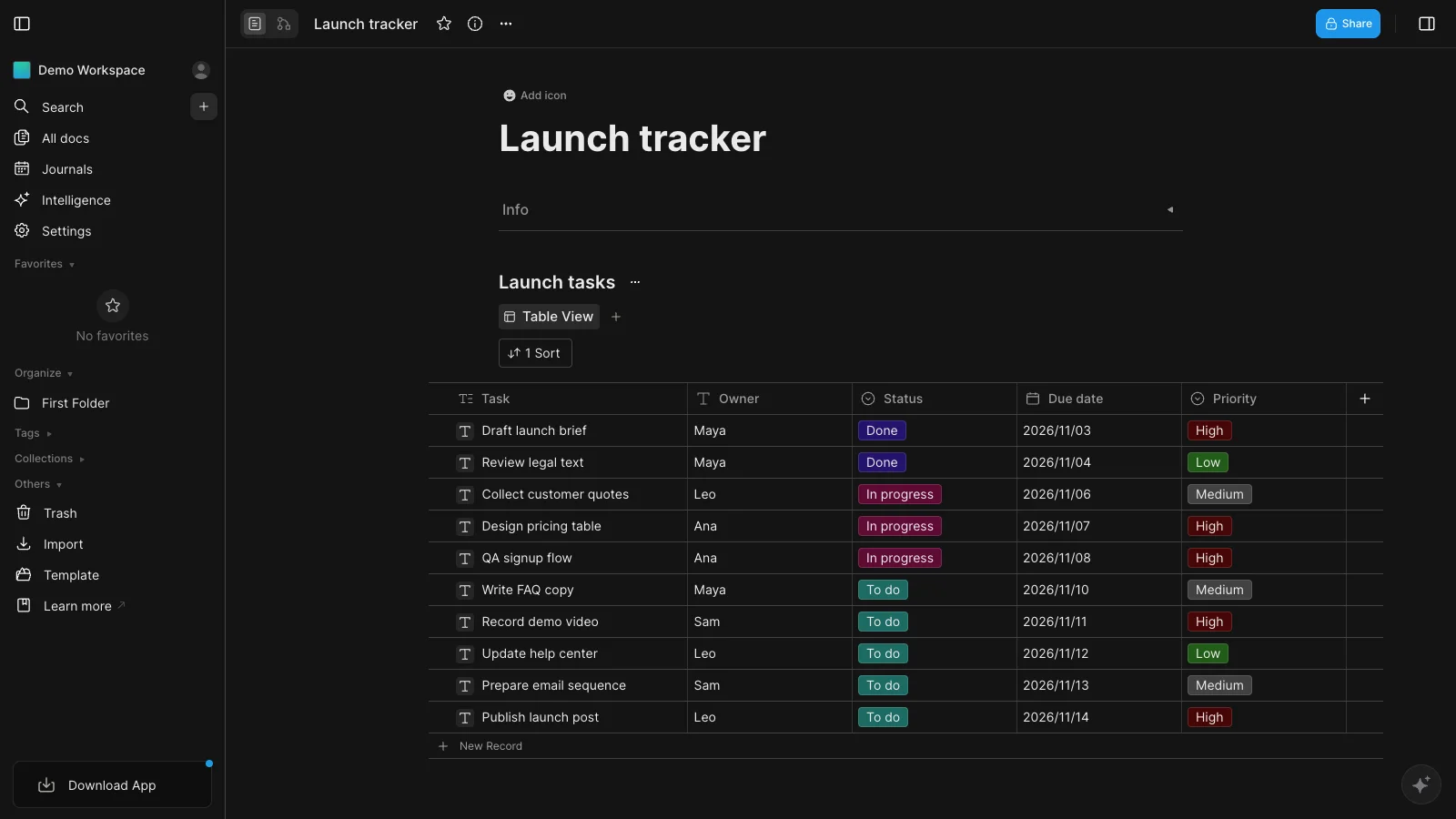
AFFiNE is not a payroll-first employee scheduling tool. Its strength is helping people plan work in context: weekly schedules, project plans, task boards, whiteboards, meeting notes, and long-form docs can live in one workspace.
That makes AFFiNE a strong fit for founders, operators, product teams, students, creators, and knowledge workers who need more than a calendar grid. You can start with a work planner template, build a weekly schedule template, turn tasks into a table or Kanban board, and keep project notes beside the schedule instead of scattering them across separate apps. If you want a starting layout, our free weekly schedule templates show several ways to structure a week.
Where AFFiNE works best
- Planning weekly priorities with notes, tasks, and deadlines in one place.
- Turning project schedules into visual boards and structured docs.
- Keeping research, decisions, and meeting notes close to the actual schedule.
- Working with local-first, privacy-conscious workflows where data ownership matters.
- Creating reusable systems with templates such as the one-page work planner.
Watch out for
- AFFiNE is not the right replacement for a workforce scheduler such as Sling, Homebase, or DeskTime if you need clock-in/out, tracked work hours, payroll sync, labor compliance, or automatic shift coverage.
- Teams that only need a shared calendar may find Google Calendar simpler.
Best fit: visual planners, project schedules, personal productivity systems, team knowledge work, and planning workflows that need more context than a calendar can hold.
Work Schedule App Comparison Table
| App | Best for | Main strength | Main limitation |
|---|---|---|---|
| Sling | Small hourly teams | Employee schedules and shift communication | Not for project knowledge management |
| When I Work | Hourly scheduling plus time tracking | Scheduling, time clock, and messaging | Not a visual planning workspace |
| Homebase | Small business staff operations | Scheduling plus payroll and HR workflows | Too heavy for solo planning |
| Humanity | Structured employee shift coverage | Workforce scheduling depth | Not a project workspace |
| DeskTime | Shift scheduling plus automatic time tracking | Schedules, absences, and tracked hours in one view | Built for desk-based work, not frontline crews |
| Google Calendar | Shared time visibility | Fast, familiar calendar sharing | Limited project and workforce logic |
| ClickUp | Project task schedules | Dashboards, views, tasks, and reporting | Can become complex |
| Asana | Cross-functional project calendars | Ownership, dependencies, and milestones | No built-in time clock |
| Microsoft Planner and Project | Formal project scheduling | Gantt, resource, and portfolio planning | Heavy for everyday scheduling |
| AFFiNE | Visual planning and knowledge-connected schedules | Notes, whiteboards, tasks, tables, and templates in one workspace | Not a payroll or shift-clock system |
How to Choose the Right Work Schedule App
Choose by workflow, not by feature count.
Choose Sling, When I Work, Homebase, or Humanity if you schedule hourly employees, need shift swaps, track attendance at a time clock, or connect scheduling to payroll.
Choose DeskTime if your team works on computers and you want shift schedules, absences, and automatically tracked work hours in one place.
Choose Google Calendar if you mostly need to know when people are free, send invites, or create recurring routines.
Choose ClickUp or Asana if the schedule is made of tasks, projects, campaigns, and cross-functional owners. For a wider list, see our project planning tools comparison.
Choose Microsoft Planner and Project if your team uses formal project management with dependencies, resources, and portfolio reporting.
Choose AFFiNE alongside one of these if your schedule is tied to notes, project plans, research, visual boards, meeting decisions, or reusable templates. It is useful when a calendar event alone does not explain the work, but it does not replace a shift scheduler.
Many teams end up with two tools: a workforce scheduler for who works when, and a calendar or planning workspace for what the work is. That is fine, as long as each schedule has one owner and one place where it is kept up to date.
Run a One-Week Test Before You Commit
Free plans and trials make it cheap to test, so test with real work instead of a demo project. Build next week's actual schedule in the app, ask the people on it to use it, and change something midweek on purpose.
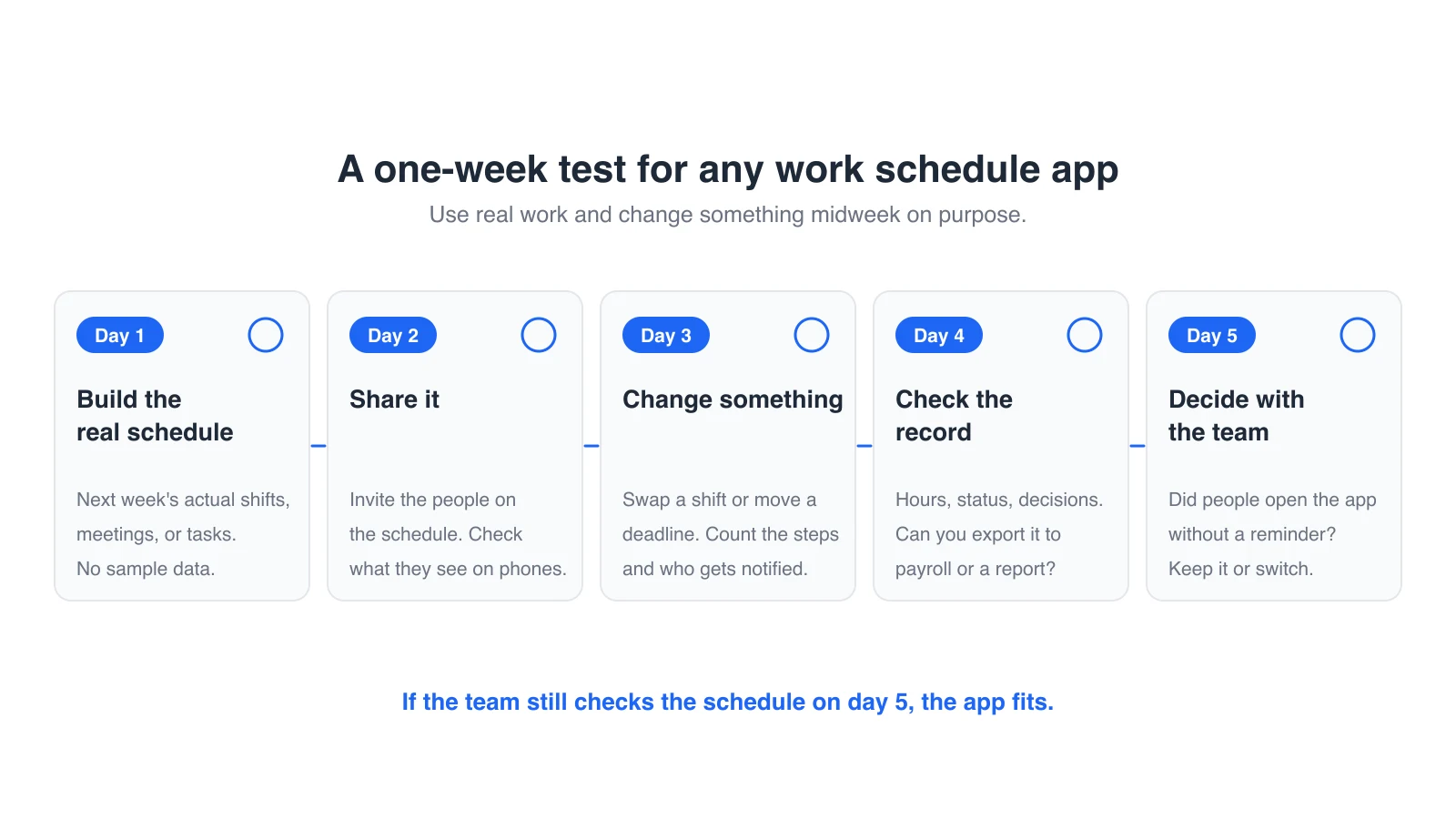
- Day 1: Build the real schedule. Add next week's actual shifts, meetings, or tasks, not sample data. If you plan in templates first, start from a weekly work schedule template.
- Day 2: Share it. Invite the people on the schedule and check what they can see on their phones.
- Day 3: Change something. Swap a shift, move a deadline, or add an absence. Count how many steps it takes and who gets notified.
- Day 4: Check the record. Look at what the app recorded: hours worked, task status, or decisions made. Can you export it to the tool that needs it, such as payroll or a client report?
- Day 5: Decide with the team. Ask whether people checked the app without being reminded.
Common Decision Questions
Do I need a shift scheduler or a project scheduler?
If you are scheduling people into shifts, breaks, time clocks, and payroll workflows, you need a workforce scheduler. If you are scheduling work across tasks, deadlines, research, notes, and decisions, you need a project planner or visual workspace.
Is AFFiNE a replacement for DeskTime, Sling, or Homebase?
No. AFFiNE is better understood as a visual planning and knowledge workspace. It can help you plan weekly work, organize projects, and connect schedule items to notes or boards, but it does not replace dedicated time-clock, time-tracking, payroll, or labor-compliance workflows.
What is the best free work schedule app?
For a simple shared calendar, start with Google Calendar. For visual planning, try AFFiNE and a template such as the weekly schedule tracker. For hourly employee scheduling, Sling is free for up to 30 users and Homebase is free for one location with up to 10 employees. When I Work, DeskTime, and Humanity offer free trials instead of free plans.
Can one app handle shift scheduling and time tracking?
Yes. When I Work, Homebase, Sling, and Humanity pair shift schedules with a time clock, which suits hourly staff who clock in and out. DeskTime pairs shift schedules with automatic time tracking on the computer, which suits desk-based teams. Check which plan includes each feature before you buy.
Is Microsoft Project still available?
Partly. Microsoft retired Project for the web in August 2025 and moved its features into Microsoft Planner, and Project Online was retired on September 30, 2026. Planner plans, Planner and Project Plan 3, and the Project Standard and Project Professional 2024 desktop apps are still sold.
What should I avoid when choosing a work schedule app?
Avoid choosing a tool because it has the longest feature list. A restaurant manager, a product lead, a student, and a freelancer all mean different things by "schedule." Pick the app that matches the scheduling object: people, hours, meetings, tasks, or project context.
Final Recommendation
There is no single best work schedule app for every team. The honest answer depends on what you are scheduling.
If you need employee shifts, time clocks, and payroll-connected operations, start with Sling, When I Work, Homebase, or Humanity. If your team works on computers and you need shift schedules alongside tracked work hours, look at DeskTime. If you need a simple calendar, Google Calendar is still hard to beat. If you need to plan work visually and keep the schedule connected to notes, docs, whiteboards, and project context, AFFiNE can hold that planning layer next to one of the schedulers above.
The practical test is simple: after one week, can your team still see what needs to happen, why it matters, who owns it, and where the supporting context lives? If the answer is yes, you chose the right scheduling system.
Sources and Update Notes
- Pricing and plan pages checked November 5, 2026: AFFiNE pricing, Sling pricing, When I Work pricing, DeskTime pricing, Homebase pricing, TCP Software pricing for Humanity, ClickUp pricing, Asana pricing, and Microsoft Planner plans and pricing.
- Google Calendar appointment schedules: Google Calendar Help.
- Microsoft changes: retiring Project for the web and Project Online retirement, Microsoft Planner Blog.
- Update note (November 14, 2026): added a dated screenshot of each app, captured on its official product page on November 14, 2026 (AFFiNE from its web app). Prices, rankings, and recommendations did not change.
- Update note (November 13, 2026): reordered the list, Quick Picks, pricing and comparison tables so the dedicated shift schedulers come first, moved AFFiNE from first to tenth place, and rechecked When I Work, Humanity, Asana, and Microsoft Planner prices on their official pages (no changes needed).
- Update note (November 5, 2026): replaced Deputy with DeskTime to cover computer-based teams that need shift schedules and tracked work hours; renamed the Microsoft entry to Microsoft Planner and Project after the Project for the web and Project Online retirements; updated the Humanity, Homebase, and Google Calendar links to their current official pages; added free-plan and pricing details, a feature coverage chart, and a one-week test.
- Earlier update (June 27, 2026): reorganized the list by use case.