Free Project Tracker Template for Excel & Google Sheets
A project tracker is a live table that shows what must be delivered, who owns it, when it is due, what blocks it, and the next action. Download the free workbook below for a blank tracker, a completed example, milestone and risk views, and a formula-linked weekly update. Use it in Excel or import the XLSX into Google Sheets.
Fast start: Open the filled example first, replace the fictional rows with one real project, and keep only the fields your team will update every week.
Download the Free Project Tracker Template
- Download the Excel project tracker workbook — Best for Excel or Google Sheets. Includes blank and filled trackers, formulas, drop-downs, conditional formatting, milestone and risk views, and a weekly update.
- Download the blank project tracker CSV — Best for a clean data import. Includes column headers only, ready for your tasks.
- Download the filled project tracker example CSV — Best for learning the field structure. Includes twelve fictional tasks from the Northstar learning hub launch.
The XLSX is the complete template. Google documents that you can open an Excel file in Sheets, edit the original Office file, or use File → Import to create or insert sheets. If you convert the file, Google says the original Excel file remains unchanged. Follow Google's current Excel-to-Sheets instructions.
The two CSV files are data-only fallbacks. CSV cannot preserve multiple tabs, formulas, drop-down validation, conditional formatting, widths, or colors. Import the XLSX if you want the working tracker; choose CSV only when another tool needs a simple row-and-column file.
What Is a Project Tracker?
A project tracker is a regularly updated record of deliverables, owners, dates, status, dependencies, risks, and next actions. It answers the operational question, “What needs attention now?” A good tracker is smaller than a full project plan, more structured than a task list, and more current than a status report.
The tracker should be the shared source for execution facts. It should not try to replace every project document. Keep scope, decisions, meeting notes, and detailed requirements in their proper homes, then link to them from the relevant task or milestone.
Use a project tracker when:
- several people own connected deliverables;
- missed dependencies can move a due date;
- stakeholders need the same weekly view of progress;
- the team needs one place to see blockers and next actions; or
- a simple task list no longer explains whether the project is healthy.
What Is Inside the Workbook?
The workbook contains two tracker tabs and three companion example views:
| Tab | Purpose | Key behavior |
|---|---|---|
| Example Tracker | Connected source for the companion views | Uses fictional data and a fixed review date so the example remains reproducible |
| Blank Tracker | Clean standalone starting point for a real project | Uses TODAY() so its row-level schedule signals update automatically |
| Milestones | Worked view of five example milestones | Links to five specified rows in Example Tracker |
| Risks | Worked view of eight example risks and blockers | Links to eight specified rows in Example Tracker |
| Weekly Update | Scannable worked status update | Links headline counts and selected rows to Example Tracker; narrative text remains editable |
The companion views are transparent worked examples, not dynamic filters. Replace the sample rows in place to keep the existing links, or update the companion formulas when you add, remove, or reorder tracker rows. If you start in Blank Tracker, copy the finished rows into Example Tracker or revise the companion references before relying on those views.
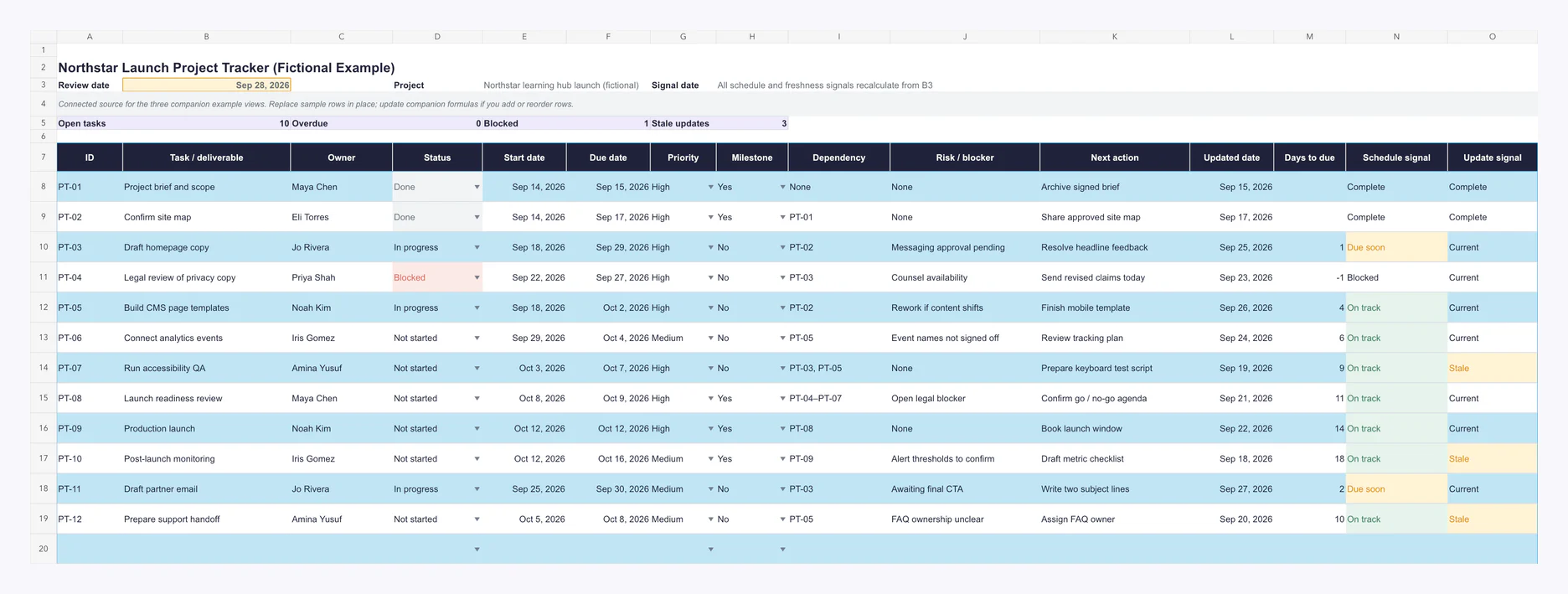
Project tracker fields that earn their place
| Field | What to enter | Quality rule |
|---|---|---|
| ID | A short stable identifier, such as NS-106 | Never reuse an ID after a row is closed |
| Task / deliverable | An outcome that can be accepted | Start with a verb and name the result |
| Owner | One accountable person | Avoid team names and multiple owners |
| Status | Not started, In progress, Blocked, or Done | Change it when reality changes, not before a meeting |
| Start | Planned start date | Leave blank only when the work is not scheduled |
| Due | The date the deliverable is expected | Treat a changed date as a planning decision |
| Priority | High, Medium, or Low | Use High sparingly for work that changes the project outcome |
| Milestone | Yes or No | Mark only externally meaningful delivery points |
| Dependency | The item that must happen first | Use an ID where possible so the relationship is traceable |
| Risk / blocker | The fact preventing or threatening progress | Describe the condition, not the person |
| Next action | The next observable move | Begin with a verb and make it small enough to complete |
| Updated date | The last meaningful row update | Update it when facts change, not when someone opens the file |
| Days to due | Formula result | Do not type over this column |
| Schedule signal | Complete, Blocked, Needs due date, Overdue, Due soon, or On track | Let the formula classify the row |
| Update signal | Complete, Needs update, Stale, or Current | Let the formula identify old information |
How to Set Up a Project Tracker in Six Steps
1. Set the review date
Enter the date on which the tracker is being reviewed. The Blank Tracker uses =TODAY() by default, so its schedule and freshness signals move with the current date. Replace it with a fixed date when you need a reproducible baseline for an audit, retrospective, or screenshot. If the snapshot feeds a project close review, these lessons learned templates give the findings a home.
2. Define deliverables
Write one accepted outcome per row and assign a stable ID. Split broad work such as “Launch website” into deliverables that can actually finish, such as “Approve launch copy” or “Publish help center.”
3. Assign one owner
Put one accountable person in every active row. Contributors can be recorded in notes elsewhere, but one owner makes escalation and follow-up unambiguous.
4. Add dates and dependencies
Enter realistic start and due dates, then point each blocked sequence to the preceding task ID. A due date without a dependency can look healthy even when the work cannot start.
5. Update status, risks, and next actions
Choose status and priority from the drop-downs. Write the blocker as a fact and the next action as a verb-led response with a clear owner.
6. Publish the weekly update
Filter for changed, blocked, overdue, due-soon, or stale rows. Confirm the milestone and risk views, then copy the linked counts and concise narrative from the Weekly Update tab.
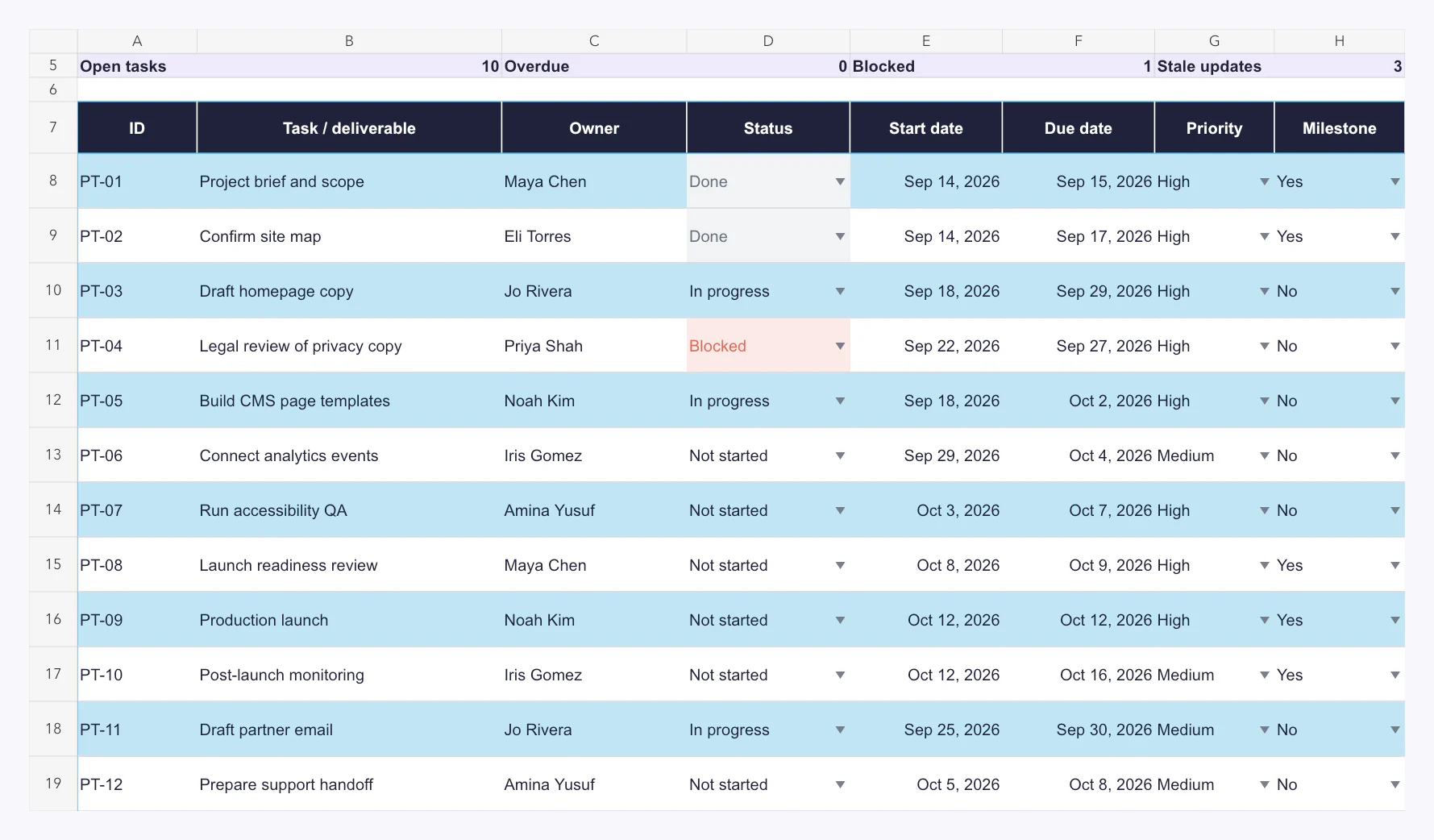
Use Rules That Make the Tracker Trustworthy
A tracker works only when its labels mean the same thing to everyone. These are the exact rules used in the downloadable workbook.
Schedule signal rules
The formula evaluates rows in this order:
- If Status is
Done, returnComplete. - If Status is
Blocked, returnBlocked. - If Due is blank, return
Needs due date. - If Due is before the review date, return
Overdue. - If Due is within three days of the review date, return
Due soon. - Otherwise, return
On track.
Blocked intentionally outranks overdue. The signal column is mutually exclusive, so the due date and Days to due column remain visible for a blocked row that is also late. That prevents a team from hiding the date problem while still keeping the most actionable label.
The equivalent row formula is:
=IF(B8="","",IF(D8="Done","Complete",IF(D8="Blocked","Blocked",IF(F8="","Needs due date",IF(F8<$B$3,"Overdue",IF(F8<=$B$3+3,"Due soon","On track"))))))
Freshness rules
Completed work returns Complete. Active work with no Updated date returns Needs update. An active row more than seven days old returns Stale; everything else returns Current.
=IF(B8="","",IF(D8="Done","Complete",IF(L8="","Needs update",IF($B$3-L8>7,"Stale","Current"))))
The seven-day limit fits a weekly operating rhythm. Change the threshold if your project needs daily incident updates or monthly portfolio reviews, but document the new rule beside the tracker.
Track Milestones Without Building a Second Plan
Mark a row as a milestone only when it represents a meaningful commitment: approval, handoff, launch, or another event a stakeholder would recognize. Routine subtasks should remain normal rows. The supplied Milestones tab demonstrates five sample milestones with formula-linked owner, due date, status, and schedule signal fields. It does not automatically discover new milestone rows, so update its row references when the source order changes.
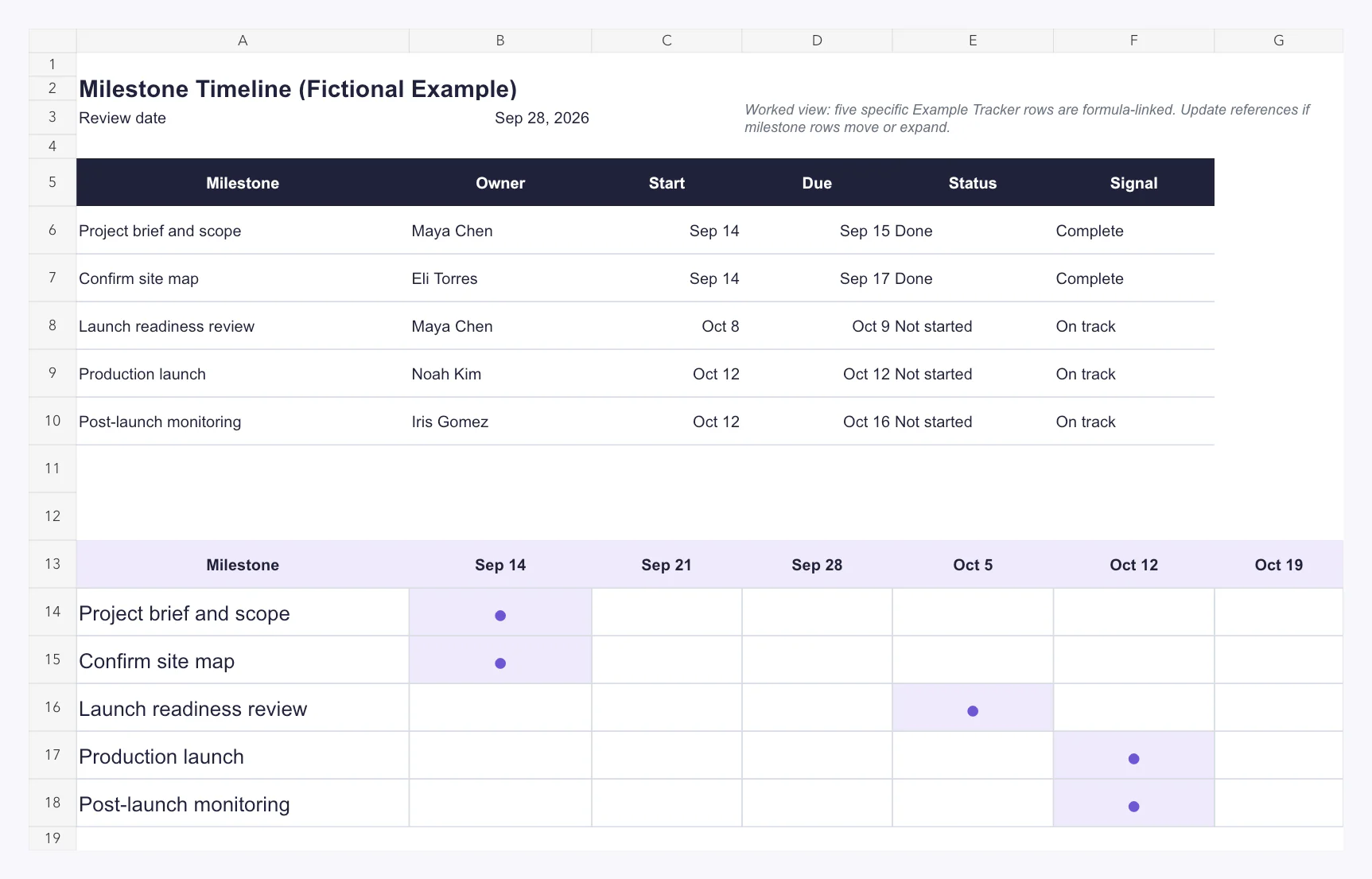
Use these rules:
- every milestone has exactly one owner and one due date;
- a milestone describes an outcome, not a phase label such as “Design”;
- any changed milestone date is discussed and recorded as a planning decision;
- completion means the outcome was accepted, not merely submitted; and
- milestone health comes from the underlying tracker facts.
For a more detailed schedule, use the free Excel project timeline guide, or a Gantt chart template with dependency formulas when task dates need to move together. Keep this tracker focused on operating decisions rather than turning it into a miniature scheduling application. Staff shifts and rotas belong in a dedicated work schedule app.
Turn Risks and Blockers Into Actions
A risk may happen; a blocker is already preventing progress. Both need an owner and a next action. Avoid vague entries such as “vendor problem.” Write the observable condition: “Identity provider has not approved the production redirect URI.” Then add the next move: “Escalate the request with the security owner by Tuesday.”
The supplied Risks tab is a worked view of eight preselected example rows. Its cells stay linked to those source rows, but it does not automatically filter newly added risks. Update the row references when the source list changes.
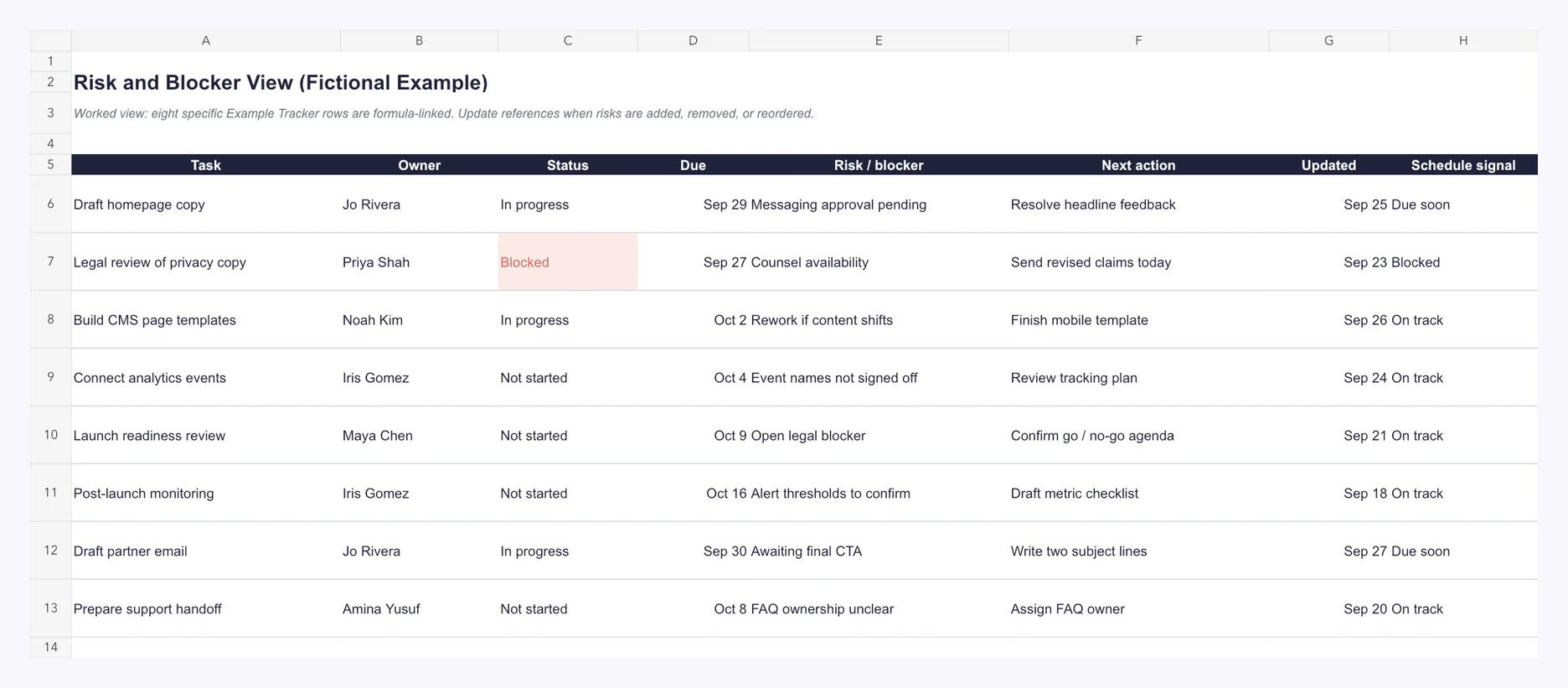
At every review, ask four questions:
- What fact makes this a risk or blocker?
- Which deliverable and due date can it affect?
- Who owns the next action?
- When will the row be updated again?
If there is no next action, the row is a warning label rather than a management tool.
Turn the Tracker Into a Weekly Project Update
Do not rewrite project status from memory. Reuse the tracker once a week:
- Ask owners to update their rows before the review.
- Filter for
Blocked,Overdue,Due soon,Stale, orNeeds update. - Confirm milestone dates and any dependency changes.
- Write three short sections: progress this week, next week, and risks or decisions needed.
- Publish the update and link back to the tracker for row-level evidence.
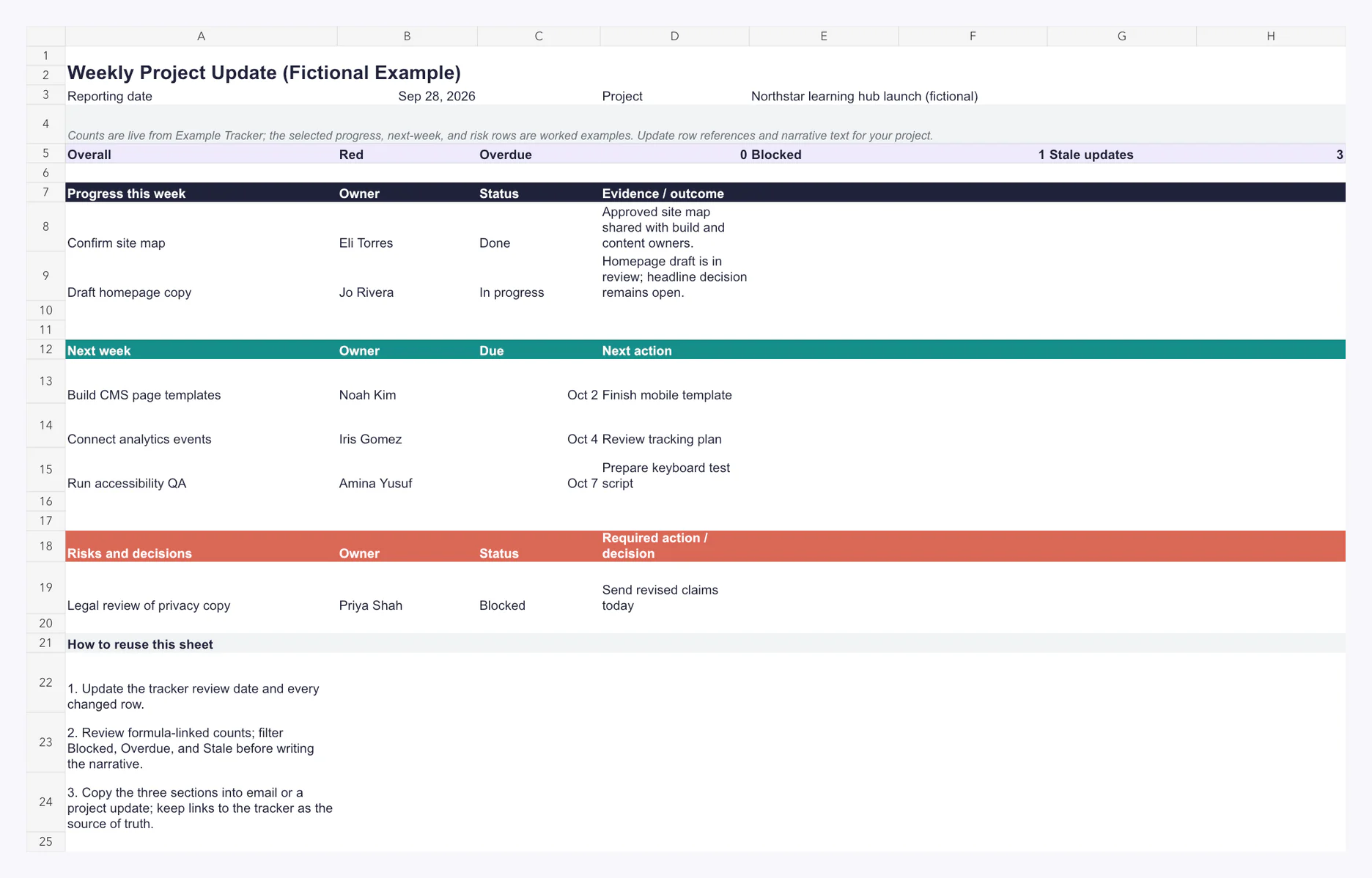
For the fictional Northstar example, the update is Red because one active task is Blocked. It also reports the overdue, blocked, and stale counts separately. The counts are live; the selected progress, next-week, and risk rows plus their narrative text are worked examples that you should revise. That is more useful than a subjective “mostly on track” label because readers can see why the health rating changed.
Use the progress report template and writing guide when the audience needs more context, results, or decisions than a tracker view can provide.
Project Tracker vs Task List vs Project Plan vs Status Report
| Tool | Primary question | Typical contents | Update rhythm | Best audience |
|---|---|---|---|---|
| Project tracker | What needs attention now? | Deliverables, owners, status, dates, dependencies, blockers, next actions | Daily or weekly | Delivery team and project lead |
| Task list | What do I need to do? | Actions, checkboxes, personal priorities | As work changes | Individual or small team |
| Project plan | How will the whole project be delivered? | Scope, phases, resources, schedule, governance, dependencies | At planning and material change | Team, sponsors, and partners |
| Status report | What changed and what decisions are needed? | Accomplishments, next steps, risks, metrics, asks | Weekly, monthly, or by milestone | Stakeholders and sponsors |
The same project may need all four. Keep each artifact narrow and connect them. Start with the project planning templates guide when scope, phases, and governance are not yet settled.
Spreadsheet or Project Management Tool?
Choose a spreadsheet tracker when the team needs a transparent table, familiar formulas, fast setup, and portable files. It is especially effective for one project, a small team, or a reporting workflow with fewer automations.
Choose a dedicated project management tool when you need frequent notifications, complex permissions, workload balancing, time tracking, many linked projects, or automation across systems. Software does not fix unclear ownership or stale updates, so define the operating rules before migrating.
If you are a solo operator, the tracker can also support the delivery and client-control practices in project management for freelancers.
Use This Project Tracker in AFFiNE
The downloadable XLSX and CSV files are spreadsheet assets; this article does not claim a one-click AFFiNE workbook import. Instead, use the same field model to build a project database in AFFiNE, then keep the planning context beside it.
AFFiNE's official database documentation says its databases can index, update, group, and relate blocks. It lists Table View and Kanban View as available, while Calendar and Timeline are still marked as planned. See AFFiNE's current database view documentation.
A practical setup is:
- create one row per tracker deliverable in a Table View;
- add properties for owner, status, due date, priority, milestone, dependency, risk, and next action;
- switch the same database to Kanban View when the team needs a status-based workflow;
- link the project brief, decision notes, and weekly update from the same document; and
- save the finished document as a reusable workspace template.
AFFiNE's official template guide explains that a page can be marked as a template from its properties and reused for new documents. It also notes that templates are shared across the workspace. See how AFFiNE templates currently work.
You can also open AFFiNE's Assignment Tracker template as an AFFiNE starting point. The same official guide notes that website templates must be imported from the template page before you adjust their Template properties; they do not automatically appear in every app workspace.
This workflow keeps the spreadsheet download useful for Excel and Google Sheets while giving AFFiNE users a verified, field-for-field setup. It does not present planned Calendar or Timeline views as available features.
Common Project Tracker Mistakes
Tracking activities instead of deliverables
“Work on onboarding” cannot be accepted. “Approve onboarding checklist” can. Outcome-based rows make progress and completion testable.
Assigning several owners
Shared ownership often means no ownership. Put one accountable person in the Owner field and record collaborators elsewhere.
Hiding the next action inside a blocker
“Waiting on security” describes a state. “Send the revised access list to the security owner by Tuesday” creates movement.
Treating every task as a milestone
Milestones are commitments a stakeholder can recognize. If every row is a milestone, the milestone view stops prioritizing anything.
Typing over formula columns
Do not manually replace Days to due, Schedule signal, Update signal, or linked summary counts. Copy formulas into new rows and test a boundary date after any formula change.
Letting updates go stale
A green status with a three-week-old update is not trustworthy. Use the Update signal as a prompt for evidence, not as a punishment metric.
Project Tracker Template FAQ
Is this project tracker template really free?
Yes. The XLSX workbook and both CSV files on this page can be downloaded without payment. The workbook includes a blank tracker, a filled fictional example, milestone and risk views, and a weekly update tab.
Can I use the Excel project tracker in Google Sheets?
Yes. Download the XLSX, open or import it in Google Sheets, and check the formulas, drop-downs, date formats, and conditional formatting after conversion. Google's official instructions support opening, editing, importing, or converting Excel files in Sheets.
What is the difference between the XLSX and CSV downloads?
The XLSX preserves multiple tabs, formulas, drop-downs, conditional formatting, column widths, and colors. CSV preserves only plain row-and-column data, so use it as a lightweight import fallback.
How often should a project tracker be updated?
Update a row whenever its owner, status, due date, dependency, blocker, next action, or delivery expectation changes. For a weekly project rhythm, require every active row to have a meaningful update within seven days.
What should a project tracker include?
At minimum, include a stable ID, deliverable, one owner, status, due date, dependency, risk or blocker, next action, and updated date. Add priority, milestones, and formula-driven schedule signals when they help the team make decisions.
Can I import this workbook directly into AFFiNE?
This page does not claim a one-click AFFiNE workbook import. Recreate the same fields in an AFFiNE database, use Table or Kanban View, link the supporting project context, and save the finished document as a workspace template.
Sources and Verification
This guide was researched and the downloadable workbook was checked on September 28, 2026.
- Google Docs Editors Help: Use both Excel and Sheets — official import, edit, and conversion workflow.
- Google Docs Editors Help: Create an in-cell drop-down list — official drop-down and data-validation behavior.
- Microsoft Support: Use conditional formatting to highlight information in Excel — formula-based conditional formatting guidance.
- AFFiNE Docs: Blocks with Databases — currently documented Table and Kanban views plus planned-view boundaries.
- AFFiNE Docs: Template — saving, reusing, and sharing templates in a workspace.
The workbook's five sheet names, formulas, validation rules, conditional formatting, representative row outputs, and absence of spreadsheet error values were inspected before publication. The example dataset is explicitly fictional; it is designed to teach the workflow, not to represent an AFFiNE customer or product roadmap.