What Is a Miro Board? How to Create and Use One (2026)
Short answer: a Miro board is an online, infinite canvas in Miro where a team puts sticky notes, shapes, diagrams, documents, tables, and Kanban cards in one shared space and works on them together in real time. You create one from your Miro dashboard with + Create > Board, from a template, or by typing miro.new in your browser. On the Free plan you can create unlimited boards, but only the three most recently created stay editable.
Update note (October 29, 2026): rewritten to answer what a Miro board is, how to create and use one, how templates work, and what the Free plan includes. Plans, prices, AI credits, and export limits were re-checked on miro.com/pricing and the Miro Help Center on October 29, 2026. The diagrams are drawn by AFFiNE and are not screenshots of Miro.
Miro Board Basics
What Is a Miro Board?
A Miro board is a single collaborative canvas. It has no fixed page size, so you zoom and pan instead of turning pages. Everything on it is an object you can move, group, link, and comment on. Miro's own Help Center describes the product as an "AI-first online workspace for innovation," and its site now leads with AI features: the pricing page currently promotes Miro AI and what it calls the Intelligent Canvas.
In practice, people use a Miro board for:
- Brainstorming and workshops: sticky notes, voting, a timer, and private mode for facilitated sessions.
- Diagrams: flowcharts, mind maps, user story maps, customer journeys, and architecture sketches.
- Planning: Kanban boards, timelines, and roadmaps that sit next to the notes that produced them.
- Async reviews: comments and reactions on a shared board instead of a long meeting.
Breaking Down the Miro Board User Interface
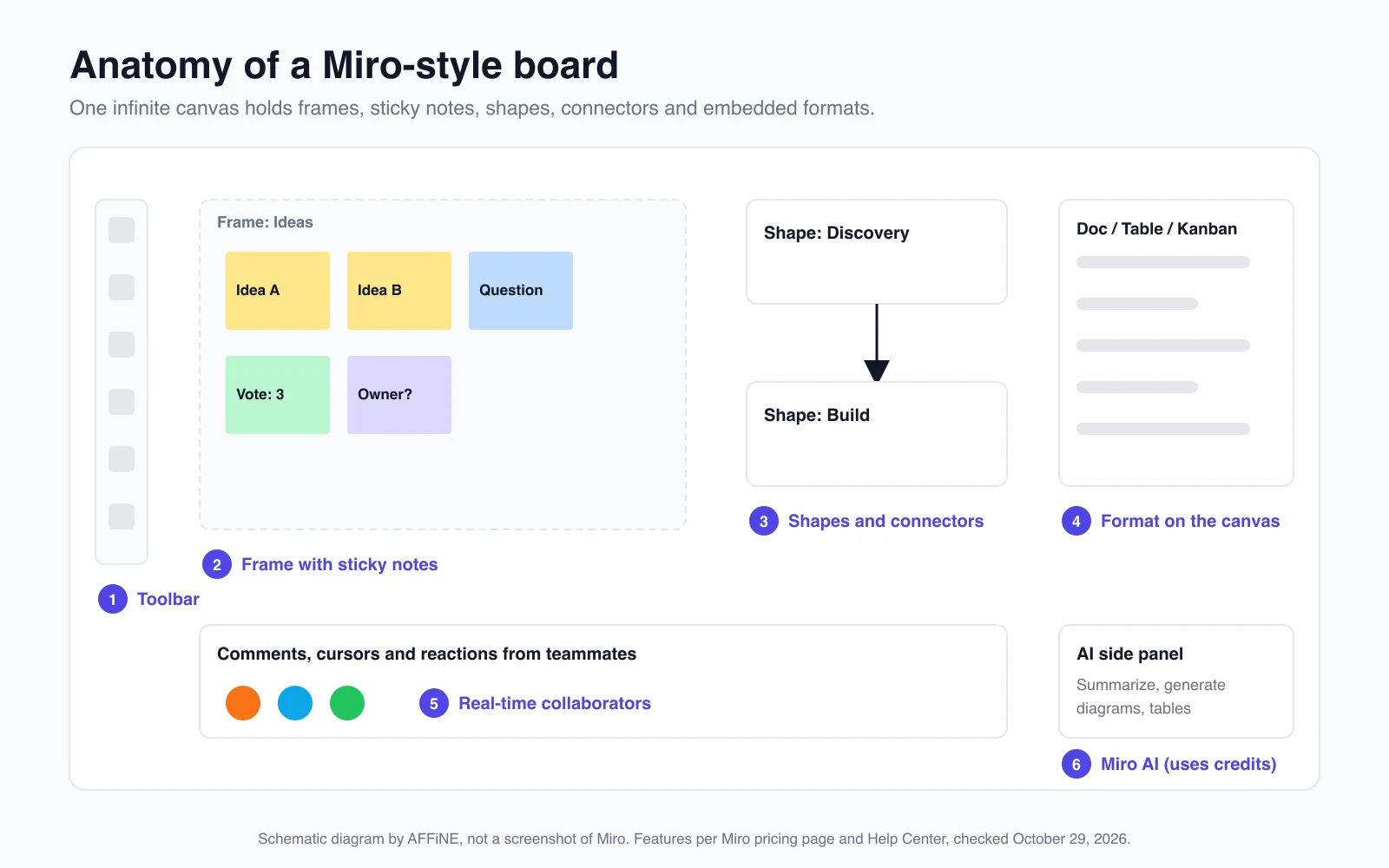
The diagram above shows the parts you will meet on almost every board:
| Part | What it does |
|---|---|
| Toolbar | Adds sticky notes (shortcut N), text, shapes, connectors, pens, frames, and more tools and integrations. |
| Frames | Group a section of the board, like a slide or an artboard. Useful for presentations and exports. |
| Sticky notes | The basic unit of brainstorming. Miro offers 16 fixed sticky note colors, with no custom colors. |
| Shapes and connectors | Build diagrams and flowcharts; connectors stay attached when you move shapes. |
| Formats | Docs, Tables, Timelines, Kanban, and Slides placed directly on the canvas. |
| Collaborators | Live cursors, comments, and reactions from everyone on the board. |
| Miro AI | Generates diagrams, tables, Docs, and summaries from board content, using monthly AI credits. |
Miro is available in the browser and as desktop, tablet, and mobile apps; the Help Center notes that the mobile app has limited functionality compared with the browser version.
Essential Features That Power Collaboration
Three features matter most for day-to-day teamwork:
- Real-time editing. Everyone with edit access sees changes as they happen.
- Sharing controls. You invite people as members or share a board link with a chosen access level. On Starter and above, visitors can edit a public board without signing in.
- Integrations. Miro lists 250+ integrations on its pricing page, including Microsoft, Slack, Google, and Adobe tools, plus MCP connections to AI coding tools such as Claude, Cursor, and Copilot.
Miro AI and the "AI workspace" positioning
Miro AI is built into the canvas. According to Miro's pricing page and Help Center (checked October 29, 2026), it can generate diagrams, tables, Docs, Slides, images, and summaries, remove image backgrounds, and run Sidekicks, which are AI agents that work with board content. Each AI action spends AI credits:
- Free: 25 credits per month for the team.
- Starter: 25 credits per member per month.
- Business: 50 credits per member per month.
- Enterprise: varies by license tier.
Credits are pooled across the team, refresh monthly, and do not roll over. Miro's pricing page estimates 25 credits at about 12 document summaries or 5 diagrams or tables. If your team plans to lean on AI, check the Miro AI credits article before choosing a plan.
How to Create and Use a Miro Board, Step by Step
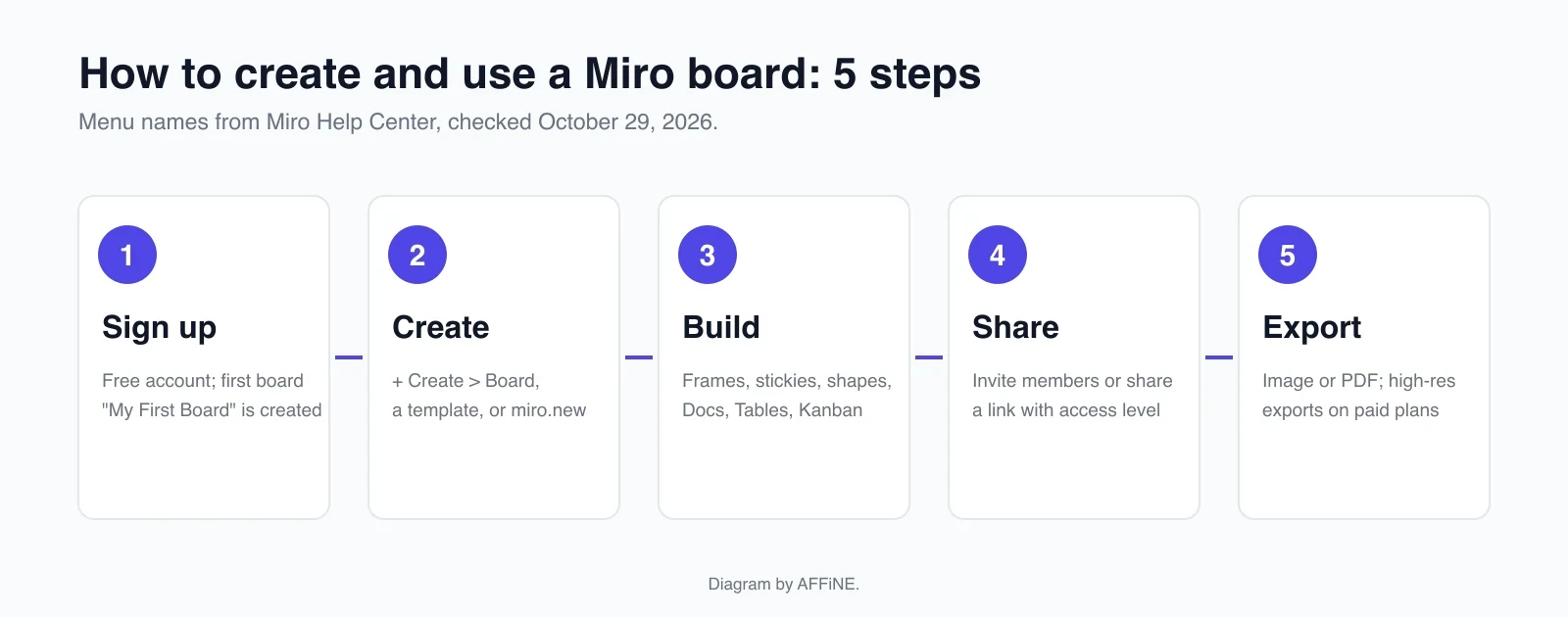
1. Creating Your Miro Account
Sign up on miro.com. When you join, Miro automatically creates your first board, titled My First Board, in your own free team or the team that invited you (Miro Help Center).
2. Creating a New Board
You have three options:
- From the dashboard: click + Create > Board. The new board opens immediately.
- From a template: click + Create, choose Explore templates, search, then click Use template.
- From the address bar: type miro.new. If you belong to several teams, use Switch team to choose where the board is saved.
If you cannot create a board, Miro lists three usual causes: you are a guest rather than a team member, you have a restricted license on an Enterprise plan, or your admin has limited content creation.
3. Building the Board
Start with frames so the board has a structure (for example, "Ideas", "Decisions", "Next steps"). Add sticky notes inside them, then connect related ideas with shapes and connectors. When a list turns into work, convert it into a Kanban or Table format on the same board so the plan stays next to its context. For a worked example, see building a Kanban board on a digital whiteboard.
4. Inviting Team Members and Collaborators
Click Share in the top-right corner of the board to invite people by email or copy a link. Choose whether they can view, comment, or edit. On the Free plan, everyone you invite by email joins your team and can see every board in it, because Free has no private boards (Miro Free plan).
5. Exporting and Sharing the Result
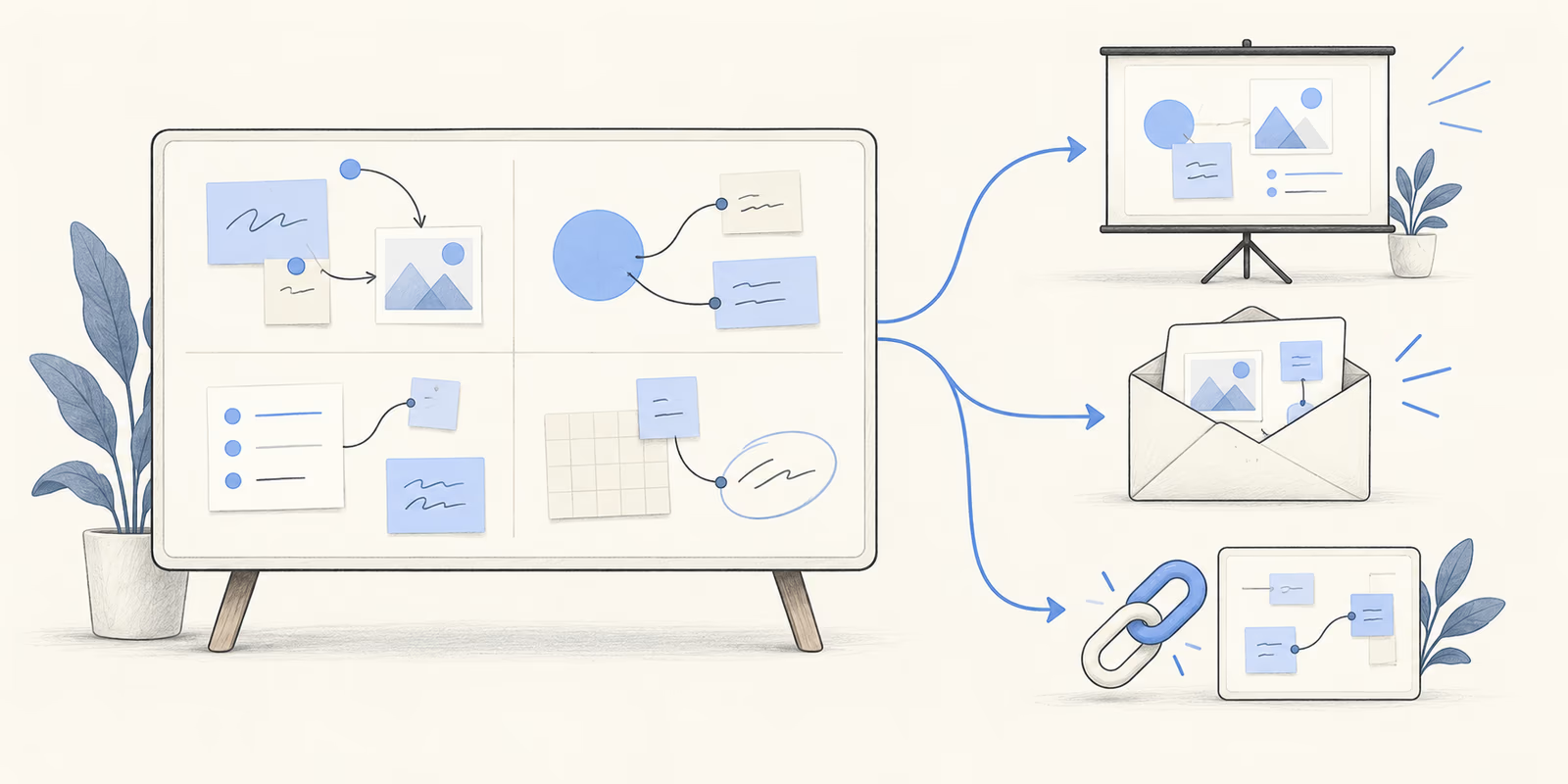
From the board menu you can save the board as an image or PDF, and export some content as CSV. Miro's export guide says Free plan exports are low resolution with a watermark; high-resolution exports without a watermark need Starter, Business, Enterprise, or Education. CSV export is available on all plans. For ways to present or hand off a finished board, see how to export and share an online whiteboard.
Miro Board Templates
Why Use Miro Board Templates?
Templates save the setup time. Miro's pricing page counts 7,000+ Miro and community-made templates, and community templates are published in Miroverse. Common starting points include retrospectives, user story maps, customer journey maps, Kanban boards, flowcharts, and brainstorming canvases. If you want tool-neutral layouts, see our brainstorming whiteboard templates and retrospective agenda template.
How to Select, Customize, and Save Templates
- Click + Create and choose Explore templates, or open the template picker from inside a board.
- Use Preview to check the layout before you add it.
- Click Use template, then rename frames and delete sections you do not need.
- On Starter and above, you can save structured setups as reusable blueprints in project spaces.
A useful habit: keep one "How we use this board" frame at the top of each template so new participants know where to start.
Is Miro Board Free? Plans and Pricing
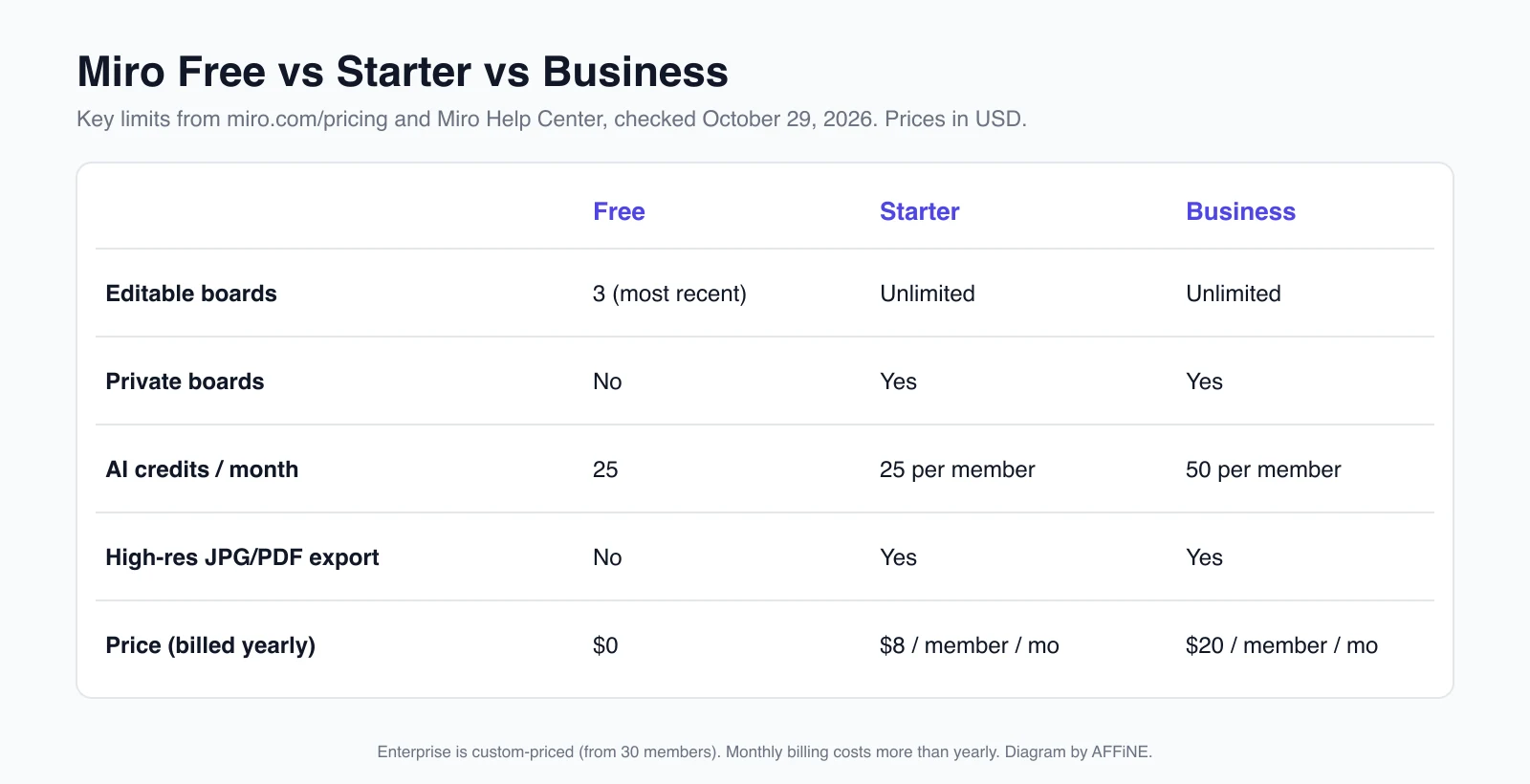
How Does the Miro Board Free Plan Stack Up?
The Free plan is enough to learn Miro and run occasional workshops. You get unlimited boards, but only the team's three most recently created boards stay editable, plus templates, Docs, Tables, Slides, Kanban, 250+ integrations, and 25 AI credits a month. The limits you will notice first are the three editable boards, low-resolution watermarked exports, and no private boards.
Comparing Miro Board Pricing Across Plans
Prices below are from miro.com/pricing, in USD, checked October 29, 2026. Paid plans are priced per member; monthly billing costs more than the yearly price shown.
| Plan | Price (billed yearly) | Who it is for | Notable additions |
|---|---|---|---|
| Free | $0 | Individuals and small teams getting started | 3 editable boards, 25 AI credits/month |
| Starter | $8 per member/month | Small teams collaborating regularly | Unlimited and private boards, visitor editing, high-res export, timer and voting, 25 AI credits/member |
| Business | $20 per member/month | Growing organizations and consultants | Everything in Starter, 50 AI credits/member, more admin and security features |
| Enterprise | Custom, from 30 members | Large organizations | SSO enforcement, audit trails, regional data hosting |
Older guides, including an earlier version of this article, list Business at $16. That price is out of date.
Choosing the Right Plan for Your Team
- Stay on Free if you run a few boards at a time. Older boards become view-only, so delete or duplicate them when you need to edit again.
- Move to Starter when you need more than three live boards, private boards, or clean exports for clients.
- Consider Business if your team relies on Miro AI or needs more governance.
- Talk to sales for Enterprise when you need SSO enforcement, audit logs, or data residency.
Miro Board Alternatives: An Honest Comparison
Miro is a strong choice for large, facilitated workshops and for teams that already run on its integrations. Some teams look elsewhere because of the three-board limit, per-member pricing, or because they want their whiteboard and documents in a tool they can self-host. For a full roundup with pricing, see our Miro alternatives that avoid the 3-board limit, or compare ten tools by task in best online whiteboard tools. A few options:
| Tool | Good fit | Trade-off to know |
|---|---|---|
| AFFiNE | Docs and an edgeless whiteboard in one workspace; open source and local-first, with a self-hosting option | Smaller template library and fewer workshop facilitation tools than Miro |
| FigJam | Teams already designing in Figma | Tied to the Figma ecosystem; see our Miro vs FigJam comparison |
| Excalidraw | Quick hand-drawn sketches, open source | Lightweight; not built for long-running team workspaces |
AFFiNE is our product, so weigh that in. Its edgeless mode lets you place sticky notes, shapes, and connectors on a canvas and switch the same content into a document page, which suits note-heavy planning. It does not replace Miro's large template marketplace or its workshop features such as voting and timers. If open source matters most, our open-source Miro alternatives guide compares self-hostable tools in more detail, and the personal-use Miro alternative guide covers solo use. If your real choice is between a whiteboard and a diagramming app, read Miro vs Lucidchart.
Key Takeaways
- A Miro board is an infinite, shared canvas for sticky notes, diagrams, Docs, Tables, and Kanban.
- Create one with + Create > Board, a template, or miro.new.
- Give each board a frame structure and a short "how to use this board" note.
- Free gives unlimited boards but only three editable ones; Starter is $8 and Business $20 per member per month, billed yearly (checked October 29, 2026).
- Miro AI runs on monthly credits, so check your plan's allowance if AI is part of your workflow.
Frequently Asked Questions about Miro Board
What is a Miro board used for?
Teams use Miro boards for brainstorming, workshops, retrospectives, diagrams such as flowcharts and customer journey maps, and planning with Kanban boards and timelines, all on one shared canvas.
Is Miro board free?
Yes, Miro has a Free plan at $0. You can create unlimited boards, but only the three most recently created stay editable. Paid plans start at $8 per member per month, billed yearly (Miro pricing page, checked October 29, 2026).
How do I create a Miro board?
From your dashboard, click + Create > Board, pick a template from Explore templates, or type miro.new in your browser's address bar.
How do I export content from a Miro board?
Open the board menu and save the board as an image or PDF, or export supported content as CSV. Free plan exports are low resolution with a watermark; paid plans export in high resolution.
Does Miro have AI features?
Yes. Miro AI can generate diagrams, tables, Docs, Slides, and summaries, and run Sidekicks. Each action uses AI credits: 25 per month on Free, 25 per member on Starter, and 50 per member on Business.
Are there open-source alternatives to Miro board?
Yes. AFFiNE and Excalidraw are open source. AFFiNE combines docs with an edgeless whiteboard and can be self-hosted. See our open-source Miro alternatives guide for a comparison.