
MLA Header Format (9th Ed.): Example & Copyable Template
Short answer: an MLA header (MLA 9th edition) has two parts. The heading is four double-spaced lines at the top left of page 1: your name, your instructor's name, the course, and the date. The running head is your last name and the page number in the top-right corner of every page, half an inch from the top. Use 12 pt Times New Roman (or another readable font), 1-inch margins, and double spacing throughout, with no title page unless your instructor asks for one.
Update note (October 29, 2026): rewritten so the format, a labeled example, and a copyable template come first. Rules were re-checked against the MLA Handbook (9th edition) and Purdue OWL, and the Google Docs and Word steps against the current Google and Microsoft help pages. (October 30, 2026: restored the Mac Pages steps, now checked against Apple's official Pages User Guide.)
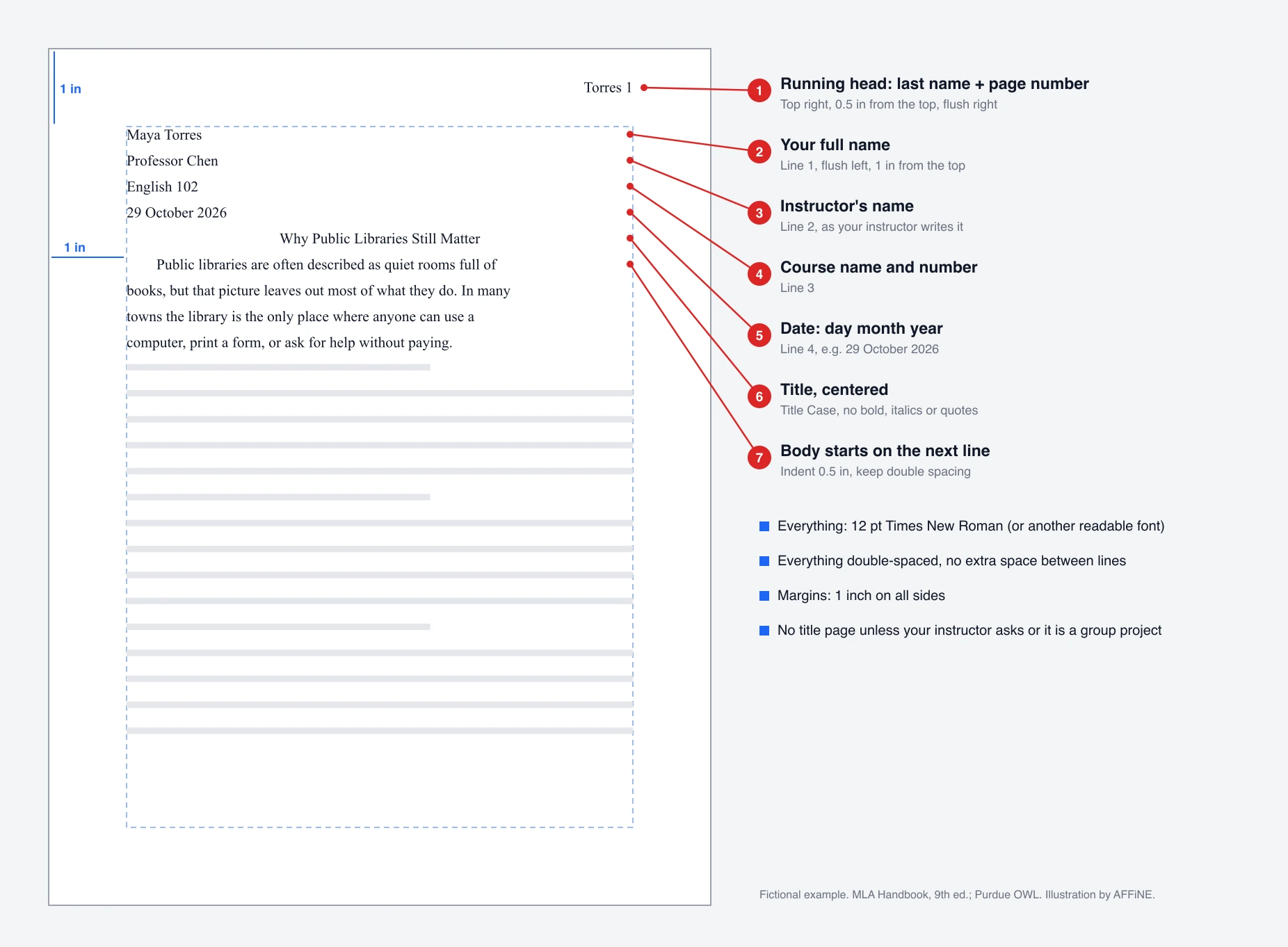
Fictional student and course, used only to show the layout.
MLA header format at a glance
| Part | What to type | Where it goes |
|---|---|---|
| Running head | Last name, a space, the page number (Torres 1) | Top right of every page, 0.5 in from the top, flush with the right margin |
| Heading line 1 | Your full name | Flush left, 1 in from the top of page 1 |
| Heading line 2 | Your instructor's name (Professor Chen, Dr. Chen) | Next double-spaced line |
| Heading line 3 | Course name and number (English 102) | Next line |
| Heading line 4 | Date, day month year (29 October 2026) | Next line |
| Title | Your paper's title in Title Case | Centered on the next line; no bold, italics, underline, or quotation marks |
| Body | First paragraph, indented 0.5 in | Directly after the title, still double-spaced |
Copy this MLA header template
Paste this into the body of your document, then replace the placeholders. Add the running head separately with your editor's header and page-number tools (steps below), so the number updates on every page.
Your Full Name
Instructor's Name
Course Name and Number
Day Month Year

                    Title of Your Paper

     First line of your essay starts here, indented half an inch...
Running head (in the page header, aligned right): LastName 1
Filled-in example:
Maya Torres
Professor Chen
English 102
29 October 2026

               Why Public Libraries Still Matter
The MLA 9th edition rules, line by line
- Margins: 1 inch on all sides.
- Font: a readable font such as Times New Roman at 12 pt. MLA asks that regular and italic type look clearly different.
- Spacing: double-space everything, including the heading and title. Do not add extra blank lines between the heading, the title, and the first paragraph.
- Heading: your name, instructor, course, and date, each on its own line, flush left, starting 1 inch from the top of the first page.
- Date: MLA's examples use day month year (29 October 2026). If your instructor prefers October 29, 2026, use that.
- Title: centered on the line after the date, in Title Case. Do not bold, italicize, underline, or put it in quotation marks. (Italicize only the name of a book or other work inside your title.)
- Running head: your surname, a space, and the page number, half an inch from the top and flush with the right margin. Do not write "p." or add a period, hyphen, or any other symbol.
- Paragraphs: indent the first line of each paragraph half an inch (use Tab).
These points follow the MLA Handbook, 9th edition, chapter 1 ("Running Head and Page Numbers" and the formatting sections) and Purdue OWL's MLA General Format page. Your instructor's instructions always win if they differ.
Heading versus Header in Academic Writing
People search for "MLA header" and "MLA heading" as if they were the same thing. In MLA they are two separate parts of page one:
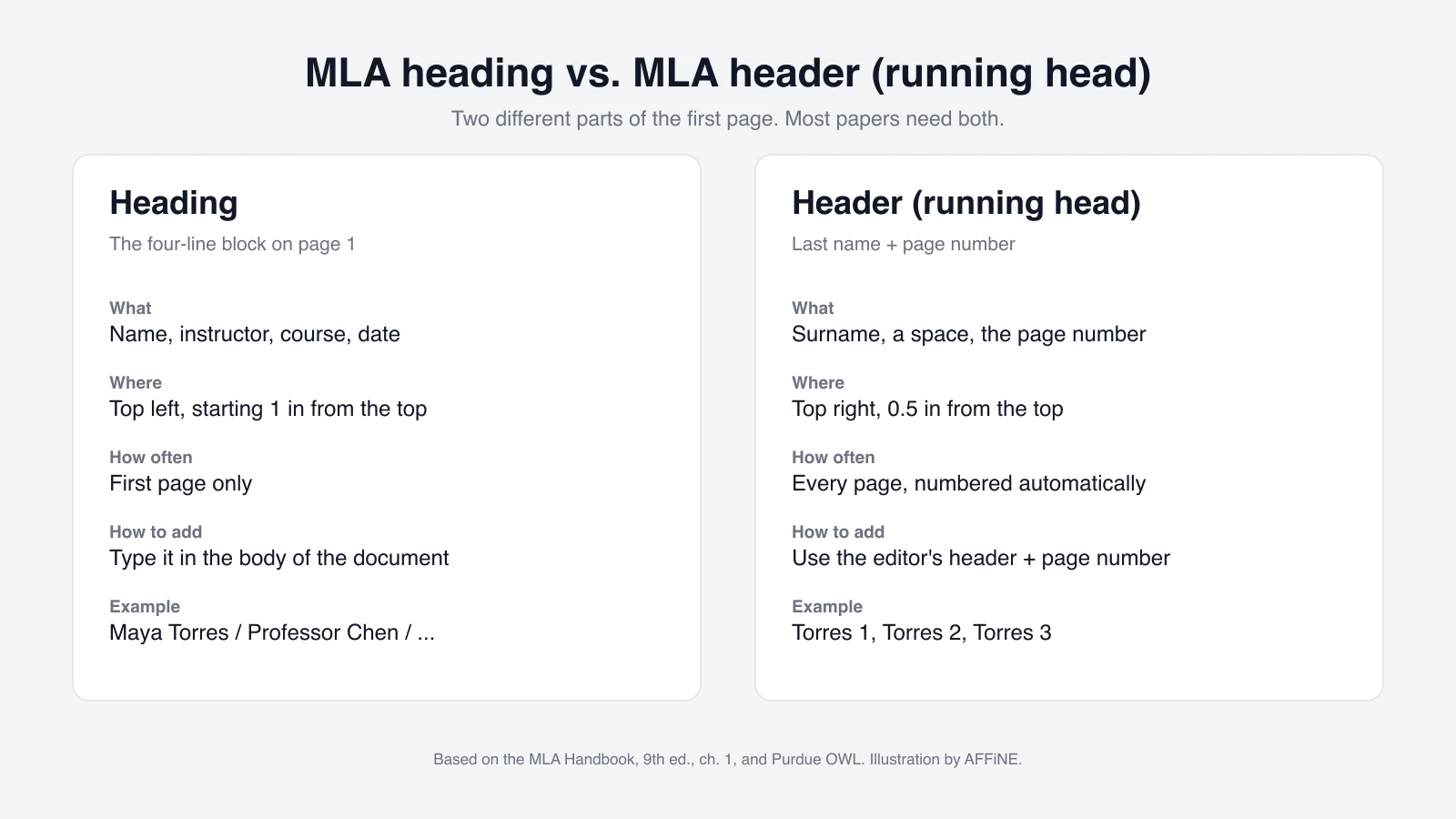
| Heading | Header (running head) | |
|---|---|---|
| Contents | Name, instructor, course, date | Last name + page number |
| Position | Top left, page 1 | Top right, every page |
| How to add it | Type it in the document body | Use the editor's header and page-number feature |
| Repeats? | No, first page only | Yes, number increases automatically |
A third thing is also called a "heading": section headings inside a long paper. Those are optional in MLA and are covered in our guide to headings for an essay.
Setting Up Your Header in Word and Google Docs
Menu names below were checked against Google Docs Help, Microsoft Support, and the Apple Pages User Guide on October 29–30, 2026. Labels can move slightly between app versions.
Creating an MLA Header in Google Docs
- Make sure the document is in pages format, not pageless (File > Page setup > Pages). Headers and page numbers do not show in pageless documents.
- Set margins to 1 inch: File > Page setup, then enter 1 for top, bottom, left, and right.
- Set the font to Times New Roman, 12 pt, and spacing to double: Format > Line & paragraph spacing > Double.
- Add the page number: Insert > Page elements > Page number, and choose the top-right option.
- Click just before the page number in the header and type your last name and a space.
- If the header sits too low or high, open Format > Headers & footers > More options and set the header margin to 0.5 in.
- Click back into the body and type the four heading lines, then the centered title.
Formatting an MLA Header in Microsoft Word
- Set margins: Layout > Margins > Normal (1 inch on all sides) or Custom Margins.
- Choose Times New Roman, 12 pt, and set line spacing to 2.0 on the Home tab. In Paragraph settings, set spacing before and after to 0 pt so Word does not add extra gaps.
- Add the page number: Insert > Page Number > Top of Page, and pick a right-aligned style.
- With the header open, click before the number and type your last name and a space. Match the header font to the body (Times New Roman, 12 pt).
- Close the header (Close Header and Footer or Esc), then type the heading and title in the body.
If your instructor wants no page number on page 1, select Different First Page in Word's Header & Footer tab, or check Different first page in Google Docs after clicking in the header.
Adding an MLA Header in Mac Pages
- Set margins to 1 inch: click the Document button in the toolbar, open the Document tab, and enter 1 in for top, bottom, left, and right under Document Margins.
- Turn on the header if it is off: in the same Document tab, make sure the Header and Footer checkboxes are selected. Set the Header distance to 0.5 in.
- Move the pointer over the top of page 1 until the three header fields appear, then click the right field.
- Type your last name and a space, then click the Insert Page Number pop-up menu and choose the plain 1, 2, 3 numbering style.
- Select the header text and match the body font (Times New Roman, 12 pt), then click back into the body and type the four heading lines and the centered title.
If your instructor wants no running head on page 1, open the Section tab of the Document sidebar and select Hide on first page of section. These steps follow Apple's Pages User Guide for Mac; iPad and iPhone use the same controls behind the document-setup button.
Variations your assignment might ask for
- Group project: list every author's name on its own line, then the instructor, course, and date. MLA says that if all surnames do not fit in the running head, use only the page number. Purdue OWL notes that a group project is one case where a title page may be used.
- No instructor name: if the paper is not for a class (for example, a submission to a journal or contest), leave out the lines that do not apply. Do not invent a placeholder.
- Title page requested: MLA does not require one. If your instructor asks, follow their format; then the four-line heading usually does not repeat on page 1. See our walkthrough of the MLA essay first page and title-page rules.
- No page number on page 1: some instructors ask you to omit it. Use the "different first page" option described above.
- One-page paper: MLA says a page number may not be needed.
Troubleshooting Common Header Mistakes
Common Mistakes to Avoid
- Putting the four-line heading inside the page header. Then it repeats on every page. Only the last name and page number go in the header.
- Typing page numbers by hand. Use the automatic page number so it stays right when you edit.
- Adding "p.", "pg.", a dash, or a slash (Torres - 1, Torres/1). MLA wants just the name, a space, and the number.
- Mixing spacing. Word and Docs often add 8 pt or 10 pt after paragraphs; set it to 0 so the heading is evenly double-spaced.
- A header in a different font or size from the body text.
- Bold, underlined, or all-caps titles, or a title in quotation marks.
- Making a title page nobody asked for.
Final check before you submit
Export or print to PDF and look at page 1 and page 2: the running head should read "Torres 1", then "Torres 2"; the heading should appear only on page 1; and the spacing between every line should look the same.
Draft first, format last
The header is a two-minute formatting job, so leave it until the draft is done. If you outline and draft in AFFiNE, keep your notes, sources, and draft in one doc, then move the final text into Word or Google Docs to apply the running head and page numbers there, since those page features belong to the word processor. Our MLA heading template has the four lines ready to copy. For your Works Cited page, see these MLA, APA, and Chicago bibliography examples.
Frequently Asked Questions
1. How to do a header in MLA format?
Put your last name and the page number in the top-right corner of every page, half an inch from the top, using your editor's header and page-number tools. On page 1, type the four-line heading (name, instructor, course, date) at the top left, double-spaced, then center your title.
2. What are the 4 parts of an MLA heading?
Your full name, your instructor's name, the course name and number, and the date (day month year), each on its own double-spaced line at the top left of the first page.
3. How to create an MLA header in Google Docs?
In pages format, choose Insert > Page elements > Page number, pick the top-right option, then type your last name and a space before the number. Set the font to 12 pt Times New Roman, spacing to double, and margins to 1 inch.
4. Does MLA have a running header?
Yes. MLA calls it a running head: your surname and the page number, flush right, half an inch from the top of every page. If several authors' names will not fit, use only the page number.
5. Is the MLA header single or double spaced?
Double spaced. The heading, title, and body are all double-spaced with no extra space between them.
Sources
- MLA Handbook, 9th edition, "Running Head and Page Numbers" (MLA Handbook Plus): https://mlahandbookplus.org/books/book/5/chapter/56261/Running-Head-and-Page-Numbers
- Purdue OWL, "MLA General Format": https://owl.purdue.edu/owl/research_and_citation/mla_style/mla_formatting_and_style_guide/mla_general_format.html
- Google Docs Help, "Use headers, footers, page numbers & footnotes": https://support.google.com/docs/answer/86629
- Google Docs Help, "Change a document's page setup: pages or pageless": https://support.google.com/docs/answer/11528737
- Microsoft Support, "Insert page numbers": https://support.microsoft.com/en-us/office/insert-page-numbers-9f366518-0500-4b45-903d-987d3827c007
- Microsoft Support, "Change margins": https://support.microsoft.com/en-us/word/training/change-margins
- Apple Pages User Guide for Mac, "Add page numbers in Pages on Mac": https://support.apple.com/guide/pages/add-page-numbers-tan5387422b5/mac
- Apple Pages User Guide for Mac, "Add and remove headers and footers in Pages on Mac": https://support.apple.com/guide/pages/headers-and-footers-tan7248753e/mac


