How to Import Notion to AFFiNE: A Step-by-Step Guide
What changed (Nov 17, 2026): Rewrote the guide around the HTML export and AFFiNE's 'Notion' importer: a pre-import checklist, five illustrated steps, a Markdown & CSV route, post-import verification, six troubleshooting cases, what transfers, and an FAQ. Kept both YouTube video tutorials and added a new cover.
Moving an existing Notion workspace to AFFiNE starts with exporting the correct files, choosing the matching importer, and verifying the result. This guide covers the process for a single page or a full workspace, including the checks to complete before using AFFiNE as your working copy.
The recommended migration path is straightforward: export the relevant Notion page or workspace as HTML, enable 'Include subpages', keep the downloaded ZIP file, and import that ZIP through AFFiNE's 'Notion' importer. The sections below cover the exact process, post-import checks, and common issues.
Key Takeaways
- Use Notion's HTML export with 'Include subpages' enabled when moving a page hierarchy or workspace into AFFiNE.
- Keep the original Notion workspace and an untouched copy of the export ZIP until you have checked pages, databases, files, links, and critical formatting.
- For a large or complex workspace, test a representative section first, then migrate active projects, current notes, and living databases in manageable stages.
- AFFiNE can import Notion pages and workspaces and convert Notion databases into AFFiNE databases.
Before You Import
- Decide what you are moving. Choose a single page or teamspace for a test, or prepare a full workspace export if the content is already well organized.
- Confirm access. Notion only exports content the exporting account can access, so private pages owned by other users will not be included.
- Check export permissions. If the 'Export' option is unavailable, a workspace or teamspace owner may have disabled exporting, or a guest may need 'Full access' to the page.
- Update AFFiNE. Use the latest available AFFiNE version before retrying an import that failed on an older build.
- Choose representative test content. Include a nested page, a database, an attachment, an internal link, and any specialized block that matters to your workflow.
Steps to Import Notion to AFFiNE from an HTML Export
Step 1: Choose a Page or a Full Workspace
For a single page or database, open the page in Notion, select the three-dot menu in the upper-right corner, and choose 'Export'. To export an entire workspace, use Notion on desktop or the web, then go to 'Settings' > 'Workspace' > 'General' > 'Export all workspace content'.
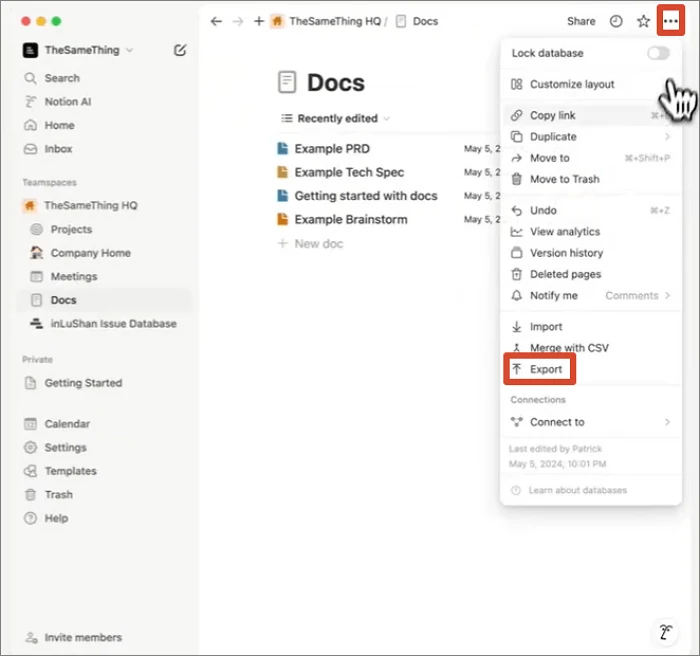
Note: A full workspace export includes only content the current account is allowed to access. If important private pages belong to another user, arrange the necessary access before creating the export. See Notion's export documentation for plan-specific options.
Step 2: Export from Notion as HTML
To export HTML from Notion, you need to select 'HTML' as the export format in the export window. Turn on 'Include subpages' so nested pages are packaged with the parent page or workspace. Then select 'Export'.
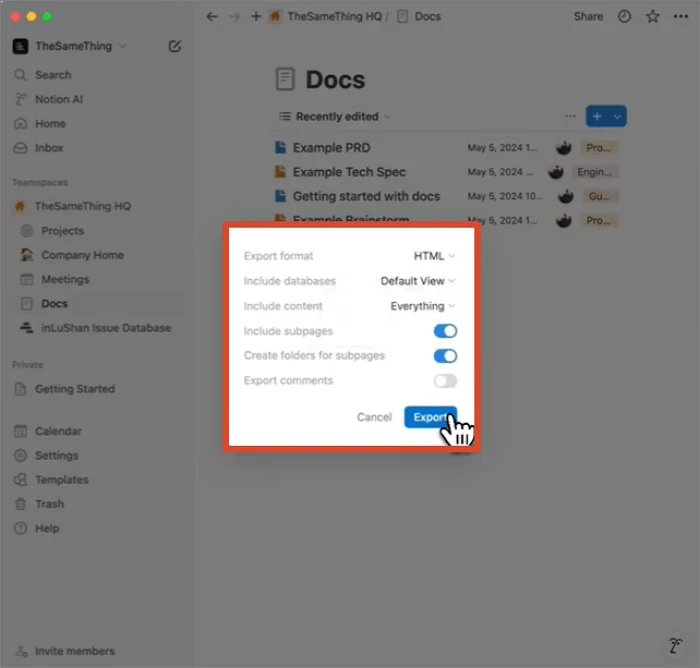
HTML is the recommended format for this migration path. AFFiNE officially supports importing Notion pages, workspaces, and databases. For databases, Notion's export reflects the current or default view rather than every possible view configuration.
Step 3: Download and Preserve the ZIP File
Notion may prepare a large workspace export in the background. Check both your email and the Notion inbox for the download link. A full workspace export can take up to 30 hours, and the download link expires after seven days.
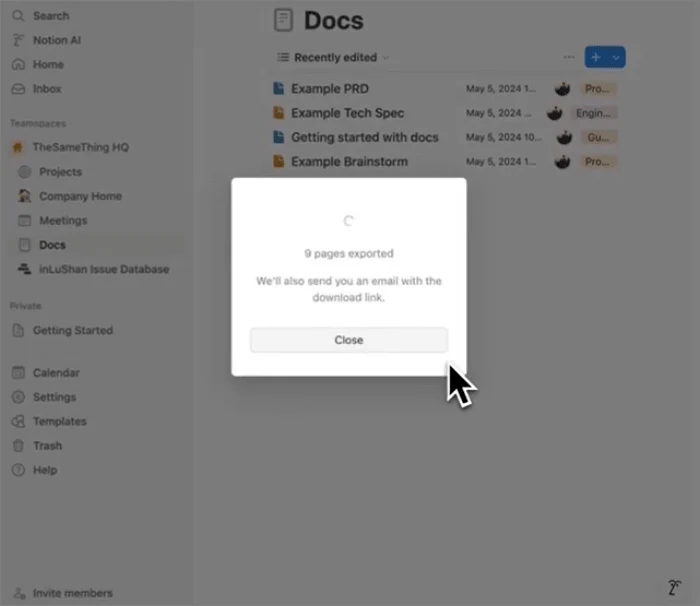
Download the ZIP and keep an untouched copy. You will select this ZIP in AFFiNE, so there is no need to reorganize its folders before importing.
Step 4: Import the ZIP into AFFiNE
Open AFFiNE and go to 'Others' > 'Import' > select 'Notion' as the import source. Then, wait for the import to finish before reviewing the new pages.
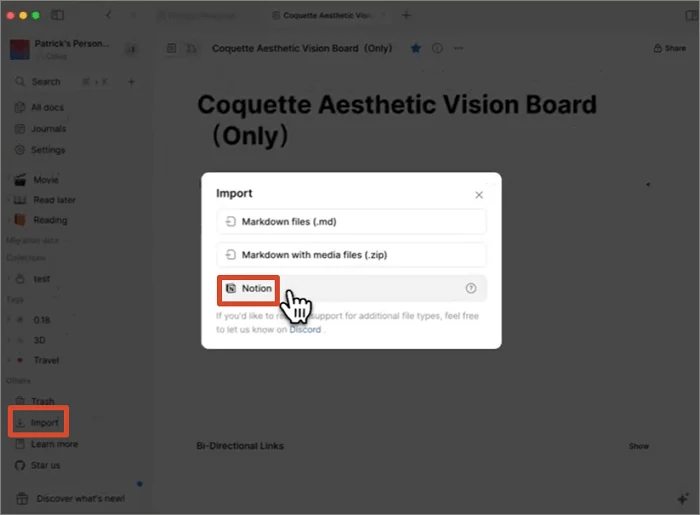
For a visual walkthrough, watch the AFFiNE Notion import video tutorial:
Step 5: Verify the Imported Content
- Open several top-level pages and nested subpages.
- Compare the number of important pages with the source workspace.
- Check database records, key properties, and the view you exported.
- Open important images, PDFs, and other attachments.
- Test internal links used for navigation between critical pages.
- Review specialized blocks, embeds, and formatting on representative pages.
Review the imported workspace before using it as your working copy. Note any missing or changed content that requires manual correction.
Steps to Import Notion to AFFiNE from a Markdown Export
Use the Markdown route for a standalone Markdown file or a Markdown package rather than a Notion HTML export. CSV files created from full-page databases must be reviewed separately because the Markdown importer does not recreate the original database structure.
Step 1: Export Markdown & CSV from Notion
In Notion, open 'Export', choose 'Markdown & CSV', enable 'Include subpages' when needed, and download the export.
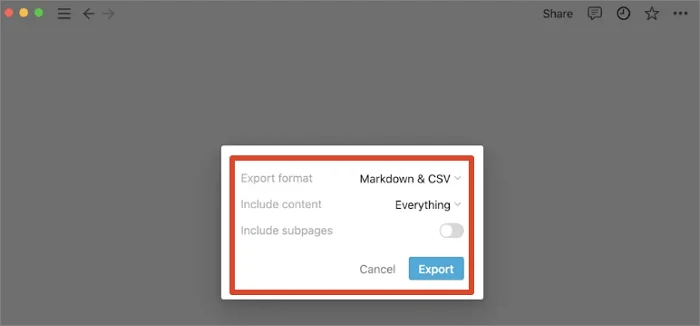
Step 2: Import Markdown into AFFiNE
Open AFFiNE and go to 'Others' > 'Import'. For a single .md file, choose the 'Markdown' import option and select the file. For a ZIP that contains Markdown files and local media, choose 'Markdown with media files (.zip)', then select the ZIP.
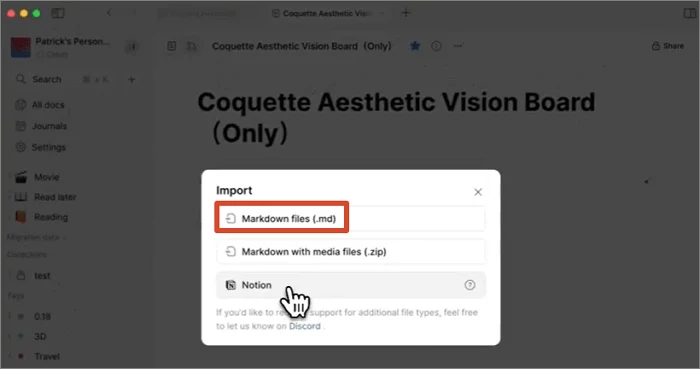
After the import finishes, open representative pages and check headings, lists, links, and images. Review any CSV files from database exports separately; this Markdown step does not recreate the original Notion database structure.
Prefer video? Watch the AFFiNE Markdown import video tutorial:
For a nested Notion workspace that includes subpages or databases, HTML with 'Include subpages' and AFFiNE's 'Notion' importer remains the primary route.
Notion's 'Markdown & CSV' export is file-based: regular pages become Markdown files, while full-page databases become CSV files. Use the Markdown importer for the pages and review the CSV data separately.
Troubleshooting Notion-to-AFFiNE Imports
The 'Export' Option Is Missing in Notion
First, check whether you have sufficient access to the page. If you are a guest, you need 'Full access' to export the page or database. In an Enterprise workspace or teamspace, an owner may have enabled 'Disable export'. Ask the appropriate owner to review that setting.
The Workspace Export Has Not Arrived
A full workspace export is not always immediate. Check the Notion inbox and the email address connected to the workspace. A large export can take up to 30 hours. If the seven-day download link has expired, create a new export.
The Notion ZIP Will Not Open on Windows
Windows Explorer may fail to open a Notion export when nested folders create file paths longer than the Windows limit. Create a new export with 'Create folders for subpages' turned off, or use 7-Zip to inspect the archive. Upload the original ZIP to AFFiNE rather than re-zipping extracted files.
The Import Finishes, but No Pages Appear
Confirm that you exported HTML, enabled 'Include subpages', selected the 'Notion' importer in AFFiNE, and uploaded the original ZIP. Then use the latest available AFFiNE version and retry with a small representative export.
AFFiNE Shows an Import Error
Retry only after confirming the export format and updating AFFiNE. If the same error remains, keep the source ZIP and record the AFFiNE version, installation type, operating system or browser, export settings, and the smallest sample that reproduces the problem. Share those details with the AFFiNE Community or AFFiNE GitHub issue tracker so the team can investigate the actual input. Do not upload confidential workspace data to a public report; use a sanitized sample when possible.
Pages, Databases, or Files Look Incomplete
Compare the result with the original ZIP and your migration checklist. If content is absent from the Notion export itself, correct the access or export scope and create a new export. If the content is present in the ZIP but absent after import, keep both the ZIP and the Notion source, then report the reproducible example with your AFFiNE version and environment.
What Transfers, and What Should You Check?
Notion pages and workspaces can be imported, and Notion databases can be converted into AFFiNE databases. Because not every feature transfers one-to-one, compare the imported hierarchy, records, properties, attachments, links, and specialized blocks with the source. Views, relationships, formulas, permissions, comments, and detailed styling may require additional review.
Why Move from Notion to AFFiNE?
A migration often begins with a practical concern rather than a feature checklist. You may want your notes and source material available locally, more control over deployment, to reduce dependence on Notion, or to bring documents, databases, and visual planning into one workspace.
AFFiNE is local-first and open source, with optional cloud sync and a self-hosting path. After importing, you can edit documents, organize structured information in databases, and expand ideas on Edgeless whiteboards. This keeps migrated notes connected to ongoing research, planning, and project work instead of leaving them as a static archive.
Migration is also a useful cleanup point. Move active projects, current notes, and maintained databases first, then decide which archival material is still worth rebuilding. If you are still comparing tools, see our Notion alternatives comparison, the self-hosted Notion alternative guide, and how Notion offline mode compares with local-first apps.
Frequently Asked Questions
Can AFFiNE import a full Notion workspace?
Yes. AFFiNE can import individual Notion pages and full workspaces. In Notion, create the full workspace export from 'Settings' > 'Workspace' > 'General', select 'HTML', and enable 'Include subpages' before importing the ZIP.
Should I use HTML or Markdown to move from Notion to AFFiNE?
Use HTML with 'Include subpages' for a Notion page hierarchy or workspace. In AFFiNE, both workflows begin at 'Others' > 'Import', but they then diverge: HTML exports use the 'Notion' importer, while Markdown files use the 'Markdown' option or 'Markdown with media files (.zip)'.
Can AFFiNE import Notion databases?
Yes. AFFiNE can import Notion databases and convert them into AFFiNE databases. After importing, verify important records, properties, and the exported view.
Why can't I see the 'Export' option in Notion?
If you are a guest, the page may not grant you 'Full access'. In an Enterprise workspace or teamspace, an owner may also have disabled exporting. Ask the relevant owner to review the access level and export policy.
Can I use AFFiNE in a local-first or self-hosted workflow?
Yes. AFFiNE is designed as a local-first workspace and provides a self-hosting option. Use the self-hosting guide to choose the right deployment model for a team or sensitive data.
Continue Your Work in AFFiNE
Once the imported content has been verified, begin with the material you use most. Update active project pages, reconnect important navigation, and move visual planning into Edgeless whiteboards where it improves the workflow. You can start on the web or download the AFFiNE desktop app for a local-first workspace.
Related Articles
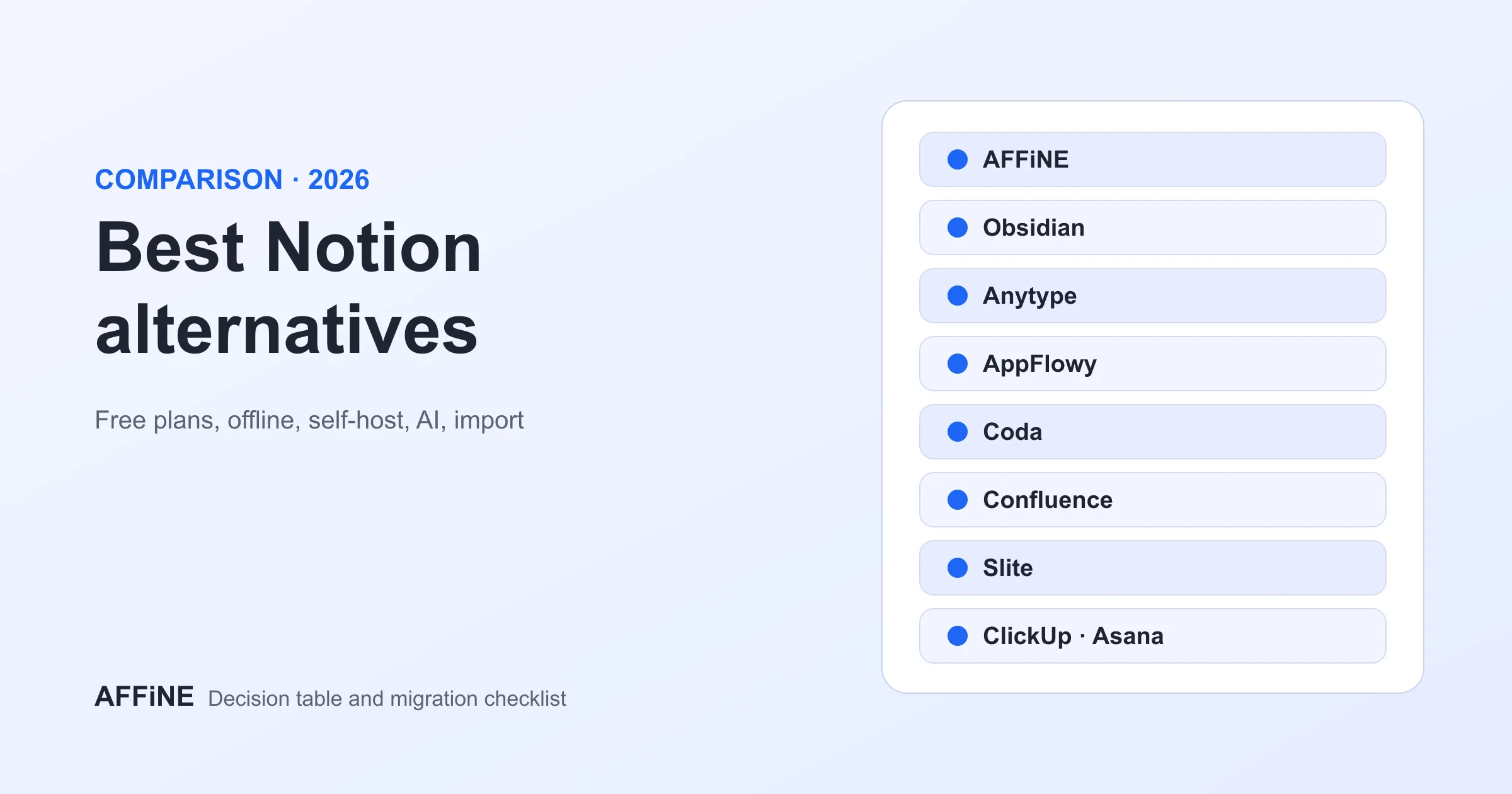
Best Notion Alternative in 2026: 9 Tools Compared
Self-Hosted Notion Alternative: 10 Tools and Real Costs

Notion Offline Mode (2026): Setup, Limits & Better Alternatives

AFFiNE vs. AppFlowy vs. Anytype: The Ultimate Open-Source Comparison (2026 Edition)